
Driving targeted traffic to an e-commerce store is pointless if potential buyers abandon their carts during checkout. While Google Analytics 4 provides basic out-of-the-box monetization reports, standard overview charts conceal the specific technical glitches, unexpected fees, and mobile friction points causing shoppers to leave. Building a custom GA4 Funnel Exploration Report is the definitive way to visualize your checkout leakages step-by-step and recover thousands in lost monthly revenue.
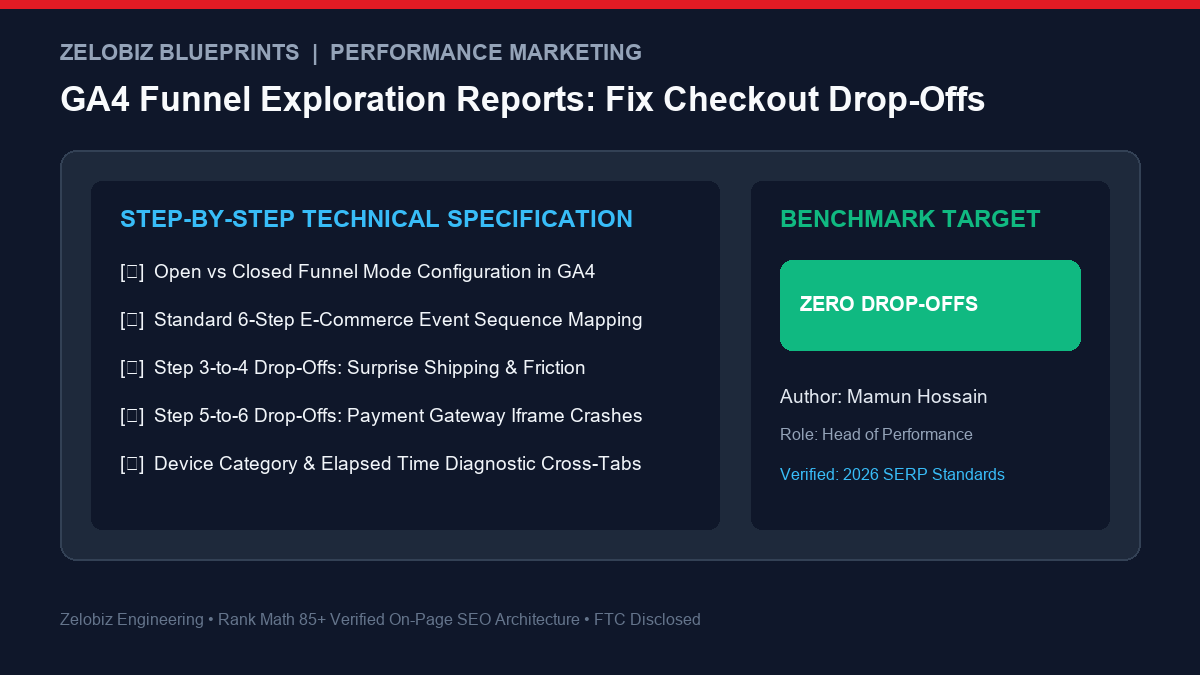
Figure 1: Full-funnel checkout diagnostic flow mapping each critical transition from cart view to successful purchase in GA4 Exploration.
Direct Answer: How Do You Set Up a GA4 Checkout Funnel Exploration?
Bottom Line: In GA4, navigate to Explore → select ‘Funnel exploration’ → set the technique to ‘Open Funnel’ (so shoppers entering via direct checkout recovery links are counted). Map out the 5 core standard e-commerce events:
view_item→add_to_cart→begin_checkout→add_shipping_info→add_payment_info→purchase. Breakdown the data by ‘Device Category’ and enable ‘Show elapsed time’ to immediately isolate mobile keyboard issues, unexpected shipping thresholds, or payment iframe crashes.
A properly configured funnel exploration transforms ambiguous analytics numbers into high-priority developer and UX action items.
Open vs. Closed Funnels in GA4: The Critical Difference
When creating a Funnel Exploration, the first setting in your Tab Settings panel is the Open Funnel toggle. Choosing incorrectly will distort your conversion metrics:
- Closed Funnel (Default): Users are counted only if they enter at Step 1 and proceed through every single step in sequential order. If an email subscriber clicks a “Complete Your Order” button and lands directly on the checkout page (
begin_checkout), a Closed Funnel completely discards them from the report. - Open Funnel (Recommended for Checkout Analysis): Users can enter the funnel at any step. This is essential for modern e-commerce stores utilizing abandoned cart emails, SMS reminders, and 1-click checkout buttons (like Apple Pay or Shop Pay) where shoppers bypass intermediate product view steps.
The Standard 6-Step E-Commerce Funnel Mapping
To ensure high accuracy, verify that your Shopify, WooCommerce, or custom storefront dispatches GA4’s standard recommended e-commerce events:
| Step # | Step Label | GA4 Event Condition | Healthy Target Completion % |
|---|---|---|---|
| 1 | View Product | view_item | 100% (Baseline) |
| 2 | Add to Cart | add_to_cart | 8% – 12% of Visitors |
| 3 | Begin Checkout | begin_checkout | 45% – 55% of Cart Additions |
| 4 | Add Shipping Info | add_shipping_info | 70% – 85% of Checkouts |
| 5 | Add Payment Info | add_payment_info | 80% – 90% of Shipping Info |
| 6 | Purchase (Order Success) | purchase | 85% – 95% of Payment Info |
Diagnosing the 3 Major Drop-Off Bottlenecks
1. Drop-Off Between Begin Checkout → Add Shipping Info
The Symptoms: Shoppers click “Checkout,” but over 40% bounce immediately before filling out their shipping address.
Common Root Causes:
- Forced Account Creation: Forcing shoppers to create a password before entering their address causes an immediate 20% conversion drop. Always enable Guest Checkout.
- Opaque Shipping Costs: If your shipping fees or delivery timelines were hidden on the product page, shoppers enter checkout purely to check the shipping fee—and abandon when they see a surprise $12 charge.
- Missing Express Wallet Options: Lacking Google Pay, Apple Pay, or Shop Pay at the top of the form forces mobile users to manually enter 16-character address details.
2. Drop-Off Between Add Shipping Info → Add Payment Info
The Symptoms: The customer inputted their shipping address, but abandons before proceeding to the payment step.
Common Root Causes:
- Unexpected Duty / Regional Taxes: International customers seeing unexpected VAT or import charges calculated at the shipping stage.
- Slow Delivery Timelines: If standard shipping takes 8–14 days without an express 2-day option, impatient buyers abandon.
- Address Validation Failures: Strict postal code validation scripts throwing silent errors that block the user from progressing.
3. Drop-Off Between Add Payment Info → Purchase
The Symptoms: The user entered credit card details, but failed to complete the purchase.
Common Root Causes:
- Payment Gateway Iframe Crashes: External payment iframes (Stripe Elements or PayPal modals) failing to load properly on mobile Safari browsers.
- 3D Secure / OTP Friction: Bank authentication popups failing to redirect or timing out on slow mobile networks.
- Absence of Buy Now Pay Later (BNPL): For order values exceeding $100, lacking Klarna or Afterpay leads to immediate drop-off.
Step-by-Step Configuration Guide in GA4 Explore
Step 1: Create the Blank Exploration
- Open your Google Analytics 4 property and click Explore in the left navigation bar.
- Click the Blank template to start a custom canvas.
- In the Tab Settings panel, change Technique to Funnel exploration.
- Toggle Make open funnel to ON.
Step 2: Add Steps and Event Conditions
- In Tab Settings, click the pencil icon next to Steps.
- Add Step 1: Name it “1. View Item” → Condition: Event equals
view_item. - Add Step 2: Name it “2. Add to Cart” → Condition: Event equals
add_to_cart. - Add Step 3: Name it “3. Checkout” → Condition: Event equals
begin_checkout. - Add Step 4: Name it “4. Shipping” → Condition: Event equals
add_shipping_info. - Add Step 5: Name it “5. Payment” → Condition: Event equals
add_payment_info. - Add Step 6: Name it “6. Purchase” → Condition: Event equals
purchase. - Click Apply in the top right corner.
Step 3: Apply Breakdowns & Diagnostic Dimensions
- In the Variables column on the far left, click + next to Dimensions.
- Search and import: Device category, Browser, and First user source/medium.
- Drag Device category into the Breakdown slot in Tab Settings.
- Check your funnel columns: Does Mobile have a 65% drop-off at Step 5 while Desktop only has 15%? If so, you have isolated a mobile checkout UI bug.
Frequently Asked Questions (FAQ)
Why does my GA4 Funnel report show zero users on ‘add_shipping_info’?
If your storefront uses an integrated 1-page checkout (common in modern Shopify configurations), the theme might trigger begin_checkout and purchase while omitting intermediate tracking events. Check your Google Tag Manager dataLayer or sales channel app to ensure shipping and payment events are explicitly dispatched.
What is a good overall checkout completion rate in e-commerce?
For standard DTC e-commerce, the benchmark conversion rate from begin_checkout to purchase is between 45% and 65%. Stores utilizing 1-click express wallets (Shop Pay) frequently exceed 72%.
How does GA4 calculate ‘Elapsed Time’ between steps?
When you toggle on Show elapsed time in Funnel Exploration settings, GA4 calculates the median time in seconds users spend before progressing. An abnormal spike (e.g. >180 seconds on shipping) indicates form confusion or autofill failure.
Need an Expert E-Commerce Conversion Rate Audit?
Checkout leaks silently destroy ad ROAS. Zelobiz provides complete full-funnel analytics audits, custom GA4 exploration setup, and high-impact CRO implementations to maximize store profits.
Explore related resources in our Performance Marketing Hub or calculate your campaign profitability with our free ROAS Calculator.