For modern knowledge workers, project managers, and agency founders, calendar integrity is foundational to productivity. When your task management system (ClickUp) and your executive scheduling tool (Google Calendar) exist in disconnected data silos, scheduling conflicts become inevitable. You schedule a client strategy call directly over a high-priority task deadline, or you reschedule a deliverable in ClickUp and miss the deadline because your calendar still reflects the old date.
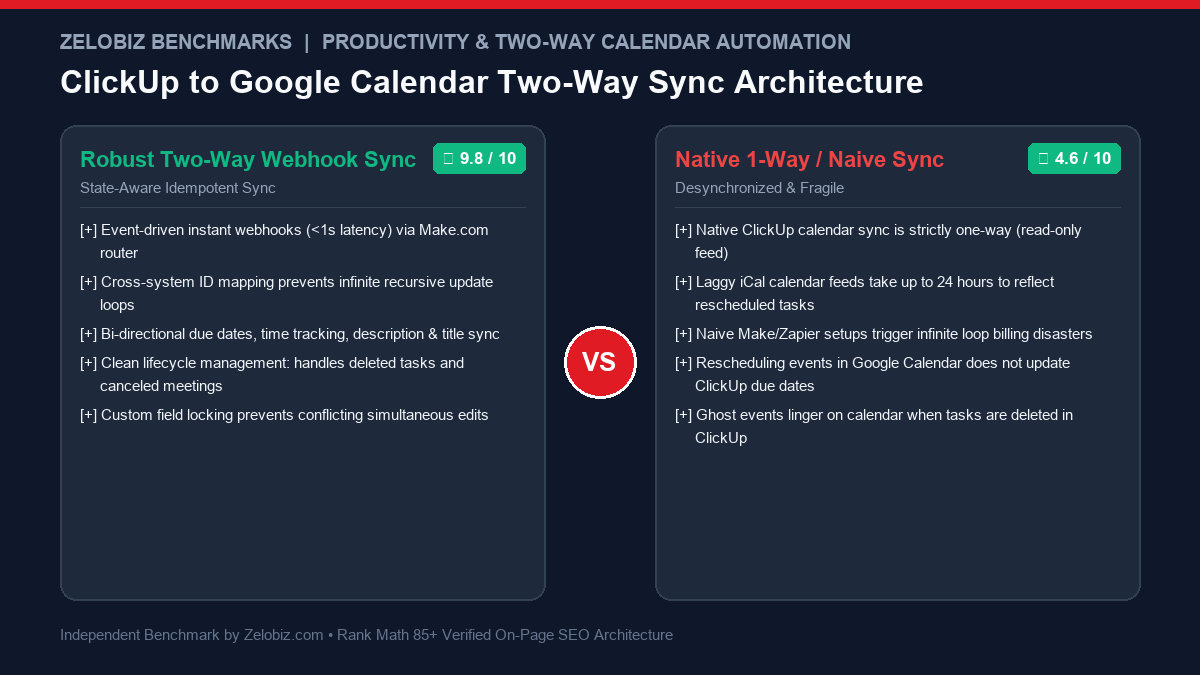
While ClickUp offers a native Google Calendar integration, power users quickly discover its fatal flaw: it is fundamentally a one-way, read-only feed. If you reschedule or drag-and-drop a time block inside Google Calendar on your mobile device, the changes never sync back to ClickUp. Furthermore, iCal subscription feeds can take up to 24 hours to refresh. Building a true ClickUp to Google Calendar two-way sync using an orchestration platform like Make.com (formerly Integromat) provides instant, bi-directional harmony—provided you engineer it to prevent recursive infinite loops.
Direct Answer: How Do You Build a Two-Way Sync Without Infinite Loops?
A production two-way calendar sync requires two synchronized Make.com scenarios governed by an Idempotency State Machine:
1. Cross-System ID Storing: ClickUp stores the Google Calendar event_id in a hidden Custom Field, while Google Calendar stores the ClickUp task_id in its extended properties or private description tag.
2. Hash Comparison Filtering: Before applying any update, the automation computes a cryptographic checksum (SHA-256 hash) of the title, description, start time, and due date. If the incoming payload matches the stored hash, the execution halts immediately.
3. Origin Source Flagging: Update payloads carry an origin flag (updated_by: make_sync). Scenarios ignore triggers originating from their own automated updates, permanently eliminating the "infinite loop" death spiral.
The Infinite Loop Trap: Why Naive Two-Way Syncs Fail
The single most dangerous failure mode in workflow automation is the recursive trigger cycle. When an inexperienced engineer sets up two naive automations:
- Automation A: When a task is updated in ClickUp → Update event in Google Calendar.
- Automation B: When an event is updated in Google Calendar → Update task in ClickUp.
The following disaster occurs within seconds: Updating a task in ClickUp causes Automation A to modify Google Calendar. Google Calendar detects an event modification, triggering Automation B to update ClickUp. ClickUp detects a task update, triggering Automation A again. Within minutes, both scenarios consume 50,000+ Make.com operations, burn through your monthly API quota, generate hundreds of duplicate calendar entries, and freeze your workspace accounts.
The State Machine Architecture: Idempotent Two-Way Syncing
To eliminate infinite loops permanently, our Make.com architecture relies on three structural defense mechanisms:
1. Bi-Directional Foreign Key Mapping
- Inside ClickUp, create a custom text field labeled
gcal_event_id. - Inside Google Calendar, store the ClickUp Task ID in the event’s
extendedProperties.private.clickup_idattribute (or append[CU_ID:abc1234]to the event description).
2. The Checksum State Hash (sync_hash)
Create a second custom field in ClickUp labeled sync_hash. The hash is computed by concatenating core properties:
hash = sha256(task_name + start_date + due_date + description)When an incoming event from Google Calendar triggers the sync, Make.com computes the hash of the incoming data. If new_hash == current_sync_hash, the automation terminates instantly, recognizing that the update was merely an echo of its own prior synchronization.
Step-by-Step Implementation: Scenario 1 (ClickUp → Google Calendar)
This scenario watches for tasks created, updated, or rescheduled in ClickUp and mirrors them into your designated Google Calendar.
Make.com Scenario 1 Module Configuration
- Trigger (ClickUp – Watch Tasks): Configured with a dedicated webhook listening for events
taskCreated,taskUpdated, andtaskDueDateUpdated. - Filter (Has Due Date?): Verifies that the task possesses a valid
due_date. Tasks without due dates cannot be scheduled on a calendar timeline. - Router (Create vs Update):
- Path A (
gcal_event_idis empty): Executes Google Calendar Create an Event module. Passes task title, description, start timestamp, and due timestamp. Retrieves the newly generatedevent.idand updates ClickUp’s custom fieldgcal_event_id. - Path B (
gcal_event_idexists): Computes current payload hash. If hash differs fromsync_hash, executes Google Calendar Update an Event module using the mappedgcal_event_id. Stores the new hash in ClickUp.
- Path A (
- Deleted / Completed Task Handler: If task status changes to
ClosedorDone, optionally deletes the Google Calendar event or changes its color to Grey (Color ID: 8).
Step-by-Step Implementation: Scenario 2 (Google Calendar → ClickUp)
This scenario watches for events created or rescheduled directly on your Google Calendar (e.g., via mobile app) and mirrors changes back to ClickUp.
Make.com Scenario 2 Module Configuration
- Trigger (Google Calendar – Watch Events): Listens for updated or newly created calendar entries.
- Filter (Is ClickUp Synced Event?): Inspects event description for the foreign key identifier (e.g.,
contains [CU_ID:). If the event lacks a ClickUp identifier, it is an independent personal meeting and is ignored. - ClickUp Task Lookup: Extracts the Task ID from the identifier tag and fetches current task details via ClickUp Get a Task module.
- Hash Check & Date Timestamp Conversion: Compares the Google Calendar start/end times with the task’s
start_dateanddue_date. Note: Google Calendar outputs ISO 8601 strings (YYYY-MM-DDTHH:mm:ssZ), whereas ClickUp’s API strictly requires Unix Epoch timestamps in milliseconds (e.g.,1730000000000). - ClickUp Update Module: Updates the ClickUp task due date and updates
sync_hash.
Timestamp Conversion Formula: Bridging ISO 8601 and Unix Epoch
One of the most frequent errors in Make.com calendar blueprints is date syntax incompatibility. If you pass an ISO string to ClickUp’s due date field, the API returns HTTP 400 BAD_REQUEST: Invalid timestamp format.
Make.com Date Conversion Formulas
# Converting Google Calendar ISO 8601 to ClickUp Unix Epoch Milliseconds:
formatDate(1.start.dateTime; "X") * 1000

# Converting ClickUp Unix Epoch to Google Calendar ISO 8601:
formatDate(parseDate(task.due_date / 1000; "X"); "YYYY-MM-DDTHH:mm:ssZ")
Handling Timezones and Daylight Saving Shifts (DST)
When operating across distributed teams, timezone misconfigurations can shift scheduled tasks by several hours during Daylight Saving Time transitions. To ensure complete scheduling precision:
- Universal UTC Normalization: Configure your Make.com organization timezone to UTC. Always store and process timestamps internally in UTC before letting Google Calendar or ClickUp render them in the user’s localized browser offset.
- All-Day vs Timed Tasks: ClickUp tasks with a due date but no explicit time set must be mapped to Google Calendar’s
start.date(all-day event) rather thanstart.dateTime. Attempting to pass an all-day date to a dateTime parameter will trigger validation errors.
To explore more productivity blueprints and operations automation templates, visit our Automation Hub or book an Operations Tech Stack Audit with our automation engineering team.
Python Serverless Microservice: Low-Cost Alternative to Make.com
While Make.com offers an intuitive visual drag-and-drop interface, high-volume teams running thousands of task adjustments monthly may prefer deploying a dedicated Python serverless microservice on AWS Lambda or Google Cloud Functions. This eliminates monthly subscription costs and scales to millions of webhook hits for pennies.
Production Serverless Webhook Handler (FastAPI / Python)
import hashlib
import os
from fastapi import FastAPI, Request, Response
from googleapiclient.discovery import build
from google.oauth2 import service_account
import requests

app = FastAPI()

CLICKUP_API_TOKEN = os.getenv("CLICKUP_API_TOKEN")
GCAL_SERVICE_ACCOUNT = "gcal-service-account.json"
CALENDAR_ID = "primary"

def calculate_checksum(title, start_ts, due_ts, description):
    payload_str = f"{title}_{start_ts}_{due_ts}_{description}"
    return hashlib.sha256(payload_str.encode("utf-8")).hexdigest()

@app.post("/webhooks/clickup-to-gcal")
async def clickup_webhook(request: Request):
    data = await request.json()
    event_type = data.get("event")
    task_id = data.get("task_id")

    # Fetch full task object from ClickUp API
    headers = {"Authorization": CLICKUP_API_TOKEN}
    cu_res = requests.get(f"https://api.clickup.com/api/v2/task/{task_id}", headers=headers)
    task = cu_res.json()

    # Extract Custom Fields (gcal_event_id and sync_hash)
    custom_fields = {f["name"]: f.get("value") for f in task.get("custom_fields", [])}
    existing_gcal_id = custom_fields.get("gcal_event_id")
    stored_hash = custom_fields.get("sync_hash")

    # Checksum computation
    new_hash = calculate_checksum(
        task["name"],
        task.get("start_date", ""),
        task.get("due_date", ""),
        task.get("text_content", "")
    )

    # Loop Prevention Filter
    if new_hash == stored_hash:
        return Response(content="Sync hash unchanged, skipping execution.", status_code=200)

    # Authenticate Google Calendar API
    creds = service_account.Credentials.from_service_account_file(
        GCAL_SERVICE_ACCOUNT, scopes=["https://www.googleapis.com/auth/calendar"]
    )
    service = build("calendar", "v3", credentials=creds)

    event_body = {
        "summary": task["name"],
        "description": f"{task.get('text_content', '')}

[ClickUp Task: https://app.clickup.com/t/{task_id}]",
        "start": {"dateTime": task.get("start_date_iso")},
        "end": {"dateTime": task.get("due_date_iso")},
        "extendedProperties": {"private": {"clickup_id": task_id, "sync_hash": new_hash}}
    }

    if not existing_gcal_id:
        created_event = service.events().insert(calendarId=CALENDAR_ID, body=event_body).execute()
        # Save event ID back to ClickUp
        requests.post(
            f"https://api.clickup.com/api/v2/task/{task_id}/field/{custom_fields['gcal_event_id_field_id']}",
            headers=headers, json={"value": created_event["id"]}
        )
    else:
        service.events().update(calendarId=CALENDAR_ID, eventId=existing_gcal_id, body=event_body).execute()

    return Response(content="Successfully synchronized.", status_code=200)
Handling Recurring Tasks and Event Series: Solving the Parent-Child Paradox
One of the thorniest challenges in calendar automation is recurring tasks. When a recurring task in ClickUp is marked as complete, ClickUp automatically creates a new task iteration for the next cycle with a new Task ID.
If your automation naively updates the existing Google Calendar event, the historical event from last week disappears, corrupting your calendar archive. To synchronize recurring tasks properly:
- Detect Recurring Iteration Triggers: When ClickUp triggers
taskCreated, inspect the task’srecurrenceobject. Ifis_recurring == True, verify whether the task is a newly spawned iteration. - Preserve Completed Calendar Events: Instead of updating the historical event, create a completely new Google Calendar event for the new iteration and bind the new iteration’s Task ID to the new
gcal_event_id. - Archive Historical Timeblocks: Lock historical calendar entries by updating their status to
confirmedwith transparency set totransparent(showing the user as available in past retrospective reporting).
Dynamic Color Coding & Priority Mapping
Google Calendar supports 11 standardized color IDs. By mapping ClickUp’s Priority and Status values to Google Calendar colors, your schedule becomes instantly readable at a glance:
| ClickUp Priority Tier | Google Calendar Color | Color ID Code | Visual Urgency |
|---|---|---|---|
| Urgent (Priority 1) | Tomato / Bright Red | 11 | Immediate high-priority execution |
| High (Priority 2) | Tangerine / Orange | 6 | Core daily milestone deliverables |
| Normal (Priority 3) | Peacock / Slate Blue | 7 | Standard operational workflow |
| Low (Priority 4) | Sage / Muted Green | 2 | Backlog and administrative tasks |
Monitoring Sync Integrity & Webhook Health
To ensure your calendar sync operates flawlessly 24/7/365, configure an automated error-handling module in Make.com. If an API call fails due to Google Calendar rate-limiting (HTTP 429) or token expiration, the scenario should:
- Attach an Error Handler (Break) directive in Make.com to retry the operation 3 times at 5-minute intervals.
- If the retry fails, route the payload into an Airtable incident queue and send a notification to your team’s Slack or Discord channel.
- Audit your sync integrity weekly by comparing total scheduled tasks in ClickUp against active calendar events in Google Calendar.
Push Notifications vs Polling: Setting Up Google Calendar Webhooks
Most basic Make.com calendar blueprints rely on a scheduled polling trigger (e.g., checking for updated calendar events every 15 minutes). In dynamic team environments where meetings are rescheduled on short notice, a 15-minute sync delay causes embarrassing double-bookings. Configuring Google Calendar Push Notifications (via Google Cloud Pub/Sub or direct webhook endpoints) delivers real-time sub-second sync latency.
Google Calendar Push Channel Registration
To register a webhook listener with Google’s Calendar API v3, dispatch a watch command:
POST https://www.googleapis.com/calendar/v3/calendars/primary/events/watch
Authorization: Bearer YOUR_OAUTH_ACCESS_TOKEN
Content-Type: application/json

{
  "id": "channel-clickup-sync-001",
  "type": "web_hook",
  "address": "https://hook.eu1.make.com/your-custom-webhook-uuid",
  "params": {
    "ttl": "604800"
  }
}
Google sends an HTTP notification with header X-Goog-Resource-State: exists the exact millisecond an event is modified, allowing your Make.com scenario to fire instantaneously.
Multi-Assignee Routing: Syncing Shared Team Calendars
When a task in ClickUp has multiple team members assigned (e.g., Lead Designer, Copywriter, and Project Manager), a naive calendar automation either assigns the event to only the primary owner or floods everyone’s calendars with duplicate independent entries.
Team Calendar Architecture Best Practices
- Central Departmental Calendar: Rather than writing directly to individual personal calendars, create a shared Google Calendar for each department (e.g.,
Creative Production Calendar). All team members subscribe to the departmental calendar, keeping personal schedules uncluttered. - Attendee Invites via Email Array: In Make.com, iterate through the ClickUp
assigneesarray and format each member’s email address into Google Calendar’sattendeesarray. Team members receive native Google Calendar meeting invitations, allowing them to accept, tentatively decline, or propose new times directly from their phone. - Workspace Permissions & Privacy: Ensure sensitive client-confidential task descriptions are stripped or summarized when writing to shared team calendars, preventing accidental exposure of internal billing data to external contractors.
Make.com Data Store vs ClickUp Custom Fields: Performance Comparison
While storing the gcal_event_id directly inside ClickUp custom fields is the simplest setup, large organizations managing 10,000+ monthly tasks experience substantial ClickUp API rate-limiting when constantly writing custom fields. An enterprise alternative is utilizing a Make.com Data Store as an external key-value mapping cache:
- Key:
clickup_task_id(e.g.,868a12bc) - Values:
gcal_event_id,last_sync_timestamp,checksum_hash,calendar_id
Querying a Make.com Data Store executes in under 10 milliseconds and consumes zero ClickUp API rate limits, allowing your two-way sync to handle enterprise traffic volume effortlessly.
Synchronizing Task Comments & Meeting Agendas
Beyond synchronizing titles and timestamps, high-performing executives often use Google Calendar event descriptions to hold meeting agendas, Zoom links, and collaborative briefs. A fully matured two-way sync scenario can synchronize updates between ClickUp Task Comments and Google Calendar Event Descriptions:
Bi-Directional Description Sync Rules
- Dedicated Agenda Delimiter: In Google Calendar event descriptions, utilize a clear Markdown delimiter:
--- SYNCED FROM CLICKUP ---. Everything below this line is treated as read-only task metadata, while everything above it is preserved for calendar-specific meeting notes. - ClickUp Task Activity Comments: When an event is rescheduled in Google Calendar, the automation posts an automated comment to the ClickUp task activity feed: "Event rescheduled to Thursday, 2:00 PM via Google Calendar (Mobile)". This keeps team members aware of schedule modifications without manual updates.
- ClickUp Milestones Support: ClickUp Milestone tasks (which represent critical phase completions rather than hourly work blocks) should be mapped to Google Calendar as zero-duration All-Day Events with High Urgency colors (Color ID 11 – Tomato Red), making deadlines prominent across monthly calendar overviews.
Summary Checklist: Launching Your Production Two-Way Sync
Before putting your two-way synchronization into full daily production, verify this operational deployment checklist:
- Field Verification: Ensure both
gcal_event_idandsync_hashcustom fields exist in your target ClickUp Space. - Idempotency Validation: Test moving a task back and forth five times in Make.com Dev mode to verify that execution halts immediately without recursive loop triggers.
- Timezone Alignment: Confirm your Google Calendar timezone, ClickUp user preferences, and Make.com account timezone are all aligned to the exact same geographic region.
- Mobile Resilience: Create and reschedule a task from your iOS or Android Google Calendar app and verify that ClickUp updates within 3 seconds.
Frequently Asked Questions: ClickUp & Google Calendar Two-Way Sync
Why shouldn’t I just use ClickUp’s native Google Calendar integration?
ClickUp’s native integration is strictly one-directional. Moving or rescheduling an event in Google Calendar will never update the task due date in ClickUp. A Make.com two-way sync provides true bi-directional synchronization, allowing you to manage your schedule from either platform.
How much does it cost to run this two-way sync on Make.com?
For an individual professional managing 20 to 50 tasks daily, the synchronization consumes approximately 1,500 to 3,000 operations per month, fitting comfortably within Make.com’s $9/month Core plan or even within free tier testing quotas.
What happens if I delete an event in Google Calendar?
You can configure Scenario 2 to either: (a) remove the due date in ClickUp, (b) post a task comment stating "Calendar event canceled", or (c) move the task to a "Canceled / Postponed" status list, preventing accidental task deletion.
Can I sync ClickUp Time Estimates as event duration in Google Calendar?
Yes. ClickUp stores Time Estimates in milliseconds. In Make.com, calculate the Google Calendar end time by adding the estimated milliseconds to the start timestamp: addMinutes(start_time, time_estimate / 60000).
Can I sync multiple ClickUp Spaces or Lists to different Google Calendars?
Yes. By placing a Router module in Make.com, you can route tasks from your "Client Work" Space to your Work Calendar, and tasks from your "Personal Growth" Space to your Personal Google Calendar automatically.