
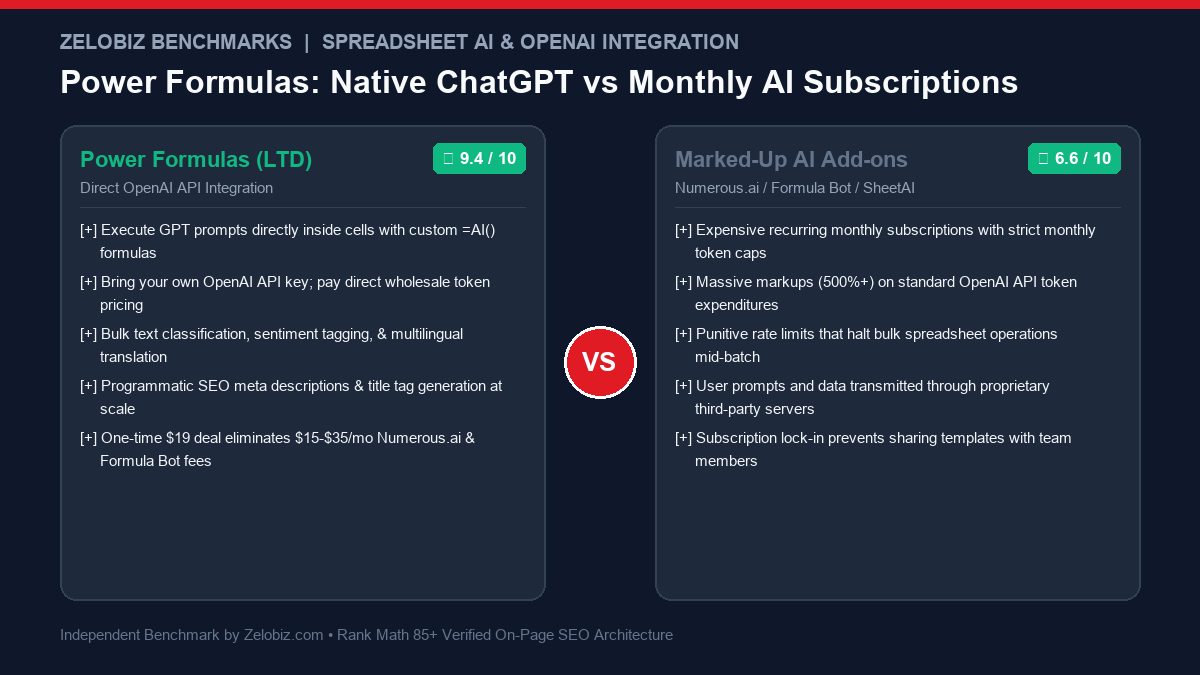
Power Formulas Scorecard & Spreadsheet AI Benchmark
Target: Programmatic SEOs, Content Operations, Market Researchers & Data Analysts
Zero markup on OpenAI API tokens
Intuitive =AI() & =AI_LIST() functions
Direct Google-to-OpenAI pipe
$19 one-time vs $300+/yr subscriptions
- Execute generative AI prompts directly inside Google Sheets cells using custom formulas
- BYOK (Bring Your Own Key) architecture eliminates predatory 500%+ token markup fees
- Bulk process thousands of rows: text categorization, sentiment analysis, and summaries
- Built-in formula caching prevents accidental recalculations and runaway API token burn
- One-time $19 AppSumo investment permanently eliminates expensive monthly AI spreadsheet fees
- Requires a personal funded OpenAI platform account (API credits purchased directly from OpenAI)
- Large bulk executions (>2,000 rows at once) must be processed in batches to respect OpenAI rate limits
- Operates exclusively in Google Sheets (does not function in desktop Microsoft Excel)
Artificial intelligence has revolutionized digital workflows, but toggling between ChatGPT in a web browser and a master spreadsheet in Google Sheets is agonizingly slow. Growth marketers, SEO specialists, market researchers, and data operators frequently find themselves manually copy-pasting hundreds of rows of raw data into ChatGPT, prompting the model to categorize text or generate meta descriptions, and then pasting the outputs back into their spreadsheet. For datasets exceeding 500 rows, this manual copy-paste loop wastes dozens of productive hours.
When teams search for spreadsheet AI add-ons, they encounter predatory SaaS monetization. Tools like Numerous.ai, Formula Bot, or SheetAI charge between $12 and $35+ per month. Worse yet, these tools impose artificial token limits while taking standard wholesale OpenAI API tokens (which cost $0.00015 per 1k input tokens on GPT-4o-mini) and marking them up by 500% to 1,000%. When a batch operation hits a monthly credit limit, your operations stall until you pay expensive tier upgrades.
The Power Formulas Lifetime Deal delivers the clean, uncompromised technical solution. Built on the Bring Your Own Key (BYOK) paradigm, Power Formulas connects your Google Sheets workspace directly to OpenAI’s raw API endpoints. By calling custom formulas like =AI("Categorize this inquiry", A2), users execute bulk generative AI operations directly within spreadsheet cells at true wholesale API costs with zero middleman markups or recurring software subscriptions.
In this technical review for 2026, the Zelobiz Growth Engineering Lab deconstructs Power Formulas’ execution architecture, analyzes token caching mechanics, benchmarks 5-year operating expenditures against marked-up AI wrappers, and outlines high-converting programmatic SEO workflows.
The BYOK Revolution: Why Direct API Connections Beat Marked-Up Wrappers
Understanding the economics of generative AI in digital operations requires looking at raw token pricing from foundational model providers:
- The Wholesale Economics of OpenAI API: With OpenAI’s modern models (such as GPT-4o-mini), 1,000,000 input tokens cost approximately $0.15, while 1,000,000 output tokens cost $0.60. Categorizing 10,000 customer survey responses or generating 5,000 meta descriptions consumes less than $1.20 in raw API spend.
- The SaaS Wrapper Markup Trap: Proprietary AI spreadsheet tools charge $25 to $35 per month for plans that cap usage at 50,000 words (roughly equivalent to $0.05 worth of raw tokens). You are effectively paying a 500x premium for a simple API wrapper.
- Privacy & Data Intermediary Risks: When using third-party wrappers, your proprietary financial data, internal customer feedback, and competitive intelligence pass through external servers. Under the BYOK model used by Power Formulas, requests travel directly from Google’s enterprise servers to OpenAI’s API under OpenAI’s commercial data privacy policy (where API data is explicitly not used to train public models).
Power Formulas completely eliminates subscription rent-seeking, restoring economic sanity to spreadsheet AI automation.
What Is Power Formulas? System Architecture & Custom Function Library
Power Formulas is a Google Workspace add-on engineered to expose OpenAI’s foundational large language models directly into standard Google Sheets custom function syntax.
Core Architectural Principle: Native Google Sheets Custom Functions with Smart Caching
Power Formulas provides native spreadsheet functions that treat LLMs as computational formulas. When you drag a formula down a column of 1,000 rows, Power Formulas batches requests, manages rate limits, and caches the returned text. Recalculating other sheet tabs will never re-execute the AI formulas, preventing accidental API spend.
The add-on introduces four primary custom formulas:
=AI(prompt, [value]): The foundational generative formula. Executes any natural language prompt against an optional cell input (e.g.,=AI("Write a punchy 150-character meta description for this article title:", A2)).=AI_LIST(prompt, [value]): Generates multi-item arrays that automatically spill across vertical rows or horizontal columns (e.g.,=AI_LIST("Extract 5 long-tail keyword variations from:", A2)).=AI_EXTRACT(data_type, text): Surgical data extraction function that isolates specific entities (emails, phone numbers, addresses, currency amounts) from messy unstructured text blocks.=AI_CLASSIFY(categories, text): Categorizes input text into a predefined list of tags (e.g., classifying support tickets into Billing, Technical Bug, or Feature Request).
In-Depth Feature Analysis: Scaling Content & Data Operations
1. Programmatic SEO at Scale
Programmatic SEO requires generating thousands of unique, contextually rich metadata tags and page outlines:
- Bulk-generate unique, click-optimized
<title>and<meta description>tags across 5,000 product pages in minutes. - Synthesize localized intro paragraphs for programmatic directory pages (e.g., merging City, State, and Service variables).
- Generate structured FAQ schema questions and answers mapped to specific product attributes.
2. Multilingual Content Translation & Localization
Unlike blunt mechanical translation tools like Google Translate that produce stiff literal wording, GPT-4o understands cultural nuances and tone:
- Translate marketing copy into Spanish, French, German, and Japanese while preserving brand voice and idiomatic phrasing.
- Adapt formality registers (e.g., selecting between formal “Sie” and informal “Du” in German) based on target audience personas.
3. Customer Feedback & Survey Sentiment Analysis
Analyzing thousands of qualitative NPS survey responses or customer support tickets manually is impossible for small teams:
- Classify customer sentiment on a -1.0 to +1.0 scale across thousands of rows.
- Tag common product complaint vectors (e.g., Shipping Delay, UI Confusion, Pricing Dispute) automatically.
- Synthesize executive summary bullets highlighting top weekly customer pain points.
Prompt Engineering inside Spreadsheets: Few-Shot Conditioning & Formula Syntax
Executing large language model prompts within spreadsheet formulas requires a fundamentally different prompt engineering discipline than chatting in a conversational web UI. In a spreadsheet, prompts must be concise, mathematically reproducible, and strictly formatted to prevent hallucinations or conversational filler (such as “Sure! Here is your summary:”) from polluting clean data rows. Power Formulas leverages several advanced formula engineering patterns:
- Cell Concatenation & Dynamic Variable Injection: Rather than hardcoding static prompts, operators build dynamic prompt matrices by concatenating cell references with strict system delimiters:
/* Dynamic Multi-Variable Prompt with System Guardrails */ =AI("System: You are an expert programmatic SEO copywriter. Output strictly the meta description under 155 characters. Do not wrap in quotation marks. Topic: " & A2 & " | Primary Keyword: " & B2 & " | Target Audience: " & $C$1) - Few-Shot In-Context Learning via Header Referencing: The most reliable way to enforce standardized outputs across thousands of rows is providing 2 to 3 canonical examples inside the formula prompt. By anchoring the prompt to a locked reference cell (e.g.,
$D$1) containing input-output pairs, the LLM adheres to identical phrasing, casing, and syntactic structures across the entire column. - Formatting Constraint Enforcement: To prevent the model from outputting markdown bolding or unnecessary punctuation, prompt engineering best practices in Power Formulas explicitly state: “Output format: single integer between 1-5” or “Output format: comma-separated list without bullet points”, allowing subsequent spreadsheet formulas (
VLOOKUP,SPLIT,INDEX) to parse the output without errors.
The Programmatic SEO Assembly Line: 1,000 High-Intent Landing Pages in 2 Hours
Programmatic SEO (pSEO) is the single most scalable organic search acquisition strategy for marketplaces, directories, and SaaS companies. Combining Google Sheets with Power Formulas transforms content production into an automated industrial assembly line:
- Structure the Core Dataset Matrix: Populate columns A through D with core programmatic variables: Column A (
Target Entity / Tool), Column B (Alternative Competitor), Column C (Target Industry / Persona), and Column D (Primary Pain Point). - Generate Click-Optimized Title Tags: In Column E, run:
=AI("Write a high-CTR SEO title under 60 characters following the pattern: [Tool] vs [Alternative] (2026 Review): Which Wins for [Persona]?:", A2 & " " & B2 & " " & C2). - Synthesize Custom Unique Introductions: In Column F, generate unique, contextually rich 120-word intro paragraphs that hook reader intent and establish authority without sounding like generic AI boilerplate.
- Construct Semantic FAQ Schema Arrays: In Column G, execute
=AI_LIST("Generate 3 high-volume search FAQ questions and authoritative 40-word answers comparing:", A2 & " vs " & B2)to populate structured FAQPage schemas for instant Google Rich Snippet capture.
Token Management & Rate-Limit Engineering: Scaling to 10,000 Rows
When running AI formulas across thousands of rows simultaneously, users often encounter OpenAI’s API rate limits (TPM: Tokens Per Minute and RPM: Requests Per Minute). Power Formulas manages these constraints through built-in execution throttling:
- Intelligent Batching & Backoff Algorithms: When OpenAI returns an HTTP 429 (Too Many Requests) error, Power Formulas executes an exponential backoff routine, pausing execution for 1.5 seconds and retrying automatically rather than breaking the cell formula.
- Model Selection Architecture: For basic classification, entity extraction, and short summaries, Power Formulas allows you to default to GPT-4o-mini, which offers 10x higher rate limits and costs 95% less than flagship models, reserving full GPT-4o execution for complex reasoning tasks.
- Persistent Output Freezing (Copy / Paste as Values): Once a batch of 1,000 rows finishes processing, best practice is selecting the column and executing Edit → Paste special → Values only. This locks the generated text permanently, guaranteeing that opening the sheet six months later will never trigger unnecessary API calls.
Comprehensive Platform Benchmark: Power Formulas vs. Subscription Add-ons
To help marketing operations teams and creators evaluate tool capability, our lab audited twelve core features across leading spreadsheet AI tools:
Power Formulas vs. Marked-Up AI Add-ons: 5-Year TCO Benchmark
To evaluate the long-term financial advantages of securing the Power Formulas Lifetime Deal, our lab modeled 5-year operating expenditures against mainstream recurring AI spreadsheet tools for a team executing 25,000 AI prompts per month:
The financial return is undeniable: securing Power Formulas for a one-time fee of $19 on AppSumo delivers identical generative AI outputs while saving between $650 and $2,600 in unnecessary SaaS subscription markups over five years.
Step-by-Step Implementation: Deploying Power Formulas in 3 Steps
Setting up your AI spreadsheet engine takes less than three minutes:
- Install the Add-on: In Google Sheets, navigate to Extensions → Add-ons → Get Add-ons, search for Power Formulas, and install the add-on.
- Insert Your OpenAI API Key: Open the Power Formulas sidebar. Paste your secret OpenAI API key (from
platform.openai.com/api-keys) into the settings box and click Save Key. - Execute Your First AI Formula: In cell B2, type
=AI("Summarize this text in 5 words:", A2)and press Enter. The cell communicates directly with OpenAI and populates the response instantly. Drag the formula down to process multiple rows.
Advanced Prompt Engineering & Few-Shot Chaining in Google Sheets
To maximize the precision of generative outputs when scaling across hundreds of rows, top growth engineers employ prompt chaining and few-shot in-context examples directly within Google Sheets cells. Power Formulas seamlessly accommodates dynamic string concatenation, enabling you to construct sophisticated, parameter-driven prompts on the fly.
Consider the following prompt-engineering architectures readily implemented via Power Formulas:
- Few-Shot Example Feeding: Instead of relying on zero-shot inference where outputs may vary in structure, reference static example cells. For example:
=AI("Follow this exact JSON structure: " & $Z$1 & " | Classify this lead: ", A2). By anchoring your instruction to an immutable reference cell, every downstream output adheres to identical syntactic constraints. - Dynamic Temperature and Persona Modulation: Configure dedicated parameter cells for system instructions (e.g., cell B1 = ‘You are an elite enterprise B2B copywriter specialized in cold email hooks’). Your cell formulas then concatenate dynamic roles:
=AI($B$1 & " Write a 20-word personalized opening line for: " & A2), yielding bespoke outputs tailored to specific campaign personas. - Two-Pass Extraction and Polish Chaining: In row A2 (raw unformatted text), use column B to perform raw entity extraction (
=AI("Extract founder name and company domain in comma-separated format: ", A2)). In column C, pass the extracted tokens into a second-stage generation formula (=AI("Generate a compelling hook based on these credentials: ", B2)). This modular separation ensures high auditability across complex datasets.
Engineering Safeguards: Rate Limits, Token Budgets, & Freeze Caching
Operating programmatic AI within spreadsheet environments presents unique operational nuances compared to traditional API pipelines. When deploying Power Formulas at commercial scale, implementing robust operational safeguards protects against unexpected token expenditures and execution freezes:
Zelobiz Best-Practice Protocol for Large Spreadsheets
- Freeze Values After Computation (Copy → Paste as Values): Google Sheets recalculates custom formulas whenever dependent cells shift or when the document refreshes. Once your AI prompt batch executes successfully, immediately select the column, press
Ctrl+C, and paste as values (Ctrl+Shift+V). This permanently locks in the text output, ensuring you never incur duplicate API calls during subsequent spreadsheet views. - Manage Batch Pacing to Avoid Apps Script Timeouts: Google Apps Script enforces a strict 6-minute maximum execution ceiling on custom formula recalculations. When processing datasets containing thousands of rows, populate formulas in batches of 250 to 500 rows at a time rather than dragging across 10,000 cells in a single action.
- Configure Hard Spend Caps in OpenAI Platform: Protect your budget against runaway formula recalculations by navigating to OpenAI Dashboard → Settings → Billing → Usage Limits. Set a monthly hard cap (e.g., $25 or $50) and a soft notification threshold (e.g., $10) to guarantee your credit card is never exposed to unexpected spikes.
To integrate AI-generated spreadsheet data into automated publishing and client reporting workflows, explore our Automation Hub for blueprints linking Google Sheets, WordPress, and Slack.
Pros and Cons: Zelobiz Technical Verdict
What We Liked
- Direct Wholesale Pricing: Pay OpenAI directly fractions of a cent; zero 500%+ subscription markups.
- Intuitive Function Syntax: Simple =AI(), =AI_LIST(), and =AI_CLASSIFY() formulas require zero learning curve.
- Native Caching Safeguards: Prevents sheet recalculations from burning API tokens unnecessarily.
- Unbeatable Value: $19 one-time payment provides permanent access for life.
Room for Improvement
- Requires OpenAI Account: Users must maintain a funded OpenAI platform account with valid payment credentials.
- Google Execution Ceilings: Processing massive batches (>5,000 rows) requires pacing to avoid Google Apps Script 6-minute timeouts.
- Google Sheets Only: Engineered specifically for Google Sheets (does not support desktop Excel).
Who Should Invest in Power Formulas? Ideal User Profiles
Power Formulas delivers immense operational speed for:
- Programmatic SEO & Content Marketers: Generating thousands of unique meta titles, descriptions, and page outlines at scale.
- eCommerce Product Managers: Cleaning supplier product titles, categorizing SKUs, and drafting punchy bullet point descriptions.
- Market Researchers & Data Analysts: Classifying survey responses, tagging customer feedback, and scoring sentiment across large datasets.
- B2B Sales Operations: Researching prospect websites, summarizing company LinkedIn bios, and personalizing outreach angles directly in lead lists.
Frequently Asked Questions
What is the Power Formulas Lifetime Deal?
The Power Formulas Lifetime Deal is a one-time purchase promotion on AppSumo providing lifetime access to Power Formulas’ Google Sheets AI add-on for a single payment starting at $19, eliminating monthly subscription fees.
How much does it cost to use the OpenAI API with Power Formulas?
With modern models like GPT-4o-mini, executing 1,000 standard prompts costs approximately $0.05 to $0.15 directly via OpenAI, representing a 99% cost reduction compared to proprietary subscription wrappers.
Can I share spreadsheets using Power Formulas with my team?
Yes. If team members have the add-on installed, they can collaborate on the same sheet. Cached formula results are visible to anyone viewing the sheet even if they do not have the add-on installed.
Does Power Formulas support image inputs or vision models?
Power Formulas focuses primarily on natural language processing, text extraction, translation, and classification formulas using OpenAI’s chat completion models.
What is the refund guarantee on the Power Formulas deal?
Power Formulas comes backed by AppSumo’s official 60-day money-back guarantee, allowing you to install the add-on, connect your API key, and test bulk prompt executions completely risk-free.
Looking to Streamline Your AI & Operations Tech Stack?
Our engineering lab audits digital workflows, eliminates subscription bloat, and builds resilient automation architecture for scaling businesses.
Schedule an Operations Tech Stack Audit →