
A rule that sorted invoices into the right folder for months just stops. No error message, no warning, nothing in the rules list flagged as broken. The emails just land in the inbox unsorted, as if the rule was never there.
This usually shows up right after something changed: a mailbox migration, a new computer, a rebuilt Outlook profile, or the shared mailbox getting re-added after an IT project. The common fix is recreating the rule from scratch, and it works again immediately.
Then it breaks again at the next migration. The rule was never the problem. How the shared mailbox itself got added to Outlook decides whether a rule keeps running when Outlook is closed, and almost nobody checks that part before rebuilding the rule the same fragile way.
Outlook rules on a shared mailbox are stored in one of two very different ways depending on how the mailbox was added to your profile. Add it as an automapped additional mailbox alongside your own account, the common default, and a rule built there is client-side: it only runs while your Outlook is open with that mailbox loaded. Add the shared mailbox as its own separate account instead, or build the rule directly in Outlook on the web while signed into that mailbox, and the rule can run server-side, continuing to work even when your Outlook is closed. A migration, a profile rebuild, or a new computer commonly resets which of these two setups is in effect, which silently changes how the rule behaves without touching the rule itself. Verified against Microsoft’s own shared mailbox documentation on 20 September 2026.
Outlook Rules on a Shared Mailbox Are Not All Equal
Two rules that look identical in the rules list, same trigger, same folder, same wording, can behave completely differently depending on a detail that never appears anywhere in that list: where the mailbox they belong to actually lives from Outlook’s point of view.
That is easy to miss because Outlook never labels a rule as client-side or server-side anywhere in its interface. The only way to learn which one you have is to test it, or to trace back exactly how the mailbox was added in the first place.
Client-Side Versus Server-Side, in Plain Terms
A server-side rule lives on the mail server itself. Microsoft 365 or Exchange runs it the moment a matching message arrives, regardless of whether anyone’s Outlook happens to be open at that moment.
A client-side rule lives inside your own Outlook profile instead. It only evaluates incoming mail while Outlook is running and the relevant mailbox is actually loaded in that session. Close Outlook, or lose the connection to that mailbox, and the rule simply does not run until it reopens.
Why the Mailbox Setup Decides the Rule Type
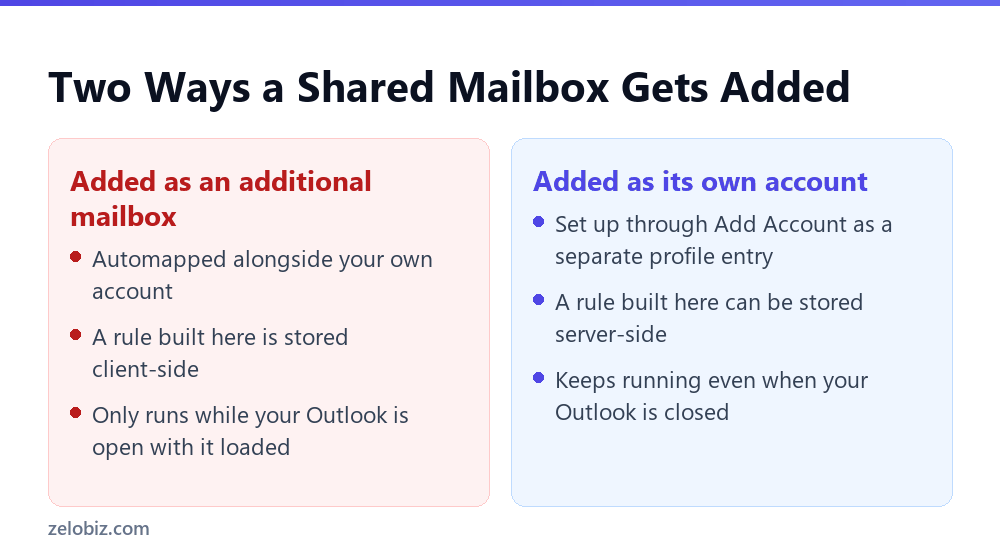
Most people add a shared mailbox the easy way: it shows up automatically underneath their own mailbox in the folder list, because an administrator granted them automapped access to it. Nothing has to be configured for this to appear.
A rule built while the shared mailbox is open the automapped way gets stored in your own mailbox’s rule set, scoped to that mailbox, but still tied to your Outlook session being active. Open the same mailbox as its own account instead, through Add Account rather than relying on automapping, and a rule built there is eligible to be stored on the server, where it keeps running independently.
A Worked Example
A small finance team uses a shared invoices@ mailbox, automapped into everyone’s Outlook. One team member sets up a rule there to move anything from a specific vendor into an Approved folder automatically.
It works fine for months, since that person’s Outlook is open most of the working day anyway. Then the company migrates mailboxes to a new tenant during a merger, and every profile gets rebuilt from scratch afterward.
⚠️ Watch out: The shared mailbox comes back exactly the way it did before, automapped, showing up underneath the personal account with no extra setup needed. The rule, however, does not survive the migration, since it lived in the old profile’s client-side rule set, which no longer exists after the rebuild.
IT recreates the rule the same way it was built the first time, through the automapped view, and it works again immediately. Nobody notices it is the same fragile setup until the next migration breaks it exactly the same way.
Checking Which Kind of Rule You Actually Have
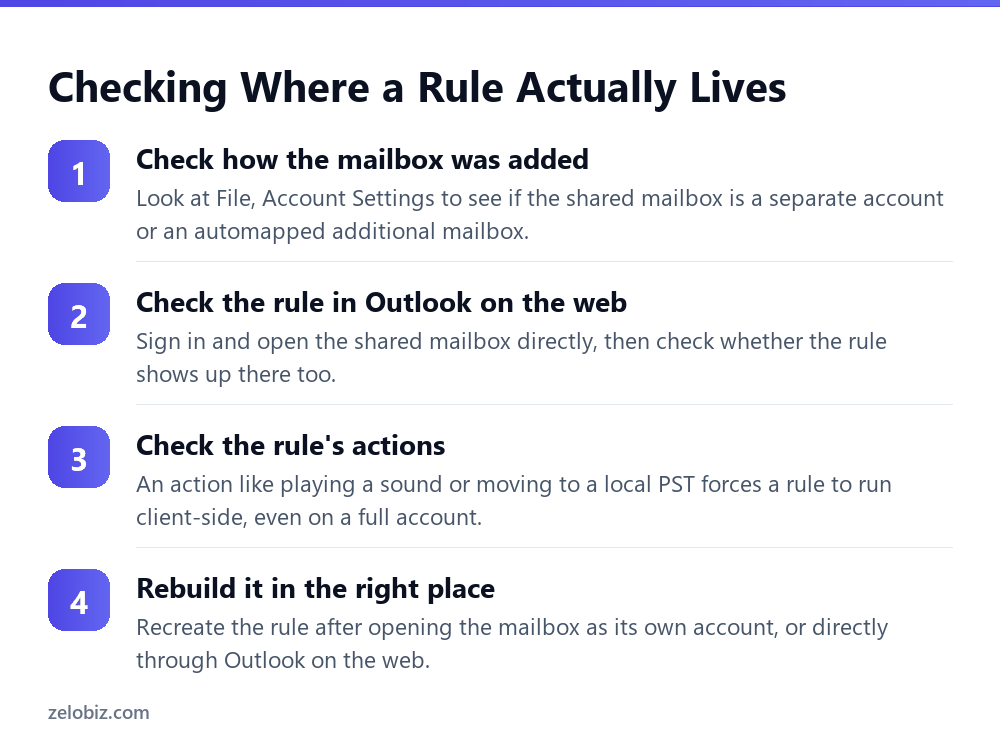
Open File, Account Settings, Account Settings again, and look at the Email tab. If the shared mailbox does not appear as its own row there, it is riding along as an automapped additional mailbox under your main account, not set up as a separate account in its own right.
Sign into Outlook on the web separately, using Open another mailbox for the shared address, and check its rules there directly. A rule that only shows up in your desktop Outlook, and not when you check the mailbox this way, is very likely a client-side rule scoped to your own profile.
💡 Pro tip: Do this check once for every shared mailbox your team relies on, right after any migration or major IT change, rather than waiting for a rule to silently stop working before investigating.
Setting Up Outlook Rules That Survive the Next Migration
Add the shared mailbox as its own account through File, Add Account, rather than relying on automapping alone, and build the rule after signing into that account specifically. This gives the rule the best chance of being stored server-side from the start.
For anything critical, build the rule directly in Outlook on the web while signed into the shared mailbox, using Open another mailbox. A rule created there is server-side by definition, since there is no local desktop profile involved in the first place.
⚠️ Watch out: Keep the rule’s actions simple. Moving a message to a folder, forwarding it, or marking it as read are all safe for server-side rules. An action like playing a sound alert or moving mail into a local PST file forces the rule to run client-side regardless of how carefully the mailbox itself was set up.
What This Looks Like During an Actual Migration
A migration project, whether it is a merger, a move to a new Microsoft 365 tenant, or an on-premises Exchange to cloud move, typically focuses on making sure mail flow, permissions, and mailbox access survive the cutover. Rules rarely make it onto that checklist explicitly.
A rule that was server-side before the migration is far more likely to survive it intact, since it lives with the mailbox itself on the server rather than in a profile that gets rebuilt or reconnected on each user’s machine.
Auditing an Existing Shared Mailbox for Fragile Rules
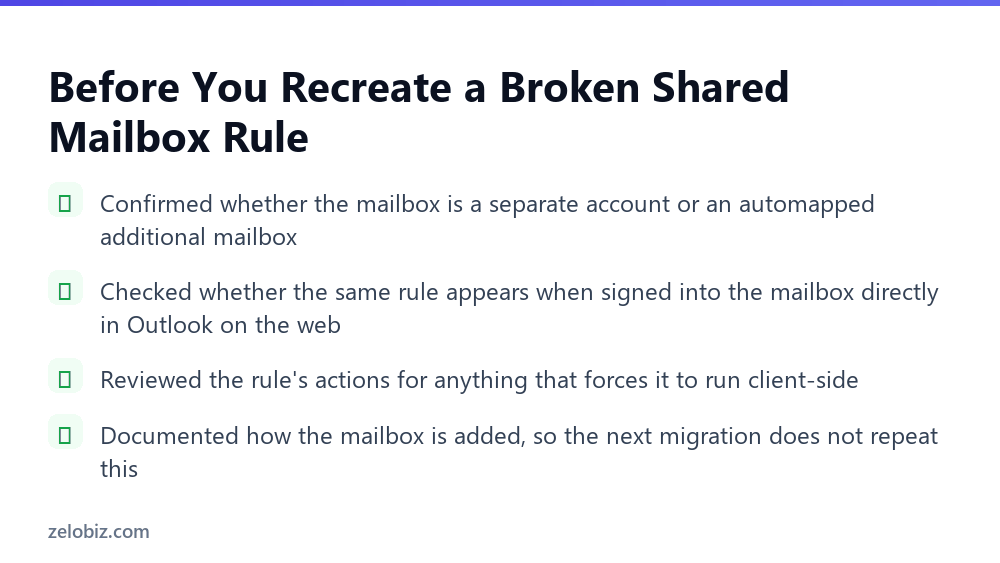
Before the next migration happens, it is worth auditing every rule attached to a shared mailbox a team depends on, rather than discovering the fragile ones only after they fail.
A short spreadsheet works fine for this. List each rule, which mailbox it belongs to, how that mailbox was added to Outlook, and whether the rule showed up when checked directly in Outlook on the web. Anything that failed the web check gets rebuilt the right way before it becomes an incident.
- →Check whether the shared mailbox is automapped or added as its own separate account.
- →Sign into the mailbox directly in Outlook on the web and confirm the rule shows up there too.
- →Review each rule’s actions for anything that forces client-side processing regardless of setup.
- →Rebuild any fragile rule after adding the mailbox as its own account, not through automapping.
- →Document the correct setup so the next migration does not silently repeat the same failure.
A short audit like this, run once per shared mailbox, catches the fragile rules before a migration does it for you, usually at a worse time and without any warning that something changed.
Why This Failure Mode Is Easy to Miss
Nothing about a client-side rule looks wrong from inside the rules list. It shows up exactly the same way a server-side rule does, with the same conditions and actions listed, and Outlook gives no visual indicator of which type it actually is.
The only way the difference becomes visible is behavioral: the rule stops firing exactly when Outlook is closed, a profile is rebuilt, or a migration happens, and starts working again the moment Outlook reopens with that mailbox loaded. That pattern, working only while a specific Outlook session is active, is the clearest sign a rule is client-side.
A Related Trap: Rules That Reference a Personal Folder
A separate way an otherwise well-built rule can quietly fail involves where it files a message. A rule that moves mail from the shared mailbox into a subfolder of your own personal mailbox, rather than a folder inside the shared mailbox itself, has to run client-side no matter how the shared mailbox was added.
The server has no way to reach into your personal mailbox from a rule scoped to a different account, so any rule that crosses that boundary needs your own Outlook open to bridge the gap. This is a common, well-intentioned setup: someone wants shared mailbox notifications to land somewhere convenient in their own inbox, and the resulting rule inherits the same fragility as any other client-side one.
⚠️ Watch out: Keep a shared mailbox rule’s destination folder inside that same shared mailbox whenever possible. The moment a rule moves mail across account boundaries, server-side storage stops being an option regardless of how carefully everything else was configured.
How This Compares to a Personal Account’s Rules
A rule on your own primary mailbox does not usually run into this problem, since there is only one way that mailbox gets added to Outlook, as your own account. The client-side versus server-side split becomes visible specifically because a shared mailbox has two legitimate ways to be added, each producing a different result.
This is worth explaining to anyone new to managing a shared mailbox, since the assumption carried over from personal accounts, that a rule just works once it is saved, does not transfer cleanly. A shared mailbox rule needs one extra check that a personal one never does: confirming how the mailbox itself got there in the first place.
A Quick Way to Tell Before the Next Migration Happens
Rather than waiting for a migration to expose a fragile rule, ask one question about any shared mailbox rule already in place: does it still fire the morning after your own computer was off overnight, or after Outlook has been closed for a few hours during the day?
A server-side rule handles that without any trouble, since the server never stopped running. A client-side rule leaves a visible gap, mail that arrived while Outlook was closed sitting unsorted in the inbox until the next time that mailbox gets loaded again.
💡 Pro tip: Check this once per quarter for any shared mailbox a team relies on daily. A quarterly check costs a few minutes and catches a fragile rule long before an actual migration or a new laptop rollout forces the issue.
Common Questions
Why did my shared mailbox rule stop working after a migration?
Most likely because it was a client-side rule, stored in your own Outlook profile rather than on the server. A migration or profile rebuild removes that local rule set, and if the mailbox comes back as an automapped additional mailbox, a recreated rule stays client-side too.
What is the difference between a client-side and server-side Outlook rule?
A server-side rule runs on the mail server itself and works even when your Outlook is closed. A client-side rule only runs while your Outlook is open with the relevant mailbox loaded in that session.
How do I know which type of rule I actually have?
Check File, Account Settings to see if the shared mailbox is a separate account or an automapped additional mailbox. Also sign into the mailbox directly in Outlook on the web and check whether the same rule appears there.
Does adding a shared mailbox as its own account guarantee a server-side rule?
It makes a server-side rule possible, but the rule’s own actions matter too. An action like playing a sound or moving mail to a local PST file forces the rule to run client-side even on a properly added account.
Is it better to build the rule in Outlook on the web instead of the desktop app?
For anything important, yes. A rule built directly in Outlook on the web while signed into the shared mailbox is server-side by definition, since no local desktop profile is involved in creating it.
Why doesn’t Outlook show which type a rule is?
The rules list looks identical for both types, with the same conditions and actions shown either way. The only reliable sign is behavior: a client-side rule stops working specifically when Outlook is closed or the profile changes.
Should every rule on a shared mailbox be audited after a migration?
Yes, especially for anything a team depends on daily. Checking each rule’s storage type and actions once, right after a migration, catches fragile client-side rules before they fail silently in production.
The Short Version
- →How a shared mailbox is added to Outlook decides whether a rule can run server-side.
- →An automapped additional mailbox produces client-side rules tied to your own Outlook session.
- →Adding the mailbox as its own separate account, or using Outlook on the web, allows server-side rules.
- →Certain rule actions force client-side processing regardless of how the mailbox was added.
- →Recreating a broken rule the same way it was built the first time repeats the same fragile setup.
The rule was never faulty. It was always going to stop the moment its Outlook session ended, and a migration or profile rebuild is exactly the kind of event that ends one.
Check how the mailbox is added before rebuilding the rule again. That single detail decides whether the fix lasts through the next migration or breaks again the same way, and it takes far less time to check than it does to field the same support ticket a third or fourth time.