
An important email lands, a meeting reminder fires, a chat message comes in, and none of it shows up. No banner, no sound, nothing in the corner of the screen. Later, checking the app directly, the message was there the whole time.
The usual explanation people reach for is that Windows notifications are just unreliable. Most of the time, something specific happened: Focus Assist turned on, and in a large share of cases, nobody actually turned it on. It turned itself on.
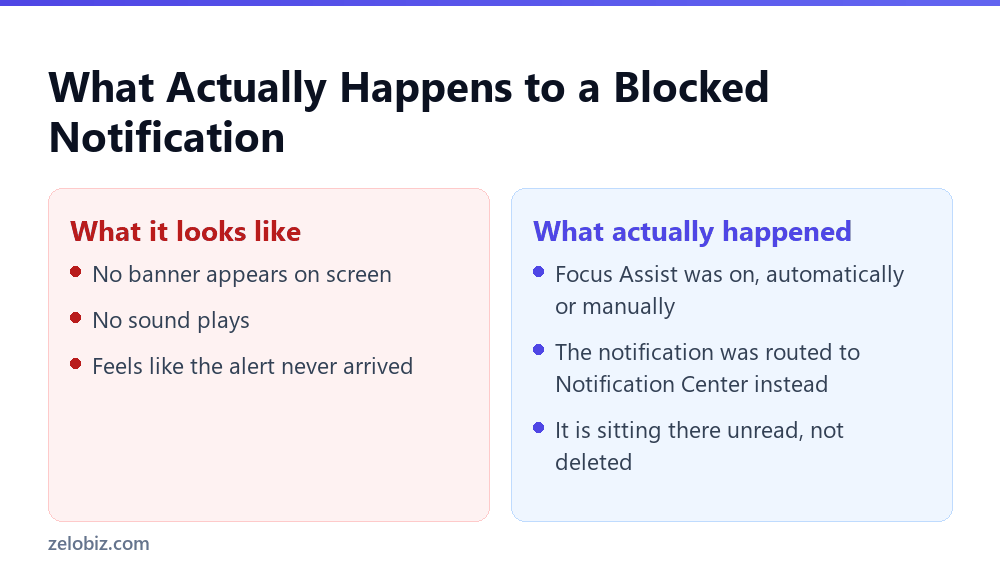
Windows can flip Focus Assist on automatically under a handful of conditions, with no banner explaining why, and the notifications it blocks are not deleted, just quietly rerouted somewhere most people never check.
Focus Assist has automatic rules, found under Settings, System, Focus assist, that turn it on by themselves: most commonly when your display is being duplicated or mirrored to a second screen or projector, when you are playing a game in full screen, or when you are using any app in full-screen mode. None of these show a confirmation banner when they trigger. Separately, a notification Focus Assist blocks is not lost. It is sent to Notification Center instead of showing a banner, so pressing Windows key + N often turns up everything that seemed to go missing. In Priority Only mode, an app’s alerts only get through if that specific app was added to the priority list, one at a time; adding one app does not cover the rest. Verified against Microsoft’s own Focus Assist documentation on 23 September 2026.
Focus Assist Turning Itself On Is the Normal Case, Not the Exception
Focus Assist ships with a set of automatic rules already active on a typical Windows installation. They exist to prevent an obvious annoyance: a notification banner popping up across a shared screen during a presentation, or interrupting a full-screen game with a sound and a message on top of the action.
The tradeoff is that these rules fire silently. There is no dialog asking whether it is fine to suppress notifications right now, and no obvious signal afterward explaining why an expected alert never appeared.
The Trigger Nobody Expects: Duplicating Your Display
One of Focus Assist’s default automatic rules activates specifically when your display is set to duplicate, meaning the same image is mirrored onto a second screen or a projector, rather than extended across two separate desktops.
Choosing duplicate mode is common during a screen share, a video call where a second monitor mirrors the meeting for someone else in the room, or connecting to a projector for a quick demonstration. None of those situations feel like turning on a do-not-disturb mode, yet that is exactly what the display setting triggers behind the scenes.
A Worked Example
Someone joins a client call and mirrors their laptop screen to a second monitor so a colleague nearby can follow along, choosing duplicate rather than extend in the display settings.
The moment duplicate mode kicks in, Focus Assist’s default rule switches it on. Over the next hour, several things arrive quietly: a chat message from a teammate, an email flagged urgent, and a calendar reminder for the meeting right after this one.
⚠️ Watch out: None of it shows up as a banner. The person assumes the meeting after this one must have been cancelled, since no reminder appeared, and misses it entirely. The reminder was never lost. It went straight to Notification Center the instant it fired, and nobody thought to check there because nothing on screen suggested Focus Assist had turned on in the first place.
Switching the display back to extend, or turning off the duplicate-display automatic rule ahead of time, would have prevented this without giving up notifications the rest of the day.
Reviewing and Turning Off the Automatic Rules
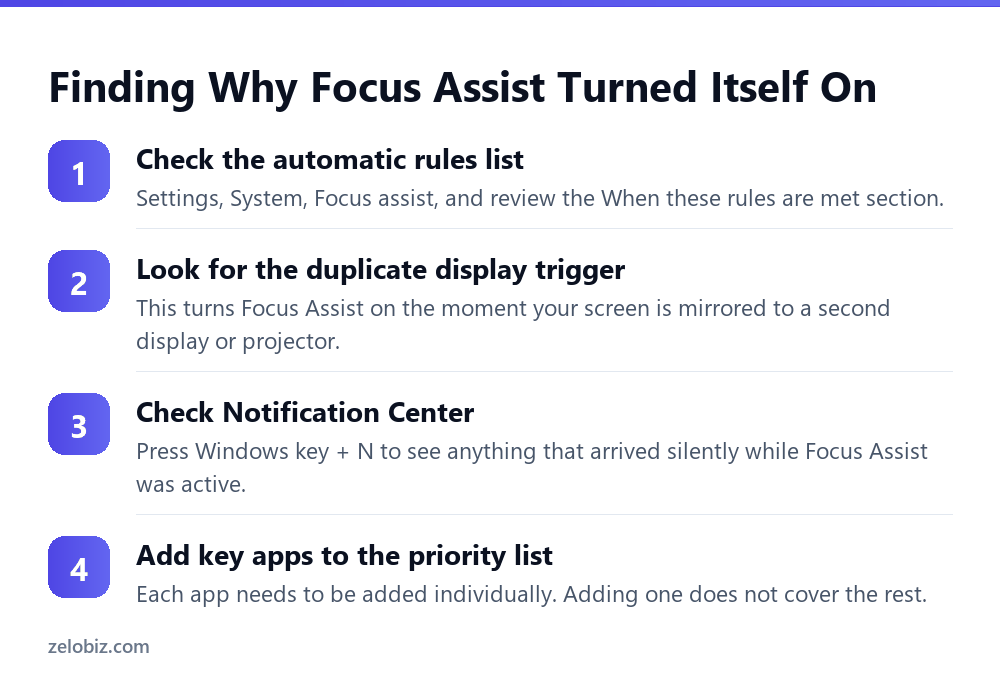
Open Settings, System, Focus assist, and scroll to the section listing automatic rules. Each one can be turned off individually without affecting the others, so there is no need to disable Focus Assist entirely just to stop one specific trigger.
Turning off When I’m duplicating my display is usually the highest-impact change for anyone who regularly mirrors a screen for meetings or presentations, since that is the rule most likely to activate during ordinary work rather than an actual do-not-disturb moment.
💡 Pro tip: Review this list once, right after noticing a missed notification you cannot explain. Most people never open this settings page unless something specific prompts them to, so the default rules stay active indefinitely without anyone deciding they should.
Where a Blocked Notification Actually Goes
Windows keeps a running list of every notification in Notification Center, opened with Windows key + N or by clicking the date and time in the taskbar. A notification suppressed by Focus Assist still lands there, just without the banner and sound that would normally accompany it.
Checking this list is the fastest way to confirm whether something actually arrived during a period Focus Assist was active, rather than assuming a message, reminder, or alert never fired at all.
📊 Note: Notification Center only keeps a limited history and can be cleared manually or by certain system events. Checking it soon after a suspected gap is more reliable than checking days later.
Why Adding One App to Priority Only Is Not Enough
Priority Only mode is Focus Assist’s middle setting, meant to let through what actually matters while blocking everything else. It works entirely through an explicit list: an app only gets through if it has been added to that list by name.
Adding Outlook to the priority list does not automatically cover Teams, and adding Teams does not cover a separate messaging app. Each one needs to be added on its own, which is easy to assume was handled once and never revisit.
⚠️ Watch out: A priority list built once, early on, can quietly go stale as new apps get installed or work shifts to a different tool. An app added to the priority list two years ago does not help if the team has since moved communication to something else entirely.
Building a Priority List That Actually Covers What Matters
Start with whatever carries anything time-sensitive: email, calendar reminders, and whatever chat or meeting tool a team actually uses day to day. Add each one individually under Focus assist settings, Customize your priority list.
Revisit that list whenever a team switches communication tools, since a priority list built around one chat app does nothing once everyone has moved to a different one, and nobody thinks to check Focus Assist settings as part of a tool migration.
- →Review the automatic rules list once, since most of them are on by default with no visible confirmation.
- →Turning off the duplicating-display rule prevents the most common accidental activation during meetings.
- →A blocked notification is rerouted to Notification Center, not deleted, so check there before assuming a loss.
- →Priority Only mode requires each app to be added individually, and the list needs occasional revisiting.
- →Treat a repeated missed notification as a settings question first, before assuming a deeper problem.
None of this requires turning Focus Assist off entirely, which usually is not the goal anyway, since it does prevent real interruptions during an actual full-screen presentation or a game. The fix is narrowing which situations trigger it automatically, and making sure the apps that matter are actually on the list that gets through.
Checking Whether This Explains a Specific Missed Alert
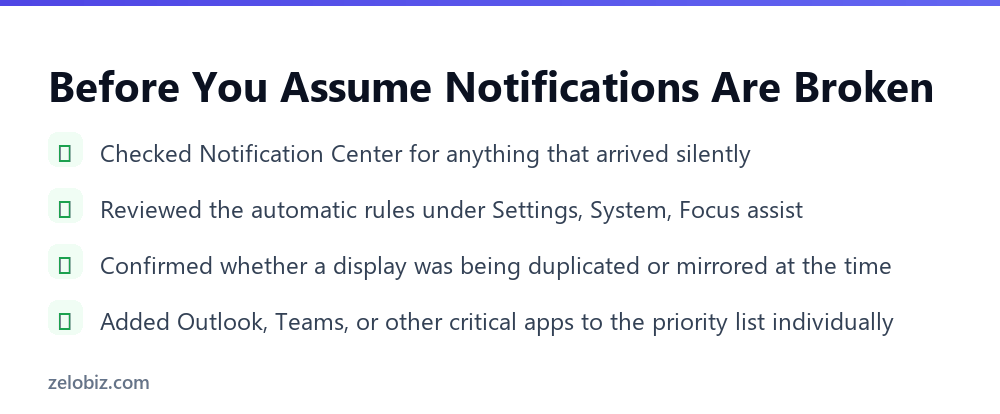
For any specific missed notification, three quick checks usually settle the question. First, was a display being duplicated or an app running full screen around that time. Second, does Notification Center actually show the missing item sitting there unread. Third, is the relevant app on the priority list if Focus Assist was set to Priority Only.
A yes to the first or third question, combined with the item actually appearing in Notification Center, confirms Focus Assist as the cause rather than a genuine delivery failure somewhere else in the system.
When the Problem Is Somewhere Else Entirely
If Notification Center does not show the missing item at all, Focus Assist was likely not the cause, and the actual problem sits with the app itself, its own notification permissions, or a connectivity issue that kept the message from arriving in the first place.
Windows Settings, System, Notifications lists per-app notification permissions separately from Focus Assist entirely. An app disabled there will never show a banner or reach Notification Center, regardless of what Focus Assist is doing, so it is worth checking as a second possibility once Focus Assist has been ruled out.
A Faster Habit for Screen Sharing and Presentations
Anyone who regularly shares or mirrors a screen for work benefits from deciding ahead of time, rather than discovering after the fact, which automatic Focus Assist rules should stay active.
Turning off the duplicating-display rule specifically, while leaving the full-screen game and app rules in place, keeps notifications working normally during a mirrored presentation without giving up the protection those other rules offer during genuinely different situations.
💡 Pro tip: Set this once rather than toggling Focus Assist manually before every call. A rule turned off in settings stays off until deliberately changed back, which is more reliable than remembering to check quick settings before each meeting.
How This Compares to Do Not Disturb on a Phone
Anyone used to a phone’s do-not-disturb mode already has a rough model for Focus Assist, since both work on the same basic idea: silence most things, let a short allowed list through. The difference that causes confusion is how each one signals its own state.
A phone usually puts a small icon in the status bar the entire time do-not-disturb is active, visible at a glance without opening any menu. Windows shows Focus Assist’s status in quick settings, but only if someone thinks to open it, and an automatically triggered rule gives no separate alert calling attention to the change.
That gap, an always-visible indicator on one platform and an easy-to-miss one on the other, is a large part of why the same underlying feature feels far more surprising on a Windows laptop than a phone.
A Second Related Trap: Full-Screen Apps That Are Not Games
The full-screen app rule is broader than it sounds. It is not limited to games; nearly any application running in full-screen mode, including a video player, a presentation tool, or certain creative software, can trigger the same suppression.
⚠️ Watch out: Watching a full-screen training video or working in a full-screen design tool can silently activate Focus Assist the same way a duplicated display does, blocking an incoming message for the entire time that window stays full screen, with no separate warning for this specific trigger either.
Anyone who regularly works in full-screen applications for reasons that have nothing to do with wanting fewer interruptions should check this rule specifically, since it is easy to assume only games are affected when the trigger is really about screen mode, not application type.
Common Questions
Why do my Windows notifications randomly stop showing up?
Focus Assist is very likely turning on by itself. It has automatic rules for duplicating your display, playing a full-screen game, or using any app in full screen, and none of them show a banner confirming they activated.
Does Focus Assist delete notifications it blocks?
No. A blocked notification is rerouted to Notification Center instead of showing a banner and sound. Press Windows key + N to see everything that arrived while Focus Assist was active.
Why did Focus Assist turn on when I connected a second monitor?
This happens specifically when the display mode is set to duplicate or mirror, not extend. One of Focus Assist’s default automatic rules activates whenever Windows detects the screen is being duplicated to another display or a projector.
Does adding one app to the priority list cover my other apps too?
No. Priority Only mode requires each app to be added individually under Customize your priority list. Adding Outlook, for example, does not automatically allow notifications from Teams or any other app.
How do I stop Focus Assist from turning on during meetings?
Go to Settings, System, Focus assist, and turn off the When I’m duplicating my display rule specifically. The other automatic rules, like the full-screen game and app triggers, can stay active without affecting meetings.
What if Notification Center doesn’t show the notification I’m missing?
Then Focus Assist likely was not the cause. Check the app’s own notification permissions under Settings, System, Notifications, since an app disabled there never reaches Notification Center regardless of Focus Assist.
Is it better to turn off Focus Assist completely?
Usually not, since it does prevent real interruptions during an actual presentation or full-screen game. Turning off the specific automatic rule causing the problem, and building out the priority list properly, solves this without losing that protection.
The Short Version
- →Focus Assist has automatic rules that turn it on by themselves, most commonly for a duplicated display.
- →None of these automatic triggers show a banner or confirmation when they activate.
- →A blocked notification goes to Notification Center, not nowhere, so check there before assuming a loss.
- →Priority Only mode needs each app added individually, and that list can go stale over time.
- →Turning off the duplicating-display rule specifically fixes the most common meeting-related surprise.
Nothing about this was actually random. Windows was following a rule it had already been given, quietly, without asking whether right now was a good time for it.
Check the automatic rules list once, and check Notification Center the next time something seems to have gone missing. Most of the time, it never actually did.
A five minute review of these settings, done once, saves the repeated confusion of wondering why an important message never showed up, and it costs nothing in terms of the actual protection Focus Assist offers during a genuine full-screen presentation or game.