

A Teams meeting recording behaves like it will always be there, right up until someone goes looking for one from four months ago and finds a banner instead of a video. The default is not a bug and not an accident. It is a documented policy, and it involves more than one clock running at the same time.
This covers exactly what expires, when, what happens in the window after expiry, and the two different fixes depending on whether you are protecting future recordings or trying to save one that is already close to the deadline.
Short answer: Teams meeting recordings and transcripts share a default expiration of 120 days, after which they move to a recycle bin rather than being deleted immediately. Personal Microsoft accounts get a further 30 days in the recycle bin, work and school accounts get 93, before the recording is permanently gone and, in Microsoft’s own words, cannot be recovered. Audio recaps run on a separate, shorter clock and expire after 60 days. Verified against Microsoft’s own admin documentation on 3 September 2026.
Three Separate Clocks
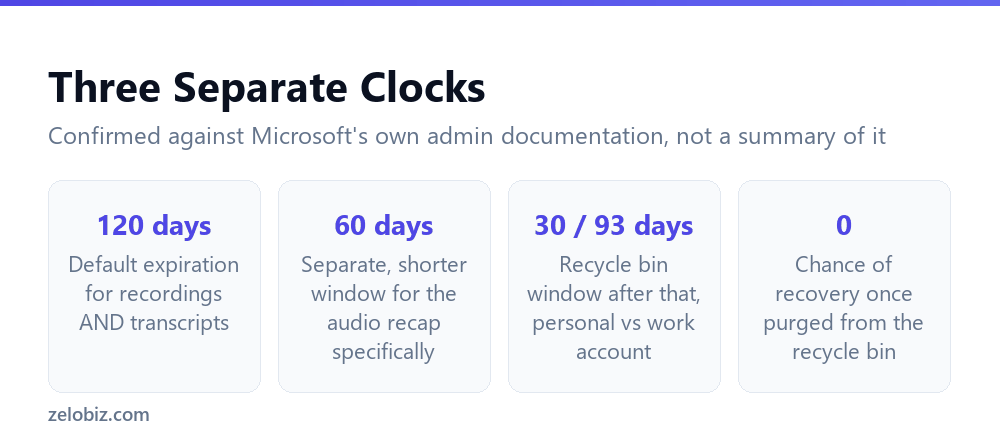
Most people assume one retention period governs everything about a meeting once it ends. There are actually three, and they run on different lengths.
120 days for the recording and the transcript together
Meeting recordings and transcripts have a default expiration time of 120 days. This is controlled by the Recordings and transcriptions automatically expire setting in the Teams admin center, under Meetings, Meeting policies, Recording and transcription. Both the recording and its transcript expire on the same schedule.
60 days for the audio recap, separately
The generated audio recap runs on its own shorter clock. Microsoft states it is accessible to you for 60 days, after which it expires and is automatically deleted. It is also described as exclusively accessible to the person who generated it, unlike a recording or transcript that others in the meeting may also be able to reach.
The two clocks interact in a way worth knowing: you cannot create an audio recap of a meeting that is already older than 120 days, since by that point the underlying recording and transcript the recap would be built from have already expired.
What Actually Happens at Day 120
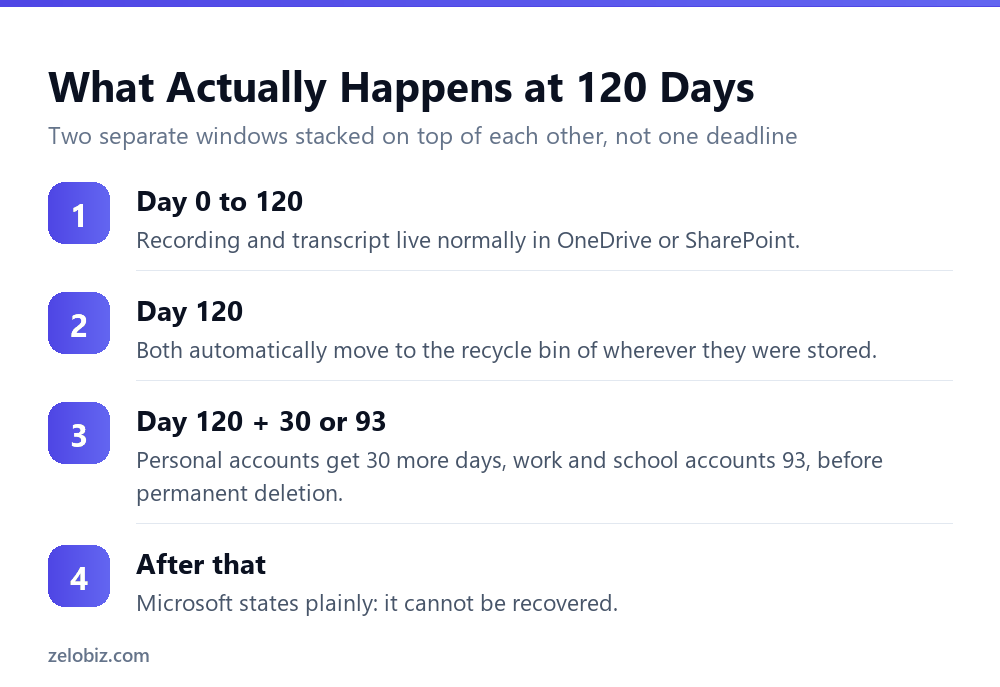
Expiration is not the same moment as deletion, and the gap between the two is the window most people don’t know they have.
It moves to a recycle bin, not straight to nothing
When a recording reaches its expiration date, it is deleted and moved to the OneDrive or SharePoint recycle bin, depending on where it was stored. Non-channel meeting recordings live in the organizer’s OneDrive. Channel meeting recordings live in that channel’s SharePoint site.
The recycle bin has its own separate window
This second window depends on the type of account. If you are signed in with a personal Microsoft account, items in the recycle bin are automatically deleted 30 days after they arrive there. If you are signed in with a work or school account, that window extends to 93 days by default, though an administrator can change that setting.
⚠️ Watch out: Once an item is purged from the recycle bin, Microsoft’s documentation states directly that it cannot be recovered. There is no later appeal or support escalation that reverses that. Treat the recycle bin window as the real, final deadline.
Webinars and Town Halls Run Different Numbers
The 120 day figure applies to ordinary meeting recordings and transcripts. Published recordings for Teams events, meaning webinars and town halls, run on a shorter clock by default: 30 days, extendable to 90.
This is worth knowing specifically if your organisation runs public-facing or large-audience sessions through Teams events rather than standard meetings. A recording you expect to reference for a quarter, based on how long ordinary meeting recordings last, may be gone at 30 days if it was published through the events format instead.
💡 Pro tip: If a town hall or webinar recording needs to stay available longer than a month, extend it to 90 days deliberately at the time it’s published rather than assuming it follows the same 120 day rule as an ordinary meeting.
Two Different Fixes for Two Different Problems
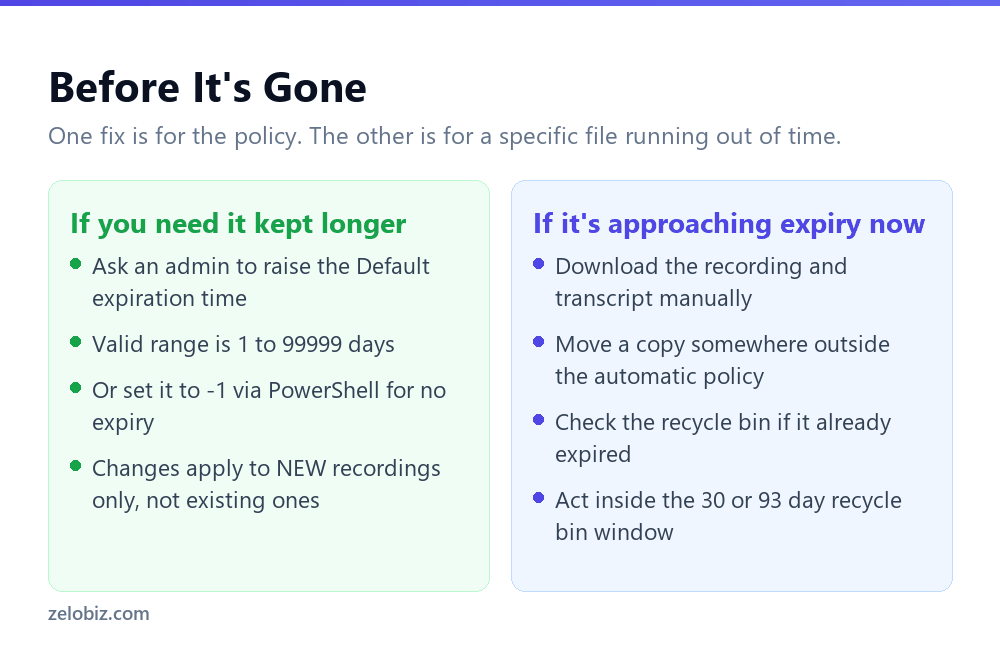
Protecting recordings going forward and rescuing one that is about to expire are different problems with different solutions, and conflating them wastes the limited time a recording near expiry actually has left.
Changing the policy protects future recordings only
An administrator can raise the default expiration time in the Teams admin center. The valid range is an integer from 1 to 99999 days, and PowerShell offers a value of -1 for recordings and transcripts that never expire at all. Education accounts on an A1 licence have a firm ceiling of 30 days as their maximum default, regardless of what an admin sets.
⚠️ Watch out: Any change to this setting only affects newly created recordings and transcripts. Microsoft states you cannot change the expiration time on existing meeting recordings and transcripts. Raising the policy today does nothing for a recording that is already 119 days old.
Saving a specific recording means acting inside its window
For a recording you specifically need to keep, the only reliable move is downloading it, or moving a copy somewhere outside the automatic expiration policy, before its window closes. If a recording has already expired, check the appropriate recycle bin immediately: the organizer’s OneDrive recycle bin for a non-channel meeting, or the channel’s SharePoint recycle bin for a channel meeting.
💡 Pro tip: For any recording tied to a decision, a contract discussion, or anything you might need to reference in a dispute, download a copy the same week as the meeting. Waiting until close to 120 days leaves no margin if something goes wrong with the recovery process.
A downloaded copy also sidesteps a detail worth knowing: it sits outside every clock described in this article the moment it’s saved. It is no longer subject to the expiration policy, the recycle bin window, or any future change an administrator makes to the organisation’s retention settings. That independence is the entire point of downloading it early rather than relying on the platform to keep it available.
A Retention Policy Worth Setting Deliberately
The 120 day default is a reasonable general setting, and it is also almost certainly wrong for at least some of what your organisation records. Treating every recording the same way, regardless of what it actually contains, is the most common way teams discover the gap only after something has already expired.
For anything in the second half of that table, the reliable approach is not raising the global default for everyone, which affects storage across the whole organisation, but identifying which specific meetings warrant an exception and handling those deliberately, either through a separate policy or a manual download at the time.
⚠️ Watch out: Compliance-level retention through Microsoft Purview is a separate system from the expiration policy described here, built for organisations with legal retention obligations. If your organisation has such requirements, that is the correct tool, not a stretched version of the meeting recording expiration setting.
Why This Matters More Than It Looks Like It Should
The 120 day figure feels generous until you consider how meeting recaps actually get used. A recap or a recording referenced casually, checked whether we said the deadline was the 15th or the 20th, or confirming who agreed to what, only becomes urgent months later, exactly when the clock described here has often already run out.
This connects directly to the verification habit worth building around any AI-generated meeting output. If you are going to rely on a Copilot recap or an action item summary, the window to check it against the original recording is shorter than most people assume. We covered what Copilot can and cannot see inside a meeting in the first place in Copilot in Teams meetings: what it can and can’t see, which is worth reading alongside this if a recap is something your team relies on regularly.
Common Questions
How long do Teams meeting recordings last before they expire?
120 days by default, which is also the default for the associated transcript. This is set in the Teams admin center and can be changed by an administrator, but only for newly created recordings, not existing ones.
Is a Teams recording deleted immediately when it expires?
No. It moves to the OneDrive or SharePoint recycle bin, where it stays for a further 30 days on a personal Microsoft account or 93 days by default on a work or school account, before permanent deletion.
Can I recover a Teams recording after it’s been permanently deleted?
No. Microsoft’s documentation states directly that items purged from the recycle bin cannot be recovered. Act within the recycle bin window, which follows the initial 120 day expiration.
How long does an audio recap last?
60 days, which is a separate and shorter window than the 120 day default for the recording and transcript themselves. You also cannot generate an audio recap for a meeting whose recording has already passed the 120 day expiration.
Can I change the default expiration time for Teams recordings?
An administrator can, within a range of 1 to 99999 days, or set it to never expire using -1 in PowerShell. Education accounts on an A1 licence are capped at a 30 day maximum regardless of that setting.
Where are Teams meeting recordings stored?
Non-channel meeting recordings are stored in the organizer’s OneDrive for Business. Channel meeting recordings are stored in that channel’s SharePoint site.
Does changing the expiration policy affect recordings I already have?
No. Microsoft states that changes to this setting only affect newly created recordings and transcripts. Existing recordings keep the expiration time they were created under.
The Short Version
- →Recordings and transcripts share a 120 day default expiration, set by policy.
- →Expiration moves items to a recycle bin. It does not delete them immediately.
- →Recycle bin windows differ: 30 days personal, 93 days work/school by default.
- →Once purged from the recycle bin, Microsoft states recovery is not possible.
- →Audio recaps run a separate, shorter 60 day clock.
- →A policy change only protects future recordings. Download anything you need to keep now.