
Copilot in Teams meetings works differently in almost every meeting you join, and the reason is rarely obvious from inside the call. A single setting, usually chosen by whoever set up the meeting policy rather than by you, decides whether Copilot has anything to work from at all.
This covers the three states that setting can be in, the one organisational boundary that overrides all of them, and what to check before you rely on Copilot in a meeting that actually matters.
Short answer: Copilot in a Teams meeting depends on the Allow Copilot and Facilitator setting. Set to during and after, transcription is required and Copilot works both live and after the meeting. Set to only during, Copilot works from live speech-to-text but has no saved transcript to draw on once the meeting ends. Set to off, Copilot does not work at all. None of this matters if the meeting is hosted by another organisation: Copilot will not work there regardless of your own licence. Verified against Microsoft’s documentation on 3 September 2026.
Three States, One Toggle
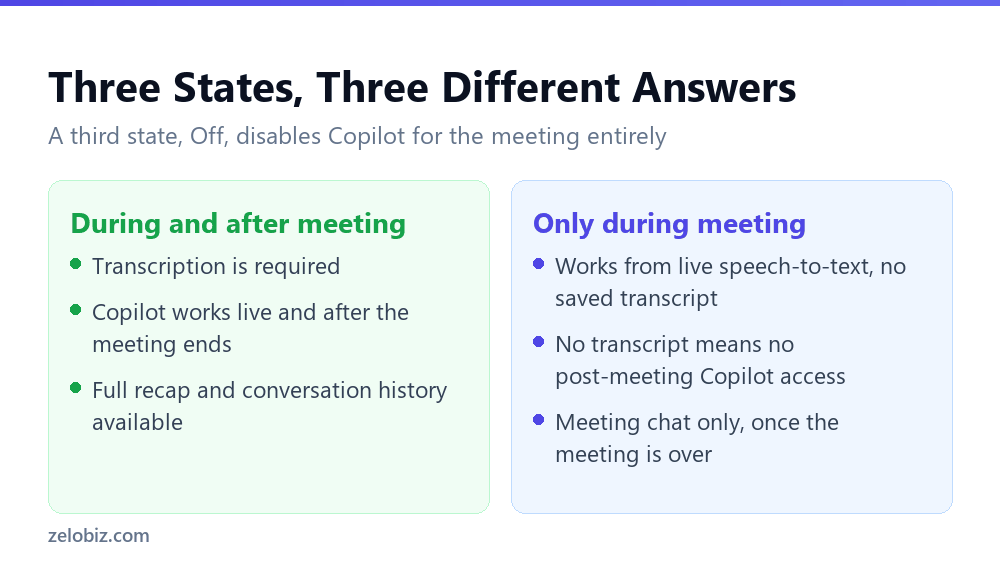
The setting controlling all of this is Allow Copilot and Facilitator, and it has three positions with meaningfully different consequences.
During and after meeting
Transcription is required to use Copilot in this mode. That is a firm requirement, not a recommendation, and it is what unlocks the full experience: Copilot can be asked questions live, and after the meeting ends its conversation history and the recap remain accessible.
Only during meeting
Here Copilot can operate without a saved transcript, working instead from live speech-to-text data as the meeting happens. The trade-off arrives the moment the meeting ends: accessing Copilot’s understanding of what was discussed afterwards requires a transcript to exist, and in this mode one was never created. What survives is the meeting chat, not the spoken content.
Off
Copilot is disabled for the meeting entirely. No live assistance, no recap, nothing to ask afterwards.
The Boundary No Setting Can Fix

Whatever the meeting’s own settings allow, one boundary sits above all of them. Microsoft states it directly: Copilot won’t work in meetings that are hosted outside the participant’s organization.
This is the one that catches people mid-call. A client meeting hosted from the other company’s tenant will not give you Copilot access no matter what your own licence or your own organisation’s policies allow, because the meeting itself belongs to a different organisation’s boundary.
⚠️ Watch out: If a recap or set of action items is part of your plan for an important external meeting, do not assume Copilot will be available simply because it works everywhere else. Host the meeting from your own tenant if a Copilot recap is something you are counting on.
A 24 hour chat window
Copilot in the meeting chat can also draw on chat data from up to 24 hours before the meeting starts. This gives it a limited amount of pre-meeting context, useful for a meeting preceded by planning discussion in the same chat, but it does not reach further back than that window.
Licensing runs on more than one path
An organizer can enable Copilot for a meeting regardless of their own licence status, but accessing the fuller intelligent recap features requires either the Teams Premium add-on licence or a Microsoft Copilot licence somewhere in the chain. Who specifically needs which licence depends on your organisation’s configuration, and it is worth confirming with whoever administers Teams rather than assuming from one person’s experience.
Internal Meetings Are Not Automatically Simple Either
It is tempting to read the external-organisation boundary as the only thing worth checking and assume anything inside your own company just works. Internal meetings still depend on the same three-state setting, and a large organisation with several meeting policies can produce exactly the same inconsistency between two internal teams.
Different teams can run different defaults
Meeting policies in Teams are typically assigned per user or per group, not applied identically across an entire tenant by default. A department that has never needed recaps may be running on a more restrictive default than one that requested Copilot access specifically. Two colleagues in the same company, in the same meeting, can have different expectations about what will be available afterwards purely based on whose policy the meeting inherited.
A recurring meeting can change setting without anyone noticing
A policy change applied by an administrator can alter what a standing weekly meeting does going forward, without the meeting organiser taking any action. If a recap that used to arrive reliably suddenly stops, checking whether the underlying policy changed is worth doing before assuming something about the meeting itself went wrong.
📊 Note: If Copilot behaviour in your own meetings has changed with no obvious cause, that is worth raising with whoever administers Teams policies before troubleshooting your own account. The setting sits at the policy level, not at the level of any individual meeting series.
A Checklist Before an External Meeting

None of these take more than a minute, and all four are worth confirming before a meeting where you are planning to lean on Copilot for notes or a recap, rather than discovering the gap once the call has started.
Confirm who is hosting
If the meeting invite comes from another organisation’s tenant, plan on taking your own notes. No configuration on your end restores Copilot access to a meeting hosted elsewhere.
Check transcription before the meeting starts
This is easier to confirm at the start of a call than to discover partway through when a question to Copilot returns nothing useful. If you need the full post-meeting recap, during and after has to be the active setting, and transcription has to actually be running.
Know which access level you’re working with
Only during meeting is not a lesser version of the same experience. It is a materially different one once the call ends, with no transcript-backed recap available afterwards. If your plan depends on reviewing what was said after the fact, confirm this setting specifically rather than assuming Copilot being present live means everything is covered.
Think about where the recap goes next
A recap generated inside your organisation’s boundary carries whatever data governance your organisation applies. Before forwarding one externally, treat it the same way you would any other internal document leaving the company, since it may contain more detail than a typed summary would have.
💡 Pro tip: For a meeting where the recap matters, host it yourself rather than accepting an invite from the other side. It puts the Allow Copilot and Facilitator setting under your control instead of leaving it to a policy you cannot see or change.
Where the Setting Actually Lives
Attendees usually never see Allow Copilot and Facilitator directly. It is set at the meeting policy or individual meeting level, typically by whoever scheduled the call or by an organisation-wide policy an admin configured, which is exactly why the answer to does Copilot work here changes between meetings without anything about your own account changing.
As an organizer
If you are setting up a meeting where Copilot matters, check this setting when you schedule it rather than assuming the organisation default covers what you need. A quarterly review that absolutely needs a recap deserves an explicit check, not an assumption carried over from the last meeting that happened to work.
As an attendee
You cannot change this setting for someone else’s meeting, and a personal Copilot licence does not override it. If Copilot isn’t responding the way it did in a meeting you organised yourself, the difference is very likely this setting rather than anything about your access.
💡 Pro tip: If you regularly attend meetings organised by the same colleague and Copilot behaves inconsistently between them, ask what their default meeting policy is rather than troubleshooting your own account first. The setting travels with the meeting, not with you.
What This Means for Recurring Client Calls
A weekly or monthly client call sits in an unusual position: it repeats often enough that a missing recap is a real cost, and it is almost always hosted from one side or the other, which brings the external-organisation boundary directly into play.
- Host it from your side whenever the choice is yours. That puts the Allow Copilot and Facilitator setting under your control rather than the client’s.
- If they must host, plan to take your own notes. No setting on your end restores Copilot in a meeting run from another organisation’s tenant.
- Confirm the setting once, not every time. A recurring meeting typically keeps the same configuration series after series, so checking it at the start of the relationship covers most future calls.
- Tell the other side if a recap depends on hosting. Explaining once why you’d prefer to host is simpler than losing a recap partway through a project.
None of this is about control for its own sake. It is about knowing in advance which calls will have a reliable AI-generated record and which will not, so that decision isn’t made by accident by whoever happened to send the invite.
Verifying What Copilot Reports Back
Everything Copilot produces from a meeting, live answers, notes, and recaps alike, carries the same caveat Microsoft attaches to its other generative features: verify the results, because AI-generated content could be incorrect.
That instruction matters more here than in most contexts, because a meeting recap typically gets acted on quickly. An action item attributed to the wrong person, or a decision summarised slightly differently from how it was actually made, can travel to several people’s task lists before anyone checks the source. The retention and recap-lifespan details that affect how long you have to go back and verify against the original are covered in why Teams recordings expire after 120 days.
This is the same discipline we described for email drafts and document edits: treat anything AI-generated as a first pass that needs a specific, targeted check, not a finished record. Our guide to AI email triage in Outlook covers the equivalent reasoning for deciding what deserves that check and what doesn’t.
Common Questions
Why doesn’t Copilot work in my Teams meeting?
Check three things: whether the Allow Copilot and Facilitator setting is off for that meeting, whether transcription is actually running if you need post-meeting access, and whether the meeting is hosted by a different organisation, which blocks Copilot regardless of any other setting.
Does Copilot in Teams need a live transcript?
Depends on the setting. During and after meeting requires transcription. Only during meeting lets Copilot work from live speech-to-text without one, but that means no transcript exists for Copilot to reference once the meeting ends.
Can I use Copilot in a meeting hosted by another company?
No. Microsoft states directly that Copilot won’t work in meetings hosted outside the participant’s organization. This overrides your own licence and any setting your own organisation applies.
How far back can Copilot see chat messages before a meeting?
Up to 24 hours before the meeting starts. Chat sent earlier than that window is not included in what Copilot can reference.
What licence do I need for Copilot’s intelligent recap in Teams?
The fuller intelligent recap features require either the Teams Premium add-on licence or a Microsoft Copilot licence. An organizer can turn Copilot on for a meeting regardless of their own licence status, but recap depth depends on licensing across the chain.
Should I trust a Copilot-generated meeting recap without checking it?
No. Microsoft’s own guidance says to verify the results because AI-generated content could be incorrect. This matters especially for action items and attributed decisions, which tend to get acted on quickly after a recap goes out.
What is the difference between the three Allow Copilot and Facilitator settings?
During and after meeting requires transcription and gives full live and post-meeting access. Only during meeting works from speech-to-text with no post-meeting transcript. Off disables Copilot for that meeting completely.
The Short Version
- →One setting, Allow Copilot and Facilitator, decides everything else in this article.
- →Only ‘during and after’ requires transcription and gives a post-meeting recap.
- →‘Only during’ leaves nothing to reference once the meeting ends.
- →Copilot will not work in a meeting hosted by a different organisation. No setting fixes this.
- →Meeting chat context reaches back 24 hours before the meeting, no further.
- →Verify recap content before acting on it, especially action items and attributions.