

Copilot in Word gets covered mostly as a list of things it can do. The more useful list is the shorter one Microsoft actually publishes: what it has stated, in its own documentation, that the feature does not do.
None of what follows is a workaround discovered by trial and error. Every exclusion below comes from Microsoft’s support pages, and each one changes how you should use the feature on a real document rather than a demo.
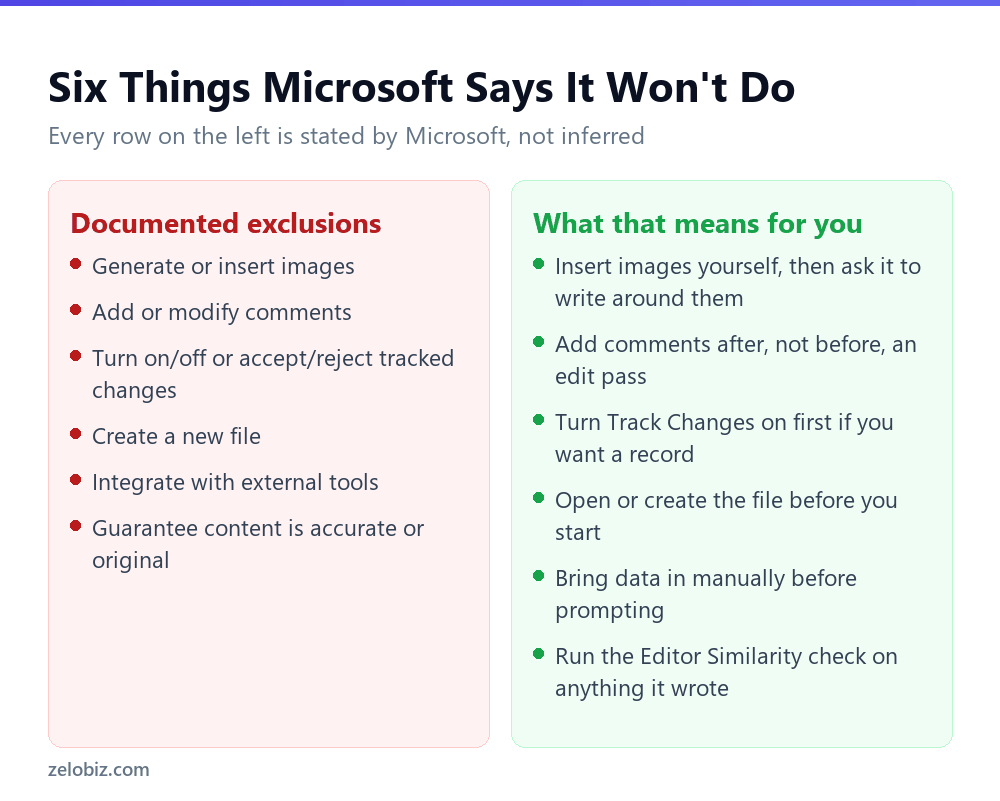
Short answer: Copilot in Word cannot insert images, cannot add or modify comments and can delete an existing one if it rewrites the paragraph the comment is anchored to, cannot toggle or accept and reject tracked changes though it will respect Track Changes if you have already turned it on, cannot create a new file, and does not integrate with tools outside the document. It also cannot guarantee its output is accurate or original, which is why Microsoft’s own FAQ points you to the Editor Similarity checker. Verified against Microsoft’s documentation on 3 September 2026.
Six Documented Exclusions
It will not generate or insert images
Microsoft states this plainly: Edit with Copilot cannot generate or insert images into the document. If your document needs a diagram or a photo, that step happens outside Copilot, before or after the writing.
It cannot add or modify comments
Copilot cannot add or modify comments in your Word document at this time. If you use comments to route a document for review, that layer of the workflow stays entirely manual.
It cannot control tracked changes
Edit with Copilot cannot turn on or off, and cannot accept or reject, tracked changes. It does, however, respect Track Changes if it is already enabled, meaning its edits will show up as tracked changes rather than silently overwriting your text. The setting has to be on before you start.
It cannot create a new file
Edit with Copilot can only create content in the currently open document. It cannot create new files. If you want a fresh document, you open or create it first, the same as you always did.
It does not talk to anything outside the document
Integration with external tools is not supported. Data from another system has to be brought in by hand before you prompt, which matters if your plan involves pulling figures from somewhere else automatically.
It cannot vouch for its own output
Microsoft’s language here is direct: suggestions can sometimes make mistakes, misinterpret facts or produce inaccurate results, and generated content is based on patterns found across the internet, so results can closely resemble existing content. The FAQ’s own remedy is the Editor Similarity checker, covered further down.
The Comment You Can Lose Without Noticing
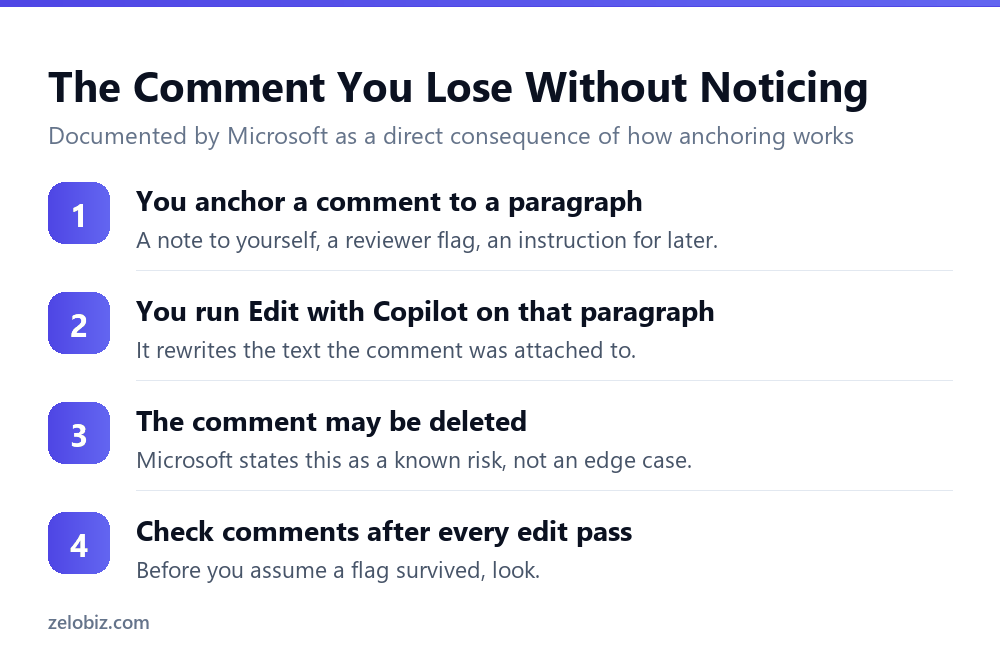
This is the one exclusion that catches people who read the other five and think they have covered the risk. A comment is attached to text, and Copilot edits text, so the connection between the two is more fragile than it looks.
Microsoft states directly that the comment may be deleted if Edit with Copilot makes changes to the paragraph that the comment is anchored to. This is not a bug report. It is documented behaviour.
⚠️ Watch out: If comments carry information you need, such as a reviewer’s instruction or a note about a figure still to be confirmed, check that they survived after every editing pass. Do not assume a comment that was there before an edit is still there after.
Length Behaves Differently Depending on the Task
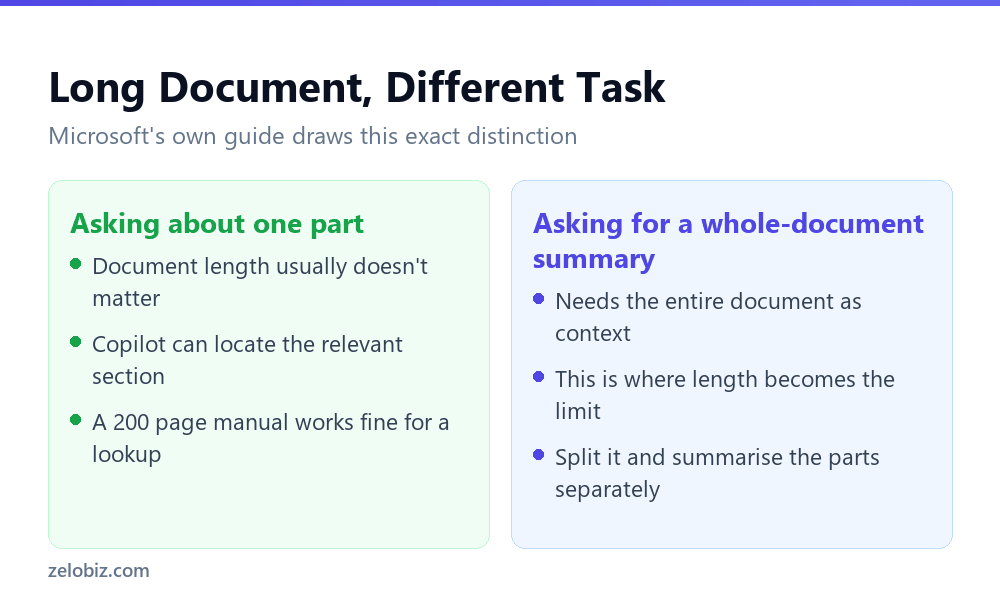
Microsoft’s own guide draws a distinction that most people miss because it is not intuitive: document length matters enormously for one kind of request and barely at all for another.
Asking a specific question about part of a long document typically works regardless of how long the document is, because Copilot only needs to locate the relevant section. Asking for a summary of the whole document is different. That task needs the entire document as context, and that is where length becomes the actual constraint.
The same guide notes that large language models tend to prioritise content at the beginning and end of a file, giving less attention to the middle. On a long document, that means a summary is more likely to miss something buried on page 40 of 60 than something on page 2 or page 58.
💡 Pro tip: For a long document you actually need summarised well, split it into logical sections yourself and summarise each one, then combine the summaries. This is slower than one prompt and it is the approach Microsoft itself recommends for exactly this reason.
What Copilot Can Actually Read
Format support differs between a work or school account and a personal subscription, which explains why a workflow that works for a colleague sometimes fails for you on the same file.
Older .doc files are best converted to .docx before you rely on them as reference material, and Microsoft’s own troubleshooting advice for a format that is not read correctly is usually to convert it to .pdf or .docx first.
Auto Rewrite Versus a Prompt: Two Different Tools
People tend to describe Copilot in Word as one feature. Documented behaviour splits it into two, and each has a different way of failing.
Auto Rewrite works on a selection
Select text, choose the Copilot icon in the margin, then Auto Rewrite. It returns several rewritten versions of that specific selection, which you cycle through and pick from. The scope is fixed by what you highlighted, and nothing outside the selection is touched.
A prompt in the chat pane works on intent
Typing an instruction into the Copilot pane is a broader request, and it carries a different risk. Microsoft notes that the content of the chat pane is not saved, so Copilot cannot refer back to what you asked for earlier in the same session. Each prompt effectively starts without memory of the last one.
💡 Pro tip: If a chat pane conversation produced something useful three prompts ago, restate the relevant part rather than referring back to it. Copilot cannot see its own earlier answers in that pane once the session state resets.
Getting the Licence Right Before You Plan Around It
Access requires Microsoft Copilot for organisations, or Microsoft 365 Premium for individual subscribers. At the time this was checked, Personal, Family and Premium consumer plans were listed as coming soon for some capabilities, which is worth confirming against your own plan rather than assuming from a colleague’s access.
📊 Note: If a feature described here is missing for you, check your specific licence before assuming a bug or a rollout delay. Consumer and organisational access follow different rules and different timelines.
Verifying What It Wrote
Microsoft’s own FAQ recommends the Editor Similarity checker for exactly the problem its accuracy disclaimer describes. It is a built-in tool, and running it on anything Copilot wrote costs a few seconds.
Under Editor on the Home tab, scroll to Similarity and select Check for similarity. It returns a percentage of your content that matches text found online, with the specific passages flagged for review, so you can decide whether attribution is warranted.
This closes a real gap. Copilot generates content based on patterns found across the internet, and Microsoft says outright that results can closely resemble existing content. A generated draft that reads as polished is not evidence that it is original, and the Similarity checker is the documented way to find out rather than assume.
The same discipline applies to anything AI drafts before it goes out under your name. We covered the equivalent check for email in drafting email with Copilot in Outlook, and the editing pass for prose in general in making AI writing sound human.
A Ten Minute Checklist Before You Rely on It
Most of the exclusions above only matter on a specific kind of document: something that leaves your desk, gets attached to an email, or goes in front of a client. For a quick internal note none of this is worth the ten minutes. For anything with your name on it going somewhere else, it is.
- Turn Track Changes on before you prompt, not after. It cannot be applied retroactively.
- Check your comments survived if you edited a paragraph one was anchored to.
- Run the Similarity checker on anything substantial Copilot drafted from scratch.
- Confirm every number and name the same way you would in a generated email.
- Add images and format the layout yourself, since neither is something Copilot will do for you.
None of these five steps require expertise, and none of them are optional if you are treating the output as close to final. They exist because Microsoft has told you, in its own documentation, exactly where the feature stops and your judgement has to start.
Common Questions
Can Copilot in Word insert images into my document?
No. Microsoft states directly that Edit with Copilot cannot generate or insert images. Images have to be added separately, before or after you use Copilot on the text.
Can Copilot add comments to a Word document?
No, and it can remove an existing one. Copilot cannot add or modify comments, and Microsoft warns that a comment may be deleted if Copilot changes the paragraph the comment is anchored to. Check your comments after every editing pass.
Does Copilot work with Track Changes?
It respects Track Changes if you have already turned it on, meaning its edits appear as tracked changes rather than silently replacing your text. It cannot turn Track Changes on or off itself, and it cannot accept or reject changes.
Is there a word limit for Copilot in Word?
Microsoft’s FAQ states Copilot is limited in the number of words it can process per prompt without giving an exact figure, and a separate guide recommends splitting long documents rather than relying on one prompt across the whole thing.
Does document length matter for Copilot in Word?
It depends on the task. A specific question about part of a long document usually works regardless of length. Summarising the entire document needs the full document as context, which is where length becomes a real constraint.
How do I check whether Copilot’s writing is original?
Use the Editor Similarity checker, which Microsoft’s own FAQ recommends for this purpose. Select Editor on the Home tab, scroll to Similarity, and choose Check for similarity to see what percentage matches content found online.
Can Copilot create a new Word document?
Edit with Copilot works only in the currently open document and cannot create new files. You need to open or create the document first.
The Short Version
- →Copilot cannot insert images, add comments, or create new files.
- →It can delete an existing comment if it rewrites the paragraph it is anchored to.
- →It respects Track Changes if already on, but cannot toggle or resolve changes itself.
- →Document length matters for whole-document summaries, far less for targeted questions.
- →Personal subscriptions read a narrower set of file formats than work and school accounts.
- →Run the Editor Similarity checker on generated text. Microsoft’s own FAQ recommends it.