
Creating a presentation with Copilot works exactly as well as the demos suggest, right up until you hit one of two limits Microsoft documents but rarely leads with. Both are avoidable once you know they exist, and both produce confusing results if you don’t.
This covers what actually happens on each of the two routes into a Copilot-generated deck, the specific numbers behind each limit, and a workflow that works around both rather than fighting them.
Short answer: Copilot can build a presentation from a typed prompt or from an existing file. From a prompt, only one output language is supported per generation. From a file, you cannot add extra instructions alongside the file reference in the same request, you need permission to use that file, and it works best with Word documents under 24 MB. Everything it produces is explicitly flagged as needing human review before use. Verified against Microsoft’s documentation on 3 September 2026.
Two Routes In, Two Different Rulebooks

Starting a new presentation, selecting the Copilot icon, and typing a description is the route most people try first. Microsoft’s own guidance is straightforward: use natural language, and more detail produces better results. It is genuinely close to how the feature is marketed.
The second route, building from an existing file, is where the documented limits start to matter more, because the request has to travel through a specific interface path: Home, then Copilot, then Create a presentation from File, then select the source document.
Limit One: A Single Language Per Generation
Microsoft states this plainly for the prompt-based route: when creating a presentation using a prompt, only a single output language is supported at a time. If you need a bilingual deck, or the same content in two languages for two audiences, one generation will not produce both.
Limit Two: A File Reference Can’t Carry Extra Instructions

This is the constraint most likely to catch someone off guard, because it feels like it should work. You reference a source document and try to add a line of extra guidance in the same prompt, something like build this into ten slides and keep the tone formal. Microsoft states directly that additional context cannot be provided within the same prompt when referencing a file.
The instruction has to live somewhere else. Either it goes into the source file itself, as a heading, a note, or emphasis that signals structure, or it gets applied afterwards as a separate editing step once the first draft exists.
Permission is checked, not assumed
You must have access to and permission to use the file you’re referencing to create a presentation. This matters most in a shared workspace, where a file you can view is not automatically a file you are authorised to draw content from for a new document.
File size and format have a practical ceiling
Microsoft’s guidance is that Copilot works best with Word documents smaller than 24 MB. That is a large document by most standards, so this rarely bites on a single report, but it is worth checking before you point Copilot at a combined archive of several documents merged into one file.
⚠️ Watch out: If a source file exceeds the recommended size, the practical fix is the same one that applies to reference documents in Word: split it into the specific section you actually need for the presentation. We covered the equivalent problem for Word references in why Copilot ignored half your reference document.
Two capabilities are not fully rolled out yet
Support for adjusting presentation length, tone, style and image preferences was, at the time this was checked, described by Microsoft as rolling out and coming soon rather than universally available. And referencing a file specifically inside Agent Mode is listed as coming soon rather than working today.
📊 Note: Feature rollouts like these move quickly and unevenly across tenants. If a capability described here as coming soon is already working for you, that is expected. Check your own interface rather than assuming this article’s snapshot is current for every account.
Working Within Both Limits
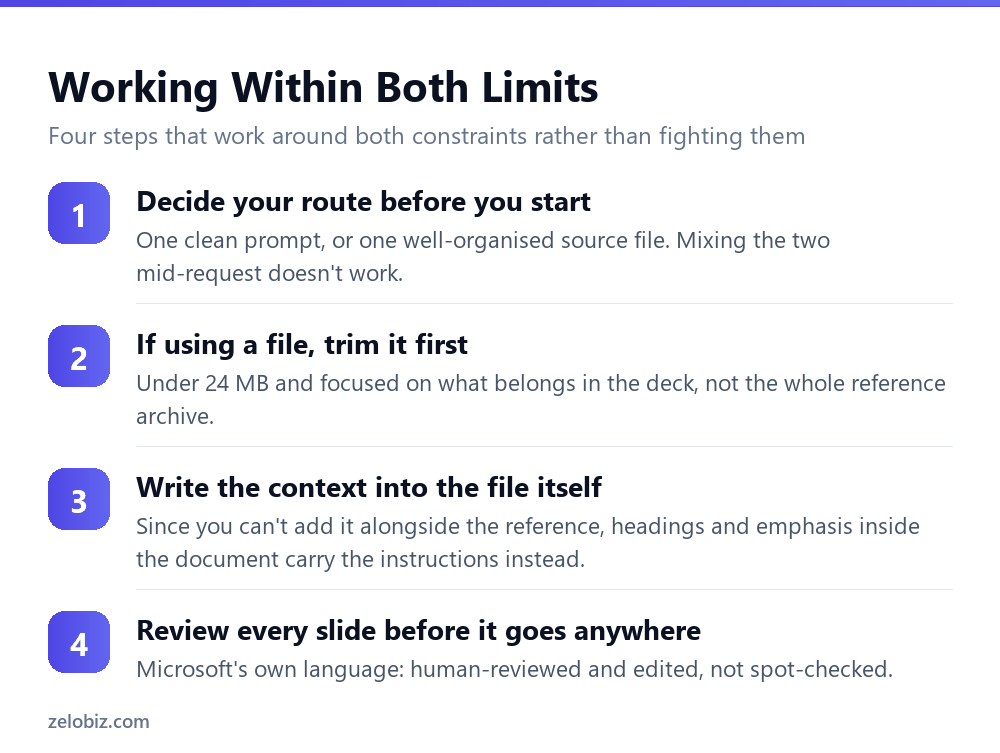
None of the four steps below are complicated. What matters is doing them before you start, rather than discovering the limit mid-generation and trying to patch around it.
Decide your route first
One clean prompt, or one well-prepared source file. Trying to combine both, referencing a file and adding fresh instructions in the same breath, is exactly the combination Microsoft documents as unsupported.
Prepare the file before you reference it
If you are building from a file, trim it to what actually belongs in the presentation rather than pointing Copilot at the full source archive. Clear headings inside the document do real work here, since that structure is the closest thing to context you can pass alongside a file reference.
Put instructions in the document, not beside it
Since a prompt cannot carry extra context alongside a file reference, structure the document itself to communicate intent. A heading that says Executive Summary or Key Risks tells Copilot more about what belongs on a slide than a sentence you cannot attach to the request.
Treat the first draft as a draft
Microsoft’s own wording for the output is direct: it is AI-generated content and should be human-reviewed and edited accordingly. That applies to every fact, every number, and every claim on every slide, not just the overall structure and flow.
Why an On-Brand Deck Depends on the Template, Not the Prompt
A separate Microsoft page addresses a request people make constantly: keep this on-brand. The mechanism behind it is worth understanding, because it explains a surprising number of generated decks that come out generic despite a detailed prompt.
Microsoft states that Copilot analyses templates, layouts and design elements alongside your prompt to generate on-brand, visually consistent output. The template is described directly as the foundation Copilot learns from. A brand kit, covering voice, tone, style and imagery, is optional but recommended on top of that.
The template has to be built in the desktop app
One requirement is easy to miss: the template needs to be created in PowerPoint for Windows or Mac, not the web version. A brand template assembled entirely in a browser tab is not the reliable foundation Microsoft’s guidance describes.
Copilot will not resize a placeholder to fit
This is the detail that produces the most visible problem in practice. When generated text is longer than a placeholder was designed to hold, Copilot does not change the font size or the placeholder size to compensate. Text can overflow or get cut off, and the fix is a manual adjustment after generation, not something the tool corrects on its own.
💡 Pro tip: If a generated deck looks broken rather than merely plain, check for overflowing text before assuming something failed. Copilot will not shrink text or resize a box to make content fit a template it did not design.
Where This Fits With the Rest of the Suite
The two limits here, one language per generation and no side-channel instructions alongside a file, are specific to presentations, but the underlying pattern is one we have found across the whole suite: a feature that looks unrestricted in a demo turns out to have a small number of hard, documented boundaries once you use it on a real task.
The equivalent boundaries for Word are covered in what Copilot in Word still can’t do, and the same discipline, checking Microsoft’s stated limits before assuming a result is wrong, saves the most time when something does not behave the way a demo suggested it would.
A Practical Sequence for a Deck That Actually Ships
Putting the two routes, the brand dependency, and the review requirement together produces a sequence that is slower than typing one prompt and walking away, and it is the version that reliably produces something presentable.
None of these steps require special expertise. What they require is doing them before the deck is due, since every one of them is easier to fix at the draft stage than after the meeting has already started.
Common Questions
Can Copilot create a presentation in two languages at once?
No. Microsoft states that when creating a presentation from a prompt, only a single output language is supported at a time. For two languages, run two separate generations.
Can I add extra instructions when creating a presentation from a file?
Not in the same prompt. Microsoft documents that additional context cannot be provided alongside a file reference. Put structural instructions into the source file itself, or apply them as a separate editing pass afterwards.
What is the file size limit for creating a presentation from a document?
Copilot works best with Word documents smaller than 24 MB. This is described as a practical recommendation rather than a hard block, but staying under it avoids unpredictable results.
Do I need special permission to use a file as a source for Copilot?
Yes. Microsoft states you must have access to and permission to use the file you’re referencing. Being able to view a shared file does not automatically mean you are authorised to generate content from it.
Can Copilot adjust the tone, length and style of a generated presentation?
At the time this was checked, Microsoft described support for adjusting length, tone, style and image preferences as rolling out and coming soon, meaning it was not yet universally available across all accounts.
Does referencing a file work in Agent Mode?
Not yet at the time this was checked. Microsoft’s documentation listed support for referencing files in Agent Mode as coming soon.
Should I trust the content Copilot puts on the slides?
No, not without checking. Microsoft’s own description of the output is explicit: it is AI-generated content and should be human-reviewed and edited before use, covering every fact and figure, not just the overall structure.
The Short Version
- →Only one output language is supported per prompt-based generation.
- →A file reference cannot carry extra instructions in the same prompt.
- →You need explicit permission to use a file as a Copilot source.
- →Source documents work best under 24 MB.
- →Length, tone, style and image preference controls were still rolling out at time of writing.
- →Every generated slide is flagged by Microsoft as needing human review before use.