
Copilot search limits in SharePoint come down to one number most people building an agent never look up before they start: twenty. That is the entire knowledge source an agent can draw from, and it changes what kind of agent is actually worth building.
This covers the source ceiling, what file types actually work today versus what is still coming, and the permission behaviour that means the same agent can answer the same question differently depending entirely on who is asking.
Short answer: A Copilot agent in SharePoint can draw on up to 20 source items total, combinable as folders and files, for example 4 folders plus 16 files. Supported file types today include DOC, DOCX, PPT, PPTX, XLSX, PDF, TXT, RTF, FLUID, LOOP, ASPX, HTM, HTML, ODT and ODP; images, meeting recordings, videos and OneNote were listed as coming soon rather than working now. Results are always trimmed to what the asking user personally has permission to see. Verified against Microsoft’s own FAQ on 4 September 2026.
The Twenty Item Ceiling
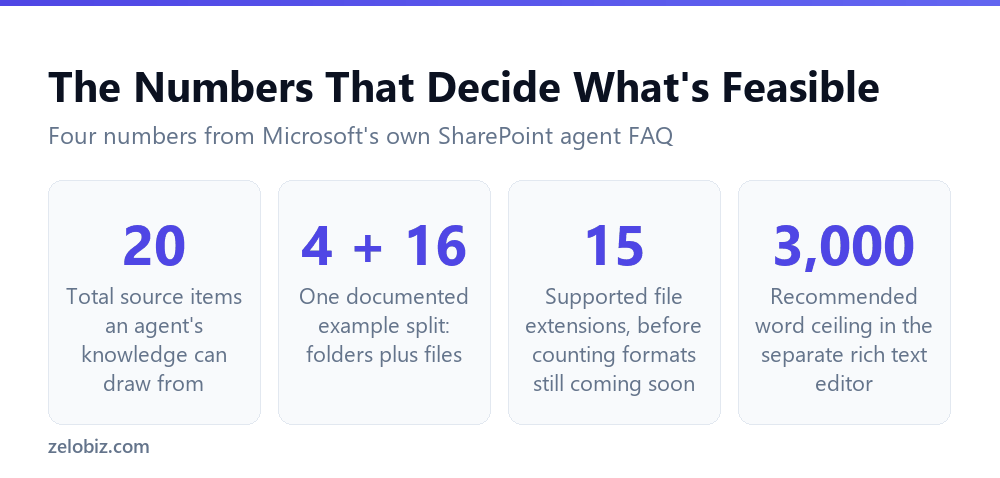
Microsoft states this directly: agents allow up to 20 source items as the knowledge source. Items combine across types, and the example Microsoft gives is 4 folders plus 16 files.
The number that catches people out is not the 20 itself, it is what counts as one item. A folder containing 500 documents still counts as a single source item toward the ceiling, but that also means an agent built from a handful of well-organised folders can cover far more actual content than one built from 20 individually selected files.
💡 Pro tip: When planning a department agent, favour a small number of well-organised folders over hand-picking individual files. It uses the source ceiling far more efficiently, and it means new documents added to those folders are covered automatically.
What Actually Reads Today
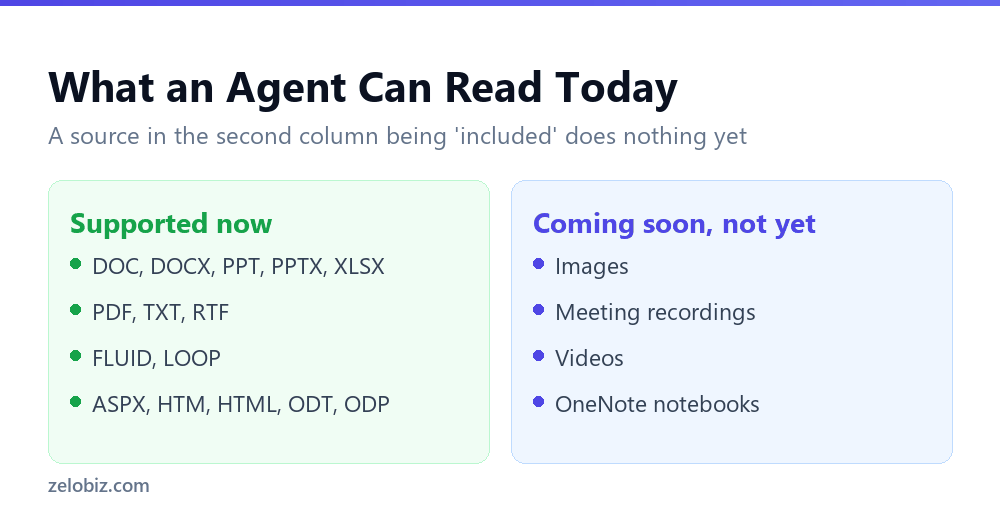
The supported list is broader than most people assume for text-based formats, and it has real gaps for anything visual. Officially supported today: DOC, DOCX, PPT, PPTX, XLSX, FLUID, LOOP, PDF, TXT, RTF, ASPX, HTM, HTML, ODT and ODP.
Images, meeting recordings, videos, and OneNote notebooks were all listed as coming soon at the time this was checked, meaning not working yet rather than working with limitations. Including one of these in an agent’s sources today does not make its content available; it simply sits there without contributing anything.
⚠️ Watch out: If a department’s most important reference material is a set of OneNote notebooks or a library of recorded training videos, an agent built today will not be able to read any of it. Check the supported list before building around content in one of the not-yet formats, rather than discovering the gap after the agent is already in use.
Permission Trimming: One Agent, Different Answers
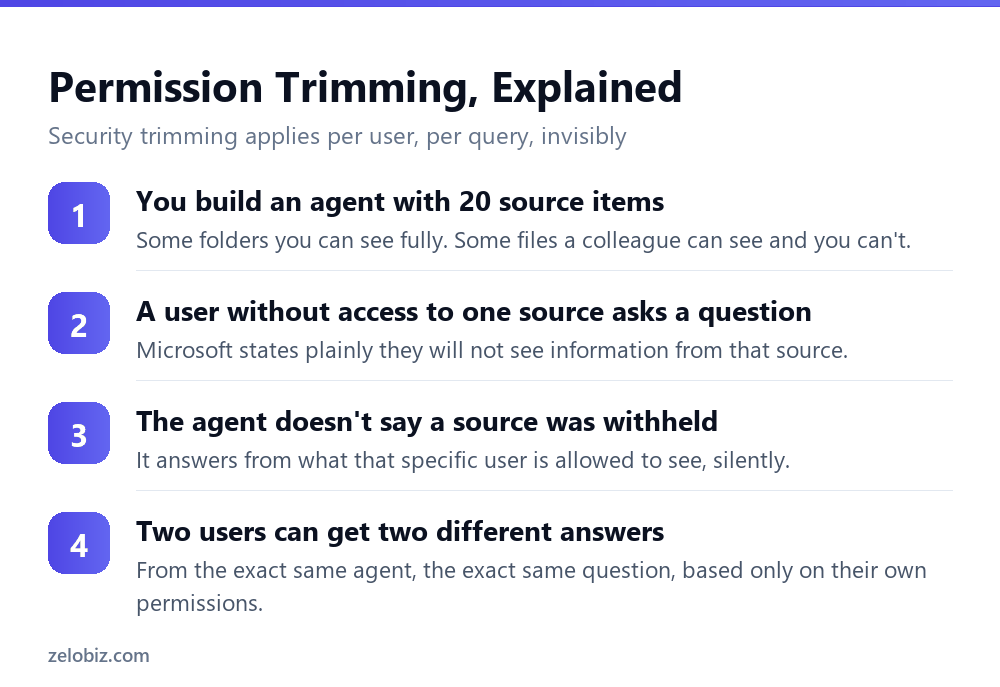
Microsoft’s wording here is unambiguous: if you don’t have permission to specific content, even if this content is included in the agent’s sources, you will not see information from this content in your chat with the agent.
This is security trimming applied per user, per question, and it happens silently. The agent does not tell a user that a source was withheld because they lack access to it. It simply answers using whatever subset of the 20 sources that specific person is permitted to see.
This matters most for troubleshooting. If an agent seems to be missing something a colleague swears it answered correctly for them, the first thing to check is not the agent’s configuration. It is whether the two of you actually have the same underlying permissions to the source content.
📊 Note: Permission trimming is a security feature working as intended, not a bug. An agent cannot leak content to someone who was never authorised to see it, and that protection holds even when the content is technically listed among the agent’s sources.
The Rich Text Editor Is a Different Surface Entirely
Copilot’s rich text editor in SharePoint, used for drafting page content directly, operates under its own separate rules that have nothing to do with agents or their sources.
Microsoft recommends keeping the total word count in each rich text editor session under 3,000 words, and states plainly that this editor has no access to your documents or Microsoft Graph data, meaning no emails, chats or calendar content. It is a standalone drafting tool, not a window into an agent’s knowledge sources.
Licensing runs on two possible paths
Access requires either an assigned Microsoft Copilot licence, or an organisation with Pay-As-You-Go billing configured. Either path unlocks agents in SharePoint, and it is worth confirming which one applies to your account before assuming a missing feature is a rollout delay.
Building an Agent That Fits the Ceiling
Twenty items sounds restrictive until you plan around it deliberately rather than discovering the limit mid-build. A few habits make the difference between an agent that covers a department properly and one that runs out of room halfway through setup.
Start from folders, not from search results
Selecting files one at a time from search results feels precise and burns through the ceiling fast. Starting from the folder structure your team already uses, and pointing the agent at the two or three top-level folders that actually matter, usually covers more ground for far less of the budget.
Separate agents beat one overloaded agent
A single agent trying to cover an entire department’s onboarding material, policy documents and project archives at once will hit the 20 item ceiling immediately. Several narrower agents, one per topic area, each fit comfortably within the limit and tend to give more focused answers as a side effect.
Revisit the source list as content moves
A folder-based source stays current automatically as files are added inside it. An individually selected file does not update if it gets replaced by a newer version saved elsewhere, or moved to a different folder. Preferring folder sources over individual files also reduces how often the agent’s configuration needs revisiting.
What the Output Actually Is
Microsoft’s own disclaimer for this feature does not soften anything: AI-generated content may be incomplete, inaccurate, or out-of-date, and should not be relied on without independent verification. A separate line rules out an entire category of use: Copilot in SharePoint is not intended for medical, legal, financial, or other professional advice.
The same discipline that applies to any generated summary applies here. We covered the equivalent problem for Word reference documents in why Copilot ignored half your reference document, where content position and format determined what actually got used. The lesson transfers directly: know what an agent can and cannot see before trusting what it says about either.
Troubleshooting an Agent That Seems to Know Less Than It Should
Four checks cover most cases where an agent’s answers feel thinner than expected, and working through them in order rules out the cheap explanations before assuming something about the agent’s build is wrong.
The fourth check catches a specific pattern: an agent that worked well when it launched and has quietly become less useful over months. If its sources were individually selected files rather than folders, new documents created since then were never added to its knowledge, and nothing about that failure is visible from inside a normal conversation with the agent.
Common Questions
How many documents can a Copilot agent in SharePoint know about?
Up to 20 source items, which can be combined as folders and files, for example 4 folders plus 16 files. A folder counts as one item regardless of how many documents it contains, so a small number of well-organised folders covers far more content than 20 individually selected files.
What file types can a SharePoint agent read?
Currently DOC, DOCX, PPT, PPTX, XLSX, PDF, TXT, RTF, FLUID, LOOP, ASPX, HTM, HTML, ODT and ODP. Images, meeting recordings, videos and OneNote notebooks were listed as coming soon rather than working at the time this was checked.
Does a SharePoint agent show content I don’t have permission to see?
No. Microsoft states that if you don’t have permission to specific content, you will not see information from it in your chat with the agent, even if that content is included among the agent’s sources.
Can two people get different answers from the same SharePoint agent?
Yes. Because results are trimmed to each user’s own permissions, someone with access to fewer of the agent’s source items will receive an answer built from a narrower set of content than a colleague with broader access.
What is the word limit for Copilot’s rich text editor in SharePoint?
Microsoft recommends keeping the total word count under 3,000 words per session. This editor also has no access to your documents or Microsoft Graph data such as emails, chats or calendar content.
What licence do I need for Copilot agents in SharePoint?
Either an assigned Microsoft Copilot licence, or an organisation with Pay-As-You-Go billing set up. Either path enables agent creation.
Should I trust everything a SharePoint agent tells me?
No, not without checking. Microsoft’s own disclaimer states the content may be incomplete, inaccurate or out of date, and should not be relied on without independent verification. It also explicitly is not intended for medical, legal or financial advice.
Deciding Whether an Agent Is the Right Tool at All
Not every use case that reaches for a SharePoint agent actually needs one. If the content in question is a handful of documents everyone already knows how to find, an agent adds a layer of AI-generated summarisation to something search already handled adequately.
Agents earn their place when a body of content is large enough that finding the right document is itself the friction, or when the value is in synthesising across several documents rather than opening any single one. A twenty item source ceiling fits that second use case comfortably. It fits the first one, a huge unstructured archive, far less well, since twenty items will rarely be enough to represent something genuinely large without careful folder-level organisation first.
The Short Version
- →A SharePoint agent’s knowledge source caps at 20 items total.
- →A folder counts as one item no matter how many documents it holds.
- →Images, recordings, videos and OneNote are not yet readable by agents.
- →Results are permission-trimmed per user, silently, with no notice given.
- →The rich text editor is a separate surface with its own 3,000 word guidance.
- →Output carries an explicit accuracy disclaimer and is not for professional advice.