
Most articles comparing XLOOKUP vs VLOOKUP treat it as a simple upgrade. Newer function, fewer limitations, switch and move on.
That’s true functionally. It skips the one detail that actually decides the question for a lot of people: which Excel version you’re running. XLOOKUP doesn’t exist in two still-common versions, full stop.
Short answer: XLOOKUP searches in any direction and defaults to an exact match, while VLOOKUP only looks rightward and defaults to an approximate one. XLOOKUP also lets you set a custom message when nothing is found, instead of a plain #N/A. The catch: XLOOKUP is only available in Microsoft 365, Excel 2021, and Excel 2024. It does not exist in Excel 2016 or Excel 2019, according to Microsoft’s own documentation. If you or anyone opening your file is on one of those two versions, VLOOKUP or INDEX/MATCH are the only working options. Verified directly against Microsoft’s support pages on 4 September 2026.
The Functional Differences
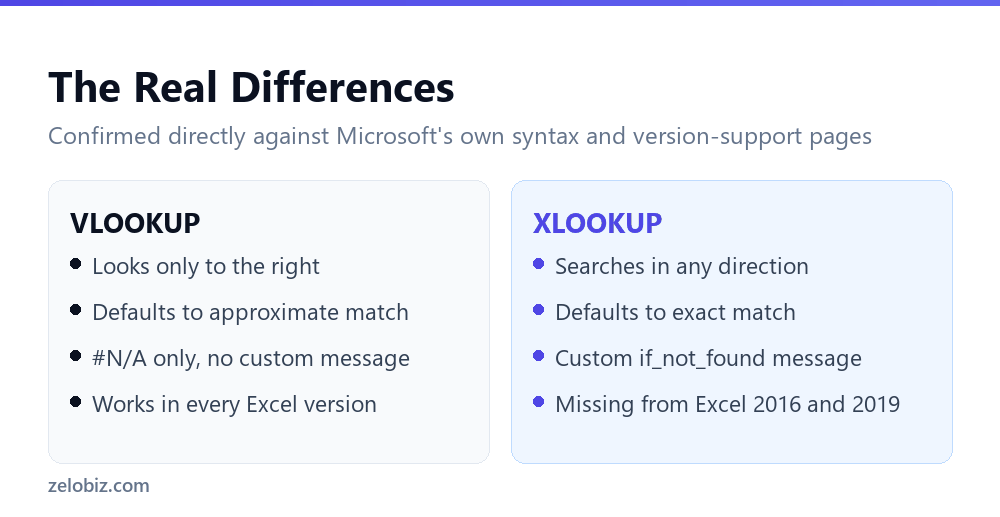
XLOOKUP’s syntax is XLOOKUP(lookup_value, lookup_array, return_array, [if_not_found], [match_mode], [search_mode]). It replaces VLOOKUP’s single table_array with two separate ranges: one to search, one to return from.
That split is what removes VLOOKUP’s biggest restriction. VLOOKUP can only return a value from a column to the right of what it’s searching. XLOOKUP’s lookup_array and return_array can point anywhere, in either direction.
The default-match difference matters as much as the direction change. VLOOKUP defaults to an approximate match unless you type FALSE. XLOOKUP defaults to exact, the safer behavior, without needing an extra argument.
The Version Gate Nobody Mentions
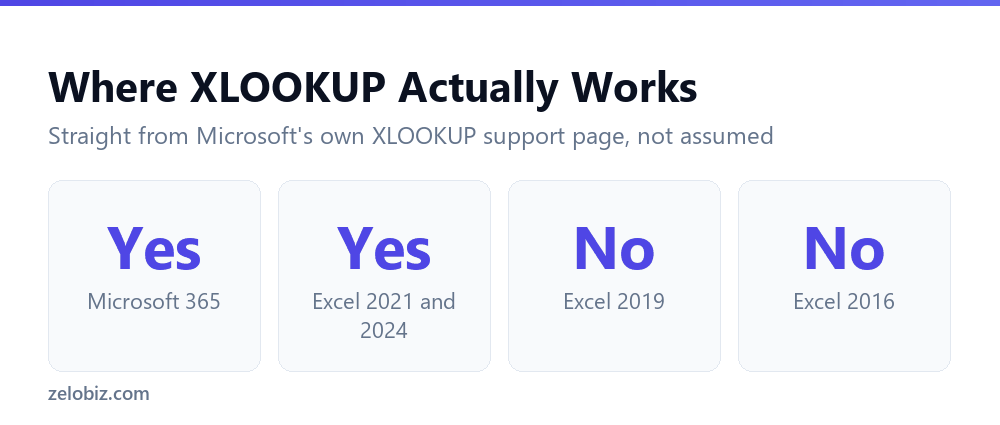
Microsoft’s own XLOOKUP support page lists exactly which versions include it: Excel for Microsoft 365, Excel 2024, Excel 2021, and the mobile apps. Excel 2016 and Excel 2019, both still in active use on perpetual-license installs, are absent from that list entirely.
⚠️ Watch out: If your workplace bought Excel 2019 as a one-time purchase rather than a Microsoft 365 subscription, XLOOKUP simply isn’t there. Not hidden in a menu, not a setting to enable. The function doesn’t exist in that build.
This matters beyond your own machine. A file built with XLOOKUP and sent to someone on Excel 2019 won’t recalculate correctly for them. They’ll see a formula error, not a result, even though the file works perfectly on your end.
How to Decide
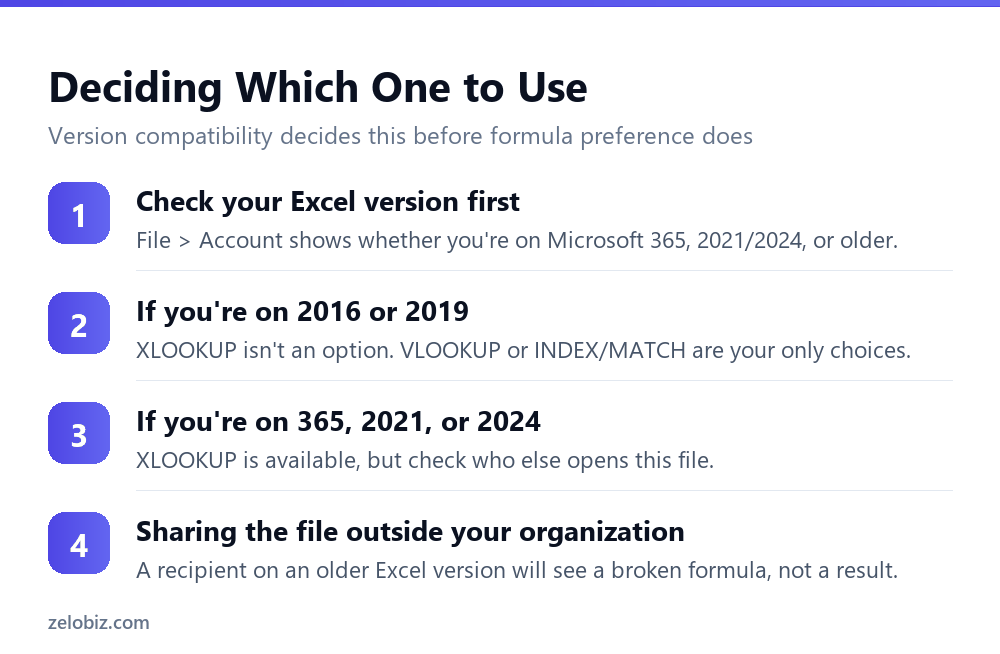
Check File, then Account, to see whether you’re on Microsoft 365, a numbered 2021 or 2024 license, or an older version. That single check settles most of the decision before formula preference even comes into it.
- On Excel 2016 or 2019: XLOOKUP isn’t available. Use VLOOKUP or INDEX/MATCH.
- On Microsoft 365, 2021, or 2024, working alone: XLOOKUP is the more capable choice.
- On a newer version, but sharing the file outside your organization: check what version recipients use before committing to XLOOKUP.
💡 Pro tip: For a spreadsheet template that will be copied, emailed, or reused by people you don’t control, INDEX/MATCH is often the safer default. It has none of VLOOKUP’s inserted-column problem and runs on every Excel version XLOOKUP does and several it doesn’t.
What if_not_found Actually Solves
VLOOKUP’s only response to a missing value is #N/A, a generic error that means nothing to someone reading the sheet without context.
XLOOKUP’s optional if_not_found argument lets you supply a plain-language message instead, like “Not in database” or a blank string. If it’s left out, XLOOKUP returns #N/A too, so the improvement only applies if you actually use the argument.
📊 Note: For the specific failure mode that INDEX/MATCH and XLOOKUP both solve, see why VLOOKUP breaks the moment you insert a column.
Checking Your Own Excel Version
So before rebuilding a single formula, check what you’re actually running. Open Excel, click File, then Account. The version and update channel show right there.
If it says “Microsoft 365,” you have XLOOKUP, and it updates automatically over time. If it says a specific year, like Excel 2021 or Excel 2024, you likely have it too, since both made Microsoft’s supported list.
But if it says Excel 2019 or Excel 2016, stop there. No update or setting will add XLOOKUP to that installation. Those versions simply don’t include it, by design.
⚠️ Watch out: A workplace running Office 2019 as a one-time purchase, rather than a Microsoft 365 subscription, will not get XLOOKUP through a normal update. The only path is upgrading the whole Office license.
Search Mode: The Argument Most People Skip
XLOOKUP has a sixth argument, search_mode, that VLOOKUP has no equivalent for at all. Most tutorials mention it briefly and move on, but it solves a real problem.
By default, XLOOKUP searches from the first item to the last. Setting search_mode to -1 flips that, searching from the last item backward instead. That matters when duplicate values exist and you specifically want the most recent match, not the first one.
VLOOKUP has no way to do this at all. It always returns the first match it finds, with no option to search from the other direction. For a log or a running list where the newest entry matters most, that’s a genuine functional gap, not just a convenience difference.
💡 Pro tip: For any lookup against a list where entries get added over time, like a status log or a running order sheet, XLOOKUP’s search_mode -1 is worth learning specifically for that use case.
Multiple Return Values in One Formula
VLOOKUP returns exactly one value per formula. Need three columns of data for a matched row? That’s three separate VLOOKUP formulas, each with its own col_index_num.
XLOOKUP can return more than one column at once, if return_array spans multiple columns instead of one. A single formula can pull a name, a department, and a start date together, spilling the results across adjacent cells automatically.
This only works in Excel versions that support dynamic array spilling, which lines up with the same versions that support XLOOKUP itself. So the two features arrived together, and neither reaches Excel 2016 or 2019.
A Migration Plan, Not a Rewrite
Replacing every VLOOKUP in an existing workbook with XLOOKUP overnight isn’t necessary, and it isn’t free of risk either. A safer approach works in stages.
- Leave existing, working VLOOKUP formulas alone unless they’re actively causing problems.
- Use XLOOKUP for new formulas going forward, once version compatibility is confirmed.
- Prioritize converting formulas that currently need a workaround, like a left-lookup built with CHOOSE or IF.
- Test any converted formula against the exact same inputs before removing the old one.
That staged approach avoids a large, risky rewrite while still capturing XLOOKUP’s real benefits where they matter most.
What Doesn’t Change Between the Two
Both functions search for a value and return a related one. Neither one modifies the source data. Neither one requires the lookup range to be a formal Excel Table, though both work better with one.
And both still depend on clean data. A trailing space, a number stored as text, or a typo breaks XLOOKUP exactly as easily as it breaks VLOOKUP. Switching functions doesn’t fix data-quality problems underneath the formula.
A Worked Example of the Direction Difference
So picture a sheet where column A holds product names and column C, two columns to the left of A, holds SKU codes. You need the SKU for a given product name.
VLOOKUP can’t do this directly, because its lookup value must sit in the first column of table_array, and it can only return a value to the right of that. Since the SKU sits to the left of the product name here, VLOOKUP has no straightforward path to it.
The usual workaround is rearranging the columns, or nesting CHOOSE around VLOOKUP to fake a virtual table. Both work, but both add complexity just to route around a limitation.
XLOOKUP skips the workaround entirely. Because lookup_array and return_array are separate arguments, you simply point lookup_array at column A and return_array at column C. Direction never enters into it.
What This Means for New Spreadsheets
For a brand-new workbook, built today, on a machine running Microsoft 365, XLOOKUP is generally the better starting point. It handles more scenarios with less workaround logic.
But that recommendation only holds if the file stays inside an environment where XLOOKUP works. So the real question isn’t “which formula is better,” it’s “where will this file travel, and who else will open it.”
A personal budget spreadsheet only you ever open is a safe place for XLOOKUP. A shared company template distributed to dozens of people on unknown Excel versions is a much riskier one.
💡 Pro tip: When in doubt about a shared file’s audience, build with INDEX/MATCH instead of either lookup function by itself. It has none of VLOOKUP’s column-counting risk and runs on every version both XLOOKUP and modern VLOOKUP support.
Common Migration Mistakes
Converting VLOOKUP formulas to XLOOKUP creates a few predictable mistakes worth watching for.
- Forgetting that match_mode defaults to exact, not approximate, so a formula built around VLOOKUP’s default TRUE behavior needs an explicit match_mode argument to replicate it.
- Leaving if_not_found empty and assuming it behaves differently from VLOOKUP’s #N/A. It doesn’t, unless you actually fill it in.
- Testing the new formula only against rows that already worked, instead of the edge cases that used to fail.
- Converting formulas in a shared file without first confirming every recipient’s Excel version.
None of these mistakes are hard to avoid. But they’re easy to miss during a quick find-and-replace style conversion, which is exactly how most migration mistakes happen.
Performance at Scale
On very large datasets, tens of thousands of rows or more, both functions can slow down a workbook. Neither one is dramatically faster than the other in typical, everyday use.
Where XLOOKUP does have an edge is its optional binary search modes, search_mode 2 and -2, which can outperform a standard search on very large, properly sorted datasets. But Microsoft’s own documentation is clear that these modes return invalid results if the data isn’t actually sorted the way they expect.
⚠️ Watch out: Binary search modes are a performance option for specific, sorted, large datasets. They are not a safe default. Using search_mode 2 on unsorted data can return a wrong result with no error, similar in spirit to VLOOKUP’s own approximate-match trap.
XLOOKUP vs VLOOKUP: A Quick Reference
So to summarize the whole decision in one place: check your Excel version first, always. That single fact rules XLOOKUP in or out before anything else matters.
If XLOOKUP is available and the file stays with you or your organization, use it. The exact-match default and direction flexibility genuinely reduce mistakes.
If the file travels outside your control, or if even one likely recipient might be on Excel 2016 or 2019, build with INDEX/MATCH instead. It gets you most of XLOOKUP’s reliability without the version risk.
And if you’re maintaining an old file full of working VLOOKUP formulas, leave them alone unless they’re actively causing problems. A working formula doesn’t need replacing just because a newer option exists.
The Short Story on XLOOKUP vs VLOOKUP
So here’s the whole comparison in plain terms. XLOOKUP is newer, safer by default, and more flexible than VLOOKUP.
But it isn’t everywhere yet. So Excel 2016 and 2019 users simply don’t have it. And neither does anyone who opens your file on one of those versions.
Because of that gap, version compatibility should come first, not formula preference. Check your version. Then check who else opens the file.
So if everyone’s on Microsoft 365 or newer, XLOOKUP wins easily. If not, VLOOKUP or INDEX/MATCH stay the safer, more compatible choice.
So don’t treat this as a permanent choice, either. A file can start on VLOOKUP and move to XLOOKUP later, once every recipient has upgraded.
But until that’s confirmed, guessing is risky. So check first. Then choose. That order avoids nearly every compatibility surprise this comparison covers.
So one last thing worth repeating: neither formula is wrong. They’re built for different situations. XLOOKUP fits a modern, single-environment file. VLOOKUP still fits a file that has to run anywhere, on anything.
So pick based on where the file lives, not based on which function feels newer or more impressive to use. That one decision rule settles almost every real case.
Common Questions
What is the main difference between XLOOKUP and VLOOKUP?
XLOOKUP can search in any direction and defaults to an exact match. VLOOKUP only searches rightward and defaults to an approximate match unless told otherwise.
Does XLOOKUP work in every version of Excel?
No. According to Microsoft’s own documentation, XLOOKUP is available in Excel for Microsoft 365, Excel 2024, Excel 2021, and the mobile apps, but not in Excel 2016 or Excel 2019.
What happens if I send an XLOOKUP file to someone on Excel 2019?
The formula won’t calculate correctly on their end, since their Excel version doesn’t recognize the function. They’ll see an error rather than your result.
Is XLOOKUP always better than VLOOKUP?
Functionally, yes, in the versions where it’s available. Availability is the actual limiting factor, not capability.
What does XLOOKUP’s if_not_found argument do?
It lets you supply a custom message when no match is found, instead of the plain #N/A error VLOOKUP always returns. Leaving it out still returns #N/A.
Should I rebuild all my VLOOKUP formulas as XLOOKUP?
Only if everyone who’ll open the file is on Microsoft 365, Excel 2021, or Excel 2024. Otherwise, keep VLOOKUP or move to INDEX/MATCH for the compatibility.
The Short Version
- →XLOOKUP searches in either direction; VLOOKUP only searches right.
- →XLOOKUP defaults to exact match; VLOOKUP defaults to approximate.
- →XLOOKUP is missing entirely from Excel 2016 and Excel 2019.
- →A file built with XLOOKUP breaks for recipients on those older versions.
- →Check your Excel version before rebuilding formulas around XLOOKUP.
- →INDEX/MATCH is the safer default for widely shared files.