

So an XLOOKUP error almost always shows up as N/A. So the value you searched for was not found, and Excel says so plainly.
So almost every guide recommends the same cleanup. Wrap the formula in IFNA, and the ugly N/A becomes a clean label instead, something like Not Found.
But that fix trades a visible error for a quiet one. So a real data problem, a typo, a mismatched format, a wrong range, now looks like an intentional, expected result instead of a bug worth chasing.
Wrapping an XLOOKUP error in IFNA is not wrong by itself. But doing it before confirming why the N/A happened trades a debuggable error for a silent wrong answer. An N/A error means Excel found no exact match. That can mean the value is truly missing. Or it can mean a trailing space, a text-versus-number mismatch, or a typo is quietly breaking the lookup. IFNA hides that distinction completely, showing the same clean label either way. Check why the match failed before hiding it, not after. Verified against Microsoft’s own XLOOKUP documentation on 17 September 2026.
What an XLOOKUP Error Actually Means
So XLOOKUP returns N/A when it cannot find an exact match for the lookup value inside the given range. That is the entire mechanism, nothing more.
So the error does not tell absent apart from unmatched. A value that is truly missing and one that exists but fails to match for an unrelated reason look identical on screen.
The Fix Everyone Recommends
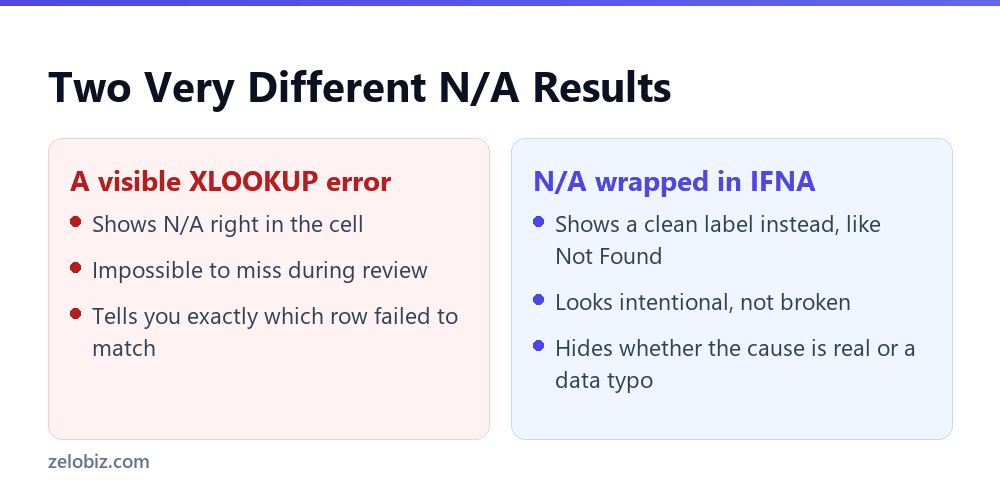
So IFNA wraps around any formula and catches only the N/A error specifically, replacing it with whatever you choose. A formula like =IFNA(XLOOKUP(A2,B:B,C:C), “Not Found”) shows a clean label instead of a red error.
So this actually helps in one specific case. A lookup can be expected to sometimes come up empty, a customer with no prior order, a product with no return history. So IFNA turns a normal outcome into a readable result instead of an alarming error.
Where This Goes Wrong
So say a lookup range has a customer ID stored as text, with a leading apostrophe. The lookup value comes from a different sheet as a real number instead. So XLOOKUP compares them and finds no match, correctly, since they are not the same data type.
So without IFNA, that shows N/A, and a careful reviewer notices immediately. Something is wrong with this specific row, worth checking.
⚠️ Watch out: With IFNA already in place, that same row just shows Not Found. So it looks identical to a row where the customer really has no match. Nobody investigates a result that looks intentional, and a real data problem slips through into a report or a summary total.
Diagnosing Before You Hide
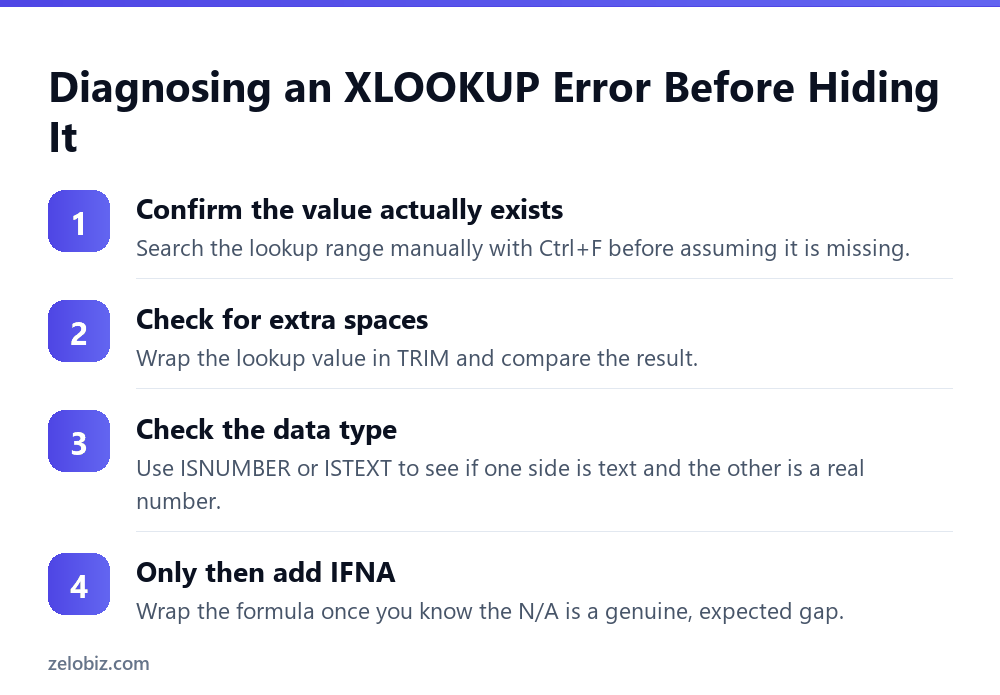
So the order of operations matters here more than the formula itself. Diagnose first. Wrap second, only once you know what you are hiding.
Start with Ctrl+F and search the lookup range manually for the value in question. So if it is truly not there, the N/A is legitimate, and IFNA is the right call.
If it is there, though, and XLOOKUP still misses it, that mismatch is worth understanding. A wrapped TRIM around the lookup value catches invisible spaces. An ISNUMBER or ISTEXT check on both sides catches a type mismatch.
💡 Pro tip: Run this diagnosis on a handful of failing rows before wrapping the whole column in IFNA. So a pattern across several failures usually points at one root cause. A whole column pasted as text, for instance, rather than several unrelated missing values.
A Worked Example
So say a payroll sheet uses XLOOKUP to pull each employee’s department from a roster tab, based on employee ID.
One employee, recently transferred, has an ID typed with a trailing space in the roster tab, left over from an old copy and paste. So the payroll sheet’s lookup value has no trailing space at all.
Without IFNA, that row shows N/A, and whoever reviews payroll before it runs notices the gap and investigates. So they find the space, fix it, and the correct department shows up.
With IFNA already wrapped around the formula, that same row instead shows Not Found. So it looks exactly like a new hire not yet added to the roster, a completely normal and expected case. Nobody investigates, and that employee’s department stays blank on the payroll report.
When IFNA Is Genuinely the Right Call
So none of this means avoid IFNA altogether. So the function exists for a real reason, and plenty of lookups are supposed to come up empty sometimes.
- →Use IFNA once you have confirmed a sample of the N/A results by hand, not before.
- →Use a specific label, like Not Yet Assigned, instead of a generic Not Found that hides useful context.
- →Re-run the diagnosis periodically on a wrapped formula, since a new data problem can start hiding behind an old, accepted IFNA.
- →Keep an unwrapped version of the formula in a helper column during setup, so real N/A errors stay visible while you build the sheet.
VLOOKUP Has the Same Blind Spot
So this is not an XLOOKUP-specific problem. VLOOKUP wrapped in IFERROR is an older, broader version of the same pattern. So it hides every error type, not just N/A.
⚠️ Watch out: IFERROR is broader and riskier than IFNA. It catches REF, VALUE, and NAME errors too, along with N/A. So a genuine formula mistake, like a broken reference, can get hidden the same way as a normal missing lookup value.
So if a choice exists, IFNA on XLOOKUP is already safer than IFERROR on VLOOKUP, since it only catches the one specific error type. That narrower scope still does not replace checking why the match failed in the first place.
A Related Trap: Wildcard Match Mode
So XLOOKUP’s fourth argument controls whether a match must be exact. Setting match mode to 2 turns on wildcard matching, letting an asterisk or question mark stand in for other characters.
So say the actual data contains a literal asterisk, a product code with one built in. Wildcard mode treats it as a wildcard character instead of a literal one. So the lookup can behave unpredictably, producing the same N/A for a completely different reason than a value that is actually missing.
💡 Pro tip: Only turn on wildcard match mode when you specifically need it. Leaving XLOOKUP on exact match, the default, avoids this entire category of confusing failure.
Setting Up a Safer Version of the Formula
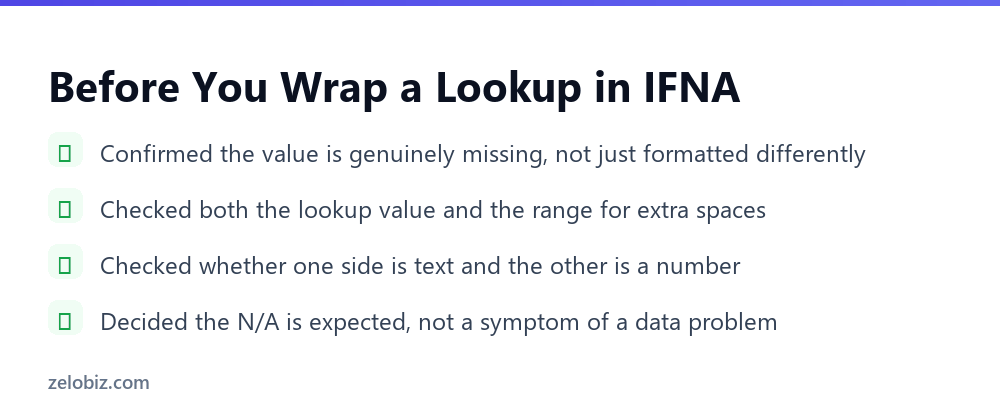
So a small habit keeps the visibility IFNA otherwise removes. Wrap the lookup, but make the fallback text specific enough to prompt a second look when it should not appear often.
So instead of a generic Not Found, try something like Check ID Format. Use it on a sheet where a mismatch is the more likely cause. A specific label nudges the next reviewer toward the actual problem, rather than away from it.
Testing Whether Your Own Sheet Has This Problem
So a quick test reveals whether a wrapped lookup on your own sheet is quietly hiding something. Copy the formula into a helper column, without the IFNA wrapper.
So run it against the same range. If the unwrapped version shows more N/A results than expected, that gap is exactly what IFNA had been hiding. So is a result in a row you assumed was fine.
⚠️ Watch out: Do this check periodically on any wrapped formula still in active use, not just once at setup. New data problems can start hiding behind an IFNA that was perfectly reasonable when it was first added.
How This Compares to a Plain VLOOKUP Error
So a plain VLOOKUP without any wrapper shows N/A the same way XLOOKUP does. That raw error is honest, even if it looks unpolished on a finished report.
So the lesson here applies to both functions equally. An unwrapped N/A error is not a flaw to polish away by default. It is information, and removing it too early removes the information along with the ugly formatting.
Also, a sheet built for internal use, where the person reading it understands formulas, can often stay unwrapped entirely. Save the IFNA wrapper for the version that actually leaves the building, once every row has been checked.
A Second Related Trap: Approximate Match by Accident
So XLOOKUP defaults to an exact match, which is the safer setting. VLOOKUP does not. Its fourth argument, range_lookup, defaults to TRUE in some contexts, which allows an approximate match instead of an exact one.
So an approximate match does not throw N/A the way an exact match does when nothing fits perfectly. Instead, it can quietly return the nearest lower value in a sorted range, which is a wrong answer with no error at all, arguably worse than an N/A anyone would notice.
⚠️ Watch out: Always set VLOOKUP’s fourth argument to FALSE unless an approximate match is truly what the formula needs. Leaving it blank or set to TRUE by habit is how a silent wrong answer gets built into a sheet from the very first formula.
A Fast Habit for Any Wrapped Formula
So here is a fast habit worth building. Do not wrap a new lookup formula right away.
Build it plain first. Run it across the whole range. Then look at every N/A it produces, one by one, even if there are only a handful.
So if each one turns out to be a genuine, expected gap, wrap it in IFNA at that point. If even one turns out to be a data problem, fix that first.
So only then add the wrapper. This one habit, plain first, wrapped second, catches almost every case this article describes, without needing to remember any of the specific causes.
💡 Pro tip: Keep the plain, unwrapped version of the formula somewhere, even after you add IFNA to the version people actually see. So a helper column two tabs over works fine, and it costs nothing to leave it there for the next time something looks off.
Common Questions
What does an XLOOKUP N/A error mean?
It means XLOOKUP found no exact match for the lookup value inside the given range. It does not distinguish between a value that is truly missing and one that exists but fails to match for another reason, like a formatting mismatch.
Is wrapping XLOOKUP in IFNA a bad idea?
Not by itself. It becomes a problem when it is used before checking why the N/A happened, since it can hide a real data issue behind a label that looks identical to an expected, normal result.
How do I check if an N/A error is a real problem or expected?
Search the lookup range manually with Ctrl+F first. If the value is truly absent, the N/A is correct. If it is there but still fails to match, check for extra spaces with TRIM or a text-versus-number mismatch with ISNUMBER.
Does IFERROR have the same problem as IFNA?
Yes, and a broader version of it. IFERROR catches every error type, including REF and VALUE errors from an actual formula mistake, not just N/A from a missing lookup value.
Why does XLOOKUP miss a value that is clearly in the range?
The most common causes are a trailing or leading space on one side, a number stored as text on one side and a real number on the other, or a typo in the lookup value or the source data.
Should I ever avoid IFNA completely?
No. It is the right tool once you have confirmed, on a sample of rows, that the N/A results are truly expected outcomes rather than a symptom of a data quality problem.
Does an approximate VLOOKUP match cause the same hidden-error problem?
Yes, and it is arguably worse. So an approximate match can return the nearest wrong value instead of an error at all, which means there is no N/A to notice in the first place. Set the fourth argument to FALSE unless you specifically need an approximate match.
What is a safer default habit for any new lookup formula?
So build it unwrapped first, check a sample of the results by hand, and only add IFNA once you know exactly what a clean label would be hiding on that specific sheet.
Is a red N/A error actually bad for a shared workbook?
Not on its own. So it is a signal, not a defect. A red N/A on a sheet still in progress is often more useful than a clean label that quietly hides the same row from review.
The Short Version
- →An XLOOKUP N/A error does not distinguish a truly missing value from a data mismatch.
- →IFNA hides that distinction completely, showing the same clean label either way.
- →Diagnose a sample of N/A results by hand before wrapping the whole formula.
- →IFERROR is broader and riskier than IFNA, since it hides every error type, not just N/A.
- →Recheck a wrapped formula periodically, since new data problems can start hiding behind an old IFNA.
So none of this means IFNA is the wrong function. So it means order matters. So diagnose first. Only wrap the formula once you actually know what the clean label is hiding.
So a visible N/A error is not a failure of the spreadsheet. So it is the one honest signal that something needs a second look. Hiding it too early trades that signal for a report that looks finished without actually being correct.