

Most explanations of INDEX/MATCH call it “more flexible” than VLOOKUP and leave it there. That’s true, but it skips the actual mechanism.
Here’s the specific, checkable reason INDEX/MATCH survives an inserted column when VLOOKUP doesn’t. It comes down to what each formula trusts, and when.
Short answer: VLOOKUP uses col_index_num, a number typed once and never re-checked, so inserting a column shifts the data under that number without updating it. INDEX/MATCH instead uses MATCH to search for a column header by name on every single recalculation. An inserted column just becomes one more column MATCH has to search past, not a hidden trap. INDEX then reads whatever MATCH found, correctly, every time. Verified directly against Microsoft’s own INDEX and MATCH documentation on 4 September 2026.
How the Two Functions Work Together

INDEX and MATCH are two separate functions. Used together, they do what VLOOKUP does in one step, but through a different path.
MATCH’s syntax is MATCH(lookup_value, lookup_array, [match_type]). It searches for a value and returns its position as a number. It does not return the value itself.
INDEX’s syntax is INDEX(array, row_num, [column_num]). Given a position, it returns whatever sits there. On its own, INDEX needs that position handed to it.
Nest them together and MATCH supplies the position INDEX needs. A typical formula looks like INDEX(C:C, MATCH(A2, B:B, 0)). MATCH finds where A2’s value sits in column B. INDEX then returns the value at that same row in column C.
MATCH’s Three Modes

In practice, almost every INDEX/MATCH lookup uses match_type 0. It behaves the same way VLOOKUP’s FALSE argument does: no assumptions about sort order, no approximate guesses.
The Actual Mechanism
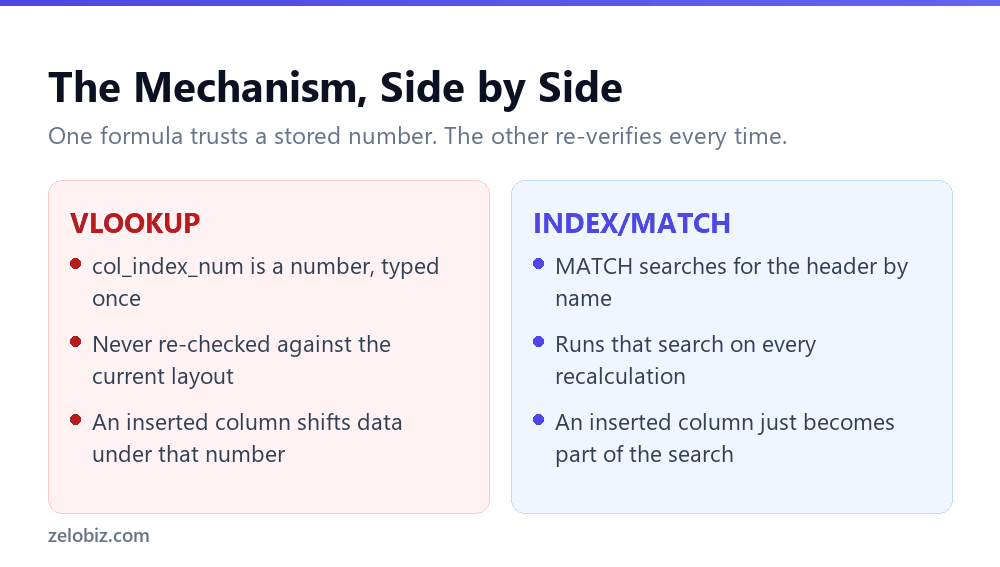
VLOOKUP’s col_index_num is written once, when you build the formula. Excel never checks whether that number still points to the right column. It just counts over and returns whatever is there now.
MATCH works differently. It doesn’t store a position. It searches for a value fresh, every time the sheet recalculates. So if a column shifts, MATCH’s search just runs against the new layout and finds the right spot again.
⚠️ Watch out: This protection only applies to the column MATCH is searching. If you insert a column and don’t update what MATCH is looking for, you can still introduce a different mistake. INDEX/MATCH removes the col_index_num risk specifically, not every possible error.
A Worked Comparison
Take the same scenario from the VLOOKUP article in this series: columns A through C hold ID, name, and department. A VLOOKUP formula reads =VLOOKUP(A2, Sheet1!A:C, 3, FALSE).
The INDEX/MATCH equivalent reads =INDEX(Sheet1!C:C, MATCH(A2, Sheet1!A:A, 0)). Notice it references column C directly, by its own column reference, rather than counting “3 columns over.”
Insert a new “Start Date” column between B and C. VLOOKUP’s formula still says 3, now pointing at the wrong column. The INDEX/MATCH formula still says Sheet1!C:C. But C now holds “Start Date,” not “Department,” since everything shifted right.
So INDEX/MATCH isn’t magically immune to every layout change. It’s immune specifically to the col_index_num counting error, because it never counts in the first place. A direct column reference like C:C still needs updating if the column itself physically moves, the same as any formula would.
💡 Pro tip: For true immunity to column reordering, pair INDEX/MATCH with an Excel Table and reference the column by its header name instead of a raw column letter. Then neither an inserted column nor a reordered one breaks the formula.
When VLOOKUP Is Still Fine
None of this means VLOOKUP is broken or should be avoided everywhere. For a one-time, throwaway lookup on data that won’t be edited again, VLOOKUP is shorter to type and just as accurate.
The risk only grows with time and other people. A shared workbook, a template reused across departments, a sheet that gets restructured every quarter: that’s where INDEX/MATCH’s extra reliability actually pays for the added complexity.
📊 Note: For the specific VLOOKUP failure this solves, see why VLOOKUP breaks the moment you insert a column. For Microsoft’s newer built-in fix, see XLOOKUP vs VLOOKUP, when to switch.
Two-Way Lookups: A Job VLOOKUP Can’t Do Alone
So far, every example has looked up a value using one condition. But INDEX/MATCH can also perform a two-way lookup, matching both a row and a column at once, which VLOOKUP has no clean way to do by itself.
Picture a pricing grid: rows are product sizes, columns are regions, and each cell holds a price. A single VLOOKUP formula can’t search on two axes simultaneously.
INDEX/MATCH handles it by nesting a second MATCH inside INDEX’s column_num argument. The formula becomes INDEX(price_grid, MATCH(size, size_column, 0), MATCH(region, region_row, 0)). One MATCH finds the row, the other finds the column, and INDEX returns whatever sits at that intersection.
💡 Pro tip: Two-way lookups are one of the clearest cases where INDEX/MATCH isn’t just a safer VLOOKUP alternative. It’s solving a problem VLOOKUP structurally cannot solve on its own, regardless of how carefully the formula is written.
INDEX/MATCH vs. XLOOKUP
XLOOKUP, covered in the second article of this series, solves some of the same problems INDEX/MATCH does. So it’s worth being direct about where they overlap and where they don’t.
Both avoid VLOOKUP’s col_index_num counting problem. Both can search in any direction, not just rightward. Both default to an exact match rather than an approximate one.
But INDEX/MATCH has one advantage XLOOKUP doesn’t: it works in every Excel version, including Excel 2016 and 2019, where XLOOKUP is completely unavailable. For a file that needs to run anywhere, INDEX/MATCH remains the safer default, even now.
Common Setup Mistakes
A few mistakes show up often enough in INDEX/MATCH formulas to call out directly.
- Forgetting the third argument in MATCH, which then defaults to match_type 1 and silently expects sorted data.
- Mismatched range sizes, where lookup_array in MATCH covers a different number of rows than array in INDEX.
- Referencing an entire column, like A:A, when a smaller named range would make the formula easier to audit later.
- Assuming INDEX/MATCH is automatically case-sensitive. It isn’t. MATCH treats text matching as case-insensitive, same as VLOOKUP.
Most of these mistakes trace back to the same root cause: treating INDEX/MATCH as a drop-in VLOOKUP replacement without checking that every argument actually lines up.
Building the Habit
So is it worth switching every VLOOKUP over right away? Not necessarily. For a quick, one-time lookup, VLOOKUP is still faster to type and just as accurate.
But for anything that will outlive today, a shared template, a recurring report, a dashboard other people build on top of, INDEX/MATCH earns the extra setup time. Because the moment someone else touches that sheet, its resistance to structural change stops being a nice-to-have and starts being the thing that keeps the report accurate.
Using Named Ranges to Make This Even Safer
So far, every example has used plain column references like A:A and C:C. Named ranges push the reliability further.
Select a range, type a name into the Name Box on the left of the formula bar, and press Enter. That range now has a name Excel recognizes everywhere in the workbook.
A formula like INDEX(Department, MATCH(EmployeeID, IDList, 0)) reads almost like a sentence. And because the name points to a range rather than a fixed set of coordinates, it survives most structural changes automatically, without any manual updating.
This isn’t required for INDEX/MATCH to work. But for a formula meant to last, combining named ranges with INDEX/MATCH removes nearly every common way a lookup quietly breaks.
💡 Pro tip: Excel Tables achieve something similar automatically, since every column already has a name by default. For a new spreadsheet, converting the source data to a Table before writing any lookup formulas is often less setup than naming ranges by hand.
A Real-World Scenario: The Quarterly Report
So consider a quarterly sales report, rebuilt every three months from a fresh data export. Each export adds a few new columns for that quarter’s specific metrics.
A VLOOKUP-based version of this report needs its col_index_num checked and often corrected every single quarter, by hand, before anyone can trust the output.
An INDEX/MATCH version built against named columns needs none of that. As long as the column headers stay consistent, MATCH finds them wherever they land in the new export, whether that’s column F this quarter or column J next quarter.
Over a year, that’s the difference between four manual corrections and zero. The extra ten minutes spent building INDEX/MATCH the first time pays for itself well before the second quarter’s report.
Troubleshooting a Broken INDEX/MATCH Formula
So when an INDEX/MATCH formula does return an error, a short checklist narrows the cause quickly.
First, check whether MATCH’s lookup_array and INDEX’s array actually correspond to the same rows. If MATCH searches column A but INDEX reads from a range starting at a different row, the position MATCH found won’t line up with anything meaningful.
Second, confirm match_type. A formula returning #N/A when the value clearly exists often means match_type defaulted to 1, expecting sorted data, when 0 for an exact match was what the formula actually needed.
Third, watch for extra spaces or mismatched data types, the same culprits that break VLOOKUP. Because MATCH still needs an exact text or number match under match_type 0, a trailing space defeats it exactly as easily.
⚠️ Watch out: An INDEX/MATCH formula that returns #REF! usually means INDEX’s row_num or column_num argument points outside the array’s actual size, often because the array was resized after the formula was written.
Where This Leaves VLOOKUP
So none of this means VLOOKUP deserves to be abandoned entirely. It’s still shorter to type, still familiar to more people, and still perfectly accurate on the day it’s written.
The distinction is about durability, not correctness on day one. VLOOKUP answers today’s question correctly. INDEX/MATCH keeps answering it correctly after the sheet changes shape, which most working spreadsheets eventually do.
So the honest advice isn’t “always use INDEX/MATCH.” It’s “know which one you’re choosing, and why,” based on how long the formula needs to keep working and how many other people will touch the sheet around it.
Index Match Excel: The Short Version
So to recap the whole idea behind index match excel formulas in a few lines. MATCH finds a position. INDEX reads what’s there.
Because MATCH searches fresh every time, an inserted column can’t quietly fool it. So the formula keeps returning the right answer, even after the sheet changes shape.
But this protection only covers what MATCH is actually searching for. So the header names still need to stay consistent. And a moved, renamed column still needs a formula update.
Still, for anything shared or long-lived, that tradeoff is worth it. Because the alternative, VLOOKUP’s silent counting error, is far harder to catch.
So learn the syntax once. Then reuse it everywhere a lookup needs to survive real, ongoing edits from more than one person.
Because that’s really what this comes down to. Not which formula looks cleverer, but which one still works correctly a year from now.
So the next time a spreadsheet needs a lookup that has to survive real edits from real people, reach for INDEX/MATCH first. It costs a few extra characters to type. It saves a lot more time explaining a wrong number later.
Because that trade, a little extra setup now for a lot less cleanup later, is exactly what separates a formula that lasts from one that just happens to work today.
Common Questions
Why does INDEX/MATCH survive an inserted column when VLOOKUP doesn’t?
VLOOKUP relies on col_index_num, a fixed number typed once and never rechecked. INDEX/MATCH uses MATCH to search for a column by name on every recalculation, so a shifted layout doesn’t silently point it at the wrong data.
What does MATCH actually return?
A position, not a value. MATCH(lookup_value, lookup_array, match_type) tells you where in the array the value was found, as a number.
What’s the difference between match_type 0 and match_type 1 in MATCH?
match_type 0 finds only an exact match, in any order. match_type 1, the default, finds the largest value less than or equal to the target, and requires the array to be sorted ascending.
Is INDEX/MATCH completely immune to spreadsheet changes?
No. It’s specifically immune to the col_index_num counting error VLOOKUP has. A direct column reference inside INDEX still needs updating if that column physically moves, unless it’s built against a named Excel Table column.
Should I always use INDEX/MATCH instead of VLOOKUP?
Not always. For a one-time lookup on data that won’t be edited again, VLOOKUP is simpler to type. INDEX/MATCH earns its complexity on shared or frequently restructured sheets.
How do I write a basic INDEX/MATCH formula?
INDEX(return_column, MATCH(lookup_value, lookup_column, 0)). MATCH finds the row, and INDEX returns the value from that row in the column you specify.
The Short Version
- →VLOOKUP’s col_index_num is typed once and never rechecked against the layout.
- →MATCH searches for its target by name on every single recalculation.
- →That’s the specific mechanism behind INDEX/MATCH’s column-insert immunity.
- →MATCH returns a position; INDEX returns the value sitting at that position.
- →match_type 0 (exact match) is the default choice for almost every real lookup.
- →INDEX/MATCH isn’t immune to every change, just to the counting error VLOOKUP has.