
Someone sets up a new laptop, turns on OneDrive backup for the Desktop folder like they did on their old one, and a week later notices two Desktop folders showing up in File Explorer. Not two copies of one file. Two entire folders, each with a different set of files inside.
Every guide about OneDrive duplicate files talks about sync conflicts: the same document edited in two places, OneDrive tacking on a computer name to tell the copies apart. That advice does not match what actually happened here at all.
A whole separate folder is not a sync conflict. It is what happens when Backup gets turned on for a folder name that already exists in OneDrive from another device, and almost nothing written about OneDrive duplicate files explains this second, completely different cause.
OneDrive duplicate files come from two unrelated causes that get treated as one problem. A genuine sync conflict happens when the same file is edited in two places before OneDrive can sync the change, and it appends the computer name to one copy of that one file. A backup folder collision happens when Desktop, Documents, or Pictures backup is turned on for the first time on a device, and a folder with that same name already exists in OneDrive from an earlier setup. Rather than merging the two, OneDrive can create a separate folder for the new device, splitting files across two locations that never sync with each other afterward. The fix for one does not touch the other, so confirming which actually happened matters before deleting anything. Verified against Microsoft’s own OneDrive support documentation on 25 September 2026.
The OneDrive Duplicate Files Explanation Everyone Already Knows
A real sync conflict happens when a file changes in two places before OneDrive gets a chance to reconcile them, commonly from editing the same document on two devices while one of them was briefly offline.
OneDrive resolves this by keeping both versions rather than guessing which one is correct. One copy keeps the original name, and the other gets the computer name appended to it, so a file called Budget.xlsx might end up alongside Budget-LAPTOP2024.xlsx.
The Cause Almost Nobody Explains
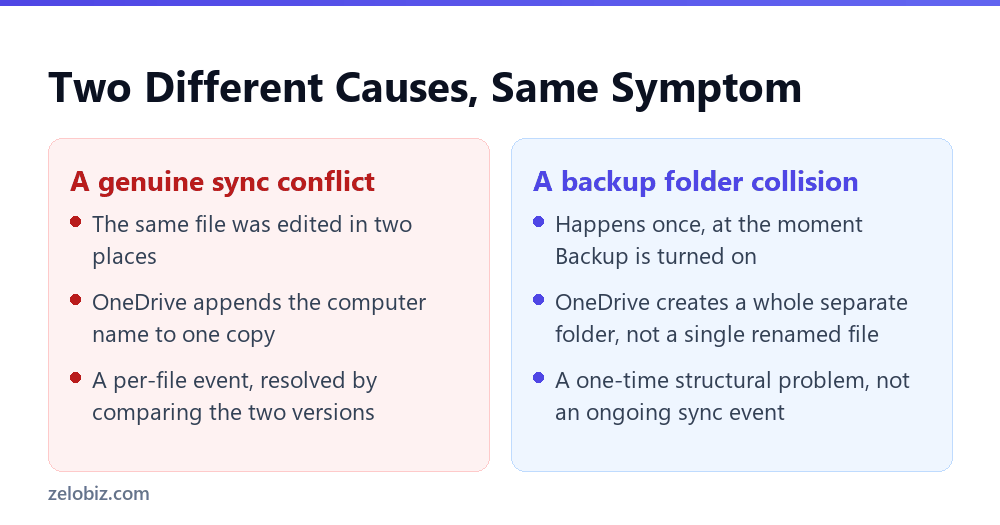
OneDrive’s Backup feature, sometimes called Known Folder Move, redirects your Desktop, Documents, and Pictures folders into OneDrive so they sync automatically. Turning it on for the first time on a new device checks whether a folder with that name already exists in your OneDrive.
This distinction matters because the two problems look similar at a glance, both involve unexpected duplication, but they need completely different fixes. Renaming or comparing two versions of one file does nothing for two entire folders that were never going to merge on their own.
A Worked Example
Someone has used OneDrive Backup on their main laptop for years, with a Desktop folder full of shortcuts, project files, and the occasional stray document.
They get a new laptop and, during setup, turn on OneDrive Backup for Desktop there too, assuming it will simply connect to the same synced Desktop content they already have. Instead, since the new laptop’s local Desktop folder had its own different files on it already, OneDrive treats it as a conflict at the folder level rather than the individual file level.
⚠️ Watch out: The result is two separate folders in OneDrive: the original Desktop, and a new one, sometimes labeled with the computer’s name, holding whatever was on the new laptop’s Desktop before backup was turned on. Neither folder updates to match the other. Files added to one afterward simply do not appear on the other device at all.
Nothing about this looked like an error at setup time. Backup reported success on both devices. The split only becomes visible later, when a file saved on one laptop cannot be found on the other.
Telling the Two Causes Apart
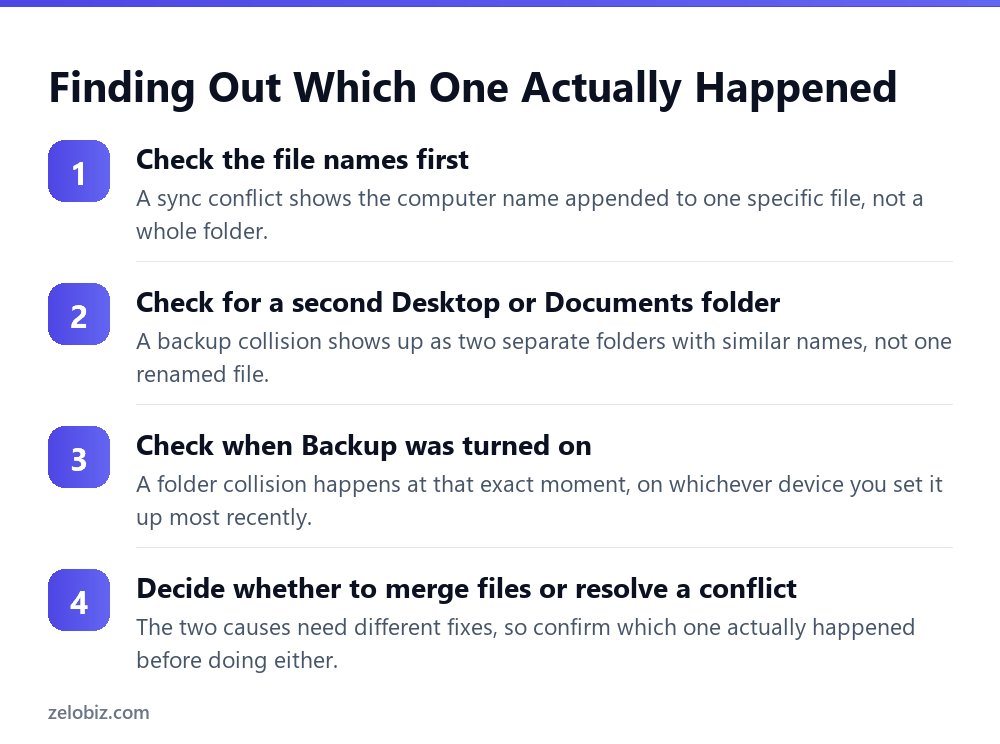
Open the OneDrive folder in File Explorer and look at what is actually duplicated. A single file with a computer name tacked onto it is a sync conflict, plain and simple, and the standard advice for that case applies directly.
Seeing two entire folders instead, each with a different set of files rather than obviously matching content, points to a backup collision from setup instead. Check OneDrive’s settings under the Backup tab to see which local folder is actually mapped to which OneDrive folder on each device.
💡 Pro tip: Do this check before touching either folder. Deleting what looks like a duplicate folder without confirming its actual contents first risks losing files that only exist in that one location.
Fixing a Backup Folder Collision Without Losing Anything
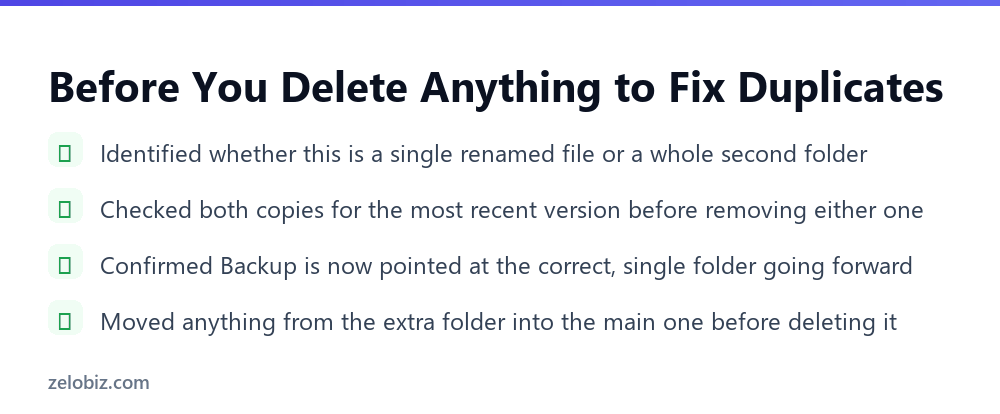
Once two separate folders are confirmed, the safest approach is manual: open both, compare their contents, and move anything unique from the extra folder into the main one before removing the extra folder entirely.
For a folder with very little unique content, this can take just a few minutes. For years of accumulated Desktop clutter on two different machines, it is worth taking the time to actually look through both rather than assuming either one is safe to delete outright.
⚠️ Watch out: Do not simply delete the folder that looks newer or smaller without opening it first. A folder holding only a handful of files can still contain something that only exists there, especially if it was created recently and never had a chance to accumulate much.
Preventing This on the Next New Device
Before turning on Backup for Desktop, Documents, or Pictures on a new device, check whether OneDrive already has content under those folder names from a previous setup. If it does, moving or clearing the new device’s local folder first, before enabling Backup, gives OneDrive a much better chance of connecting cleanly rather than treating it as conflicting content.
This single check, done once per new device, prevents the entire category of problem this article describes, since the collision only happens at the moment Backup is first turned on for a folder name that already has separate content waiting in OneDrive.
Why This Gets Worse the Longer It Goes Unnoticed
A folder collision that goes unnoticed for months accumulates files on both sides, since each device keeps saving new work into whichever folder it happens to be pointed at. The eventual merge gets harder the longer both folders keep growing independently.
Catching this within the first few days of setting up a new device means comparing a small, manageable set of files. Catching it six months later can mean sorting through hundreds of files across both folders, some of them genuinely different versions of the same underlying document.
💡 Pro tip: Spot-check a new device’s synced folders within the first week of setup, specifically looking for anything that should be there from the other device but is not. That single check catches this problem while it is still small.
A Related Trap: Conflicted Copies Inside a Shared Folder
A separate but related pattern shows up in a shared or team folder rather than a personal Desktop or Documents folder: several people editing the same document around the same time, each getting their own conflicted copy appended with their name or computer.
This is a genuine sync conflict, the first category described earlier, just happening inside a shared space with more people involved. The fix is the same: compare the versions, keep the correct content, and remove the extra copies once everyone agrees which version is current.
Why OneDrive Duplicate Files Get Blamed on the Wrong Cause
Search for OneDrive duplicate files and nearly every result assumes the sync conflict explanation, since that is genuinely the more common cause across all OneDrive users combined, most of whom are dealing with shared documents rather than a fresh device setup.
That makes sense as the default assumption, but it means the backup collision case gets almost no coverage anywhere, even though it produces a much larger and more confusing mess than a single renamed file. Someone searching for help after a folder collision ends up reading advice about comparing two versions of one document, which does not map onto their actual problem at all.
The mismatch between the advice and the actual cause wastes real time. Someone convinced their duplicate is a sync conflict will look for a renamed file that does not exist, rather than recognizing they are looking at two entire folders that never merged in the first place.
What Microsoft’s Own Interface Does and Does Not Warn About
Turning on Backup for Desktop, Documents, or Pictures shows a brief setup screen confirming the choice, but it does not clearly flag when a folder with that name already has separate content waiting in OneDrive from another device.
A more experienced user might notice a brief note about existing files during setup, but it is easy to click through without registering what it actually means for how the two devices will behave afterward. Nothing in the interface distinguishes a clean first-time setup from one where a collision is about to happen.
📊 Note: This is not a bug so much as a design gap. OneDrive handles the common case, a single device turning on Backup for the first time, cleanly. It has far less obvious guidance for the second case, a device joining an account that already has content under the same folder names.
Common Questions
Why does OneDrive show two Desktop folders after I set up a new computer?
This usually happens when Backup is turned on for a folder name, like Desktop, that already has different content in OneDrive from another device. Instead of merging the two, OneDrive can create a separate folder for the new device rather than combining them.
Is this the same thing as a OneDrive sync conflict?
No. A sync conflict happens to a single file edited in two places, and OneDrive appends a computer name to one copy of that file. A folder collision from Backup setup is a different, one-time event affecting a whole folder, not one file.
How do I tell which one happened to me?
Check whether the duplication is one file with a computer name appended, which points to a sync conflict, or two entire folders with different contents, which points to a backup collision at setup.
Is it safe to just delete the extra folder?
Not without checking its contents first. The extra folder can hold files that only exist there, especially anything saved on that device before the collision was noticed, so compare both folders before removing either one.
How do I prevent this on my next new device?
Check OneDrive online for existing content under Desktop, Documents, or Pictures before turning on Backup on the new device. Moving or clearing the new device’s local folder first gives OneDrive a clean folder to sync into instead of conflicting content.
Does this happen with Documents and Pictures too, or just Desktop?
The same collision can happen with any folder covered by OneDrive Backup, which typically includes Desktop, Documents, and Pictures. Any of the three can end up duplicated if it already has content in OneDrive when Backup is turned on somewhere new.
What if I don’t notice this for several months?
Both folders keep accumulating separate files the longer the collision goes unnoticed, which makes the eventual manual merge larger and harder to sort through. Checking within the first week of setting up a new device catches it while it is still a small, manageable cleanup.
The Short Version
- →Not every case of OneDrive duplicate files is a sync conflict between two versions of one file.
- →Turning on Backup for a folder name that already exists in OneDrive can create a whole separate folder instead.
- →A sync conflict and a backup collision need different fixes, so confirm which one happened first.
- →Checking OneDrive online before enabling Backup on a new device prevents the collision entirely.
- →The longer a folder collision goes unnoticed, the larger the eventual manual cleanup becomes.
Two folders with the same name is not automatically a sync conflict, no matter how often that explanation gets repeated. Sometimes it is a setup event that happened once and then quietly stopped either folder from ever syncing with the other.
Check which cause actually applies before doing anything to either folder. Guessing wrong here risks treating a one-time structural problem like an ongoing sync issue, and cleaning up the wrong thing first.
A few minutes spent comparing folder contents, rather than deleting on instinct, is the difference between a clean merge and losing something that only ever existed on one of the two devices involved.
What to Do If You Already Deleted Something by Mistake
If a folder was already removed before reading this, do not assume the files are gone for good right away. OneDrive keeps a recycle bin separate from the local Windows recycle bin, accessible from the OneDrive website, and it typically holds deleted files for a set number of days before they are permanently removed.
Check both recycle bins, the local Windows one and the OneDrive website one, since a file removed through File Explorer can land in either depending on how OneDrive was syncing at the moment of deletion. Restoring from there is far more reliable than trying to reconstruct a document from memory.
💡 Pro tip: Restore first, sort out which version is correct second. It costs nothing to bring a file back from a recycle bin, and it is much easier to compare two recovered versions side by side than to recreate one that was already permanently deleted.