
To recover deleted files, check the Recycle Bin (Windows) or Trash (Mac) first — most deleted files sit there, fully recoverable, until it’s emptied. If the file was in a cloud-synced folder (OneDrive, Google Drive, Dropbox), check that service’s own separate trash, distinct from the operating system’s. If it’s genuinely gone from both, File History (Windows) or Time Machine (Mac) can restore it if either was set up beforehand. For a permanently emptied bin with no backup, dedicated recovery software is the last resort, and success isn’t guaranteed.
Where to check, in the order most likely to succeed
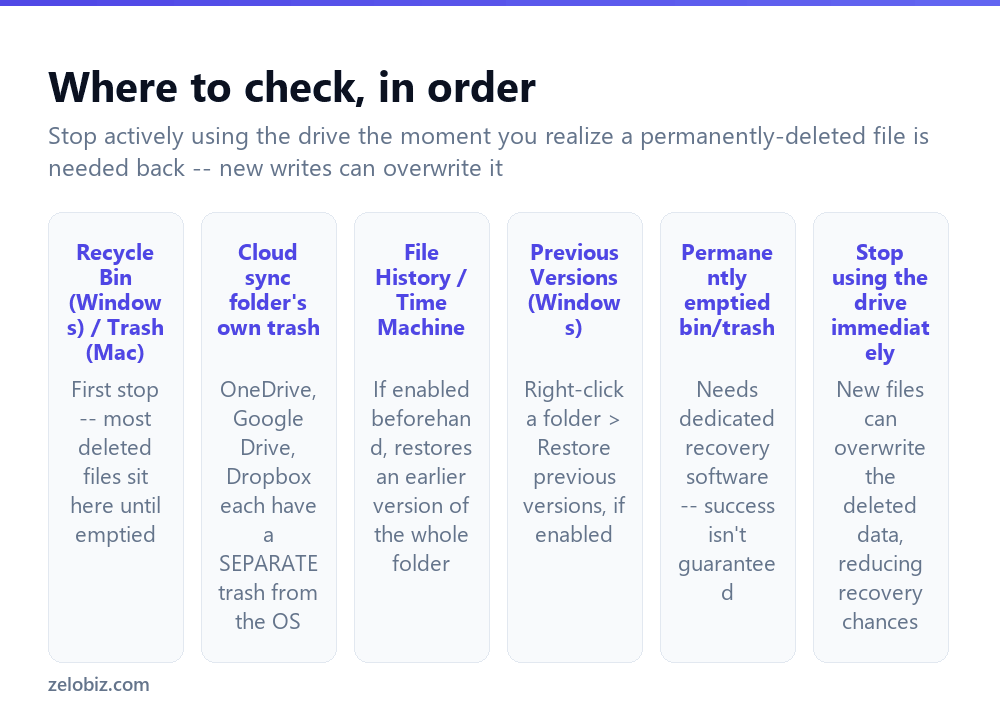
Recycle Bin (Windows) or Trash (Mac) — the first and most likely place. A normally deleted file moves here rather than being immediately destroyed, and stays recoverable until the bin or trash is manually or automatically emptied.
A cloud sync service’s own trash — OneDrive, Google Drive, and Dropbox each maintain their own separate trash or recycle bin, distinct from the operating system’s. A file deleted from a synced folder may not even appear in the regular Recycle Bin or Trash at all, depending on exactly how the sync client handles deletions — check the cloud service’s own web interface or app directly.
File History (Windows) or Time Machine (Mac) — if either backup feature was enabled before the file was deleted, it can restore an earlier version of the containing folder, including files no longer present in the current version.
Dedicated recovery software — for a file genuinely and permanently gone from all of the above, specialized software can sometimes recover data that’s been deleted but not yet physically overwritten on the drive.
If a file was permanently deleted (bin emptied, no backup available) and genuinely needs recovering, stop actively using that drive immediately. Continuing to save new files, browse, or install software can write new data over the physical space the deleted file still occupies, permanently reducing or eliminating the chance of successful recovery.
Recovering from the Recycle Bin or Trash
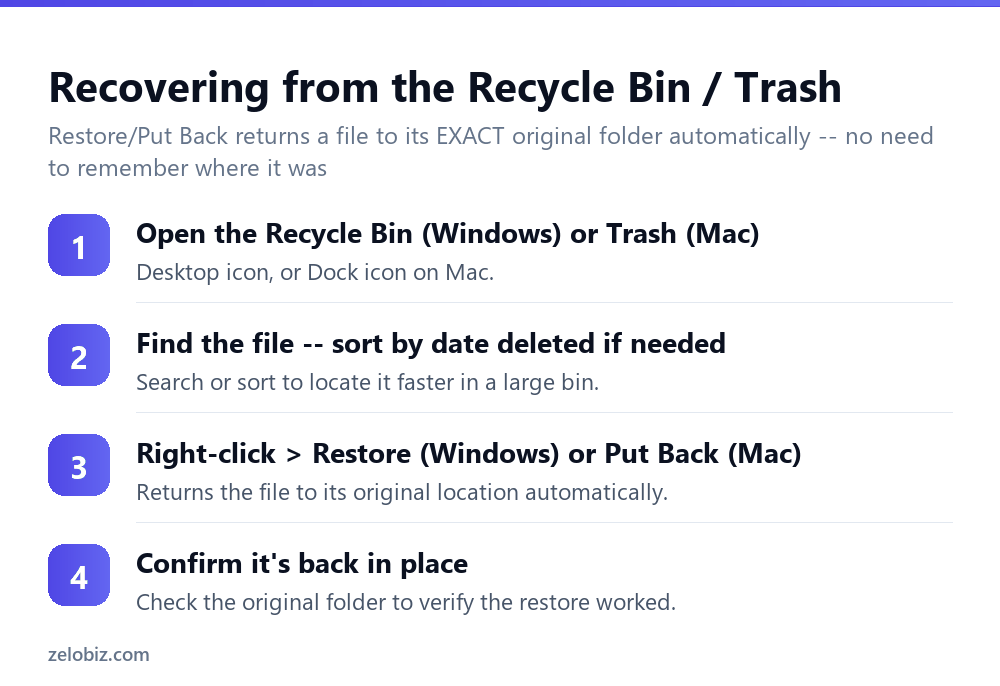
Open the Recycle Bin (Windows desktop icon) or Trash (Mac Dock icon).
Locate the specific file — sorting by date deleted helps narrow it down quickly in a bin containing many items.
Right-click the file and choose Restore (Windows) or Put Back (Mac). Either automatically returns the file to its exact original folder location, with no need to remember or manually navigate to where it originally lived.
Confirm the file is genuinely back by checking that original folder directly.
Checking a cloud sync service’s separate trash
Since this trash is genuinely separate from the operating system’s, checking it requires going into that specific service directly rather than the Recycle Bin or Trash. OneDrive has its own Recycle Bin accessible through the OneDrive website. Google Drive has a Trash section within Drive itself. Dropbox offers “Deleted files” within its web interface. Each generally retains deleted files for a set retention window (commonly 30 days, though this varies by service and account tier) before permanent removal.
Using File History or Time Machine
On Windows, if File History was enabled beforehand (Settings › Update & Security › Backup), right-click the folder that used to contain the file and choose Restore previous versions, then browse to a version from before the deletion.
On a Mac, if Time Machine was enabled and connected to a backup drive beforehand, open Time Machine from the menu bar, navigate back in time to before the deletion occurred, locate the file in that earlier snapshot, and restore it directly.
Neither of these works retroactively — they only help if the relevant backup feature was already turned on and had captured a snapshot before the file was deleted, which is exactly why enabling one of these proactively, before ever needing it, is genuinely worth doing.
When the file is genuinely, permanently gone
For a file deleted, bin emptied, with no File History or Time Machine backup available, dedicated data recovery software is the remaining option. These tools scan the drive for data that’s been marked as deleted but not yet physically overwritten by new data, and can sometimes reconstruct it.
Success genuinely isn’t guaranteed, and depends heavily on how much the drive has been used since deletion — the sooner recovery is attempted, and the less the drive has been written to in the meantime, the better the realistic odds.
A worked example: an important document deleted from a synced folder
Say a client contract stored in a OneDrive-synced folder was accidentally deleted, and it’s not in the Windows Recycle Bin when you check there first.
This is exactly the situation where the file being in a synced folder changes where to look. Deletions inside a OneDrive folder are often handled by OneDrive’s own sync logic rather than passing through the local Recycle Bin the same way an ordinary file deletion would — go to the OneDrive website directly, sign in, and check its Recycle Bin section there specifically, which is entirely separate from the Windows one and easy to overlook if you’ve only ever checked the desktop icon.
If it’s not there either, check whether version history is available for that specific file or folder — OneDrive, like several cloud services, can retain previous versions of a file for some time even after the current version is deleted, accessible by right-clicking the file in the OneDrive web interface and choosing Version History, distinct from the deleted-files trash entirely.
For a business-critical document like a contract, this is also a good moment to confirm whether your organization’s OneDrive or Microsoft 365 plan includes a longer retention window than the consumer default, since business tiers sometimes retain deleted and previous-version file data considerably longer than a personal account would, which matters for exactly this kind of after-the-fact recovery.
Preventing this from becoming a recurring problem
For anything genuinely important, the most reliable long-term protection isn’t remembering these recovery steps — it’s having a real backup strategy in place before deletion ever happens, whether that’s File History, Time Machine, or a cloud service’s version history feature, all covered above. Recovery steps are what you fall back on when prevention wasn’t already in place; treating them as the primary plan rather than the backup plan is a recipe for eventually hitting a file that genuinely can’t be recovered.
When the file isn’t where expected
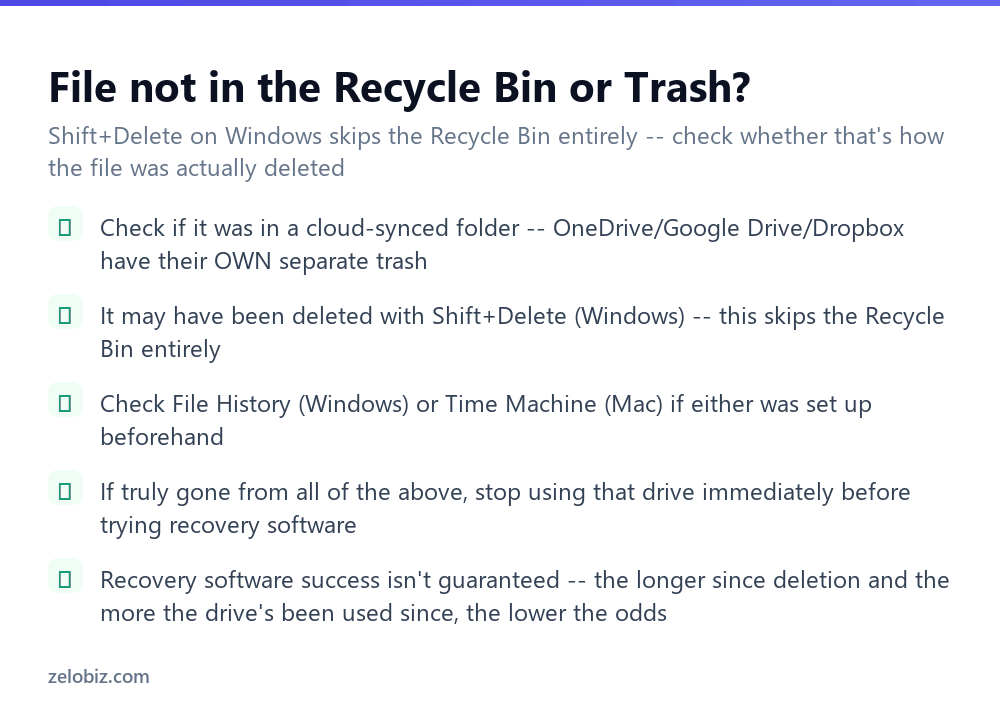
Not in the Recycle Bin, and you’re on Windows — check whether it was deleted using Shift+Delete, which bypasses the Recycle Bin entirely and deletes permanently in one step, rather than moving the file there first.
File was in a synced cloud folder — check that specific service’s own separate trash directly, since it may not appear in the standard OS Recycle Bin or Trash at all.
Genuinely gone from everywhere checked so far — stop using the affected drive immediately, then consider dedicated recovery software as the remaining option, accepting that success isn’t guaranteed.
- ✓Check the Recycle Bin or Trash first — most deleted files are recoverable there
- ✓Check a cloud sync service’s own separate trash if the file was in a synced folder
- ✓Enable File History or Time Machine proactively, before you ever need them
- ✓Stop using a drive immediately if a permanently deleted file needs recovering
- ✓Act quickly — the sooner recovery is attempted, the better the realistic odds
- ✕Assuming a Shift+Deleted file on Windows will be found in the Recycle Bin
- ✕Overlooking a cloud service’s separate trash, distinct from the OS Recycle Bin
- ✕Continuing to save new files to a drive when a permanently deleted file still needs recovering
- ✕Expecting File History or Time Machine to help if neither was ever turned on beforehand
- ✕Assuming recovery software guarantees success regardless of how long ago deletion happened
Frequently asked questions
How do I recover a deleted file on Windows?
Check the Recycle Bin first, right-click the file, and choose Restore. If it’s not there, check File History or the cloud sync service’s own trash if applicable.
How do I recover a deleted file on a Mac?
Check the Trash first, right-click the file, and choose Put Back. If it’s not there, check Time Machine if it was set up beforehand.
Why isn’t my deleted file in the Recycle Bin?
It may have been deleted with Shift+Delete, which skips the Recycle Bin entirely, or it may have been in a cloud-synced folder with its own separate trash.
Can I recover a file after emptying the Recycle Bin or Trash?
Possibly, using dedicated data recovery software, but success isn’t guaranteed and depends on how much the drive has been used since deletion.
What should I do immediately if I permanently deleted an important file?
Stop using that drive right away to avoid overwriting the deleted data, then consider data recovery software or check File History/Time Machine if either was enabled.
Do OneDrive, Google Drive, and Dropbox have their own trash separate from Windows or Mac?
Yes. Each cloud service maintains its own trash or recycle bin, separate from the operating system’s, typically retaining deleted files for about 30 days.
- →Back up important files before this becomes an issue: how to zip a file
- →Convert a recovered image to another format: how to convert HEIC to JPG
- →Recreate a lost document via scan: how to scan a document
- →Extract a recovered archive: how to unzip a file