
To find your WiFi password, check a device that’s already connected to the network first — on Windows, go to Network settings > WiFi > Properties and reveal the security key; on Mac, use Keychain Access and check “Show password”; on Android, tap the saved network and Share to reveal it as a QR code with text; on iPhone (iOS 16+), tap the network’s info icon. If no device is already connected, log into the router directly using its admin credentials (usually printed on the router itself) and check the Wireless settings.
Finding it by device (if already connected)
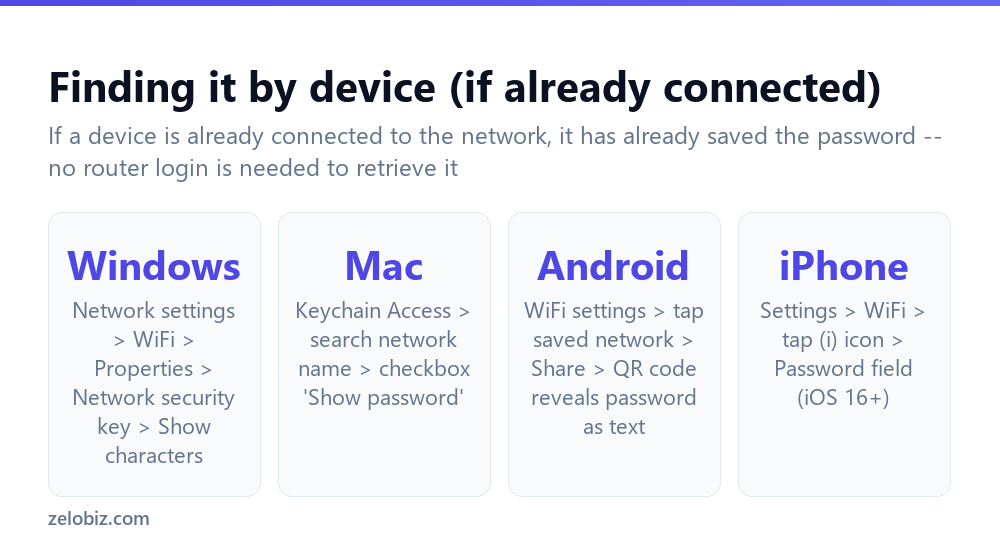
Windows — go to Settings > Network & Internet > WiFi, click the connected network, click “Properties,” scroll to “Network security key,” and click “Show characters” to reveal it.
Mac — open Keychain Access (search for it in Spotlight), search for the network name, double-click the entry, check the “Show password” box, and authenticate with your Mac login password when prompted.
Android — go to WiFi settings, tap the saved network you’re connected to, tap “Share,” and a QR code appears along with the password shown as text beneath it (exact steps vary slightly by Android version and manufacturer).
iPhone (iOS 16 and later) — go to Settings > WiFi, tap the (i) info icon next to the connected network, and the password is shown in the Password field (you may need to authenticate with Face ID, Touch ID, or your passcode).
If any device is already connected to the network, that device has already saved the password — there’s no need to log into the router at all in that case. The router login method is only actually necessary when no connected device is available.
No connected device available? Use the router
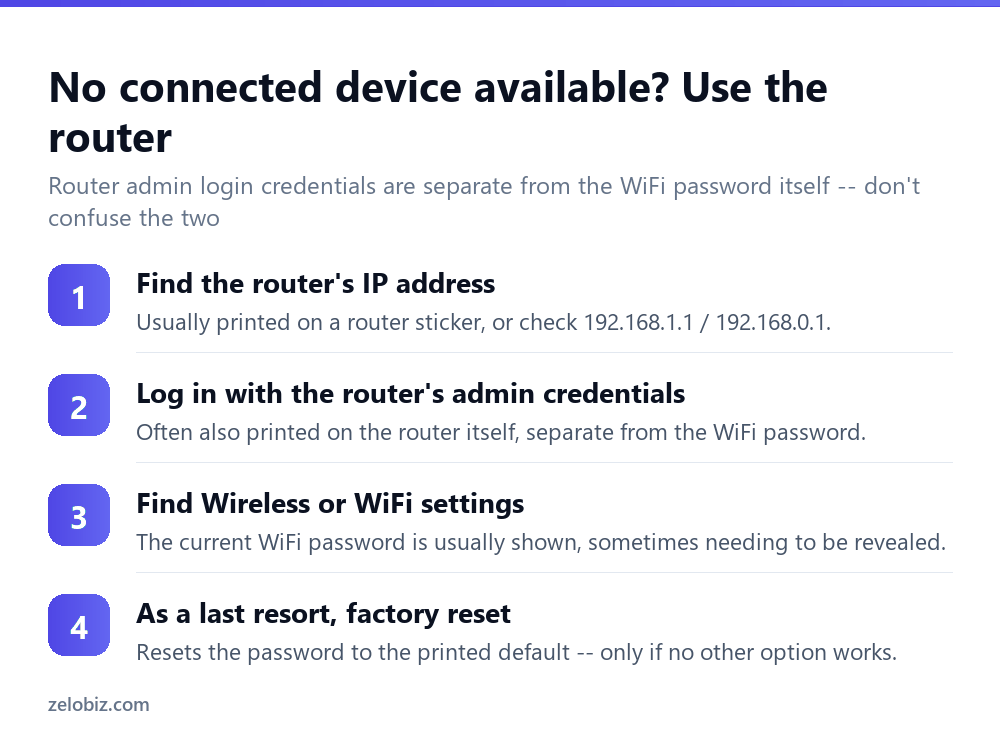
Find the router’s IP address — often printed directly on a sticker on the router itself, or commonly one of 192.168.1.1, 192.168.0.1, or 192.168.1.254, entered into a web browser’s address bar.
Log in with the router’s admin credentials — also frequently printed on the router’s sticker, and importantly, separate from the WiFi network password itself; don’t confuse the two.
Find Wireless or WiFi settings within the router’s admin panel — the current WiFi password is usually displayed here, sometimes requiring a “show password” click similar to the device-level methods above.
As a genuine last resort, factory reset the router — this resets the WiFi password back to whatever default is printed on the router’s sticker, but also erases any other custom settings (like a changed network name or custom admin login) that were configured, so treat this as the final option rather than a first attempt.
If you set up the router yourself, check your records
If you were the one who originally set up the router or changed the WiFi password at some point, check wherever that information might reasonably have been saved — a password manager, a notes app, or even a physical note kept near the router at setup time. This is often faster than working through either the device or router methods above, and worth checking first before assuming neither is readily available.
A worked example: connecting a new smart TV with no other device handy
Say someone is setting up a new smart TV and needs the WiFi password, but their phone happens to be using cellular data rather than being connected to the home network at that moment, and there’s no computer nearby already connected either.
Rather than searching the house for a connected device, the faster path here is checking the router itself. They flip the router over, find the sticker listing both a default admin login and a default WiFi password, and try connecting the TV with that printed WiFi password first — since many routers are never actually changed from their factory-set WiFi password, this often works immediately without needing to log into anything.
If the printed default doesn’t work — meaning the WiFi password was changed at some point after setup — they instead use a phone briefly switched to the home WiFi (even if it wasn’t already connected, entering the printed default to connect it first), then check that phone’s saved network settings once connected, which now has the actual current password stored and retrievable through the device-level methods described above.
This illustrates a useful general approach: if the router’s printed default doesn’t work, get any single device connected however possible, even temporarily, and that device then becomes the source for retrieving the actual current password for every other device afterward.
Sharing WiFi without revealing the actual password
If the goal isn’t finding the password for personal use but rather letting a guest connect without directly telling them the text password, both Android and iPhone support generating a shareable QR code for a saved network — scanning it with another phone’s camera connects that device automatically without the password ever being typed or read aloud. This is generally faster than manually communicating a long, complex password character by character, and avoids the password being visible on screen or spoken where others might overhear it.
Many routers also support setting up a genuinely separate guest network with its own distinct password, isolated from the main network — a better option for regular guests than sharing the primary network’s password at all, since a guest network typically can’t access other devices on the main network even if its own password were to spread further than intended.
Still can’t find it?
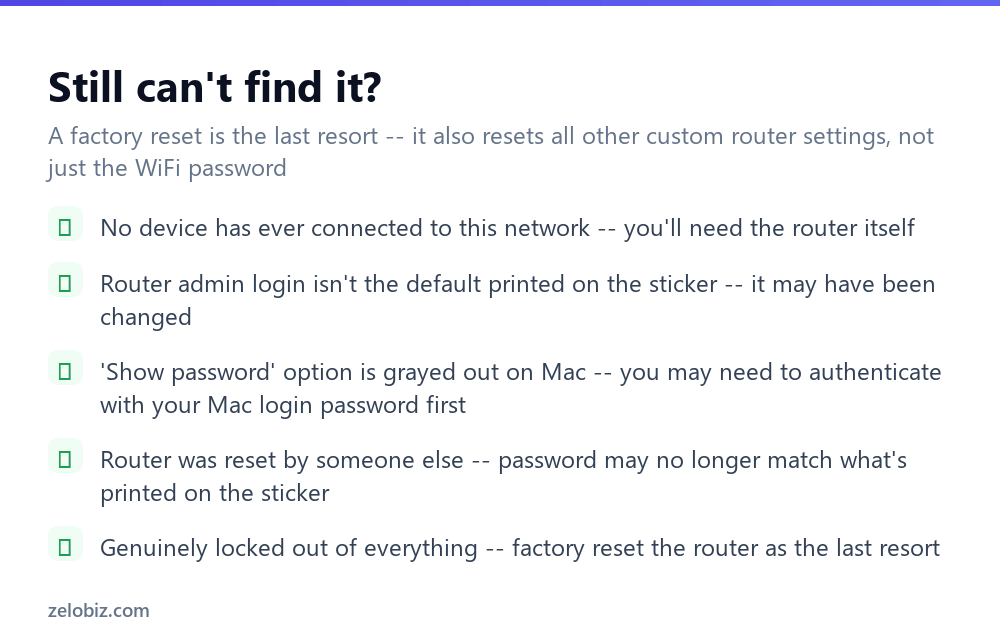
No device has ever connected to this network — there’s no saved password on any device to retrieve; the router itself is the only remaining option.
Router admin login isn’t the default printed on the sticker — it may have been changed at some point by whoever set up the router; if genuinely unknown, check with whoever configured it, or as a last resort, factory reset.
“Show password” is grayed out on Mac — try authenticating with your Mac’s own login password when Keychain Access prompts for it, since this authentication step is required to reveal a saved network password.
Router was reset by someone else (a roommate, an ISP technician) — the current password may no longer actually match what’s printed on the sticker if it was changed after a reset.
Genuinely locked out of everything — a factory reset is the final option, understanding it resets all router settings, not just the WiFi password, back to their defaults.
Router provided by an ISP with a locked-down admin panel — some internet providers restrict full admin access on the equipment they supply; if the standard admin login doesn’t work, contacting the provider’s support directly is often faster than troubleshooting further alone.
Mesh WiFi system with multiple nodes — unlike a single traditional router, a mesh system is usually managed entirely through its own companion app rather than a web-based admin panel, and the current password is typically viewable directly within that app under the network’s settings, rather than through any of the device or router methods described above.
Work or school-issued device with restricted settings — some managed devices block access to saved WiFi password fields entirely as a security policy; if that’s the case, an unmanaged personal device on the same network is usually the faster path to retrieving the password.
- ✓Check a device already connected to the network before trying the router
- ✓Keep router admin credentials and WiFi password clearly distinct — they’re different things
- ✓Check a password manager or notes app if you set up the network yourself originally
- ✓Treat a factory reset as the last resort, not the first attempt
- ✓Authenticate with your Mac login password if Keychain Access prompts for it
- ✕Assuming the router admin password and WiFi password are the same thing
- ✕Jumping straight to a factory reset before trying a connected device first
- ✕Forgetting a factory reset also erases other custom router settings
- ✕Assuming a printed default password is current if the router’s been reset by someone else
- ✕Overlooking that any already-connected device already has the password saved
Frequently asked questions
How do I find my WiFi password?
Check a device already connected to the network first — Windows Network settings, Mac Keychain Access, or your phone’s WiFi settings. If none is available, log into the router directly.
Where do I find the WiFi password on my router?
Log into the router’s admin panel using credentials usually printed on the router itself, then check the Wireless or WiFi settings section.
Is the router admin password the same as the WiFi password?
No, they’re separate. The admin password logs into the router’s settings; the WiFi password connects devices to the network.
How do I see a saved WiFi password on a Mac?
Open Keychain Access, search for the network name, double-click it, and check ‘Show password,’ authenticating with your Mac login password when prompted.
What if I can’t find the WiFi password anywhere?
As a last resort, factory reset the router to restore the default password printed on its sticker — this also resets other custom settings.
Can I find a WiFi password without being connected to the network?
Yes, by logging into the router’s admin panel directly using its separate admin credentials, typically also printed on the router.
- →Change it to something stronger once found: how to make a strong password
- →Lock down the network further: how to secure your wifi
- →Reset the router if nothing else works: how to reset a router
- →Add a layer of account security too: how to enable two-factor authentication