
How to enable two factor authentication: go to the account’s Security settings, find “Two-Factor Authentication” or “2-Step Verification,” and choose a method — an authenticator app (Google Authenticator, Authy, or similar) is meaningfully more secure than SMS text codes, which can be intercepted through SIM swapping. Whichever method is chosen, save the backup codes shown during setup somewhere separate from the device being secured — this is the single most commonly skipped step, and losing access without them can mean genuine account lockout.
The three common 2FA methods, ranked
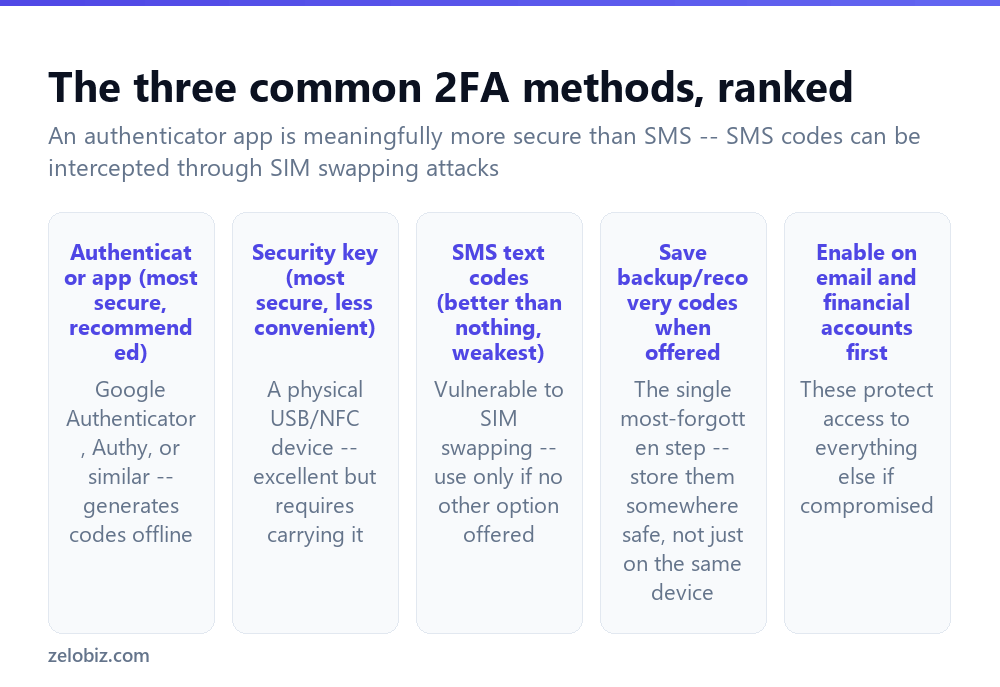
Authenticator app (recommended) — apps like Google Authenticator, Authy, or Microsoft Authenticator generate time-based codes directly on your device without needing a cell signal or SMS delivery, making them meaningfully harder to intercept than SMS.
Security key — a physical USB or NFC device (like a YubiKey) offers excellent security, arguably the strongest of the three, at the cost of needing to physically carry the key and plug it in or tap it during login.
SMS text codes — better than no two-factor authentication at all, but the weakest of the three common methods, since SMS messages can be intercepted through SIM swapping attacks, where an attacker convinces a carrier to transfer your phone number to a SIM card they control.
Backup/recovery codes — offered during setup by nearly every service, and the single most commonly skipped step; these codes let you regain access if the primary 2FA method (a lost phone, for instance) becomes unavailable.
Prioritize email and financial accounts first — these protect access to everything else, since email is frequently the account used to reset passwords on other services, making it a particularly high-value target to secure early.
An authenticator app is meaningfully more secure than SMS-based codes in nearly every real-world scenario, since SMS can be intercepted through SIM swapping in a way that an offline, on-device authenticator app genuinely cannot.
Enabling 2FA (general steps)
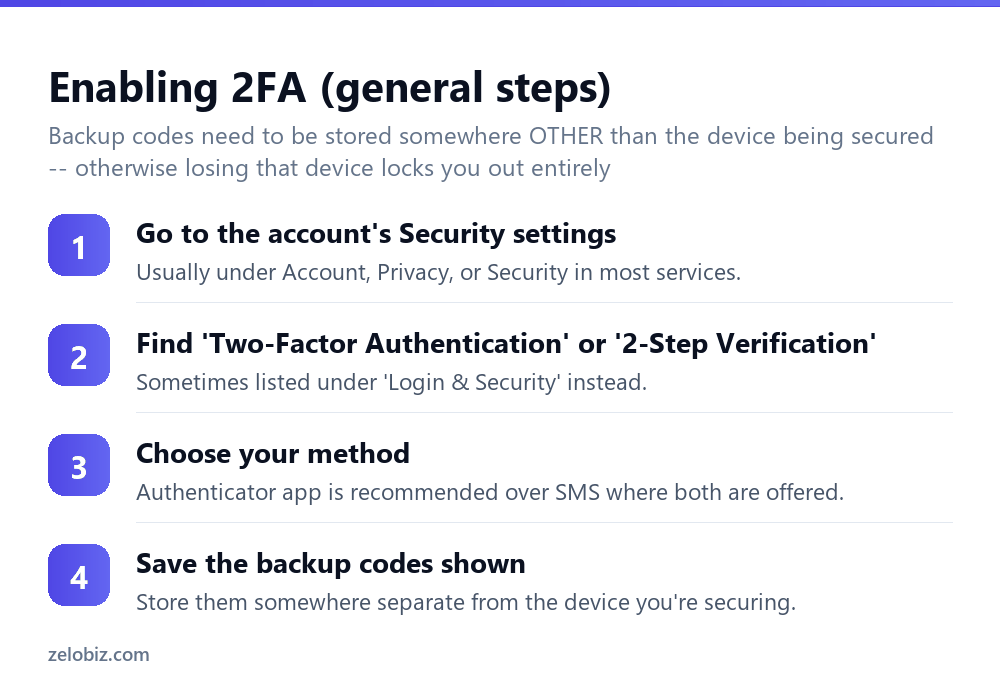
Go to the account’s Security settings — usually found under “Account,” “Privacy,” or “Security,” depending on the specific service.
Find “Two-Factor Authentication” or “2-Step Verification” — sometimes instead listed under a broader “Login & Security” section.
Choose your method — select an authenticator app where offered, over SMS, following the specific service’s on-screen instructions to link it (usually by scanning a QR code with the authenticator app).
Save the backup codes shown — store them somewhere genuinely separate from the device being secured, such as a password manager or a printed copy kept somewhere safe, not just a screenshot on the same phone running the authenticator app.
Why backup codes matter more than people expect
Backup codes exist specifically for the scenario where the primary 2FA method becomes unavailable — a lost or damaged phone, an uninstalled authenticator app, or a phone number that’s changed. Without them saved somewhere separate, this exact scenario can mean a genuinely difficult account recovery process, sometimes taking days and requiring identity verification, or in some cases, permanent loss of access to the account entirely.
Storing backup codes in the same place as the device they’re meant to back up — a screenshot on the same phone, for instance — defeats their purpose, since losing that device loses the backup codes along with the primary method simultaneously.
A worked example: securing an email account first
Say someone has decided to finally enable two-factor authentication after hearing about a friend’s account getting compromised, and is deciding where to actually start among a dozen accounts they use regularly.
They start with their primary email account specifically, since email is often the account used to send password reset links for nearly every other service — if an attacker gains access to email alone, they can frequently reset passwords and gain access to banking, shopping, and social accounts in turn, making email the single highest-value account to secure first, even before the accounts that might feel more sensitive on their own.
They go to the email account’s Security settings, find “2-Step Verification,” and choose an authenticator app over the SMS option also offered, since they already installed one for a different purpose. They scan the QR code shown, confirm the six-digit code generated matches, and are then shown ten backup codes — they save these directly into their password manager rather than taking a screenshot on the same phone now running the authenticator app, specifically to avoid losing both the primary method and the backup simultaneously if that phone is ever lost.
With email secured, they move next to their banking app and a shopping account with a saved payment method, following the same steps, before eventually working through less sensitive accounts like a streaming service, treating the whole process as roughly 15 minutes per account rather than trying to do everything in one sitting.
2FA fatigue and approval-based prompts
Some services, instead of a typed code, use an approval-based prompt — a notification sent to a trusted device asking “Was this you?” with a simple Approve or Deny button, rather than requiring a manually entered code. This is generally more convenient, but it introduces a specific risk worth knowing about: 2FA fatigue attacks, where an attacker who already has a stolen password repeatedly triggers login prompts, hoping the legitimate account owner eventually taps “Approve” out of annoyance or habit without actually checking what they’re approving.
If an unexpected approval prompt appears, particularly more than once in a short period, the correct response is to deny it and change the account’s password immediately, rather than approving it to make the notification stop — a repeated, unprompted request for approval is itself a signal that someone else already has the password and is actively trying to get in.
2FA setup issues
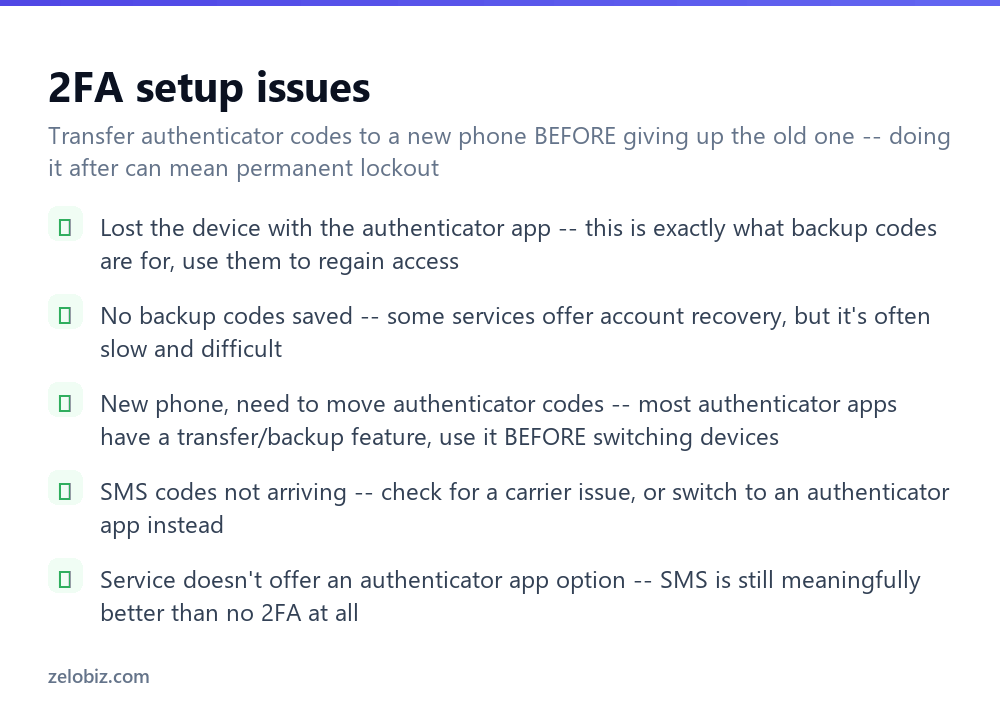
Lost the device with the authenticator app — this is exactly the scenario backup codes are meant for; use one to regain access and set up 2FA again on a new device.
No backup codes saved — most services still offer an account recovery process, but it’s often considerably slower and more involved than simply using a saved backup code would have been.
Getting a new phone — most authenticator apps offer a transfer or backup feature; use it before giving up the old device, since doing it after can mean permanent loss of access to accounts secured with that app.
SMS codes not arriving — check for a carrier-side delivery issue first, and consider switching to an authenticator app instead, which doesn’t depend on cell signal or SMS delivery at all.
Service doesn’t offer an authenticator app option — SMS-based 2FA, while the weakest of the common methods, is still meaningfully better than having no two-factor authentication enabled at all.
Received an unexpected approval prompt you didn’t trigger — deny it immediately and change that account’s password right away, rather than approving it to make the notification stop, since an unprompted prompt usually means someone else already has the password.
Switching from SMS to an authenticator app on an existing account — most services let you add a new 2FA method without disabling the old one until the new one is confirmed working, which avoids any risk of being locked out mid-switch if something goes wrong during setup. Confirm the new method actually works, fully, before removing the old one entirely, not the other way around, and generate fresh backup codes once the switch is complete, since older ones tied to the previous method may no longer be valid.
- ✓Choose an authenticator app over SMS wherever a service offers both
- ✓Save backup codes somewhere genuinely separate from the device being secured
- ✓Enable 2FA on email and financial accounts as the first priority
- ✓Transfer authenticator app codes before switching to a new phone, not after
- ✓Enable SMS-based 2FA rather than none at all if it’s the only option offered
- ✕Relying on SMS codes when an authenticator app option is available
- ✕Skipping the backup codes step, or saving them on the same device being secured
- ✕Waiting to enable 2FA on email until after other, less critical accounts
- ✕Discarding an old phone before transferring authenticator app codes to a new one
- ✕Assuming SMS-based 2FA offers the same protection as an authenticator app
Frequently asked questions
How do I enable two-factor authentication?
Go to the account’s Security settings, find ‘Two-Factor Authentication’ or ‘2-Step Verification,’ choose a method (an authenticator app is recommended), and save the backup codes shown.
Is an authenticator app more secure than SMS codes?
Yes, meaningfully so. SMS can be intercepted through SIM swapping, while an authenticator app generates codes offline on your device.
What are backup codes for?
They let you regain account access if your primary 2FA method (like a lost phone) becomes unavailable — save them somewhere separate from that device.
What happens if I lose my phone with my authenticator app?
Use a saved backup code to regain access, then set up 2FA again on a new device. Without backup codes, recovery can be slow or, in some cases, impossible.
Should I use SMS-based 2FA if that’s the only option?
Yes — it’s meaningfully weaker than an authenticator app, but still considerably better than having no two-factor authentication enabled at all.
Which accounts should I enable 2FA on first?
Email and financial accounts first, since email is often used to reset passwords on other services, making it a high-value target to secure early.
- →Pair 2FA with a genuinely strong password: how to make a strong password
- →Secure the network your devices connect to: how to secure your wifi
- →Add encryption for public networks: how to use a VPN
- →Clear stored logins if you’re changing devices: how to delete cookies