

To delete cookies, go to your browser’s Settings > Privacy and security (or the equivalent menu), find Clear browsing data or Cookies and site data, select cookies specifically (deselecting history and cache if you only want cookies removed), choose a time range, and confirm. You’ll be signed out of most sites you were logged into afterward — that’s the expected result, not something going wrong.
Deleting cookies by browser
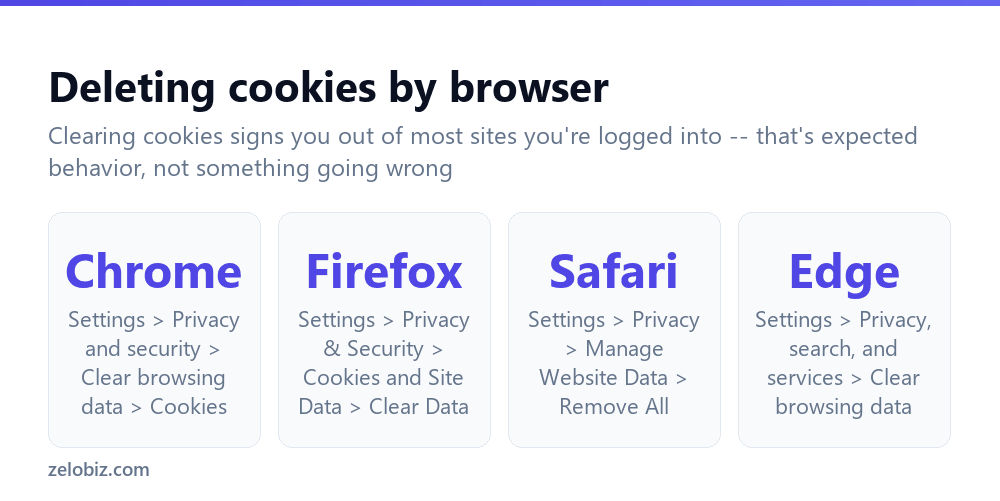
Chrome — go to Settings > Privacy and security > Clear browsing data, select the “Cookies and other site data” checkbox, choose a time range, and click “Clear data.”
Firefox — go to Settings > Privacy & Security, scroll to “Cookies and Site Data,” and click “Clear Data,” then confirm.
Safari — go to Settings > Privacy, click “Manage Website Data,” and either “Remove All” or select specific sites to remove individually.
Edge — go to Settings > Privacy, search, and services > Clear browsing data, select “Cookies and other site data,” choose a time range, and clear.
Being signed out of most websites you use is the expected, normal result of clearing cookies — it isn’t a sign something went wrong. Cookies are how most sites remember that you’re logged in, so removing them naturally logs you out.
Deleting cookies (general steps)
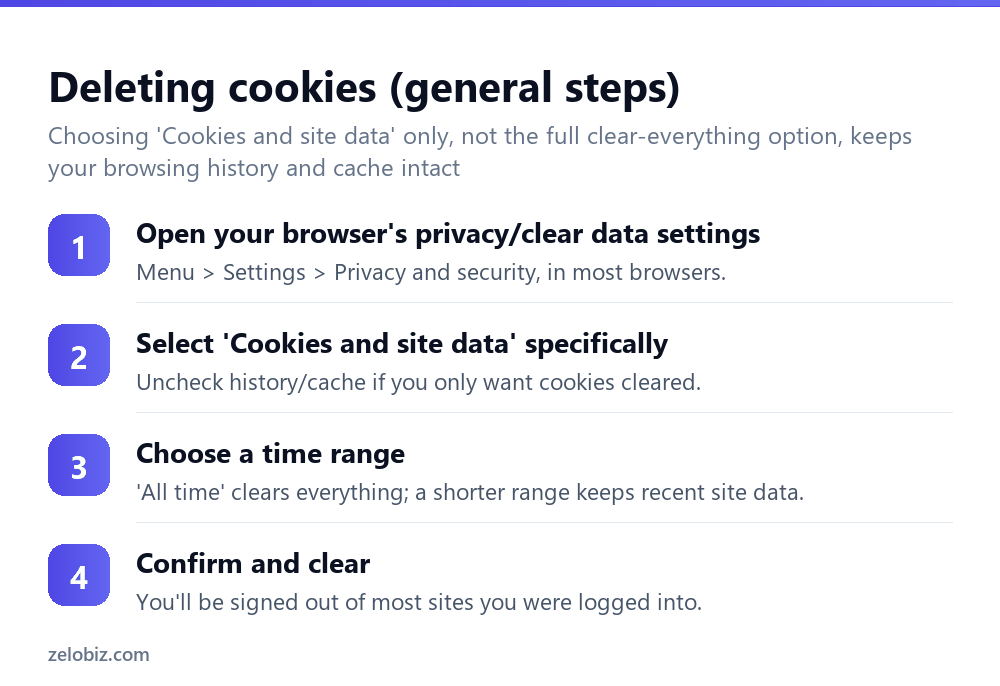
Open your browser’s privacy or clear-data settings — in most browsers, this is under Settings > Privacy and security, though the exact wording and menu location varies slightly by browser and version.
Select “Cookies and site data” specifically — and, if you only want cookies cleared and not your full browsing history or cached images/files, uncheck those other boxes before proceeding.
Choose a time range — “All time” clears every cookie ever stored; a shorter range like “Last hour” or “Last 24 hours” clears only recent site data while leaving older cookies (and the sites they keep you logged into) untouched.
Confirm and clear — after this, reload any open tabs to see the change take effect, and expect to need to log back into most sites you were signed into.
Clearing cookies for just one site
If the goal is fixing a problem with a single website — a site behaving oddly, or getting logged out repeatedly without cause — clearing every cookie in the browser is more than necessary. Most browsers offer a way to view and clear cookies for a specific site only: in Chrome, click the icon to the left of the address bar while on that site, then “Cookies” or “Site settings,” and clear data for just that site. This fixes the specific site’s issue without signing you out of every other site you use.
Why clear cookies at all
Cookies themselves aren’t inherently a problem — they’re what keeps you logged into sites, remembers your preferences, and keeps a shopping cart from emptying between visits. Clearing them is most useful for troubleshooting (a site behaving strangely, often due to a corrupted or outdated cookie), for privacy (removing tracking cookies accumulated from sites you’ve visited), or before testing something that needs a genuinely fresh, logged-out browser state.
For privacy specifically without needing to repeatedly clear cookies, most browsers also offer a setting to automatically clear cookies when the browser closes, or to block third-party tracking cookies by default while still allowing first-party cookies that keep you logged into sites you actually visit directly.
Blocking third-party cookies specifically, rather than clearing all cookies outright, is often the better balance for most people — it cuts down on cross-site advertising trackers that follow you between unrelated websites, while leaving the first-party cookies that keep you logged into the sites you actually visit directly completely untouched, avoiding the repeated inconvenience of logging back in everywhere.
A worked example: fixing a site stuck in a login loop
Say a banking website keeps redirecting back to the login page immediately after signing in, no matter how many times the correct password is entered — a common symptom of a corrupted or outdated cookie for that specific site.
Rather than clearing every cookie in the browser, which would sign out of dozens of unrelated sites for a problem specific to one, the more targeted fix is clearing cookies for just that banking site. In Chrome, clicking the small icon just left of the address bar while on the site opens a panel showing what’s stored for that page specifically — selecting “Cookies” and removing the entries listed there clears only this site’s stored data.
After clearing, reloading the page and attempting to log in again usually resolves the loop, since the browser starts fresh with that site rather than carrying forward whatever corrupted cookie was causing the redirect. If the same loop happens again shortly after, the underlying cause is more likely on the site’s end than the browser’s, and contacting the site’s support becomes the more useful next step rather than repeatedly clearing cookies.
Cookies vs. cache vs. local storage
Browsers actually store several distinct types of site data, and “cookies” is only one of them, which is part of why clearing cookies doesn’t always fully reset a site’s behavior. Cache stores downloaded files (images, scripts, page layouts) to make pages load faster on repeat visits — clearing it can fix a page displaying outdated content, but it’s a separate setting from cookies in most clear-data dialogs.
Local storage and session storage are newer mechanisms some sites use instead of, or alongside, traditional cookies to remember settings or login state — these are sometimes bundled under “site data” in a browser’s clear-data settings rather than listed separately, which is why a checkbox labeled “Cookies and other site data” (rather than just “Cookies”) in Chrome and Edge actually clears more than cookies alone.
If a site still seems to remember something after cookies are cleared, checking whether the browser’s clear-data dialog included local storage in that same pass — or clearing it as a separate, explicit step — is often what actually resolves it.
Automatically clearing cookies going forward
For anyone who wants cookies cleared regularly without remembering to do it manually, most browsers offer a setting to clear cookies automatically when the browser closes, found in privacy settings under something like “Cookies clear when windows are closed” or a similar toggle. This keeps sites you’re actively using functional during a session while ensuring nothing persists once the browser fully closes, offering a middle ground between manually clearing cookies periodically and never clearing them at all.
After clearing cookies
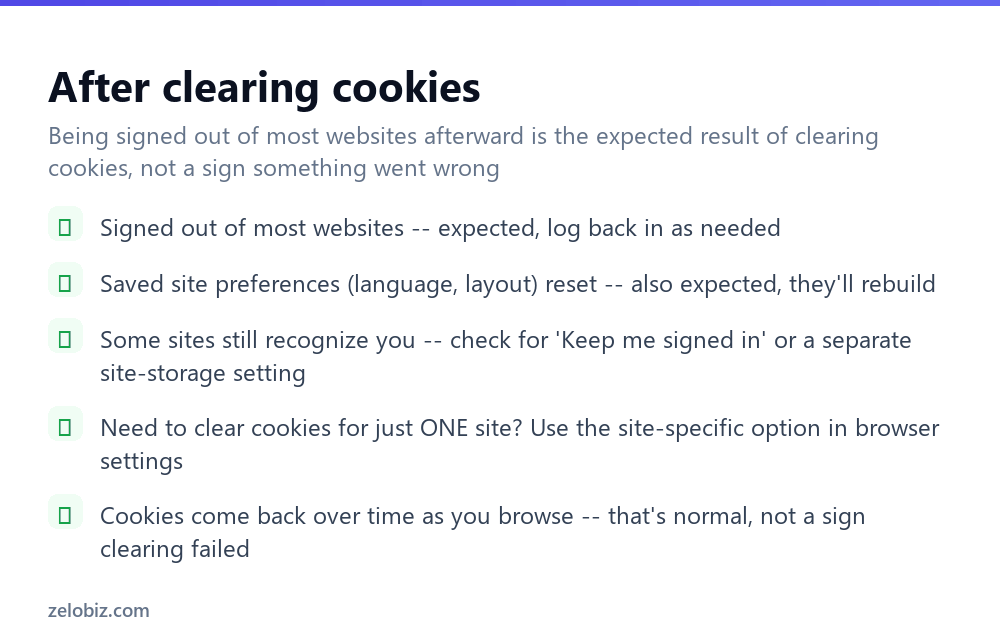
Signed out of most websites — expected; simply log back in to whichever sites you still need to use.
Saved site preferences reset — language settings, layout choices, and similar site-specific preferences stored via cookies also reset and rebuild as you use each site again.
Some sites still recognize you — if a site still seems to remember you after clearing cookies, check whether it uses a separate storage mechanism (local storage, or a “remember this device” setting tied to something other than a standard cookie) rather than assuming the clear didn’t work.
Cookies come back over time — as you browse afterward, sites set new cookies again; this is normal and doesn’t mean the original clear failed.
A browser extension seems to have lost its settings too — some extensions store their own configuration using cookie-adjacent storage mechanisms that get swept up in a full clear; this is generally expected rather than a sign of a separate problem, and the extension’s settings simply need to be reconfigured once.
- ✓Select ‘Cookies and site data’ specifically if you only want cookies cleared
- ✓Use the site-specific clear option to fix a single site without logging out of everything
- ✓Expect to be signed out of most sites afterward — that’s the normal result
- ✓Consider a shorter time range if you want to keep older, still-useful login sessions
- ✓Check for third-party tracking cookie blocking as an ongoing privacy option
- ✕Assuming clearing cookies is broken because you got signed out of sites
- ✕Clearing your entire browsing history when you only meant to clear cookies
- ✕Clearing all cookies to fix one misbehaving site instead of clearing just that site’s data
- ✕Expecting saved site preferences to persist after cookies are cleared
- ✕Assuming a site that still recognizes you means the cookie clear failed
Frequently asked questions
How do I delete cookies?
Go to your browser’s Settings > Privacy and security > Clear browsing data, select ‘Cookies and site data,’ choose a time range, and confirm.
Why did clearing cookies sign me out of websites?
Cookies are how most sites remember you’re logged in. Removing them naturally logs you out — this is expected, not an error.
How do I clear cookies for just one website?
Click the site icon next to the address bar (in Chrome), open ‘Site settings’ or ‘Cookies,’ and clear data for that site specifically, without affecting other sites.
Do cookies come back after I delete them?
Yes — sites set new cookies as you browse again afterward. This is normal.
Should I clear cookies regularly?
It depends on your goals — useful for troubleshooting or privacy, but not required regularly for normal browsing, since cookies also provide convenience like staying logged in.
What’s the difference between clearing cookies and clearing browsing history?
Cookies control site logins and preferences; browsing history is your list of visited pages. They’re cleared separately if you deselect one in the clear-data menu.
- →Clear more than just cookies: how to clear browsing history
- →Browse more privately going forward: how to use a VPN
- →Secure accounts after clearing saved logins: how to enable two-factor authentication
- →Strengthen the passwords you re-enter: how to make a strong password