
To use a VPN, choose a reputable provider (generally a paid one, since many free VPNs have real privacy tradeoffs), install its app on your device, sign in, and connect to a server — either a specific location or letting the app auto-select the fastest one. Once connected, your internet traffic is encrypted and your IP address is masked from the sites you visit. Importantly, a VPN does not make you fully anonymous online — the VPN provider itself can typically still see your traffic, and logging into accounts like Google or Facebook still identifies you to them regardless.
What a VPN actually does
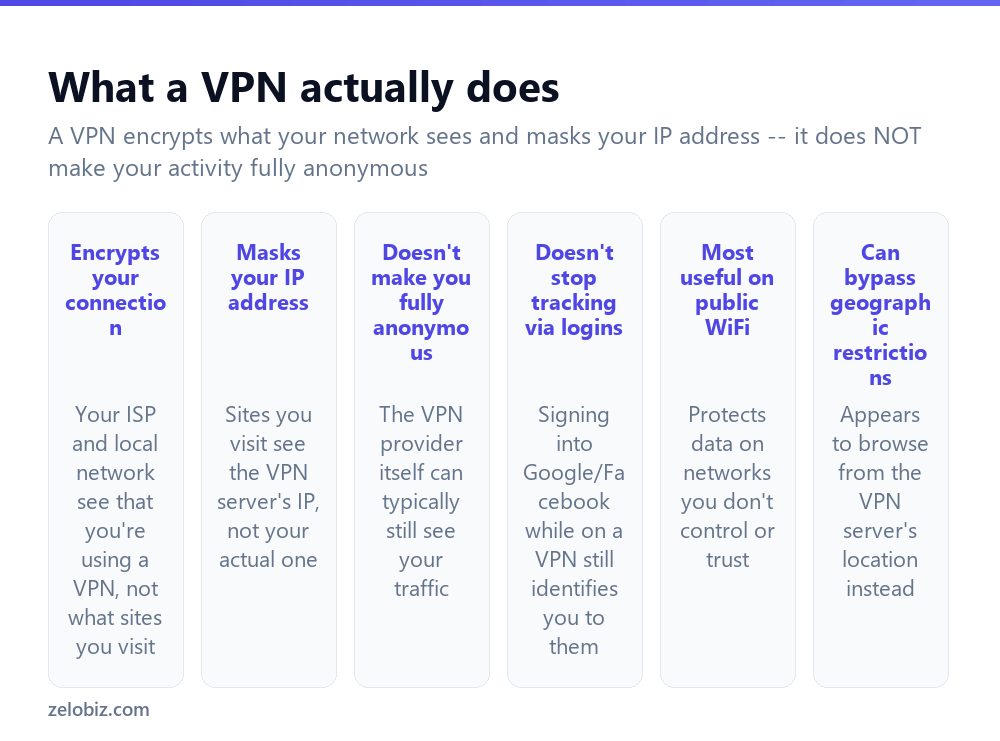
Encrypts your connection — your internet provider and anyone on your local network can see that you’re connected to a VPN, but not the specific sites you visit or the content of your traffic while connected.
Masks your IP address — websites you visit see the VPN server’s IP address rather than your actual one, which is what allows a VPN to make your connection appear to originate from a different location.
Doesn’t make you fully anonymous — the VPN provider itself typically can still see your traffic passing through its servers, which is why choosing a provider with a genuine, verified no-logs policy matters if privacy from the provider itself is a real concern.
Doesn’t stop tracking through logins — signing into Google, Facebook, or any account while connected to a VPN still identifies you to that service directly through the login itself, regardless of what your IP address shows.
Most genuinely useful on public WiFi — a coffee shop, airport, or hotel network is a network you don’t control or fully trust, and a VPN meaningfully protects your data’s privacy on exactly that kind of shared, unsecured network.
Can bypass geographic restrictions — connecting through a server in a different country makes your traffic appear to originate there instead.
A VPN is genuinely good at hiding WHAT you’re browsing from your local network and internet provider, and at masking your IP address from the sites you visit. It is not a tool for full anonymity — the provider can typically still see your traffic, and any account you log into still knows it’s you.
Setting up and using a VPN
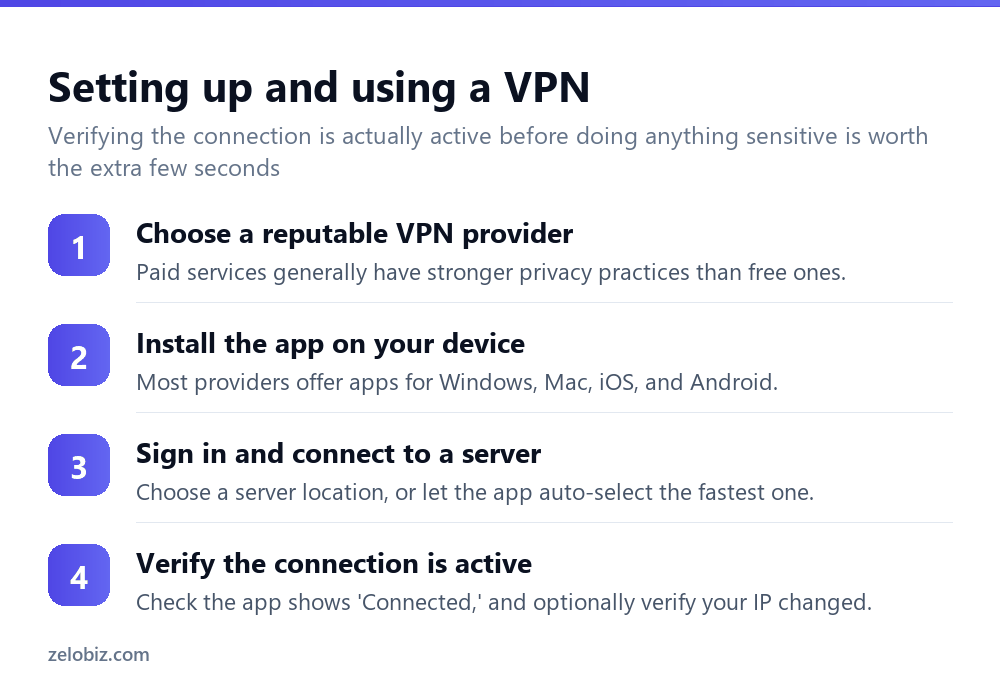
Choose a reputable VPN provider — paid services generally maintain stronger privacy practices and a genuine no-logs policy compared to free services, many of which fund themselves by logging and selling exactly the data users are trying to protect.
Install the app — most reputable providers offer dedicated apps for Windows, Mac, iOS, and Android, generally simpler and more reliable than manually configuring a VPN connection through system settings.
Sign in and connect to a server — choose a specific server location if bypassing a geographic restriction is the goal, or let the app auto-select the fastest available server for general everyday use.
Verify the connection is active — most apps clearly show “Connected” once active; optionally, checking your IP address through a simple web search before and after connecting confirms it actually changed.
Choosing a VPN provider
A paid VPN service is generally the safer choice over a free one, since running VPN servers has a real ongoing cost, and a free service needs to fund that cost somehow — often through logging and selling user data, which directly undermines the privacy protection a VPN is meant to provide in the first place.
Beyond price, worth checking specifically: whether the provider has a genuinely audited (not just claimed) no-logs policy, how many server locations are available if geographic flexibility matters, and whether the provider has a track record of actually honoring user privacy rather than a history of data incidents.
A worked example: working from a hotel WiFi network
Say someone is traveling for work and needs to log into their company’s systems and personal banking from a hotel’s public WiFi network — a network shared with every other guest and, notably, one they have no way to verify is actually configured securely by the hotel’s IT setup.
Before connecting to anything sensitive, they open their VPN app, connect (in this case letting it auto-select the fastest available server, since bypassing a geographic restriction isn’t the goal here), and confirm the app shows “Connected” before doing anything else. Only after that confirmation do they log into work systems and check their bank account, since the VPN now encrypts that traffic before it ever reaches the hotel’s shared network, meaningfully reducing the risk that someone else on the same network — or a compromised access point — could intercept it.
They also enable the kill switch setting in the VPN app beforehand, so that if the connection drops unexpectedly mid-session (not unusual on a congested hotel network), their device’s internet access cuts off entirely rather than silently falling back to an unprotected connection without any visible warning.
VPN on a phone vs. a router-level VPN
Most people set up a VPN through an app on an individual device — a phone, laptop, or tablet — which protects only that specific device’s traffic while the VPN app is actively connected. A router-level VPN configuration instead applies to every device connected to that router automatically, without needing to install or activate an app on each individual device separately.
A router-level setup is genuinely more convenient for a household with many devices, including ones (smart TVs, game consoles) that often can’t run a VPN app directly at all, but it requires a router that specifically supports VPN configuration, and setup is meaningfully more technical than simply installing an app — for most individual use cases, particularly the public-WiFi scenario a VPN is most useful for, a per-device app remains the simpler and more practical choice.
VPN troubleshooting
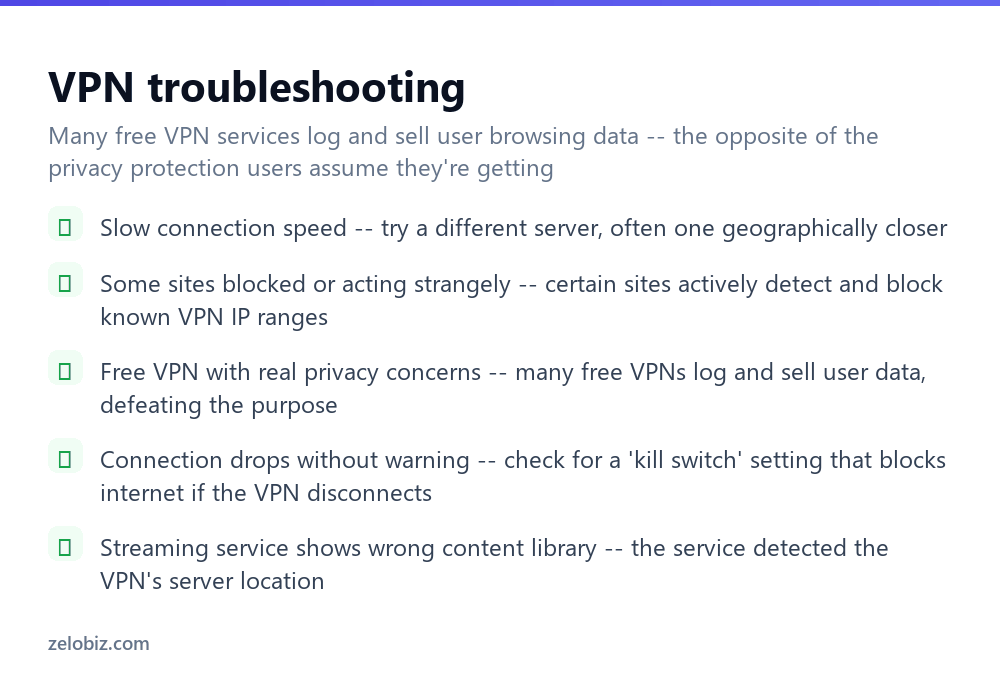
Slow connection speed — encryption and routing through a VPN server naturally adds some overhead; try a different server, often one geographically closer, which typically improves speed.
Some sites blocked or acting strangely — certain sites, particularly streaming services and some banking sites, actively detect and block known VPN IP address ranges, which can cause unexpected errors or restricted access.
Free VPN with real privacy concerns — many free VPN services log and sell user browsing data to third parties, which is the opposite of the privacy protection most people assume they’re getting by using one.
Connection drops without warning — check for a “kill switch” setting in the app, which blocks all internet traffic if the VPN connection drops unexpectedly, preventing traffic from suddenly flowing unprotected without your knowledge.
Streaming service shows the wrong content library — the service detected the VPN’s server location and is showing content available in that region rather than your actual one; connecting to a server in your actual region, or disconnecting, resolves this.
Can’t access a work resource while connected — some corporate or internal systems specifically block access from known VPN IP ranges as a security measure; disconnecting the personal VPN before accessing that specific resource, or checking whether the employer provides its own separate VPN for that purpose, resolves this.
App won’t reconnect automatically after the device wakes up — most VPN apps offer an “auto-connect on startup” or “reconnect automatically” setting in their preferences, worth enabling if a dropped connection after sleep or restart keeps happening unexpectedly.
Uncertain whether the VPN is actually protecting a specific app — most VPN apps route all device traffic through the encrypted tunnel by default, but a quick check of the app’s settings for a “split tunneling” feature confirms whether any specific apps have been excluded, intentionally or otherwise.
- ✓Choose a reputable, generally paid VPN provider over an unverified free one
- ✓Verify the connection actually shows as active before doing anything sensitive
- ✓Enable a kill switch setting if your provider offers one
- ✓Understand a VPN masks your IP but doesn’t make logged-in activity anonymous
- ✓Use a VPN especially on public WiFi networks you don’t control
- ✕Assuming a free VPN provides the same privacy protection as a reputable paid one
- ✕Assuming a VPN makes you fully anonymous once logged into personal accounts
- ✕Ignoring a dropped VPN connection that leaves traffic suddenly unprotected
- ✕Choosing a VPN provider without checking for a genuinely audited no-logs policy
- ✕Expecting full speed with no tradeoff from routing traffic through a VPN server
Frequently asked questions
How do I use a VPN?
Choose a reputable provider, install its app, sign in, and connect to a server — either a specific location or letting the app auto-select the fastest one.
Does a VPN make me anonymous online?
No. It masks your IP address and encrypts your traffic from your local network, but the VPN provider can typically still see it, and logged-in accounts still identify you.
Is a free VPN safe to use?
Many free VPNs log and sell user data to cover their operating costs, which undermines the privacy protection a VPN is meant to provide — a paid provider is generally safer.
When is a VPN most useful?
On public WiFi networks (coffee shops, airports, hotels) that you don’t control or fully trust, where a VPN meaningfully protects your data’s privacy.
Why is my VPN connection slow?
Encryption and routing through a VPN server adds some overhead. Trying a different, often geographically closer server typically improves speed.
What is a VPN kill switch?
A setting that blocks all internet traffic if the VPN connection drops unexpectedly, preventing traffic from flowing unprotected without your knowledge.
- →Secure your home network too: how to secure your wifi
- →Add account-level protection: how to enable two-factor authentication
- →Clear stored browsing data: how to clear browsing history
- →Use stronger passwords alongside a VPN: how to make a strong password