
To make a strong password, prioritize length — at least 12 characters, ideally 16 or more — since length is the single biggest factor in real-world password strength, more than mixing in symbols or numbers. Use either a password manager’s built-in generator for a genuinely random string, or build a passphrase of four to five unrelated words strung together, which is both long and considerably easier to remember than a random string. Make it unique per account, never reused, and avoid anything based on personal information that could be guessed or found online.
What actually makes a password strong
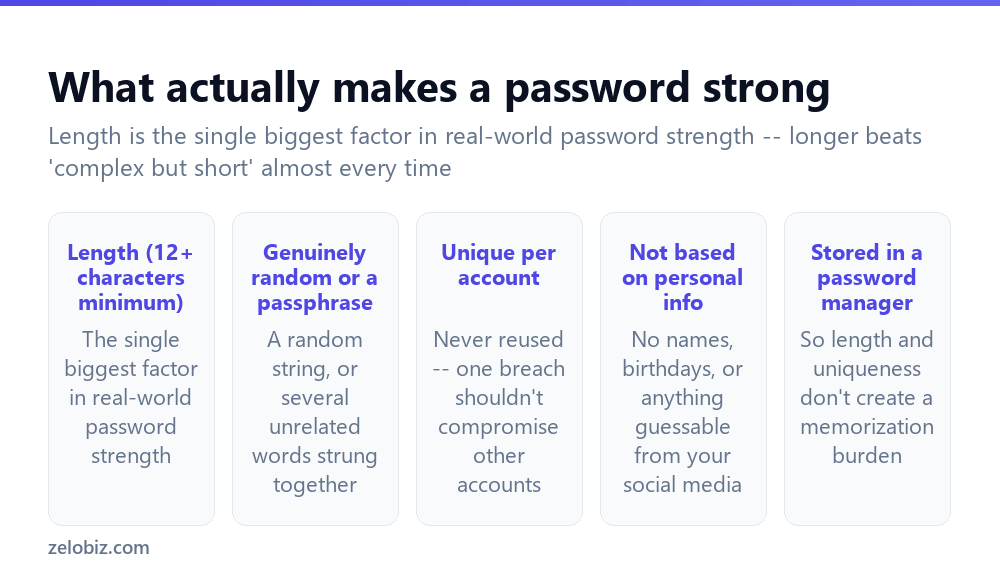
Length (12+ characters minimum) — the single biggest factor in real-world password strength; each additional character exponentially increases how long a password would take to crack through brute-force methods, far more than adding symbols to a short password does.
Genuinely random, or a passphrase — either a truly random string generated by a password manager, or several unrelated words strung together (“correct-horse-battery-staple” being the commonly cited example), both of which resist common cracking methods far better than predictable patterns.
Unique per account — never reused across multiple accounts, so that a breach at one service doesn’t compromise every other account using the same password.
Not based on personal information — names, birthdays, pet names, or anything else discoverable from social media or public records are all genuinely guessable, and attackers routinely try exactly this kind of personal-information-based guessing first.
Stored in a password manager — so that genuine length and uniqueness don’t create an impossible memorization burden across dozens of different accounts.
Length beats complexity in almost every real-world scenario. A long passphrase of unrelated words is both considerably harder to crack and considerably easier to remember than a short password stuffed with symbols and numbers — there’s no real tradeoff between security and memorability once length is prioritized correctly.
Creating a strong password
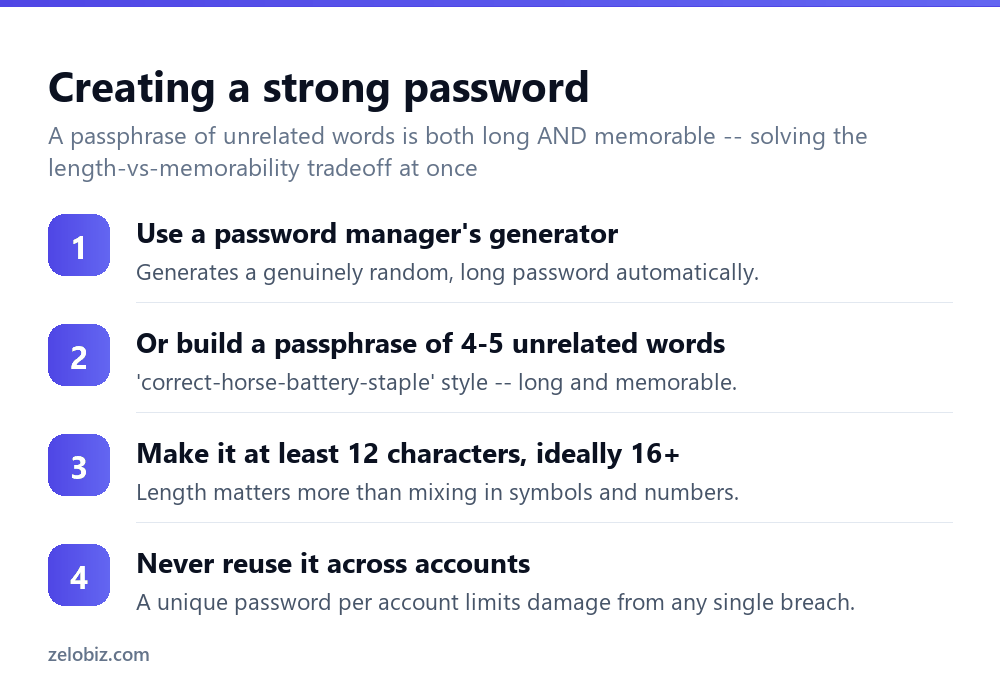
Use a password manager’s generator — nearly every password manager includes a built-in generator that creates a genuinely random, long password automatically, which is the simplest and most reliable option when memorization isn’t needed since the manager stores it.
Or build a passphrase of 4-5 unrelated words — for situations where a password genuinely needs to be memorized (a device passcode, or the master password for the password manager itself), stringing together several unrelated, random words is both long and considerably easier to recall than a random character string.
Make it at least 12 characters, ideally 16+ — length matters more than mixing in symbols and numbers into a short password; a longer password made purely of lowercase letters, if genuinely long enough, can outperform a short one stuffed with special characters.
Never reuse it across accounts — a unique password per account genuinely limits the damage from any single account’s data breach, keeping it contained to that one service rather than cascading to every other account sharing the same password.
Why passphrases work so well
A password like “correct-horse-battery-staple” is considerably longer than a typical short, symbol-heavy password like “P@ss1!”, and because it’s built from words already stored in memory rather than an arbitrary sequence of characters, it’s genuinely easier to recall correctly — solving the common tradeoff where the passwords people can actually remember tend to also be the passwords that are easiest to crack.
The key to a genuinely effective passphrase is that the words be truly unrelated to each other and not form a common, guessable phrase — “iloveyou123” is long but entirely predictable, while several genuinely random, unrelated words strung together resist common cracking dictionaries far more effectively.
A worked example: replacing a reused password after a breach notification
Say someone receives a notification (either from a service directly, or through a breach-monitoring feature built into their browser or password manager) that a password they use appeared in a data breach — and realizes with some concern that this same password is reused across roughly a dozen different accounts.
Rather than just changing the one breached account’s password, the correct response is treating this as a signal to fix all dozen accounts, since the exposed password is now genuinely compromised everywhere it was reused, not just at the one service that was actually breached — an attacker with access to breach data routinely tries the same exposed email-password combination across many other popular services, a technique known as credential stuffing.
They start with the highest-value accounts first — email, banking, and anywhere with a saved payment method — generating a genuinely unique, random password for each one using their password manager’s built-in generator, rather than creating new passwords manually, which risks unconsciously falling back into a similar, memorable-but-weak pattern across all of them again.
For the handful of accounts where memorization is still genuinely needed — the device passcode and the password manager’s own master password — they build unrelated-word passphrases instead, long enough to be genuinely strong while still being ones they can actually recall without writing down anywhere insecure.
Once every account has a unique password, they also check whether the password manager offers a stored security score or duplicate-password warning feature, which flags any remaining reused passwords going forward, catching this exact situation earlier next time rather than relying on a breach notification to discover it after the fact.
Common myths about password strength
“Changing a password regularly makes it stronger” — frequent forced password changes, absent any actual sign of compromise, tend to push people toward small, predictable variations of an existing password (adding a “2” that becomes a “3” next time) rather than genuinely new, strong passwords — a strong, unique password generally doesn’t need periodic rotation unless there’s an actual reason to believe it’s been compromised.
“Adding a number or symbol at the end makes any password strong” — a predictable pattern like appending “!1” to an otherwise weak, short, or personal-information-based password provides only a marginal improvement, since these exact common patterns are well known and specifically accounted for in modern password-cracking approaches.
“A password manager itself is a security risk” — while consolidating all passwords behind one master password does concentrate risk in a single point, a genuinely strong, unique master password combined with the practical reality that manual password management leads to weak, reused passwords across dozens of accounts makes a reputable password manager a meaningfully safer overall approach for most people than the alternative.
Passwords vs. passkeys
A growing number of services now also support passkeys as an alternative to a traditional typed password — a cryptographic credential tied to your specific device, unlocked with the device’s own fingerprint, face recognition, or PIN, rather than something typed and potentially guessed, phished, or reused. Where a service offers a passkey option, it’s generally at least as strong as a well-built password, and meaningfully more resistant to phishing specifically, since there’s no actual password text that could be tricked out of you by a fake login page.
Passkeys aren’t yet universally supported across every service, so a strong, unique password approach as described throughout this guide remains the practical necessity for the majority of accounts most people use today, with passkeys becoming a genuinely stronger option to adopt as more services roll out support for them over time, rather than something to wait on entirely before securing existing accounts properly now. Where both are offered on the same account, enabling a passkey alongside a strong password as a backup option is a reasonable, low-effort way to get the benefit of both.
- ✓Prioritize length above all else — 12+ characters, ideally 16 or more
- ✓Use a password manager’s generator or a passphrase of unrelated words
- ✓Make every password unique, never reused across different accounts
- ✓Avoid anything based on personal information that’s guessable or findable online
- ✓Store passwords in a password manager rather than trying to memorize each one
- ✕Assuming a short password with symbols is stronger than a long simple one
- ✕Reusing the same password, or a close variation of it, across multiple accounts
- ✕Using a birthday, pet’s name, or other personal information as a password
- ✕Building a passphrase from a common, guessable phrase rather than unrelated words
- ✕Relying on memory alone for dozens of unique passwords instead of a password manager
Frequently asked questions
How do I make a strong password?
Prioritize length (12+ characters, ideally 16+), use a password manager’s generator or an unrelated-word passphrase, and make it unique to that one account.
Does length matter more than complexity for password strength?
Yes. Length is the single biggest factor in real-world password strength, more than adding symbols or numbers to a short password.
What is a passphrase and why is it recommended?
Several unrelated words strung together, like ‘correct-horse-battery-staple’ — long enough to be genuinely secure, while being easier to remember than a random string.
Should I reuse a strong password across multiple accounts?
No. A unique password per account contains the damage from any single breach to that one account rather than compromising every account sharing the password.
Why shouldn’t I use personal information in a password?
Names, birthdays, and similar details are often discoverable from social media or public records, and attackers routinely try exactly this kind of guessing first.
Do I need a password manager if my passwords are already strong?
Yes, practically — storing genuinely unique, long passwords for dozens of accounts isn’t realistic to memorize without one.
- →Pair a strong password with 2FA: how to enable two-factor authentication
- →Secure the network you log in from: how to secure your wifi
- →Encrypt your connection on public networks: how to use a VPN
- →Find your current WiFi password: how to find your WiFi password