
To reset a router, first try a simple restart: unplug it from power, wait a full 30 seconds, and plug it back in — this resolves the large majority of connectivity issues while keeping all settings, including your WiFi name and password, completely unchanged. Only if that doesn’t resolve the problem is a factory reset (holding the physical reset button, usually with a paperclip, for 10-30 seconds) genuinely needed — this erases all custom settings, reverting the WiFi name and password back to the defaults printed on the router itself.
Restart vs. factory reset
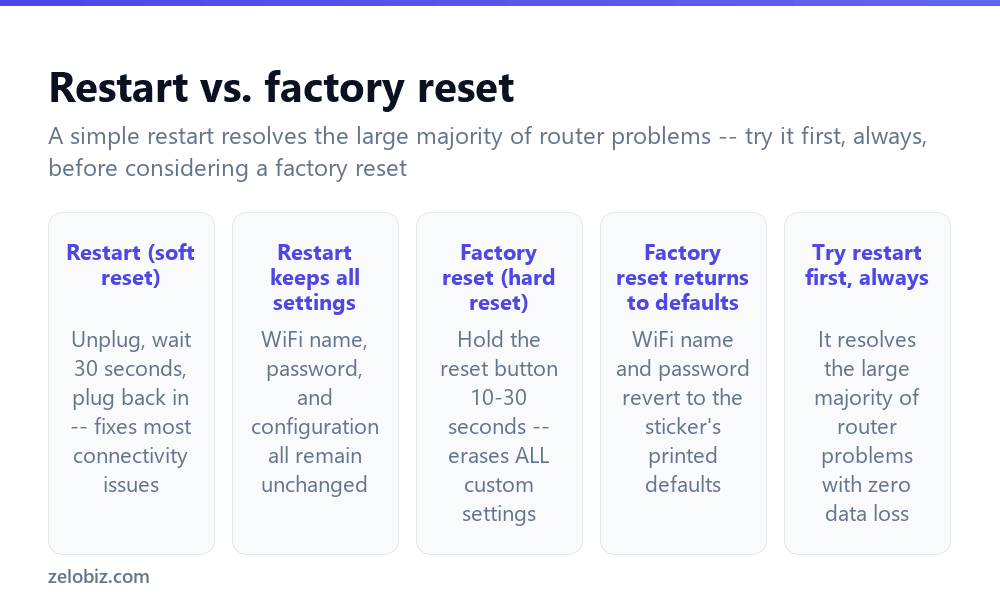
Restart (soft reset) — unplugging the router from power, waiting 30 seconds, and plugging it back in. This resolves the majority of common router problems: slow speeds, dropped connections, or devices unable to connect.
Restart keeps all settings — the WiFi network name, password, and any custom configuration remain completely unchanged through a restart; it simply clears the router’s temporary memory and re-establishes connections fresh.
Factory reset (hard reset) — holding the router’s physical reset button, typically recessed and requiring a paperclip or pin, for 10 to 30 seconds. This erases every custom setting on the router, not just connectivity-related ones.
Factory reset returns to defaults — the WiFi name and password revert to whatever is printed on the router’s sticker, and the admin login reverts similarly, along with any other custom configuration (port forwarding rules, static IP assignments, and so on) being completely erased.
Try a restart first, always — it resolves the large majority of router issues with zero data loss, making it the correct first step in nearly every situation before considering a factory reset at all.
A restart and a factory reset are genuinely different operations, not just a difference in intensity. A restart is close to risk-free and fixes most problems; a factory reset erases real configuration and should be treated as a distinct, more serious step, not simply a stronger version of a restart.
Restarting a router (try this first)
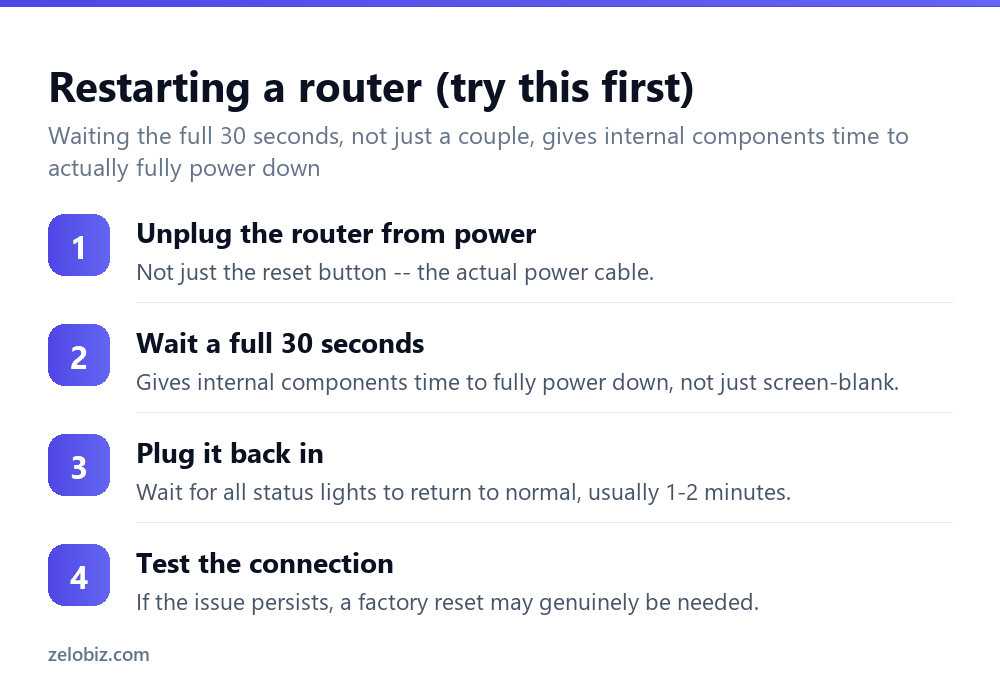
Unplug the router from power — the actual power cable, not just pressing a power button if one exists, since some routers don’t fully power down with a button press alone.
Wait a full 30 seconds — this genuinely matters; unplugging and immediately plugging back in doesn’t give internal components enough time to fully discharge and reset, and often doesn’t resolve the issue as reliably as waiting the full interval.
Plug it back in and wait for all status lights to return to their normal state, typically taking one to two minutes for the router to fully boot and re-establish its internet connection.
Test the connection — if the original issue persists after a proper restart, a factory reset becomes a reasonable next step, though it’s worth first considering whether the issue might actually be on the internet provider’s end rather than the router itself.
When a factory reset is actually necessary
A factory reset is genuinely warranted when: a restart hasn’t resolved a persistent problem, the router is being sold, given away, or disposed of and needs its settings wiped, the admin password has been forgotten with no other way to recover access, or the router’s configuration has become corrupted or is behaving unpredictably in a way a simple restart doesn’t fix.
It’s genuinely not the right first step for routine slowness or an occasional dropped connection — those are far more often resolved by a simple restart, and reaching for a factory reset unnecessarily means having to reconfigure everything from scratch for a problem a restart likely would have fixed anyway.
A worked example: a router that’s been acting up for days
Say a home network has been dropping connections intermittently for several days — devices occasionally lose WiFi and need to reconnect manually, and video calls occasionally stutter or drop.
The correct first move is a proper restart, not a factory reset — unplugging the router from its power source entirely, waiting the full 30 seconds (not just unplugging and immediately reconnecting), and plugging it back in. In the large majority of cases like this, a router’s internal memory has simply accumulated some minor corruption or congestion over days of continuous uptime, and a full power cycle clears it out completely, with every setting — WiFi name, password, and any custom configuration — completely unaffected.
If the intermittent dropping continues even after a proper restart and a day or two of normal use, at that point a factory reset becomes a reasonable next step, since it’s possible the router’s stored configuration has become corrupted in a way a simple restart doesn’t clear. Before doing so, they’d want to note down their current WiFi name and password (or accept they’ll need to reconfigure it from the printed default afterward), and be prepared to set up anything custom — a guest network, any port forwarding for a game console or security camera — again from scratch.
If the problem instead persists identically even after a full factory reset, that’s actually a meaningful diagnostic signal — it suggests the issue may not be the router’s configuration at all, but rather aging hardware, interference from other devices, or an issue with the internet connection itself upstream of the router, at which point contacting the internet provider or considering router hardware replacement becomes the more productive next step rather than repeating resets.
Resetting a router provided by your internet provider
A router supplied and configured by an internet service provider sometimes behaves differently from a router purchased independently — some ISP-provided routers automatically re-download their configuration from the provider after a factory reset rather than reverting to a truly blank default state, and some restrict full admin access entirely. If a factory reset on an ISP-provided router doesn’t behave as expected, or the admin panel is locked down more than anticipated, contacting the provider’s support directly is often faster and more reliable than working through generic router troubleshooting steps designed for independently purchased equipment.
Before factory resetting
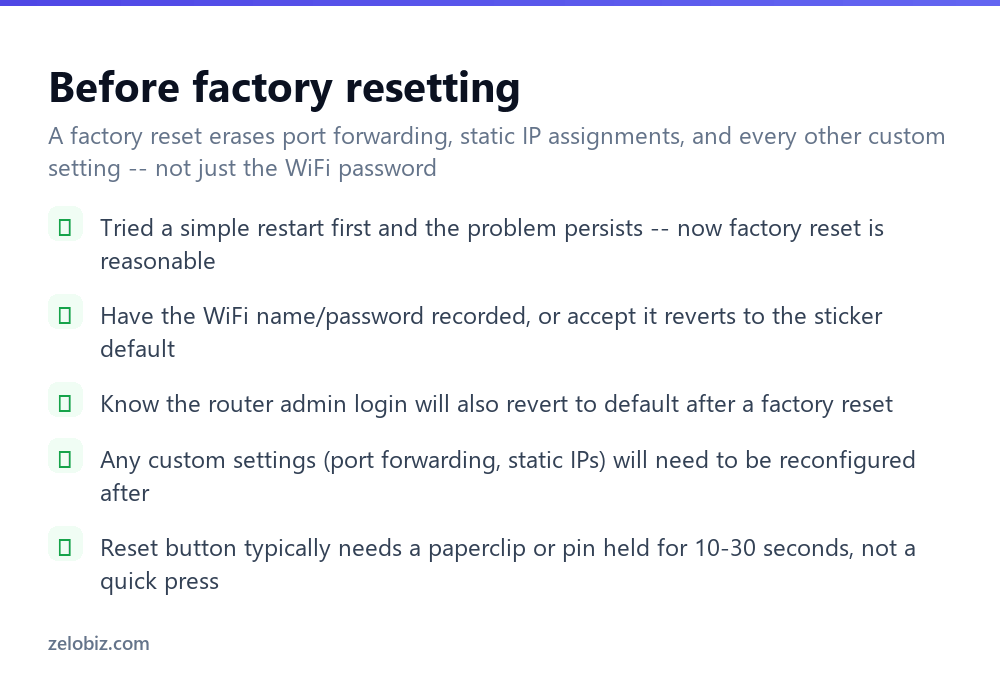
Tried a simple restart first and the problem persists — confirms a factory reset is a reasonable next step rather than a premature one.
Have the WiFi name/password recorded, or accept it will revert to the sticker’s printed default and need to be reconfigured on every device afterward.
Know the router admin login will also revert to default — if it was previously changed from the factory default, it reverts along with everything else.
Any custom settings will need reconfiguring — port forwarding rules, static IP assignments, a custom DNS setting, or a guest network configuration are all erased and need to be manually set up again after a factory reset.
Locate the actual reset button before starting — typically a small, recessed button requiring a paperclip or pin, held for 10 to 30 seconds (check the specific router’s manual for the exact required duration, since it varies somewhat by model).
Consider whether an ISP-provided router needs different handling — as covered above, some provider-supplied routers behave differently after a factory reset than independently purchased ones, so it’s worth checking that specific case before proceeding if that applies here, and contacting the provider directly if anything seems unexpected afterward, rather than repeatedly retrying the reset on the same equipment and risking further confusion about which settings actually took effect and which didn’t. Note down the device’s model number beforehand too, since support staff will typically ask for it early in any troubleshooting call.
- ✓Always try a simple restart before considering a factory reset
- ✓Wait the full 30 seconds when restarting, not just a few
- ✓Record custom settings (WiFi password, port forwarding) before a factory reset
- ✓Confirm the reset button is actually being held long enough for a full factory reset
- ✓Reserve factory resets for genuinely necessary situations, not routine slowness
- ✕Jumping straight to a factory reset for a problem a restart would likely fix
- ✕Unplugging and immediately plugging back in without waiting the full interval
- ✕Factory resetting without recording custom settings that will need reconfiguring
- ✕Confusing a quick reset-button tap with the full 10-30 second hold actually required
- ✕Assuming a factory reset only affects the WiFi password and not other settings
Frequently asked questions
How do I reset a router?
Try a simple restart first: unplug it, wait 30 seconds, and plug it back in. Only use a factory reset (holding the physical reset button) if that doesn’t resolve the issue.
What’s the difference between restarting and factory resetting a router?
A restart clears temporary memory and keeps all settings intact. A factory reset erases every custom setting, reverting to the printed defaults.
Does restarting a router change my WiFi password?
No. A restart keeps your WiFi name, password, and all configuration completely unchanged.
Does a factory reset change my WiFi password?
Yes. It reverts the WiFi name and password back to whatever is printed as the default on the router itself.
How long do I need to hold the reset button for a factory reset?
Typically 10 to 30 seconds, though the exact duration varies by router model — check the specific router’s manual to confirm.
Should I restart or factory reset my router for a slow connection?
Restart first — it resolves the large majority of speed and connectivity issues without erasing any settings.
- →Find the password again after a factory reset: how to find your WiFi password
- →Set a stronger password once reconfiguring: how to make a strong password
- →Lock down the network further: how to secure your wifi
- →Clear stale browser data after network changes: how to clear browsing history