
To secure your WiFi, first change the router’s default admin login — a separate credential from the WiFi password itself, and the single most commonly overlooked security step. Then set encryption to WPA3 or WPA2 (never WEP or “Open”), set a strong, unique WiFi password replacing the factory default, keep the router’s firmware updated, consider a separate guest network for visitors, and disable WPS if it’s not actively being used, since it’s a known, exploitable weak point in many router models.
The core steps to secure your WiFi
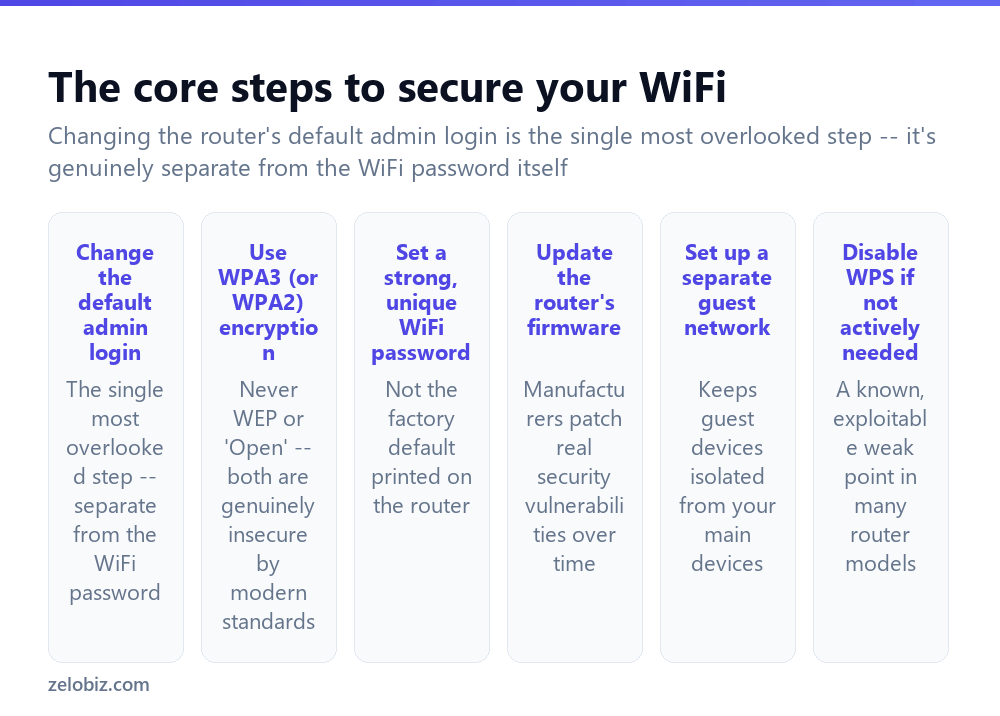
Change the default admin login — this is genuinely separate from the WiFi network password, and it’s the single most commonly overlooked security step, since many people only ever think to change the WiFi password and never touch the admin credentials at all.
Use WPA3 (or WPA2) encryption — never WEP or an “Open” (no password) network, both of which are genuinely insecure by modern standards and can be compromised with widely available tools.
Set a strong, unique WiFi password — replacing whatever factory default is printed on the router’s sticker, since that default is often either weak or, in some cases, algorithmically predictable from the router’s own visible information.
Update the router’s firmware — manufacturers regularly patch real security vulnerabilities discovered in their router software, and an outdated router running old firmware may carry known, publicly documented weaknesses.
Set up a separate guest network — isolates visitor devices from your main network’s devices, so a guest’s potentially compromised phone or laptop can’t directly reach your own computers and smart home devices.
Disable WPS if not actively needed — WiFi Protected Setup is a known, exploitable weak point in many router models, and disabling it removes that specific attack surface if the convenience it offers isn’t actually being used.
Changing the router’s default admin login is the single most overlooked step in securing a home network — most people change the WiFi password at some point but never think to touch the completely separate admin credentials, leaving the router’s actual configuration panel wide open to anyone who knows the widely-published factory default.
Securing your WiFi
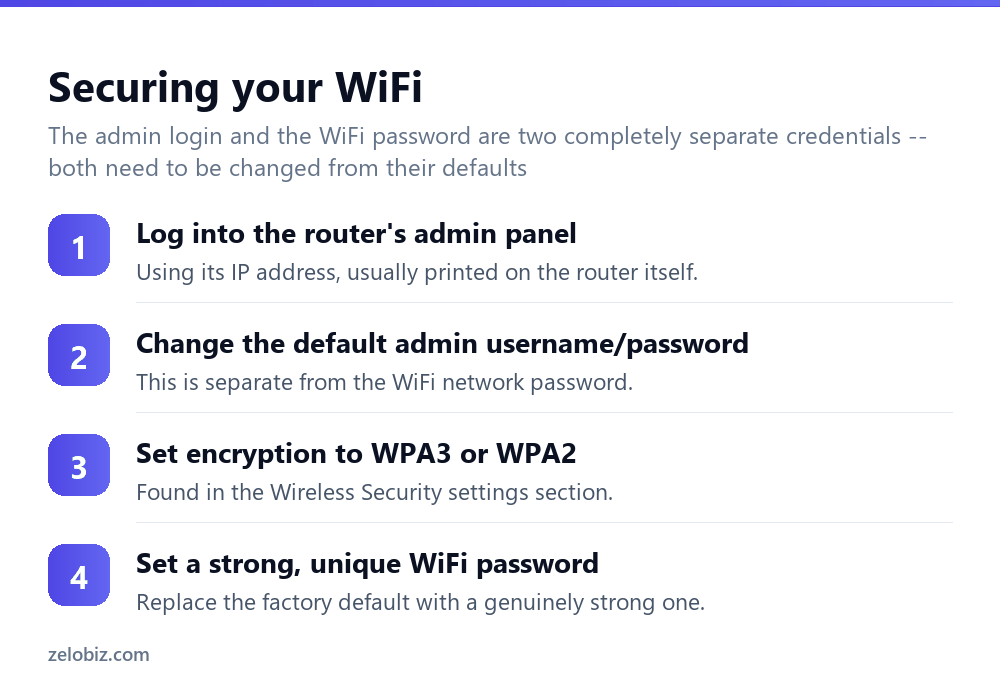
Log into the router’s admin panel — using its IP address, usually printed directly on the router itself, entered into a web browser.
Change the default admin username and password — this is genuinely separate from the WiFi network password, and needs to be changed independently from within the admin panel’s account or administration settings section.
Set encryption to WPA3 or WPA2 — found within the Wireless Security settings section of the admin panel; select whichever of these two the router supports, avoiding WEP or an open, unencrypted configuration entirely.
Set a strong, unique WiFi password — replacing the factory default, following the same length-focused approach covered in the strong password guide linked below.
Guest networks and WPS
Most modern routers support creating a genuinely separate guest network with its own distinct name and password, typically found in a “Guest Network” or similar section of the admin panel. Enabling this and using it for visitors, rather than sharing the main network’s password, keeps guest devices isolated from your primary devices — a meaningfully more secure practice than sharing full network access with every visitor.
WPS (WiFi Protected Setup) is a feature meant to simplify connecting new devices, typically via a physical button press or an 8-digit PIN, but it has known, well-documented security weaknesses in many router implementations. Unless it’s genuinely being used regularly for convenience, disabling it in the admin panel’s Wireless settings removes a real, documented attack surface with essentially no downside for most households.
A worked example: securing a router that’s been running untouched for years
Say someone moves into a home where the previous occupants left the router behind, still configured with whatever settings were originally set up years earlier, and no one has any record of what the admin login or WiFi password actually are.
Rather than trying to guess at old credentials, the practical starting point is a full factory reset, restoring the router to its genuine, known factory defaults printed on its sticker. From there, they log in using that printed default admin login, and the very first change they make — before even setting a new WiFi password — is changing that admin login to something new and genuinely strong, since it’s the credential controlling every other setting on the router.
Next, they check the current firmware version against the manufacturer’s website and install any available update, since a router that’s been sitting untouched for years is highly likely running firmware with known, since-patched vulnerabilities. Only after both of these are handled do they move to setting the WiFi password itself and choosing WPA3 or WPA2 encryption, followed by setting up a guest network for visitors and checking whether WPS is enabled by default (it often is) so it can be turned off.
This order — admin login, then firmware, then WiFi password and encryption, then guest network and WPS — reflects genuine priority: an unsecured admin login undermines every other setting made afterward, since anyone who gains access there can simply view or change the WiFi password directly regardless of how strong it’s set.
Smart home devices and WiFi security
A home with numerous smart devices — smart plugs, cameras, thermostats, and similar — introduces an additional consideration: many of these devices receive security updates far less consistently than a phone or laptop does, and some never receive updates at all after a certain point. Placing these devices on a separate network from primary computers and phones, using either a genuine second network the router supports or the guest network described above repurposed for this specific use, limits what a compromised smart device could actually reach even if it were to develop a vulnerability at some point.
This same isolation principle — keeping less-trusted or less-frequently-updated devices on a separate segment from the devices actually holding sensitive information — is a genuinely practical extension of the core WiFi security steps covered above, particularly relevant as the number of connected smart devices in a typical home continues to grow.
WiFi security gaps to check
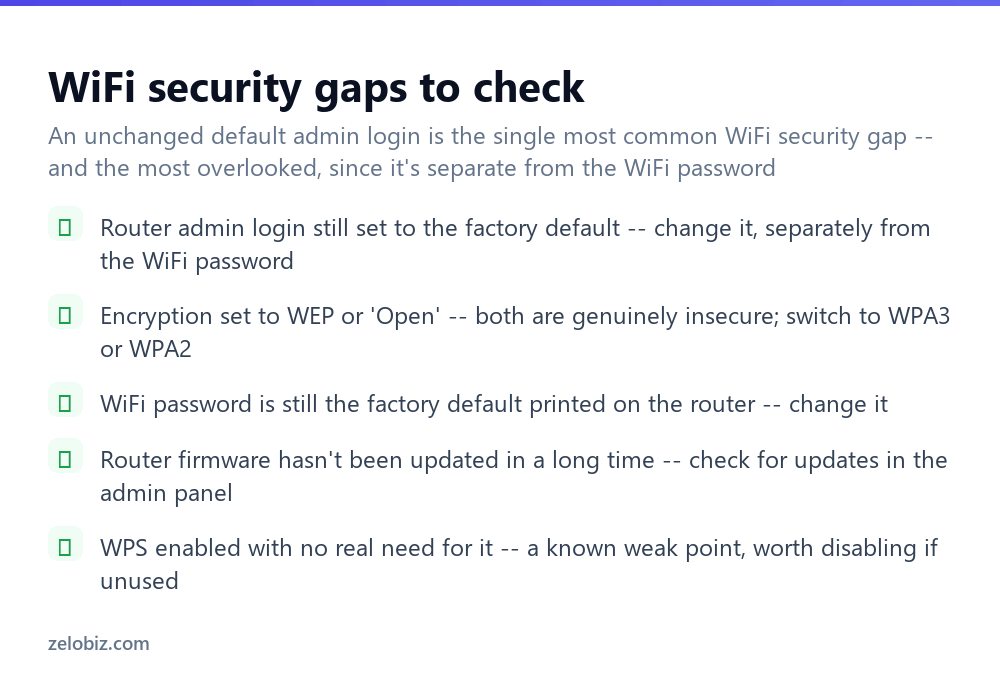
Router admin login still set to the factory default — change it separately from the WiFi password; this is the single most common gap found on home networks.
Encryption set to WEP or “Open” — both are genuinely insecure; switch to WPA3 or WPA2 in the Wireless Security settings.
WiFi password is still the factory default printed on the router — change it to something genuinely strong and unique.
Router firmware hasn’t been updated in a long time — check the admin panel for a firmware update option, and update if one is available.
WPS enabled with no real need for it — a known weak point in many routers, worth disabling if the convenience it offers isn’t actually being used.
Smart devices sharing the same network as computers and phones — consider isolating them onto a separate network or repurposed guest network, particularly for devices that receive infrequent security updates.
Router placed somewhere physically insecure — while not a digital vulnerability, a router in an easily accessible shared or public space (a hallway in a multi-unit building, for instance) makes a physical factory reset by someone else meaningfully easier than one kept in a private area. A router tucked into a closet or locked cabinet, where reasonably possible, is a small but genuinely worthwhile precaution against exactly this kind of physical tampering.
Working through this checklist once, and revisiting it roughly once a year or after any router change, keeps a home network genuinely secure without needing constant ongoing attention beyond that periodic check.
- ✓Change the default admin login, separate from the WiFi password itself
- ✓Use WPA3 or WPA2 encryption, never WEP or an open, unencrypted network
- ✓Set a strong, unique WiFi password rather than keeping the factory default
- ✓Check for and install router firmware updates periodically
- ✓Set up a separate guest network for visitors instead of sharing the main password
- ✕Assuming changing the WiFi password alone fully secures the router
- ✕Leaving encryption set to WEP or an open network for convenience
- ✕Keeping the factory default WiFi password printed on the router’s sticker
- ✕Ignoring available firmware updates that patch known security vulnerabilities
- ✕Sharing the main WiFi password with every guest instead of using a separate guest network
Frequently asked questions
How do I secure my WiFi?
Change the router’s default admin login, use WPA3 or WPA2 encryption, set a strong unique WiFi password, keep firmware updated, and consider a separate guest network.
Is the router admin login the same as the WiFi password?
No, they’re completely separate. The admin login accesses the router’s settings; the WiFi password connects devices to the network.
What’s the most overlooked WiFi security step?
Changing the router’s default admin login — most people change the WiFi password but never touch the separate admin credentials.
Should I use WPA2 or WPA3 for WiFi encryption?
WPA3 if your router supports it; WPA2 is still acceptable if not. Avoid WEP or an open, unencrypted network entirely.
Why should I disable WPS?
WiFi Protected Setup has known, documented security weaknesses in many router models, and disabling it removes that attack surface if it’s not actively needed.
Do I need a separate guest network?
It’s recommended — it keeps visitor devices isolated from your main devices, which is meaningfully more secure than sharing your primary WiFi password with guests.
- →Build a genuinely strong WiFi password: how to make a strong password
- →Find your current password before changing it: how to find your WiFi password
- →Reset the router if settings become unclear: how to reset a router
- →Add account-level protection too: how to enable two-factor authentication