
Gemini Notebook data residency has a specific, documented answer that most organisations relying on regional data controls won’t expect: adding a Drive file to a notebook doesn’t just let Gemini read it in place. Google states it creates an actual second copy, and that copy sits outside the data region and sharing rules your organisation applies to everything else.
This covers exactly what Google’s own documentation says happens to a Drive file once it becomes a notebook source, where the access check genuinely applies versus where it stops applying, and what this means for any organisation with real regional data commitments.
Short answer: When a Drive file is added as a source in Gemini Notebook, Google states it creates a new copy of that file, stored with the user’s Gemini Notebook data rather than in their Drive. Your organisation’s file sharing and data region settings do not apply to that copy. Access is checked once, at import time, requiring at least view access to the original file, but Google’s documentation does not describe that ongoing sharing changes or regional storage rules continue applying to the copy once it exists. Verified directly against Google’s own Workspace documentation on 5 September 2026.
What Actually Happens to the File
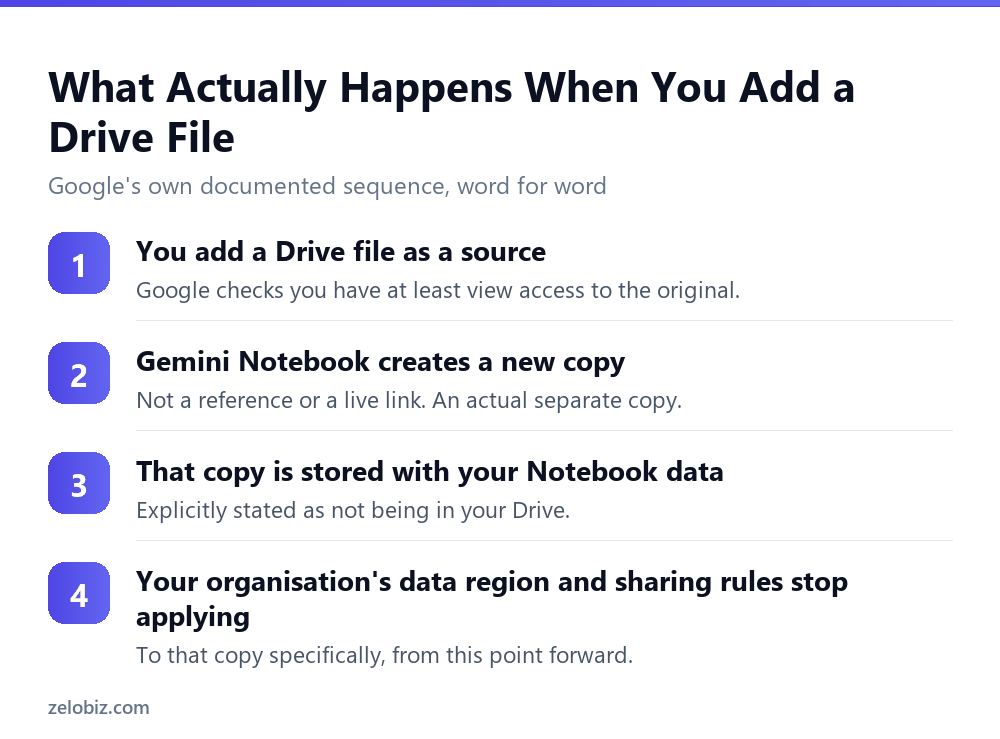
Google’s own wording is unambiguous about the mechanism: when users upload sources from Drive, Gemini Notebook creates a new copy of each file. This new file is stored with the user’s Gemini Notebook data, not in their Drive.
Two separate facts are packed into that sentence. First, it’s a copy, not a live reference or a pointer back to the original. Second, that copy’s storage location is explicitly described as separate from Drive, meaning whatever governance applies to your organisation’s Drive content doesn’t automatically extend to it.
The consequence stated just as directly: your organisation’s file sharing and data region settings do not apply to data in Gemini Notebook. For an organisation with a specific regional storage commitment, whether for regulatory reasons or a customer contract, this is the sentence that actually matters.
Where the Access Check Applies, and Where It Stops
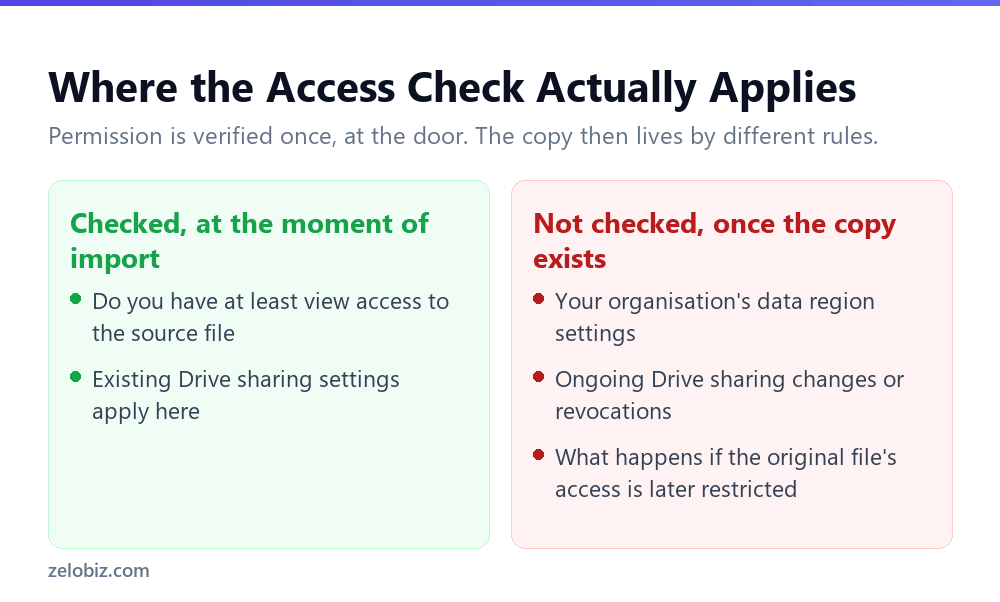
It’s worth being precise here, because the access control isn’t absent entirely, it’s front-loaded to a single moment. Google states that Drive files added to Gemini Notebook will be autosynced, and your organisation’s existing sharing settings apply, meaning only users with at least view access to the original Drive file can use it as a source.
That’s a genuine gate: someone without view access to a file can’t add it as a source in the first place. What isn’t described is any ongoing enforcement after that point. If access to the original file is later revoked, restricted, or the file itself is deleted, Google’s documentation doesn’t describe the already-created Notebook copy being affected by that change.
⚠️ Watch out: If your organisation revokes someone’s access to a sensitive Drive file, whether because they’ve left a project, changed roles, or left the organisation entirely, that action does not, based on Google’s own documentation, remove any Gemini Notebook copy that person already created from that file before the access change.
What Is Actually Protected, Alongside This Gap
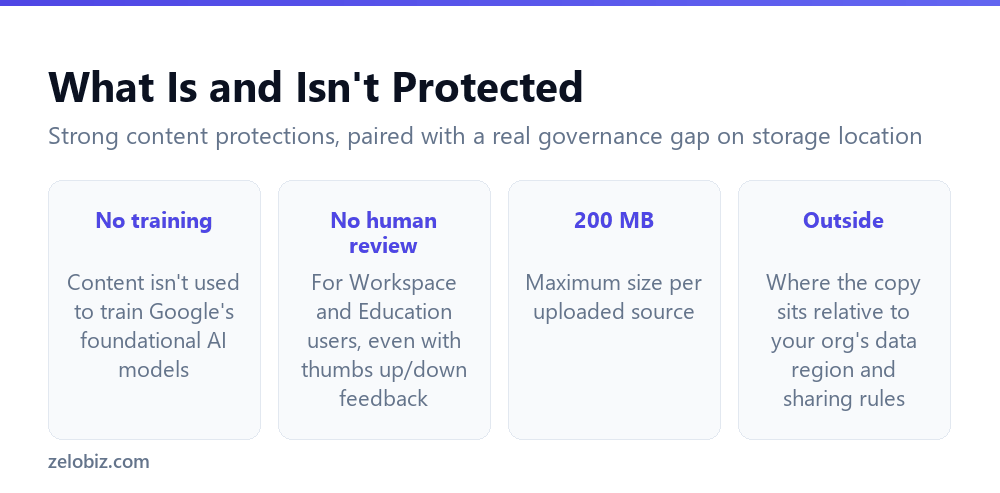
The residency gap sits alongside real, separately documented content protections, worth stating plainly so the picture isn’t one-sided.
Google states the content in Gemini Notebook will not be used to directly train its foundational AI models unless a user chooses to provide feedback. For Workspace and Education users specifically, uploads, queries and responses will not be reviewed by human reviewers even when a user provides thumbs up or down feedback, a stronger protection than the general consumer product carries, where feedback can trigger human review.
Source size is also capped: up to 500,000 words or 200 MB per source, according to Gemini Notebook’s own FAQ, which bounds how much content any single copy can actually contain.
📊 Note: None of these content protections address the residency question. Training and human review are about what Google does with content. Data residency is about where that content physically sits and which of your organisation’s rules govern it. A feature can score well on the first and still create a real gap on the second, which is exactly what’s documented here.
💡 Pro tip: If Gemini Notebook access matters for your organisation’s regional compliance posture, the practical lever is the admin control to turn Gemini Notebook on or off entirely for a specific organisational unit or group, rather than trying to manage the residency question feature by feature once it’s already enabled broadly.
How This Compares to How Drive Itself Handles Copies
It’s worth contrasting this with how Google Drive itself normally behaves, since the difference is exactly what makes the Gemini Notebook behaviour worth flagging rather than assuming it works the same way.
An ordinary copy of a file made within Drive, using Drive’s own make a copy function, stays a Drive file. It inherits Drive’s sharing model, sits within Drive’s storage, and is subject to your organisation’s data region settings exactly like the original. That’s the behaviour most people reasonably expect from any copy of a Drive file created through a Google product.
Gemini Notebook’s copy breaks that pattern, and it does so without a warning at the point of upload telling the user their file is about to leave the governance model they’re used to. That silent divergence from the familiar behaviour is precisely why this is worth explicit organisational awareness rather than assumed to work like every other kind of file copy.
Deciding Whether This Matters for Your Organisation
Not every organisation needs to treat this as a blocking concern. The practical question is whether your organisation has a specific, binding reason to control where data physically resides, a regulatory requirement, a customer contract, or an internal policy with real teeth, rather than a general preference.
- You have a specific data region commitment. This gap directly contradicts that commitment for any content added to Gemini Notebook.
- You rely on Drive sharing revocation as an access control. That control doesn’t reach a Notebook copy already created before the revocation.
- Your use case is genuinely internal and low sensitivity. The gap is real but may not be consequential for your specific risk profile.
- You’re unsure which category you’re in. Treat it as consequential until confirmed otherwise, since the cost of being wrong here is asymmetric.
Turning Gemini Notebook off for organisational units where this matters is one of several admin controls worth understanding as a set rather than individually, covered in full in locking down Gemini in Google Workspace: the controls that actually matter.
A Concrete Example of Where This Bites
Consider a contractor engaged on a project with access to a specific set of Drive files under a data processing agreement that requires all project data to stay within the EU. During the engagement, the contractor adds several of those files to a Gemini Notebook to help synthesise research across them.
The organisation’s EU-only data region setting for the Gemini app is correctly configured. Drive itself correctly enforces regional storage for the original files. None of that reaches the copies Gemini Notebook created, because, per Google’s own documentation, data region settings don’t apply to Gemini Notebook regardless of how carefully the rest of the environment is configured.
When the engagement ends and access to the original files is revoked, the contractor’s Notebook copies aren’t automatically affected by that revocation either. The organisation’s data processing agreement may now be technically breached by content it correctly locked down everywhere except this one specific feature.
⚠️ Watch out: This scenario isn’t hypothetical or edge-case. Any organisation with contractors, external partners, or departing employees who had Drive access and Gemini Notebook access simultaneously has the same exposure, whether or not anyone has specifically tested for it.
What Would Actually Close This Gap
For organisations wanting more than a blanket on/off toggle, it’s worth being precise about what a real fix would require, since that clarifies why turning Notebook off entirely is currently the only lever documented as reliable.
A genuine fix would mean either Gemini Notebook stopping the practice of creating a separate copy and instead referencing source files in place, or the copy it does create inheriting the same data region and sharing governance as the original. Neither is described in Google’s current documentation as how the feature works, which is why this article treats the gap as a present, current fact rather than a historical quirk already addressed.
Until one of those changes happens, organisational-unit-level access control remains the practical tool available, applied deliberately to whichever parts of the organisation actually need Gemini Notebook’s capabilities weighed against this specific documented trade-off.
Common Questions
Does Gemini Notebook read Drive files in place, or copy them?
It creates a new copy. Google states this directly: when users upload sources from Drive, Gemini Notebook creates a new copy of each file, stored with the user’s Gemini Notebook data, not in their Drive.
Do our organisation’s data region settings apply to Gemini Notebook content?
No. Google states directly that your organisation’s file sharing and data region settings do not apply to data in Gemini Notebook.
Can anyone add any Drive file to a notebook?
No. Adding a Drive file as a source requires at least view access to the original file at the time it’s added, per your organisation’s existing sharing settings.
If I revoke someone’s access to a Drive file, does that remove any Notebook copies they made from it?
Google’s documentation does not describe this happening. The access check applies at the time a file is added as a source, not as an ongoing, ongoing-enforced restriction on copies already created.
Is content in Gemini Notebook used to train Google’s AI models?
Google states content is not used to directly train its foundational AI models unless a user chooses to provide feedback.
Is Gemini Notebook content reviewed by human reviewers?
For Workspace and Education users specifically, Google states uploads, queries and responses are not reviewed by human reviewers, even when a user provides thumbs up or down feedback.
How can an organisation control access to Gemini Notebook if residency is a concern?
Admins can turn Gemini Notebook on or off for a specific organisational unit or group, which is the practical lever for organisations where the documented residency gap is a genuine compliance concern.
The Short Version
- →Gemini Notebook creates an actual copy of any Drive file added as a source.
- →That copy is stored outside Drive, and outside your org’s data region rules.
- →Access is checked once at import. Ongoing sharing changes aren’t described as applying.
- →Content isn’t used for AI training and isn’t human reviewed for Workspace users.
- →The training/review protection doesn’t address the separate residency gap.
- →Turning Notebook off per organisational unit is the practical control for this gap.