

A dropdown list built with Excel’s Data Validation looks locked down. Try to type something outside the list, and Excel rejects it immediately.
But paste a value into that same cell, and none of that protection applies. Worse, the paste can delete the validation rule itself, not just that one entry.
Short answer: Excel’s data validation only checks values typed directly into a cell. A regular paste can insert data that violates the rule completely, with no warning. Worse, pasting can overwrite the destination cell’s validation rule with whatever the source cell had, which means the dropdown can disappear entirely after a single paste. This is documented as expected Excel behavior, not a bug, and there’s no native setting to block it. The only reliable fix involves a VBA macro that intercepts paste operations. Verified across Microsoft’s own community answers and independent Excel references on 4 September 2026.
When Validation Actually Triggers

So data validation was built to check what a person types. Click a validated cell, start typing something outside the allowed list, and Excel stops you before the entry is even accepted.
But copy that same invalid value from somewhere else and paste it in, and none of that checking happens. The value goes straight into the cell, no message, no rejection.
Why a Paste Can Delete the Rule Itself
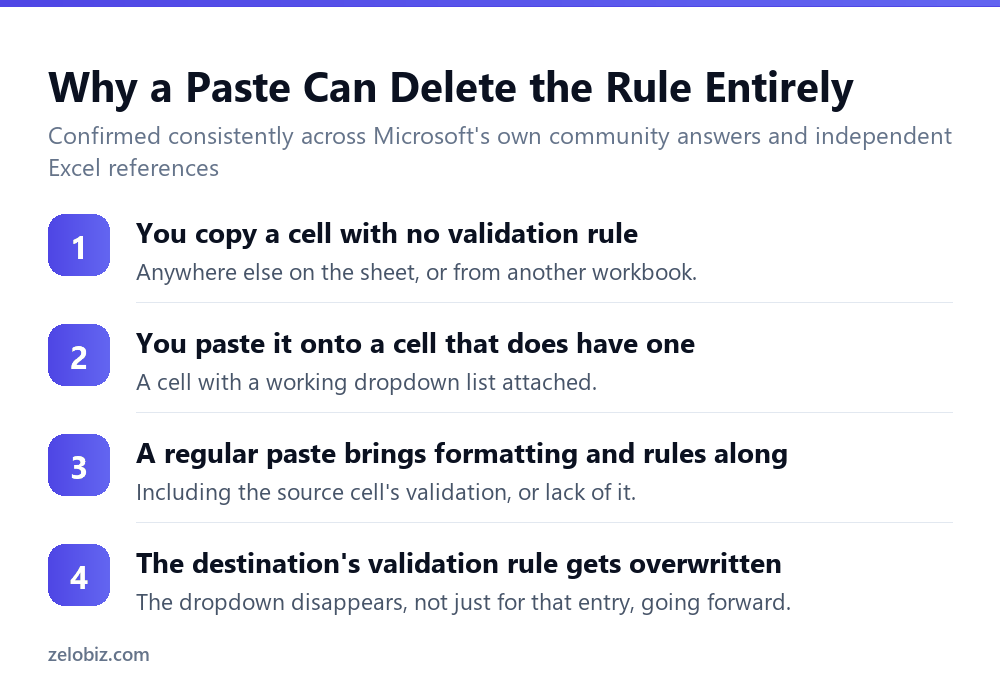
So this part surprises people even more. A regular paste doesn’t just skip checking the new value. It can bring the source cell’s own validation settings along with it.
Copy a plain cell with no validation rule, paste it onto a cell that has a working dropdown, and the destination’s rule gets overwritten. Not disabled for that one paste. Removed.
⚠️ Watch out: This means a spreadsheet can look fully protected during testing, since typing triggers all the expected checks, while remaining completely open to being broken by a routine copy-paste from anyone using it.
What Actually Reduces the Risk
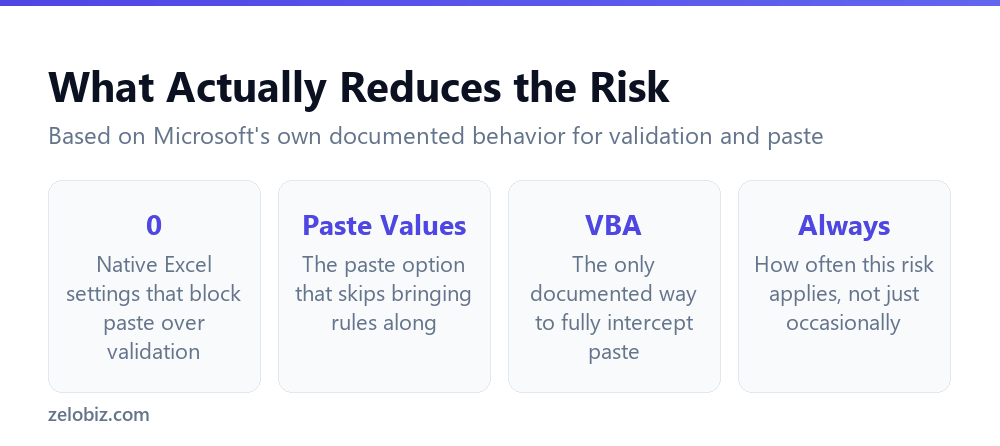
So there’s no built-in Excel setting that blocks paste over a validated cell entirely. That option simply doesn’t exist in the standard interface.
One partial habit helps: using Paste Special with the Values option, instead of a regular paste. Pasting values only brings across the raw data, not formatting or validation rules, which leaves the destination’s own rule untouched.
But that only helps if the person pasting remembers to use it every single time, instead of the default Ctrl+V. Relying on that habit across an entire team is optimistic at best.
💡 Pro tip: For a sheet where data integrity really matters, a short VBA macro that intercepts paste events is the only documented way to reliably enforce validation against pasted data, not just typed entries.
📊 Note: For how Excel’s default behavior can also silently corrupt a percentage value, see why typing 40 shows up as 4000% in Excel, a different mechanism but the same underlying lesson: Excel’s defaults don’t always protect against the mistake you’d expect them to catch.
A Worked Example
So say a column tracks project status using a dropdown limited to Not Started, In Progress, and Complete. Typing anything else gets rejected immediately, exactly as designed.
Someone copies a batch of status values from an old report, where the same column once allowed a wider set of labels, including Delayed and On Hold. They paste that batch directly over the current status column.
Every pasted value goes in cleanly. Delayed and On Hold both appear in cells that were supposed to only allow three specific options. No warning appeared at any point during the paste.
Worse, if the copied cells carried their own validation settings, or none at all, the destination column’s dropdown rule may now be gone too, silently, for every cell the paste touched.
Checking Whether Validation Survived
So after any large paste into a previously validated range, it’s worth confirming the rule is still intact rather than assuming it is.
Click one of the pasted cells and check the Data tab, Data Validation. If the dialog shows no rule, or a different rule than expected, the paste overwrote it.
This check takes seconds and catches the problem immediately, rather than discovering weeks later that a supposedly locked-down column has been quietly open the whole time.
What Validation Still Does Well
So none of this means data validation is pointless. It’s genuinely effective at the one job it was built for: guiding someone typing directly into a cell toward a valid answer.
The dropdown itself speeds up manual entry. The rejection message catches typos and out-of-range values the instant someone types them. For a form filled out by hand, one cell at a time, validation works exactly as expected.
The gap only opens up around bulk operations, paste and fill-down specifically. Knowing that boundary is what actually matters, not avoiding validation altogether.
Testing Your Own Validated Sheet
So a quick test reveals whether a specific sheet is actually exposed to this risk. Copy any plain cell with no validation rule from somewhere else on the sheet.
Paste it directly onto a cell that has a working dropdown. Then click that cell again and check Data, Data Validation on the ribbon.
If the dialog now shows no rule, the paste overwrote it, confirming the sheet behaves exactly as documented here. That’s worth knowing before relying on the dropdown to keep data clean going forward.
⚠️ Watch out: Run this test on a copy of the workbook, not the original, since the point is confirming the behavior, not actually breaking a sheet currently in use.
A Second Gap: Copying Between Workbooks
So the same risk applies, often worse, when data comes from a completely separate workbook rather than another part of the same sheet.
A value copied from another file carries no awareness of the destination workbook’s validation rules at all. It pastes in cleanly regardless of what’s allowed, and can still overwrite the destination’s rule the same way an in-sheet paste does.
This matters most for shared templates distributed across a team, where someone routinely copies figures from an old file into the current one. Each of those pastes carries the same silent risk this article describes.
Setting Up an Input Message as a Partial Backup
So one built-in feature helps a little, even though it doesn’t fully close the gap: the Input Message tab inside Data Validation.
An input message displays a small note whenever a cell is selected, listing what values are actually allowed. It shows up regardless of whether someone ends up typing or pasting, since it’s tied to selecting the cell, not to the entry method.
It won’t block an invalid paste. But it does mean anyone who selects the cell afterward, checking their own work, sees a reminder of what should be there, which makes a pasted mistake easier to catch on review.
💡 Pro tip: Add an input message to any validated cell that regularly receives pasted data. It costs nothing to set up and gives reviewers a visible reminder even though it can’t stop the paste itself.
Rebuilding a Rule After It’s Gone
So if a check confirms a validation rule was overwritten, rebuilding it is straightforward, just repeat the original setup: Data tab, Data Validation, choose the rule type, and enter the same list or condition as before.
For a rule applied across many cells, select the full range again before rebuilding it, rather than fixing one cell and assuming the rest are still fine. A single large paste often overwrites every cell it touched, not just one.
It’s worth checking the full range methodically, cell by cell if the range is small enough, since a paste can affect some cells in a selection and not others depending on exactly what was copied and where it landed.
Why This Matters More Than It Seems
So on the surface, this looks like a narrow, technical quirk. In practice, it matters most for exactly the spreadsheets people trust the most: shared trackers, team templates, anything meant to stay clean over months of repeated use.
A validation rule that quietly disappears after one careless paste can let bad data accumulate for weeks before anyone notices, since nothing about the sheet visibly signals that the protection is gone.
So the real lesson isn’t to avoid data validation. It’s to know specifically where its coverage ends, so a paste-heavy workflow doesn’t quietly undermine a rule built for something else.
Common Questions
Does Excel data validation stop invalid pasted data?
No. Validation only checks values typed directly into a cell. A paste can insert data that violates the rule with no warning at all.
Can pasting delete a data validation rule?
Yes. A regular paste can overwrite the destination cell’s validation settings with whatever the source cell had, including no validation at all, silently removing the dropdown.
Is there a setting to block paste over a validated cell?
No native Excel setting does this. The only documented reliable fix is a VBA macro that intercepts paste operations.
Does Paste Special avoid this problem?
Using Paste Special with Values only helps, since it skips bringing formatting and validation rules across. But it depends on remembering to use it instead of a regular paste every time.
How do I check if a validation rule survived a paste?
Click one of the pasted cells and check Data, Data Validation on the ribbon. If the dialog shows no rule or a different one, the paste overwrote it.
Does fill-down have the same problem as paste?
Yes. Dragging to fill a validated range with new values doesn’t reliably enforce the validation rule either, the same underlying gap as a paste.
The Short Version
- →Data validation only checks values typed directly into a cell.
- →A paste can insert invalid data with no warning.
- →A paste can also overwrite and delete the validation rule itself.
- →No native Excel setting blocks paste over a validated cell.
- →Paste Special with Values helps, but depends on remembering to use it.
- →Check Data Validation after a large paste rather than assuming it survived.
Circling Around, Not Circling Under
So the practical takeaway here isn’t to distrust data validation generally. It’s a useful, genuinely effective tool for the specific job of guiding manual entry.
The mistake is assuming that job extends automatically to every way data can enter a cell. It doesn’t, and Excel documents that gap plainly once you know where to look, even though the interface itself gives no hint of it during normal use.
So treat a dropdown as strong protection against manual typos, and weak protection against anything involving copy, paste, or fill. Two different guarantees, easy to confuse for one.
Building a Habit Around the Gap
So for any spreadsheet where data integrity actually matters, a short checklist closes most of the practical risk without needing VBA at all.
- After any bulk paste into a validated range, spot-check a few cells against Data Validation on the ribbon.
- Prefer Paste Special, Values whenever pasting into a column with a dropdown attached.
- Add an input message to validated cells so reviewers see the expected values even without validation actively blocking anything.
- Periodically re-select the full validated range and confirm the rule still applies across every cell, not just the ones checked individually.
None of these steps require special skills or add-ons. They just require knowing, specifically, where the actual gap sits, which is the whole point of this article.
Data Validation on Shared or Co-Authored Files
So this risk compounds specifically on files edited by more than one person, since each additional editor is another chance for a routine paste to slip past a rule.
A file opened by five different people over a week has five separate chances for someone to paste a batch of values without thinking about the dropdown underneath. None of them are doing anything wrong by Excel’s own standards, since paste has never been checked against validation in the first place.
For a file like that, the periodic-check habit matters more, not less, than on a sheet only one person ever touches. More editors means more entry points for the exact same, well-documented gap.
So treat a shared, validated file as needing a standing check, not a one-time setup. The rule can survive fine for months, then vanish after a single ordinary paste from someone who had no idea it was even there.