

Type 40 into a cell that’s already formatted as a percentage, and Excel shows 4000%. Not a typo, not a bug. Excel is doing exactly what it was told to do.
The confusion comes from how Excel stores percentages behind the scenes, which is nothing like how the cell displays them.
Short answer: Excel stores every percentage internally as a decimal, where 100% is stored as 1 and 40% is stored as 0.4. Percentage formatting is purely visual, it multiplies the stored decimal by 100 and adds a percent sign. Typing 40 into an already percent-formatted cell stores the literal number 40, which displays as 4000% once that multiplication happens. To enter 40% correctly, either type 40% directly and let Excel convert it automatically, or type 0.4 into a cell already formatted as a percentage. Verified across Microsoft’s own community answers and independent Excel references on 4 September 2026.
How Excel Actually Stores a Percentage
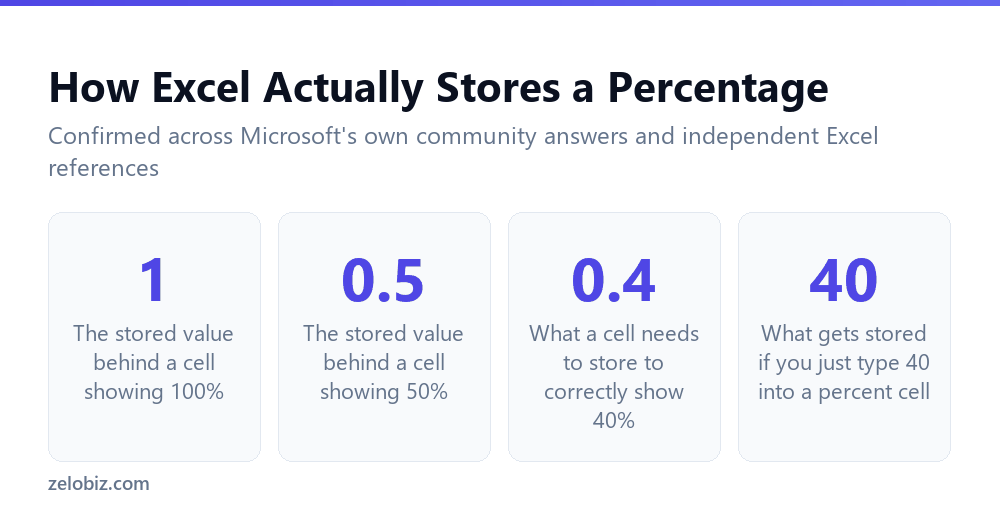
So the percent sign displayed in a cell isn’t the value itself. It’s a formatting layer sitting on top of a plain decimal number.
That bottom row is the important one. 4000% isn’t a separate, unusual value. It’s just what 40 looks like once percentage formatting multiplies it by 100 for display.
The Trap: Two Ways to Enter the Same Intended Value
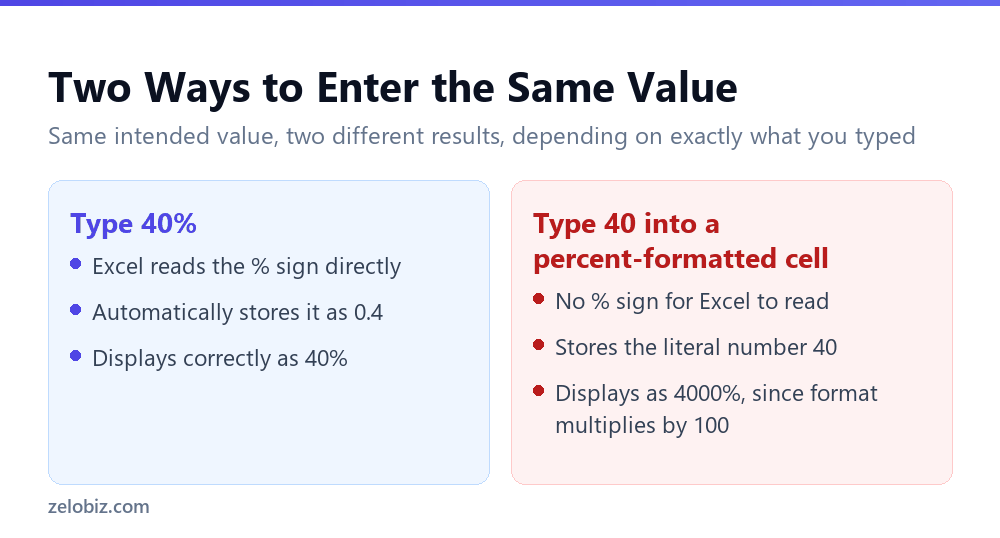
So typing 40% directly works perfectly. Excel recognizes the percent sign in what you typed, and automatically stores the correct decimal, 0.4, behind it.
But typing just 40, with no percent sign, into a cell that’s already formatted as a percentage produces a completely different result. There’s no percent sign in what you typed for Excel to interpret, so it stores 40 as a plain number.
The cell’s formatting hasn’t changed. It still multiplies whatever’s stored by 100 for display. So 40, multiplied by 100, becomes 4000%.
⚠️ Watch out: This trap shows up most often when percentage formatting is applied to a column before the numbers are typed in, or when data gets pasted into cells that already carry percentage formatting from a previous entry.
How to Fix It
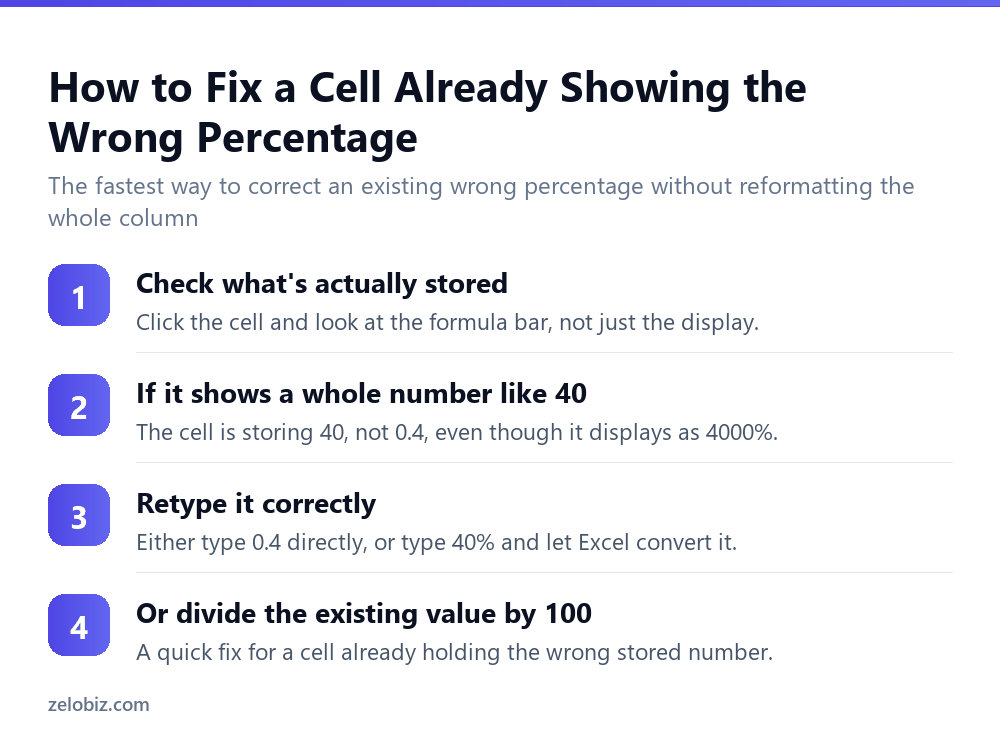
So the first step isn’t guessing. Click the cell and look at the formula bar, not the cell itself. The formula bar shows the actual stored value, before formatting changes how it displays.
If the formula bar shows 40 for a cell displaying 4000%, that confirms the problem: the stored value is wrong, not just the display.
The direct fix is retyping the value correctly, either as 40% or as 0.4. For a single cell, that’s the fastest option.
💡 Pro tip: For a whole column already storing the wrong values, dividing every cell by 100 in one pass, using Paste Special with a Divide operation, fixes them all without retyping each one individually.
Why This Trap Is So Common
So why does this specific mistake happen so often? Because percentage formatting usually gets applied to a whole column at once, often before any real data goes in.
That’s a completely reasonable way to set up a sheet. But it means every number typed into that column afterward gets multiplied by 100 for display, whether the percent sign was included or not.
So someone used to typing plain numbers, without thinking about the percent sign each time, runs straight into this trap the moment they’re working inside a pre-formatted column.
📊 Note: A quick habit avoids this entirely: when typing into a column you know is percent-formatted, either include the percent sign every time, or think in decimals instead.
A Related Trap: Percentage of a Total
So a second, related mistake shows up once the formatting itself is correct: the formula used to calculate a percentage in the first place.
The basic formula is part divided by whole, formatted as a percentage. For 40 correct answers out of 50 questions, that’s =40/50, which Excel correctly displays as 80% once percentage formatting is applied.
The mistake happens when someone manually multiplies by 100 inside the formula itself, writing =(40/50)*100, and then also applies percentage formatting on top. That double-multiplies the value, producing 8000% instead of 80%.
⚠️ Watch out: Percentage formatting already handles the multiplication by 100. Adding *100 inside the formula and applying percentage formatting at the same time is the same underlying mistake as this article’s main trap, just reached through a formula instead of direct typing.
Percentage Change vs. Percentage of a Total
So it’s worth separating two different questions that both get called “percentage,” since mixing them up causes its own kind of wrong answer.
Percentage of a total answers “what share is this of everything.” 40 correct answers out of 50 questions is =40/50, an 80% share of the total.
Percentage change answers a different question: “how much did this grow or shrink.” Going from 50 to 60 is a change, calculated as =(60-50)/50, a 20% increase.
So using the total-share formula when you actually meant percentage change, or the reverse, produces a number that’s formatted correctly but answers the wrong question entirely.
Checking Your Own Sheet for This Trap
So a quick audit catches this trap before it causes a real mistake somewhere downstream. Select the whole percentage column and look at the values in the formula bar one by one.
Any cell storing a number larger than 1, like 40 instead of 0.4, is almost certainly a case of this exact mistake, unless the sheet genuinely intends a percentage over 100%.
For a fast fix across many cells at once, copy any empty cell containing the number 100, select the affected range, then use Paste Special with the Divide operation. Every selected cell gets divided by 100 in one step, correcting the stored values without retyping each one.
💡 Pro tip: Run this check anytime a percentage column was built by pasting numbers from another source, like a CSV export or a copied report, rather than typed in directly. Pasted numeric data is the single most common source of this exact trap.
A Second Version of the Same Trap: Copy-Paste
So typing isn’t the only way this happens. Copying numbers from a source that stores them as whole numbers, then pasting them into a percent-formatted column, causes the identical problem.
A CSV export, for instance, often stores 40 as the plain number 40, with no percent sign anywhere in the file. Paste that into an Excel column already formatted as a percentage, and it becomes 4000%, for exactly the same reason as typing it directly.
So this isn’t really about typing versus pasting. It’s about whether the incoming value already carries percent formatting or a percent sign with it, or not.
💡 Pro tip: Before formatting an entire imported column as a percentage, check a few of the raw values first. If they’re already whole numbers like 40 rather than decimals like 0.4, they’ll need dividing by 100 before percentage formatting is applied, not after.
Formatting Order Actually Matters
So the order of operations here is the part that trips people up most: format first, then type, or type first, then format, produce different outcomes.
Typing 40% into a plain, unformatted cell works correctly no matter what. Excel reads the percent sign in what you typed and stores the right decimal, then applies percentage formatting automatically on its own.
But applying percentage formatting to a cell first, then typing a plain number into it without a percent sign, is exactly the sequence that produces the 4000% trap. The formatting has no way to know whether a later plain number typed into it was meant as a whole number or a percentage.
Common Questions
Why does typing 40 in Excel show up as 4000%?
Because the cell was already formatted as a percentage, which multiplies whatever is stored by 100 for display. Typing 40 with no percent sign stores the literal number 40, which becomes 4000% once that multiplication happens.
How does Excel store percentages internally?
As decimals. 100% is stored as 1, 50% as 0.5, and 40% as 0.4. The percent sign shown in the cell is a display format, not the stored value itself.
How do I correctly type a percentage into Excel?
Either type the value with a percent sign, like 40%, and let Excel convert it automatically, or type the decimal form, like 0.4, into a cell already formatted as a percentage.
How do I fix a cell that’s already showing the wrong percentage?
Check the formula bar to see the actual stored value, then retype it correctly as either 40% or 0.4. For a whole column, use Paste Special with a Divide operation by 100 to fix every cell at once.
Why does my percentage formula show 8000% instead of 80%?
This usually means the formula already multiplies by 100, like (40/50)*100, and percentage formatting is also applied on top, multiplying by 100 a second time.
Does this problem happen with pasted data too?
Yes. Pasting plain numbers into cells that already carry percentage formatting causes the same issue as typing them directly.
The Short Version
- →Excel stores percentages as decimals: 40% is stored as 0.4.
- →Percentage formatting just multiplies the stored value by 100 for display.
- →Typing 40 with no percent sign into a percent-formatted cell stores 40, not 0.4.
- →That produces 4000%, exactly as the math implies.
- →Check the formula bar, not the display, to see what’s actually stored.
- →The same doubling mistake can happen inside a formula that multiplies by 100 twice.
Why the Cell Doesn’t Warn You
So it’s fair to ask why Excel doesn’t just flag this automatically, the way it flags a genuine formula error.
From Excel’s perspective, typing 40 into a percent-formatted cell isn’t invalid. 40 is a perfectly legitimate number. Excel has no way to know whether you meant it as a whole number or as a mistyped percentage.
So no warning appears, because nothing about the entry is technically wrong. It’s only wrong relative to what you actually intended, which is exactly the kind of mistake Excel’s built-in checks aren’t designed to catch.
💡 Pro tip: Excel’s Error Checking feature, under Formulas, Error Checking, catches formula problems but not this kind of formatting mismatch. Don’t expect it to flag a wrong percentage caused by this trap.
A Two-Second Habit That Prevents It
So the most reliable fix isn’t a formula or a setting. It’s a small habit: glance at the formula bar right after typing a number into any percent-formatted cell, before moving to the next one.
If the formula bar shows a number larger than 1 where a percentage under 100% was intended, that’s the trap, caught immediately rather than discovered later in a report or a chart built on top of the wrong values.
This costs almost no time per cell, and it’s far faster than auditing an entire column after the fact, once the wrong values have already been used somewhere else.
Percentages Inside Charts
So this same storage mechanism explains a related, confusing symptom: a pie chart or bar chart built from percent-formatted cells sometimes shows wildly disproportionate slices.
Charts read the stored decimal value, not the display. So a cell showing 4000%, actually storing 40, contributes a value of 40 to the chart’s scale, not 0.4 or even 40.00. That single mistyped cell can dwarf every other slice in the chart.
Fixing the underlying stored value, using the same retype-or-divide approach covered earlier, corrects the chart automatically the next time it recalculates. There’s no separate chart-specific fix needed.
⚠️ Watch out: If one slice in a percentage-based chart looks absurdly oversized compared to the rest, check that specific cell’s formula bar first. It’s very often this exact trap, not a charting problem.
So a chart is often how this mistake finally gets noticed, since a wildly wrong slice is far more visible at a glance than a single number buried in a column of otherwise correct ones.