
You can use ChatGPT in Google Sheets with about twenty lines of Apps Script and no add-on at all. The code is the easy part and most tutorials cover it adequately.
What they leave out is the constraint that decides whether this works for you: Google gives custom functions thirty seconds to return, and filling one down a thousand rows fires a thousand simultaneous API calls.
Short answer: Paste a custom function into Apps Script, store your API key in Script Properties rather than in the code, and call it as =GPT(“your prompt “&A2). Expect roughly a cent per thousand rows on the cheapest model. Do not fill it down a large column in one go, because Google gives each cell thirty seconds and the recalculation will charge you again. Verified 30 August 2026.
What It Costs Before You Start
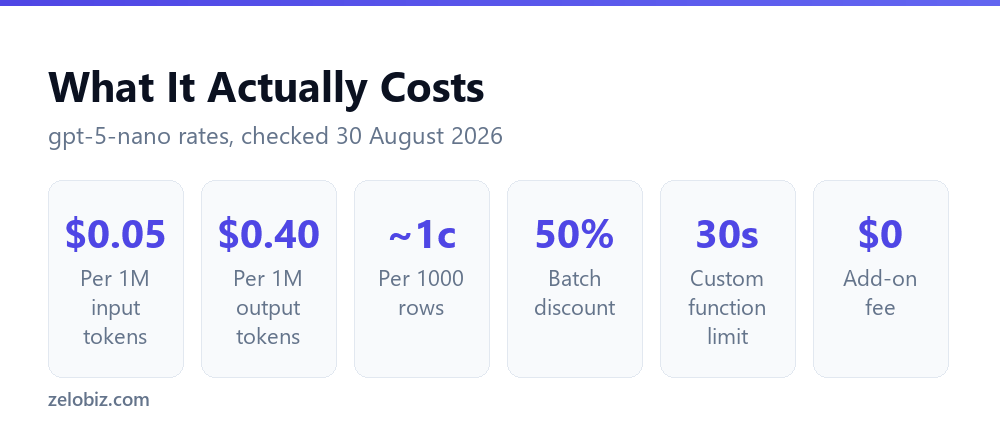
This is the number that decides whether the whole exercise makes sense, and it is smaller than most people assume.
For a typical spreadsheet task such as classifying a short piece of text, each row uses roughly a hundred input tokens and a handful of output tokens. On gpt-5-nano that works out at approximately one cent per thousand rows.
Worth putting beside a subscription. If your use is a few thousand rows a month, the API route costs a few cents where an add-on costs a monthly fee or a lifetime deal price. If your use is far larger, the calculation changes and you should do it properly rather than assuming.
📊 Note: Two further discounts exist if volume matters. The batch tier is half price for work that is not urgent, and cached input tokens cost roughly a tenth of the standard input rate, which helps when the same instructions repeat on every row.
The Script
Open your sheet, then Extensions, then Apps Script. Delete whatever is in the editor and paste this.
function GPT(prompt) {
  const key = PropertiesService.getScriptProperties()
                .getProperty('OPENAI_API_KEY');
  if (!key) return 'No API key set';

  const res = UrlFetchApp.fetch(
    'https://api.openai.com/v1/chat/completions', {
      method: 'post',
      contentType: 'application/json',
      headers: { Authorization: 'Bearer ' + key },
      payload: JSON.stringify({
        model: 'gpt-5-nano',
        messages: [{ role: 'user', content: prompt }]
      }),
      muteHttpExceptions: true
    });

  const data = JSON.parse(res.getContentText());
  if (data.error) return 'Error: ' + data.error.message;
  return data.choices[0].message.content.trim();
}
Save it. That is the whole function. Two details in it matter more than the rest.
The key is not in the code
The function reads the key from Script Properties rather than having it typed into the script. To set it, go to Project Settings in the Apps Script editor, scroll to Script Properties, and add a property named OPENAI_API_KEY with your key as the value.
Never paste a real key into the code itself. A key in the script body ends up in every copy of the sheet anyone makes, and in any version history.
Errors return text rather than throwing
The muteHttpExceptions option and the error check mean a failed call puts a readable message in the cell instead of a generic failure. When something goes wrong at row 400, you want to know whether it was a rate limit or a bad key.
⚠️ Watch out: Anyone who can edit the spreadsheet can open Apps Script and read the Script Properties, which means they can read your API key. If you are sharing the sheet with people outside your team, share a copy with the results pasted as values rather than the working file.
Using It
In any cell, call it like a normal function. The prompt is just text, so you build it by joining a fixed instruction to a cell reference.
Telling it what shape the answer should take matters far more here than in a chat window. A cell wants one value, so ask for one word or one line, and say what to do when it does not know.
The Thirty-Second Limit, and Why Fill-Down Fails
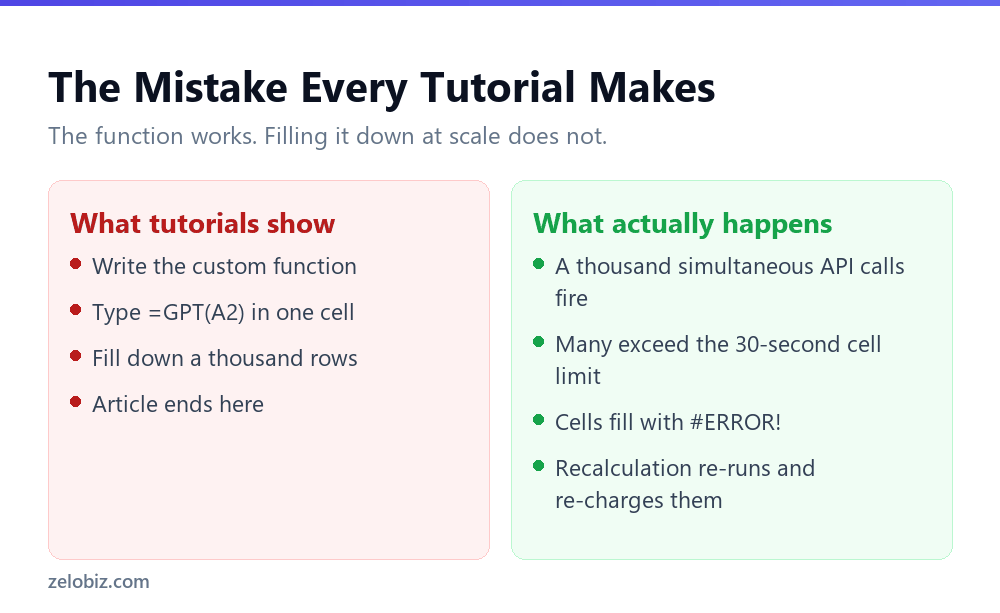
This is the part that turns a working demonstration into a frustrating afternoon, and Google documents it plainly.
A custom function call must return within thirty seconds. If it does not, the cell shows #ERROR! and a note reading exceeded maximum execution time. That is fine for one cell and a serious problem for a thousand.
Fill the formula down a large column and Sheets fires all those calls at once. Many will queue behind rate limits, exceed the thirty seconds, and error. You end up with a column of mixed results and errors, and no obvious way to retry only the failures.
The working approach
- Fill in batches. Fifty rows at a time, wait for them to resolve, then copy that block and paste it back over itself as values.
- Convert to values as you go. This is not optional. A custom function recalculates, and every recalculation is a fresh API call you pay for again.
- Then move to the next batch. Slower than one fill-down, and it actually finishes.
If you genuinely need thousands of rows regularly, a custom function is the wrong shape for the job. A menu-driven script that processes rows in a controlled loop and writes results directly is the right answer, and at that point a paid add-on that has already solved batching may be worth the money.
Troubleshooting
Four failures account for nearly everything that goes wrong here, and each has a distinct symptom.
The last row is worth a guard in the function. If your source column has blanks, you are paying for calls that ask the model to classify nothing. Adding a check that returns an empty string when the prompt is empty costs one line and stops that.
💡 Pro tip: If a whole batch errors at once it is almost always a rate limit rather than your code. Wait a minute and retry the failed rows before changing anything, because editing a working script in response to a transient error is how people break it.
Other Limits Worth Knowing
Google documents several restrictions on custom functions beyond the time limit. Three of them affect this use directly.
Custom functions cannot change other cells
A custom function returns a value into its own cell and nothing else. It cannot write to a neighbouring column, add a sheet or format anything. If you want results written into a range, that needs a menu-driven script rather than a formula.
Volatile functions cannot be arguments
You cannot pass NOW() or RAND() into a custom function. This rules out anything that asks the model to work with the current time, which surprises people building anything date-aware.
Authorization-dependent services are unavailable
Custom functions never prompt for authorization, so they can only call services that do not touch personal data. UrlFetchApp is explicitly permitted, which is why this approach works at all. Reading another spreadsheet from inside the function is not.
There is also a wrinkle with properties. Google notes that getUserProperties only returns the spreadsheet owner’s properties, and editors cannot set user properties from a custom function. That is precisely why the script above uses Script Properties instead.
📊 Note: Function names also cannot end in an underscore, which is an easy thing to trip over if you are used to marking private helpers that way in other languages.
Script or Add-On
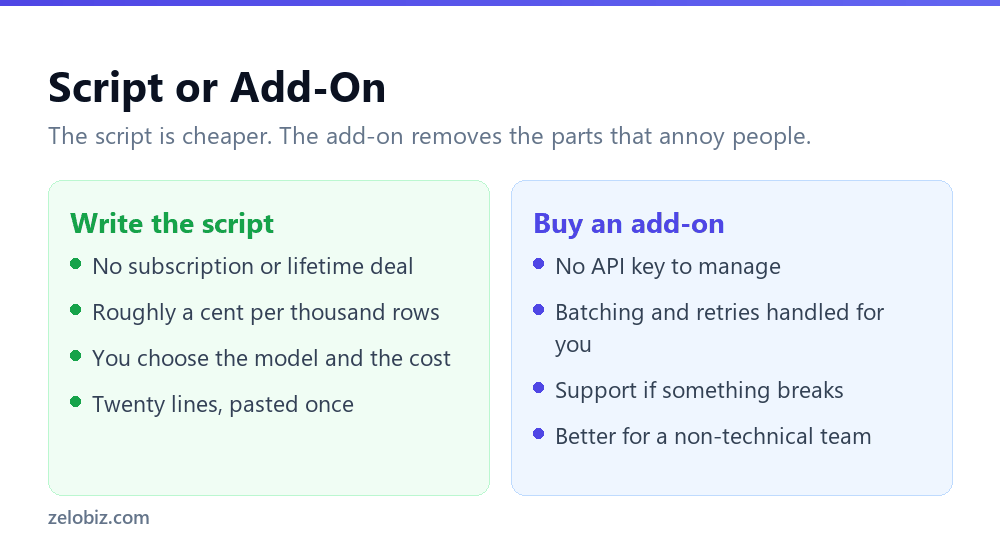
The honest comparison, since this article exists partly because add-ons dominate the search results.
The script is cheaper by a wide margin and gives you control over which model runs. The add-on removes exactly the parts that irritate people: managing a key, handling batching, retrying failures, and having someone to ask when it breaks.
If you would rather buy the convenience, the SheetMagic ChatGPT integration is one of the established options and available as a lifetime deal. Compare its cost against a few cents of API usage honestly before deciding, because for light use the script is hard to beat.
Common Questions
Can I use ChatGPT in Google Sheets without an add-on?
Yes. About twenty lines of Apps Script creates a custom function you call like any other formula. You need an OpenAI API key, which you store in Script Properties rather than in the code itself.
How much does it cost to use the OpenAI API in Google Sheets?
On the cheapest model it works out at roughly a cent per thousand rows for a short classification task. Published rates for gpt-5-nano are $0.05 per million input tokens and $0.40 per million output tokens, with a 50 percent batch discount available.
Why does my Google Sheets AI function return #ERROR!?
Most likely the thirty-second limit. Google requires a custom function call to return within thirty seconds, after which the cell shows #ERROR! with a note about exceeding maximum execution time. Filling down a large column triggers this constantly.
Can I fill an AI formula down a whole column?
Not reliably. Sheets fires all the calls at once, many exceed the thirty-second limit or hit API rate limits, and you get mixed results and errors. Work in batches of about fifty and convert each batch to values before continuing.
Why should I convert the results to values?
Because custom functions recalculate. Every recalculation is a fresh API call that you pay for again, so a sheet left with live formulas quietly re-runs and re-charges every time it reopens.
Where should I store my OpenAI API key?
In Script Properties, found under Project Settings in the Apps Script editor. Never in the code. Be aware that anyone who can edit the spreadsheet can read Script Properties, so share a values-only copy rather than the working file.
Is the script better than a paid add-on?
It is cheaper and gives you control over the model. An add-on handles batching, retries and key management for you, and gives you someone to contact when it breaks. For light use the script wins clearly; for a non-technical team processing thousands of rows the add-on may earn its price.
The Short Version
- →Twenty lines of Apps Script replaces a paid add-on for light use.
- →Store the key in Script Properties. Never in the code, never in a shared file.
- →Roughly a cent per thousand rows on the cheapest model.
- →Google gives each custom function call thirty seconds. Fill-down at scale fails.
- →Work in batches of fifty and paste each batch back as values.
- →Custom functions recalculate, and every recalculation is a fresh charge.
API pricing and Apps Script limits checked against OpenAI’s and Google’s own documentation on 30 August 2026.