
Windows Recall privacy questions almost all come down to one thing: what actually ends up in a snapshot, and what doesn’t. Microsoft documents both in detail, and one of the protections that sounds absolute, filtering a specific website, comes with a stated exception worth knowing before you rely on it.
This covers what Recall excludes automatically with no setup at all, what you can filter yourself and where that filtering has a documented gap, and exactly how a snapshot is stored and protected once it exists.
Short answer: Recall never captures private browsing across major browsers, DRM content, remote desktop and virtual machine sessions, or game video during Game Mode. Sensitive information filtering for passwords, national ID numbers and credit card numbers is on by default. You can additionally filter specific apps and websites yourself, but Microsoft states parts of a filtered website, such as embedded content, browser history, or a background tab, can still appear in a snapshot. Everything is stored locally, encrypted, and accessible only through Windows Hello. Verified against Microsoft’s documentation on 4 September 2026.
Excluded With No Setup at All
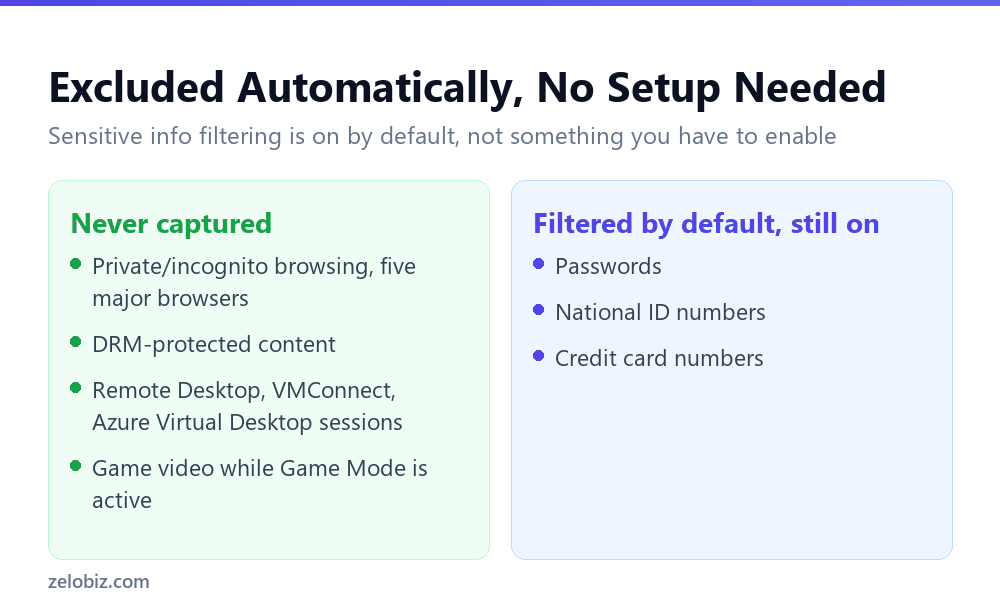
Four categories of content are excluded by design, before you touch a single setting.
Private browsing, across five browsers
Microsoft states your private browsing activity will not be saved as snapshots when using Microsoft Edge, Firefox, Opera, Google Chrome, or other Chromium-based browsers. This is broader than an Edge-only protection, covering the browsers most people actually use.
DRM-protected content
Recall treats protected material the way other Windows apps do: it will not store DRM content. Streaming video behind digital rights protection doesn’t end up in a snapshot.
Remote sessions and virtual machines
Snapshots are excluded specifically during Remote Desktop Connection, VMConnect, Azure Virtual Desktop, and RAIL windows. Working inside a remote session or a VM doesn’t get captured by the host machine’s Recall.
Game video during Game Mode
Recall doesn’t save game video when Game Mode is active, on platforms that support it. This is specifically about video capture during active gameplay, not a blanket exclusion of anything game-related.
📊 Note: None of these four require you to configure anything. They are defaults, which matters if you’re evaluating Recall for a specific workflow and want to know what’s protected before you’ve touched a single setting.
On by Default: Sensitive Information Filtering
A separate protection, also enabled by default rather than something you switch on, reduces the chance of Recall storing passwords, national ID numbers, and credit card numbers. Microsoft describes this specifically as filtering, meaning it reduces risk rather than offering an absolute guarantee that no such data will ever appear.
The Filtered-Site Gap
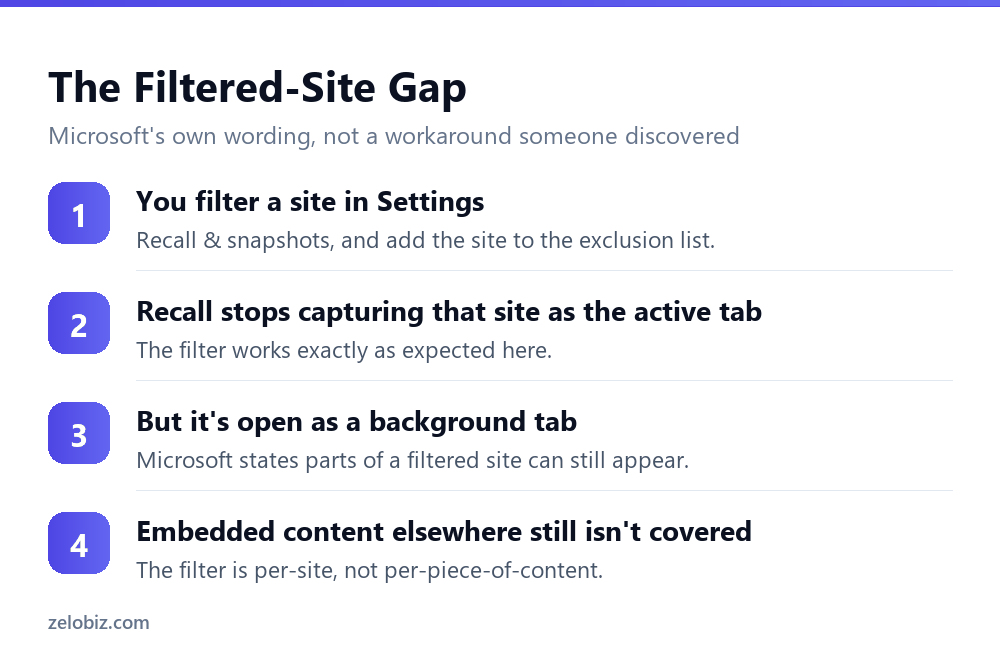
Beyond the automatic exclusions, you can filter specific apps and websites yourself through Settings, Privacy and security, Recall and snapshots. Website filtering works in supported browsers including Edge, Firefox, Opera and Chrome.
The detail worth knowing is what Microsoft states directly about the limits of this filter: parts of filtered websites can still appear in snapshots such as embedded content, the browser’s history, or an opened tab that isn’t in the foreground.
⚠️ Watch out: Filtering a website stops it being captured while it’s the active, foreground tab. It does not guarantee the site never appears at all. A background tab left open on a filtered site, or content from that site embedded somewhere else, can still show up in a snapshot despite the filter being active.
💡 Pro tip: If a specific site genuinely must never appear in a snapshot, close the tab entirely rather than relying on the filter alone while it stays open in the background. The filter reduces exposure; it is not a hard guarantee for that specific scenario.
Managing Snapshots You Already Have
Beyond preventing capture in the first place, Recall gives you direct control over what already exists as a snapshot, which matters as much as the filtering settings for anyone actually using the feature day to day.
Pausing versus deleting versus disabling
These are three different actions with different scopes. Pausing, through the system tray icon, stops new snapshots temporarily without touching anything already saved. Deleting, through Settings, removes specific existing snapshots permanently. Disabling turns the feature off entirely going forward, which is the most complete option if Recall simply isn’t something you want running on that device at all.
Knowing which of the three actually solves a specific concern matters. Someone worried about one sensitive task wants Pause. Someone who made a mistake and wants a specific snapshot gone wants Delete. Someone who has decided the feature isn’t for them at all wants Disable.
How a Snapshot Is Actually Protected
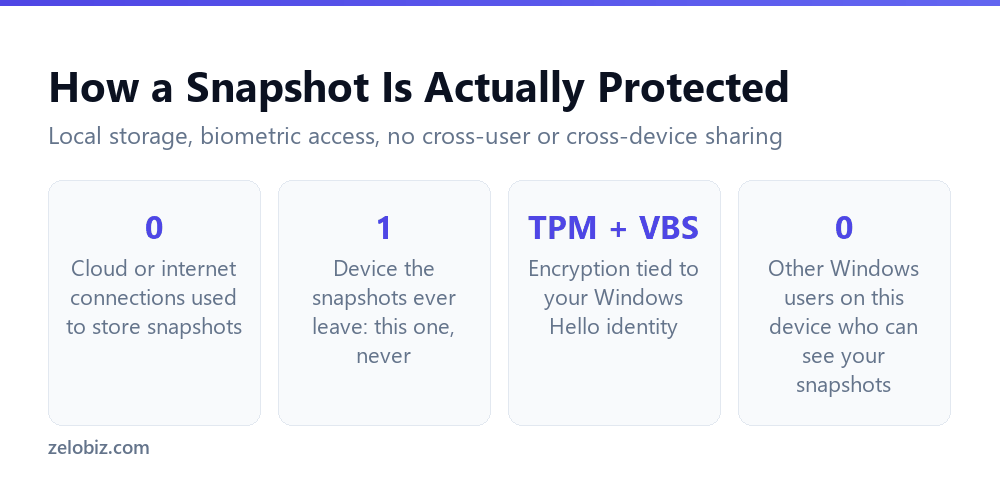
Once a snapshot exists, the storage and access model is worth understanding independently of what gets filtered out.
Snapshots are stored locally on the device, with no internet or cloud connections used to store or process them. Recall’s AI processing happens exclusively on the device. Microsoft states directly that Recall does not send snapshots to Microsoft and does not share them with third parties, and that snapshots are not shared between different Windows users on the same device.
Encryption uses the Trusted Platform Module, tied to your Windows Hello identity, operating inside a Virtualization-based Security Enclave. Windows Hello biometric authentication, meaning face, fingerprint, or PIN, is required both to launch Recall and to access existing snapshots.
Storage isn’t unlimited. Once the maximum storage size configured for snapshots is reached, the system automatically deletes the oldest snapshots to make room for new ones, functioning like a rolling window rather than an ever-growing archive.
Setting Up the App and Website Filter
Beyond understanding the automatic protections, actually configuring your own filter list is a five minute task worth doing deliberately rather than skipping.
Reachable through one settings path
Settings, Privacy and security, Recall and snapshots is where both the app filter and website filter live, alongside the pause and delete controls covered below. Everything related to Recall’s personal privacy settings sits in this one place rather than being scattered across several settings pages.
Think in terms of categories, not individual moments
Rather than trying to filter a site only when something sensitive happens on it, add sites and apps to the filter list based on what they generally handle: banking, health records, anything involving other people’s private information. A standing filter list built around categories of use is far more reliable than remembering to react in the moment.
Pausing beats filtering for a one-off situation
For something temporary rather than a standing category, pausing snapshots entirely through the system tray icon is simpler and more complete than trying to filter a site you’ll only visit once. Filtering is for recurring, known content; pausing is for a specific window of time.
What This Means for a Shared or Work Device
The not-shared-between-users protection matters most on a device with multiple Windows accounts. Each user’s Recall snapshots stay isolated to that account, which is worth confirming if a device is shared within a household or a small office rather than issued one-to-one.
For a business device specifically, the picture is more involved than the consumer defaults described here. An administrator has to explicitly enable the option for Recall to even be available, and separate data loss prevention controls exist on top of the personal filtering covered in this article. We cover the business-specific side, including a two-step opt-in most IT teams don’t expect, in Recall for business: the opt-in nobody told IT about.
Recall itself only runs on qualifying hardware. If you’re deciding whether a device needs to support it at all, Copilot+ PC requirements: what you actually get covers exactly what the hardware bar is and which features are gated behind it.
Deciding How Much to Trust the Defaults
Most Recall coverage lands in one of two camps: treating it as harmless because Microsoft’s defaults are genuinely thoughtful, or treating it as inherently unsafe because a screen-recording feature sounds alarming in the abstract. Neither reaction holds up well against what’s actually documented.
The defaults are more careful than a casual description suggests: local-only storage, biometric access, automatic filtering across several real categories, and no sharing between users or with Microsoft. The gaps are also real and specific rather than vague: a filtered site can still partly surface, and sensitive information filtering reduces risk without eliminating it entirely.
The useful response to both truths being simultaneously accurate is neither blanket trust nor blanket avoidance. It’s knowing precisely where the documented boundary sits, which is what determines whether Recall fits a specific use case, a specific device, or a specific person’s work.
Common Questions
Does Windows Recall capture private browsing?
No. Microsoft states private browsing activity is not saved as snapshots in Microsoft Edge, Firefox, Opera, Google Chrome, or other Chromium-based browsers.
Can Recall capture streaming video or other DRM-protected content?
No. Microsoft states Recall will not store DRM content, treating it the same way other Windows apps handle protected material.
Does filtering a website in Recall stop it from ever appearing in a snapshot?
Not completely. Microsoft states that parts of a filtered website can still appear, such as embedded content, browser history, or a tab left open in the background rather than in the foreground.
Is sensitive information like passwords automatically filtered from snapshots?
Filtering for passwords, national ID numbers and credit card numbers is on by default. Microsoft describes this as filtering that reduces the risk, not as an absolute guarantee that such information can never be captured.
Are Recall snapshots sent to Microsoft or stored in the cloud?
No. Microsoft states no internet or cloud connections are used to store or process snapshots, and snapshots are not shared with Microsoft or third parties.
Can other users on the same computer see my Recall snapshots?
No. Microsoft states snapshots are not shared between different Windows users on the same device, and Windows Hello authentication is required to access them.
What happens when Recall’s storage limit is reached?
The system automatically deletes the oldest snapshots to make room for new ones, so storage functions as a rolling window rather than growing indefinitely.
The Short Version
- →Private browsing, DRM content, remote sessions and Game Mode video are excluded by default.
- →Sensitive info filtering for passwords and ID numbers is on by default, not absolute.
- →A filtered website can still partly appear: background tabs, history, embedded content.
- →Snapshots stay local, encrypted via TPM and Windows Hello, never sent to Microsoft.
- →Snapshots aren’t shared between Windows users on the same device.
- →Oldest snapshots auto-delete once the configured storage limit is reached.