
A Copilot DLP policy timing question comes up constantly in the same shape: an admin saves a policy, checks it immediately, sees no effect, and assumes something is misconfigured. Most of the time nothing is. Three separate, documented behaviours produce exactly this symptom, and none of them mean the policy is broken.
This works through each one: how long propagation actually takes, why a block can look silent during preview, and the structural scoping rules that decide what a single policy can and cannot cover before timing even becomes relevant.
Short answer: A saved DLP policy for the Microsoft 365 Copilot and Copilot Chat location can take up to four hours to reflect in the live experience. During preview, blocked interactions in Word, Excel and PowerPoint may not clearly state that a policy caused the block, even though the block is genuinely happening. This policy location works only inside a standalone Custom policy, cannot be combined with other locations in the same policy, and does not support Admin Units. Simulation mode is available to test a policy before switching it live. Verified against Microsoft Purview documentation on 4 September 2026.
Three Symptoms, Three Documented Causes
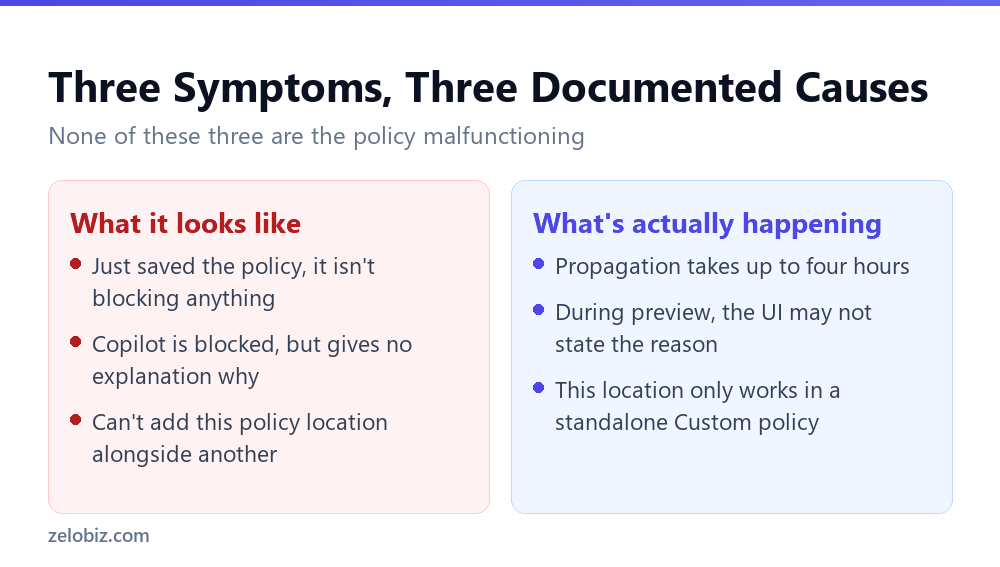
Each of these reads like a fault report. Each one has a specific, stated explanation in Microsoft’s own documentation.
It’s saved, and nothing changed yet
Updates to a DLP policy can take up to four hours to reflect in the Microsoft 365 Copilot and Copilot Chat experience. Checking five minutes after saving and concluding the policy failed is the single most common false alarm in this area.
It’s blocked, but nobody can tell why
During the preview period for blocking sensitive prompt text specifically, Microsoft notes directly that user messaging in Word, Excel and PowerPoint might not clearly state that the interaction with Copilot in those products is blocked due to an organisational policy. The sensitive prompt is still restricted, and Copilot won’t provide a response, even though the interface doesn’t explain why.
It won’t combine with another location
The Microsoft 365 Copilot and Copilot Chat policy location is only available in the Custom policy template, and selecting it disables every other location for that policy. An admin trying to build one policy that covers Copilot alongside, say, Exchange or SharePoint as separate locations will find the interface will not allow it. This is expected behaviour, not a bug in the policy builder.
⚠️ Watch out: Because a preview-stage block can look silent to the end user, don’t rely on staff reporting a clear error message as your signal that a policy is working. Check the policy’s own reporting and alerts in the Purview portal rather than waiting for user feedback to confirm enforcement.
Testing Before Anything Goes Live
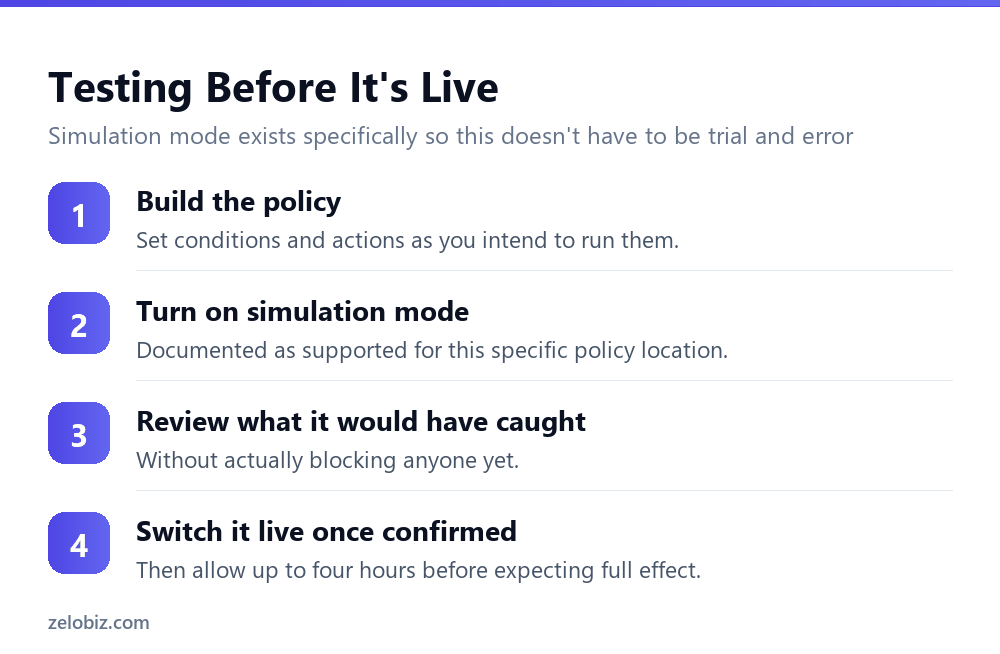
Given the four hour propagation delay and the possibility of a silent-looking block during preview, testing a policy before it affects real users is worth the extra step rather than iterating live.
Microsoft states that DLP alerts, DLP notifications, and policy simulation mode are all supported for this specific policy location. Simulation mode lets a policy run against real activity without actually blocking or restricting anything, showing what it would have caught.
💡 Pro tip: Run any new Copilot DLP policy in simulation mode for at least a few days before switching it to enforce. It surfaces both false positives and gaps in coverage while nobody is actually affected by either.
Structural Limits That Shape the Whole Design
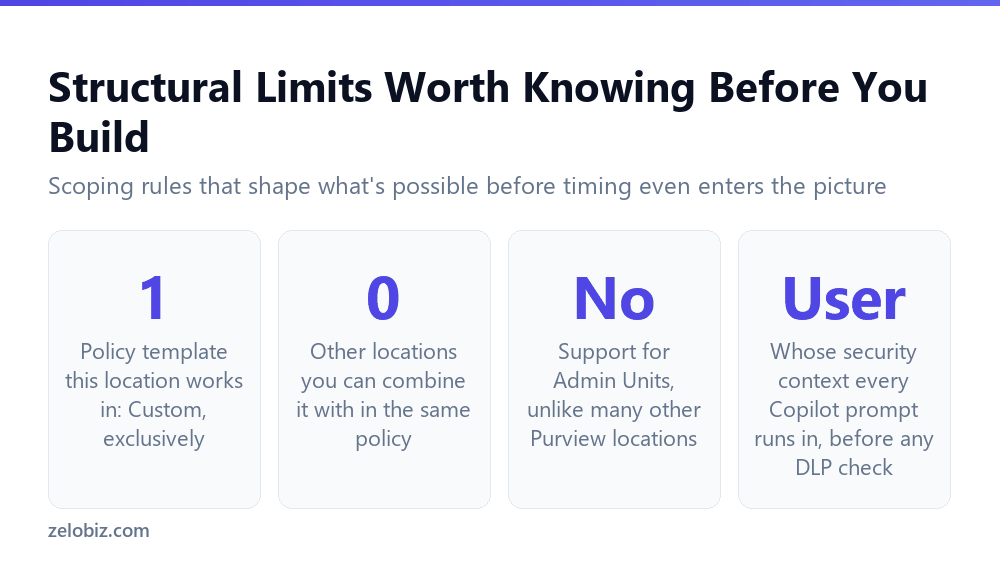
Beyond timing, a few scoping rules decide what a policy can cover before you even get to conditions and actions.
One policy, one purpose
Because this location can’t share a policy with any other location, organisations running broader DLP programmes across Exchange, SharePoint, Teams and Copilot need separate policies for Copilot specifically, rather than folding it into an existing multi-location policy. Plan for it as its own policy from the outset.
No Admin Units support
Admin Units are a Microsoft Entra feature some organisations use to delegate policy management to specific sub-groups or regions. This policy location does not support them, which matters for any organisation that normally scopes DLP administration this way. Copilot-specific policies need to be managed centrally rather than delegated through that mechanism.
Permission checks happen before any DLP exclusion
Microsoft states that all Copilot prompts run in the security context of the user who initiates them, meaning a user has to already have permission to access an item’s content before the question of DLP exclusion is even relevant. A DLP policy narrows what a permitted user can get Copilot to process. It is not a substitute for correct underlying SharePoint or OneDrive permissions in the first place.
📊 Note: This ordering matters when troubleshooting. If a user is missing content in a Copilot response, check whether they actually have permission to it before assuming a DLP policy is responsible. Permission is the first gate, DLP exclusion is a second layer on top of it.
Reading the Alerts Instead of Guessing
Because both the propagation delay and the silent preview block make it hard to judge a policy from the outside, the Purview portal’s own reporting is the source of truth, not a colleague’s screenshot of a Copilot conversation.
Building the habit of checking alerts first, rather than reproducing a user’s reported problem by hand, saves real time given how easy it is for a genuinely working policy to look, from a single conversation, exactly like a broken one.
A Rollout Sequence That Avoids the Confusing Middle
Given the propagation delay and the silent-block risk during preview, the order in which an organisation rolls out a Copilot DLP policy matters as much as the policy content itself.
The communication step is easy to treat as optional and is often the difference between a smooth rollout and a week of tickets asking why Copilot suddenly stopped working on a specific file. Given that a preview-stage block may not explain itself to the user, telling people in advance that certain labelled content will stop being usable with Copilot closes a gap the interface itself doesn’t close.
⚠️ Watch out: Do not enable enforcement and walk away in the same session. Waiting through the up to four hour propagation window before checking results, and having already warned affected users what to expect, prevents a rollout from generating its own troubleshooting backlog.
Putting the Pieces Together
None of the behaviours here are separate problems. They are the operating characteristics of one system: policies that take real time to propagate, that can enforce silently during preview, that occupy their own dedicated policy rather than sharing with other locations, and that sit on top of permissions rather than replacing them.
Combined with what a policy actually blocks, covered in Copilot and sensitivity labels: the citation still shows up, and what it never touches at all, covered in the file you drop into a Copilot prompt isn’t scanned, this gives a complete-enough picture to configure, test and troubleshoot a Copilot DLP policy “without guessing at any of it.
Common Questions
How long does a Copilot DLP policy take to start working after I save it?
Up to four hours to reflect in the live Microsoft 365 Copilot and Copilot Chat experience. Checking immediately after saving is the most common reason a working policy looks broken.
Why doesn’t Copilot tell users when a DLP policy blocked their prompt?
During the preview period specifically, Microsoft notes that user messaging in Word, Excel and PowerPoint might not clearly state the block was caused by an organisational policy. The block is genuinely happening even though the interface doesn’t explain it.
Can I combine a Copilot DLP policy with other locations like Exchange or SharePoint?
No. The Microsoft 365 Copilot and Copilot Chat location is available only in the Custom policy template, and selecting it disables every other location for that policy. It needs to be its own dedicated policy.
Can I test a Copilot DLP policy before it actually blocks anyone?
Yes. DLP alerts, notifications and policy simulation mode are all supported for this location, letting you see what a policy would catch before switching it to enforce.
Does this DLP location support Admin Units for delegated management?
No. Organisations that normally scope DLP administration through Admin Units need to manage Copilot-specific policies centrally instead, since that delegation mechanism isn’t supported here.
Does a DLP policy override a user’s SharePoint or OneDrive permissions?
No. All Copilot prompts run in the security context of the initiating user, so permission to the content is checked first. A DLP policy narrows what a permitted user can get Copilot to process; it doesn’t grant access a user didn’t already have.
What should I check if a new Copilot DLP policy seems to have no effect?
First, whether four hours have passed since saving it. Second, whether you’re relying on user-reported errors rather than the policy’s own alerts and reports, since a block can look silent to the end user during preview.
Timing and scoping are one layer of this system. What a policy actually blocks once live, and what it never touches regardless of configuration, are separate questions answered elsewhere in this series. All three need to be understood together before a Copilot DLP policy can be trusted to do what an organisation actually needs from it.
The Short Version
- →A saved policy can take up to four hours to reflect in the live Copilot experience.
- →A preview-stage block can look silent, with no clear message to the user.
- →This policy location works only in a standalone Custom policy, not combined with others.
- →Simulation mode lets you test a policy’s effect before it actually enforces anything.
- →Admin Units aren’t supported here; manage these policies centrally.
- →Permission is checked before DLP exclusion. DLP narrows access; it doesn’t grant it.