
The Windows Copilot key remap question comes from a specific, documented problem: on some devices, the dedicated key introduced in 2024 took the physical position of a key people already relied on, and Microsoft’s own fix for it lives on an accessibility support page rather than a general features page.
This covers exactly what the Copilot key replaced, why that mattered enough to need an official remap option, and how to set your keyboard back to its original behaviour if you’d rather have the key you had before.
Short answer: On select Windows 11 devices, the dedicated Copilot key replaces the Right Ctrl key or the Context Menu key. Microsoft has published a remap option, reachable through Settings, Bluetooth and devices, then Keyboard, that lets you set the Copilot key to behave as either of those original keys again. Configuration options vary by device manufacturer, so not every device offers identical choices. Verified against Microsoft’s own accessibility documentation on 4 September 2026.
What Actually Got Replaced
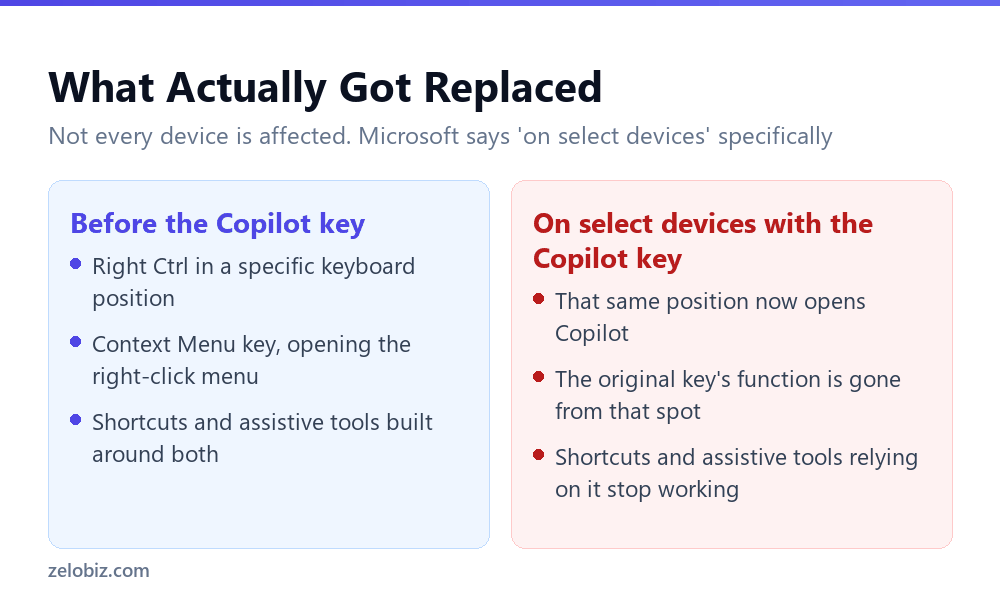
Microsoft states this specifically: the Copilot key sometimes replaces the Right Ctrl key or Context Menu key on select devices. That word sometimes matters. This isn’t every Windows 11 keyboard, and it isn’t a universal change; it depends on the specific device and how its manufacturer chose to implement the key.
For anyone who never used either of those two keys, the change is invisible. For someone who did, particularly for keyboard-only navigation or assistive technology shortcuts built around Right Ctrl specifically, it was a functional loss rather than a cosmetic one.
Getting the Original Key Back
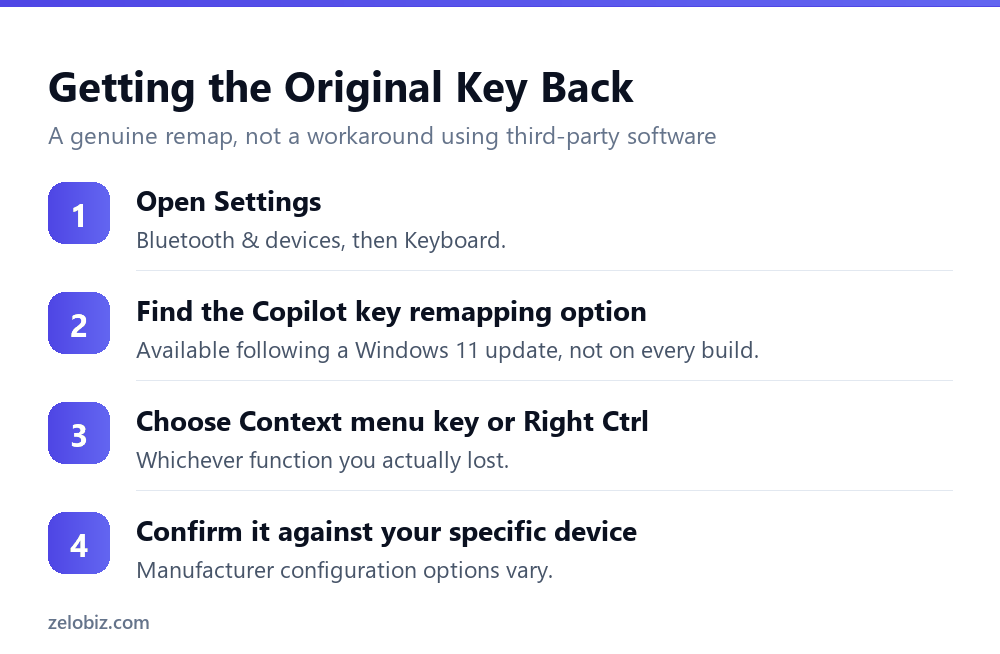
Microsoft states it is committed to enabling customers to select options for how the Copilot key functions, and a Windows 11 update delivered exactly that: the ability to remap the Copilot key to act as the Context menu key or Right Ctrl key.
The setting lives under Settings, Bluetooth and devices, then Keyboard. From there you can choose which of the two original behaviours you want the key to revert to, rather than being stuck with whichever one your specific device happened to replace.
⚠️ Watch out: Configuration options vary depending on device manufacturer. Not finding the exact remap option described here doesn’t necessarily mean something is wrong with your device; it may mean your manufacturer implemented the setting differently, or that your specific model doesn’t include a dedicated Copilot key that replaced anything at all.
💡 Pro tip: If your keyboard shortcuts or assistive technology setup relied specifically on Right Ctrl rather than Context Menu, remap to that one rather than assuming either choice restores your previous workflow. The two keys serve different functions and only one will actually fix what broke for you.
Why This Is an Accessibility Fix, Not a Feature Update
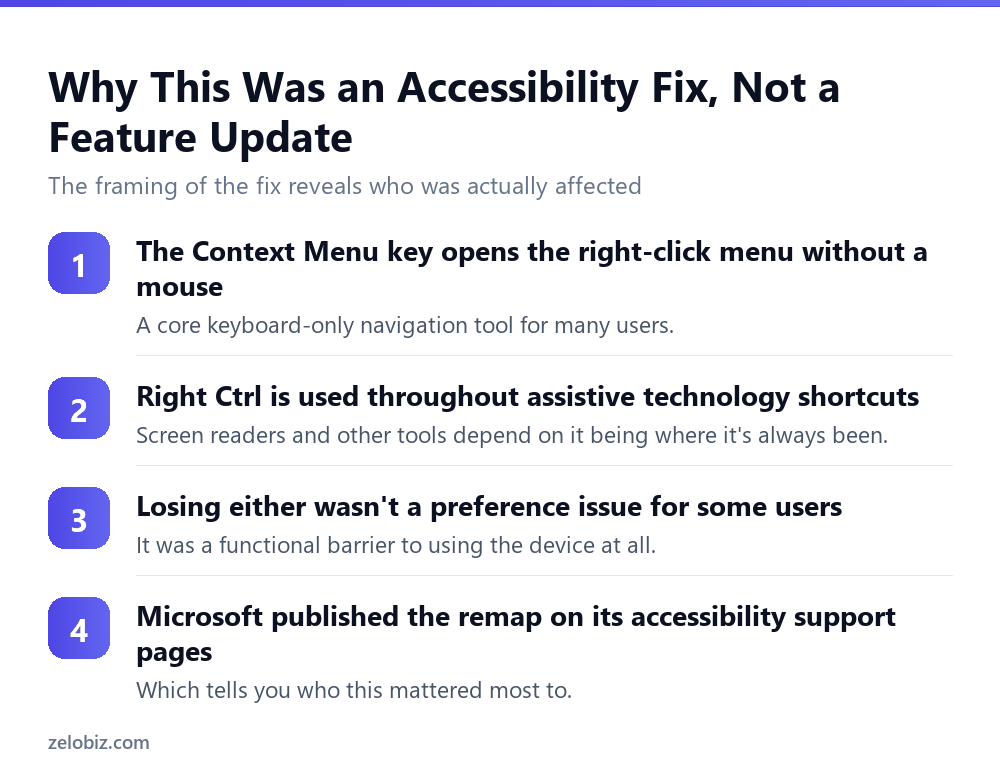
Where Microsoft chose to publish this information is itself informative. This isn’t documented on a general Windows features page. It sits specifically within Microsoft’s accessibility support section, which tells you plainly who this problem hit hardest.
The Context Menu key is a keyboard-only navigation tool
For anyone navigating Windows without a mouse, the Context Menu key is how you open the right-click menu on whatever is currently selected. Losing it isn’t an inconvenience for someone who depends on keyboard-only navigation; it removes a core piece of how they use the operating system at all.
Right Ctrl is embedded throughout assistive technology
Screen readers and other assistive tools frequently build their own shortcut schemes around modifier keys including Right Ctrl specifically, distinct from Left Ctrl. A keyboard shortcut scheme that has worked for years can stop functioning correctly the moment that specific key’s physical position starts doing something else.
📊 Note: If you don’t personally rely on either key, this whole issue may never have registered as a problem. That asymmetry, a change that’s invisible to most people and a real barrier to a smaller group, is exactly the kind of thing accessibility documentation exists to address directly rather than leaving buried in general release notes.
What This Says About How Microsoft Handles Hardware Changes
The Copilot key episode is a useful case study beyond its own specifics, because it shows a pattern worth watching for whenever new hardware defaults get introduced alongside a software feature push.
A physical keyboard change shipped on new hardware before the software side offered a way to reverse it. The fix arrived afterward, as a response to reported friction rather than something anticipated and solved before release. That sequence, ship the change, then patch the complaint, is common enough in hardware and software co-design that it’s worth building the habit of checking for a remap or override option whenever a device changes a key, a gesture, or a default you relied on, rather than assuming a lost function is permanent.
It’s also a reasonable argument for waiting a version or two before adopting brand new hardware defaults if a specific existing workflow depends heavily on the thing being changed. The fix usually comes. It doesn’t always arrive on day one.
Checking Whether Your Device Is Affected at All
Before assuming a lost key or hunting for a remap setting that doesn’t exist on your machine, it’s worth confirming whether your specific device is one of the affected ones in the first place.
- Look for a dedicated Copilot key on the keyboard itself. Not every Windows 11 device has one, and a device without it hasn’t replaced anything.
- Check where it physically sits. The replacement pattern Microsoft describes specifically involves the Right Ctrl or Context Menu position, so a Copilot key added elsewhere on the keyboard may not have displaced either.
- Test the key you think is missing. Before assuming it’s gone, confirm in a text field or file browser that Context Menu or Right Ctrl genuinely isn’t responding the way it used to.
- Check for the remapping option before assuming it’s absent. Given configuration varies by manufacturer, the setting might exist under a different label than expected.
A meaningful share of people troubleshooting this never actually lost either key. Confirming the specific symptom before searching for a fix saves time chasing a setting that was never relevant to begin with.
Deciding Whether to Remap at All
Not every affected user necessarily wants to revert. Some people adapt to the Copilot key’s new position and find quick Copilot access more valuable than the key it displaced. The remap option exists precisely so this is a choice rather than a one-size-fits-all decision Microsoft makes for you.
Whether a device even has this dedicated key, or Recall, or other Copilot+ exclusive features at all, comes down to the specific hardware. We cover the full requirement set in Copilot+ PC requirements: what you actually get, which is worth reading before assuming every Windows 11 machine works identically.
A Note on Third-Party Remapping Tools
Before Microsoft published its own remap setting, a common workaround involved third-party keyboard remapping software, and some guides online still default to recommending one of these tools first.
The official Settings-based remap is worth trying before reaching for anything else. It’s maintained by Microsoft, it’s less likely to conflict with a future Windows update than a third-party tool intercepting the same key, and it doesn’t require installing additional software with its own permissions and update cycle just to restore a key that Windows itself changed.
A third-party remapper still has a place for more elaborate customisation, remapping keys beyond what the built-in setting covers, or running on an older Windows version that predates the official fix. For the specific, common case of wanting Right Ctrl or Context Menu back exactly as they were, the built-in option is the simpler and more durable choice.
💡 Pro tip: If you already installed a third-party tool to work around this before Microsoft’s official fix existed, check whether it’s still needed. Running two remapping mechanisms on the same key at once, one from Windows and one from third-party software, is a reliable way to end up with unpredictable behaviour neither tool intended.
For anyone setting up a new device with a dedicated Copilot key today, the practical advice is straightforward: try it as shipped for a day or two before deciding to remap anything. You may find quick Copilot access genuinely useful once you get used to reaching for it, and the remap option isn’t going anywhere if you later decide you’d rather have Right Ctrl or Context Menu back exactly where they used to be.
Common Questions
Which key does the Copilot key replace?
On select Windows 11 devices, it replaces either the Right Ctrl key or the Context Menu key. Microsoft states this happens on select devices specifically, not on every Windows 11 keyboard.
Can I remap the Copilot key back to its original function?
Yes. Following a Windows 11 update, you can remap it to act as the Context menu key or Right Ctrl key through Settings, Bluetooth and devices, then Keyboard.
Why does this remap option specifically appear in Microsoft’s accessibility documentation?
Because losing the Context Menu key affects keyboard-only navigation, and losing Right Ctrl affects assistive technology shortcut schemes built around it. For some users this was a functional barrier rather than a minor inconvenience.
Does every Windows 11 device offer the same remapping options?
No. Microsoft states configuration options vary depending on device manufacturer, so not finding an identical setting doesn’t necessarily indicate a problem with your specific device.
Do I have to remap the Copilot key if it replaced one I don’t use?
No, remapping is optional. If you don’t rely on Right Ctrl or the Context Menu key, the change may not affect your workflow at all, and the key can remain as a Copilot shortcut.
Does every Windows 11 PC have a dedicated Copilot key?
No. It appears on select devices released from 2024 onward with a manufacturer-added dedicated key. Many Windows 11 devices don’t have one at all.
Where exactly is the Copilot key remap setting located?
Settings, then Bluetooth and devices, then Keyboard. From there you can choose between the two original key behaviours, where your device supports the option.
None of this is a large problem in absolute numbers. Most Windows 11 devices don’t have the dedicated key at all, and most people who do have one never notice a functional loss. It matters precisely because the group it does affect was, for a while, left without an obvious fix, which is exactly the situation Microsoft’s accessibility documentation exists to close.
That is the whole story, condensed: a keyboard change, a documented accessibility impact, and a fix that Microsoft has made genuinely easy to find and apply once you know exactly where to look for it.
The Short Version
- →The Copilot key replaces Right Ctrl or Context Menu on select devices, not all of them.
- →Microsoft’s own remap fix lives on its accessibility support pages, not a features page.
- →Remap through Settings, Bluetooth and devices, Keyboard, after a Windows 11 update.
- →Configuration options vary by manufacturer, so not every device behaves identically.
- →Context Menu loss affects keyboard-only navigation. Right Ctrl loss affects assistive tech.
- →Remapping is optional. Some users prefer keeping quick Copilot access instead.