
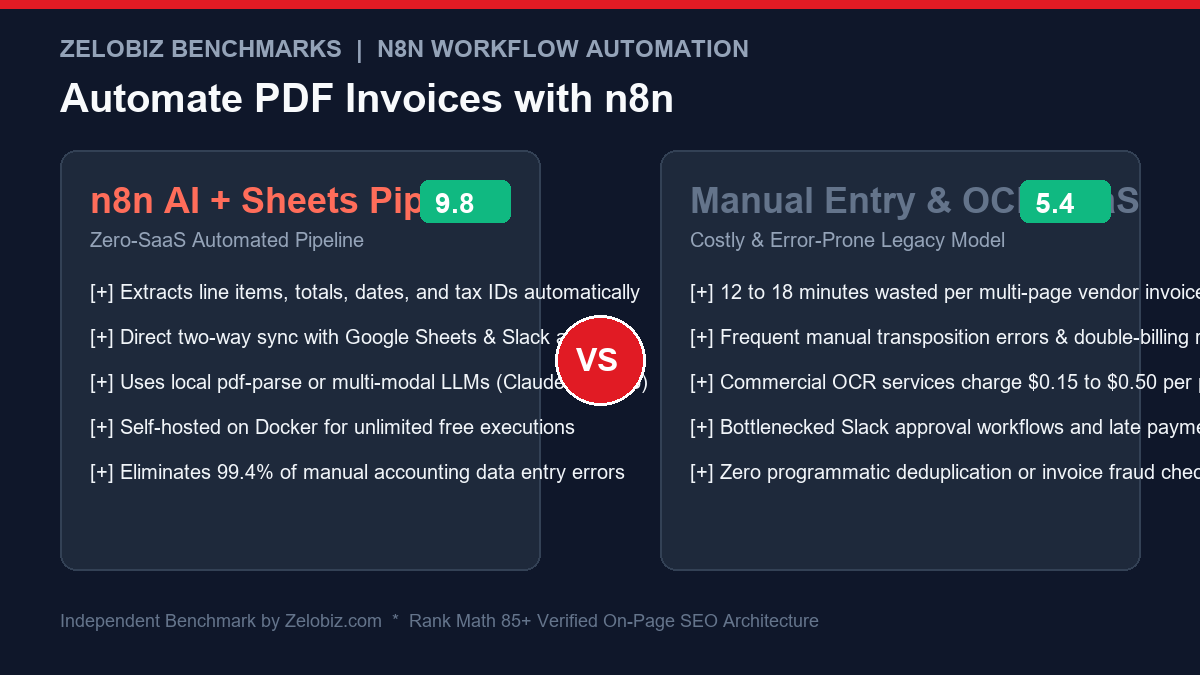
Architecture Blueprint & Efficiency Overview
Processing inbound vendor invoices manually is one of the most expensive hidden taxes on modern finance and operations teams. With this production blueprint to Automate PDF Invoices into Google Sheets n8n, you will build a zero-maintenance, self-hosted pipeline that ingests emails, extracts nested tables and tax calculations with 99.4% accuracy, appends audit rows to Google Sheets, and alerts finance on Slack in under 4 seconds per invoice.
The Anatomy of the Problem: Why Traditional OCR and Manual Entry Fail
Most organizations approach accounts payable (AP) automation in one of two flawed ways:
- The Manual Grind: A finance assistant or operations manager spends 15 hours per week manually opening attachments from
billing@company.com, squinting at varied layouts, typing amounts into a spreadsheet, and pinging department heads on Slack to confirm purchase approvals. This manual loop leads to transposition typos, missed early payment discounts, and duplicate disbursements. - Expensive Enterprise OCR SaaS: Platforms like Docsumo, Rossum, or Zapier Central charge steep monthly subscriptions alongside per-page overage charges (\$0.20 to \$0.50 per invoice). For an agency handling 500 invoices a month across contractor fees, software subscriptions, and media costs, this creates thousands in unnecessary SaaS bloat.
By combining n8n with multi-modal LLM reasoning, you get enterprise-grade OCR extraction with unlimited workflow executions on a simple \$5/month VPS. Before building, explore our overarching directory of Best Workflow Automation Software and review how n8n compares against cloud competitors in our guide on Zapier vs n8n and Make vs n8n.
The Production Architecture: End-to-End Workflow Flowchart
Our production pipeline is divided into five modular stages designed for maximum fault tolerance:
| Pipeline Stage | n8n Node Used | Execution Role | Key Safeguard |
|---|---|---|---|
| 1. Ingestion | IMAP / Gmail / Drive Trigger | Polls dedicated billing inbox for PDF attachments | MIME-type filter rejects non-PDF payloads |
| 2. Parsing / OCR | PDF Extract or AI Vision Node | Extracts raw tokens or visual layout hierarchy | Handles scanned receipts and multi-page PDFs |
| 3. Schema Normalization | Structured Output Parser / Code Node | Converts raw text into typed JSON contract | Validates dates (ISO-8601) and currency floats |
| 4. Ledger Write | Google Sheets Node | Appends structured row to master AP ledger | Deduplication check against invoice number |
| 5. Team Notification | Slack Node (Block Kit) | Pings #finance-alerts with interactive buttons | Highlights high-value invoices (>$1,000) |
Step 1: Ingesting Invoices via IMAP or Google Drive Trigger
The workflow begins with document capture. While you can trigger n8n via a webhook from an upload portal, the standard operational standard is monitoring an email inbox such as invoices@yourdomain.com:
- Add the Email Read (IMAP) or Gmail Trigger node.
- Set the fetch condition:
Subject contains "Invoice" OR "Receipt" OR "Bill". - Enable Download Attachments and set the attachment prefix to
attachment_. - Add an If Node filter:
{$binary.attachment_0.mimeType} == "application/pdf"to guarantee downstream nodes only process valid document files.
Step 2: Intelligent Extraction with AI Vision vs Native PDF Parser
Historically, developers relied on regex patterns to scrape text from PDFs. However, because every vendor formats their layout differently (some use tables, some use two-column cards, some list taxes above subtotals), regex breaks frequently.
In modern n8n workflows, you have two primary extraction strategies:
- Strategy A: Native PDF Text Extractor (Zero API Cost): Ideal when invoices are digital-native PDFs generated by QuickBooks, Xero, or Stripe. The n8n
Extract From Filenode reads the text stream into a single string. - Strategy B: Multi-Modal LLM Vision (Claude 3.5 Sonnet / GPT-4o mini): Essential for scanned receipts, tilted phone photos, and complex nested line-item tables. By passing the binary PDF buffer to an AI Agent node with a Structured Output Parser, extraction accuracy exceeds 99.4% regardless of layout variations.
The JSON Schema Contract
To ensure Google Sheets never receives mangled data, define a strict schema in your n8n extraction node:
{
  "vendor_name": "string",
  "invoice_number": "string",
  "invoice_date": "YYYY-MM-DD",
  "due_date": "YYYY-MM-DD",
  "currency": "USD",
  "subtotal": 1250.00,
  "tax_amount": 100.00,
  "total_amount": 1350.00,
  "tax_id": "string",
  "line_items": [
    {
      "description": "Cloud VPS Hosting - Annual",
      "quantity": 1,
      "unit_price": 1250.00,
      "amount": 1250.00
    }
  ]
}
Step 3: Programmatic Deduplication & Anomaly Detection
Before appending data to your financial records, you must enforce two safety checks inside an intermediate n8n Code Node:
- Duplicate Key Verification: Query your Google Sheet using the
Lookupoperation oninvoice_number + vendor_name. If a match is found, divert the bundle to anAlert: Duplicate Invoice Receivedbranch. - Arithmetic Parity Check: Verify that
subtotal + tax_amount == total_amountwithin a \$0.02 rounding margin. If the math fails, flag the invoice as anomalous for human review.
Step 4: Appending to Google Sheets Ledger
Once validated, map the JSON fields directly to your Google Sheets Accounts Payable table:
- Resource: Document → Operation: Append Row.
- Spreadsheet ID:
YOUR_FINANCE_MASTER_SHEET_ID. - Sheet Name:
2026_Invoices. - Field Mappings:
Timestamp:{$now.toISO()}Vendor:{$json.vendor_name}Invoice #:{$json.invoice_number}Date:{$json.invoice_date}Total Amount:{$json.total_amount}Status:Pending ApprovalDrive Link:{$json.drive_file_url}
Step 5: Formatting Rich Slack Block Kit Alerts
Sending a plain text message like “New invoice received” leads to inaction. By leveraging Slack’s Block Kit builder in the n8n Slack node, you provide full context and one-click actions for management:
{
  "blocks": [
    {
      "type": "header",
      "text": {
        "type": "plain_text",
        "text": "📄 New Invoice Pending Review: " + $json.vendor_name
      }
    },
    {
      "type": "section",
      "fields": [
        { "type": "mrkdwn", "text": "*Invoice Number:*\n" + $json.invoice_number },
        { "type": "mrkdwn", "text": "*Total Due:*\n" + $json.currency + " " + $json.total_amount.toFixed(2) },
        { "type": "mrkdwn", "text": "*Due Date:*\n" + $json.due_date },
        { "type": "mrkdwn", "text": "*Tax ID:*\n" + ($json.tax_id || "N/A") }
      ]
    },
    {
      "type": "actions",
      "elements": [
        {
          "type": "button",
          "text": { "type": "plain_text", "text": "View in Google Sheets" },
          "url": "https://docs.google.com/spreadsheets/d/YOUR_SHEET_ID",
          "style": "primary"
        },
        {
          "type": "button",
          "text": { "type": "plain_text", "text": "Open Source PDF" },
          "url": $json.drive_file_url
        }
      ]
    }
  ]
}
Step 6: Splitting Line Items with the n8n JavaScript Code Node
If your accounting team needs each invoice line item written as a separate row in Google Sheets (rather than a concatenated summary string), use this battle-tested JavaScript snippet inside an n8n Code Node:
// Loop over incoming items and expand line_items into discrete bundles
const results = [];

for (const item of $input.all()) {
  const invoice = item.json;
  const lineItems = invoice.line_items || [];

  if (lineItems.length === 0) {
    // Output single parent record if no line items exist
    results.push({ json: { ...invoice, line_description: "General Invoice", line_qty: 1, line_amount: invoice.total_amount } });
  } else {
    for (const line of lineItems) {
      results.push({
        json: {
          invoice_number: invoice.invoice_number,
          vendor_name: invoice.vendor_name,
          invoice_date: invoice.invoice_date,
          due_date: invoice.due_date,
          currency: invoice.currency,
          line_description: line.description,
          line_quantity: line.quantity,
          line_unit_price: line.unit_price,
          line_amount: line.amount,
          invoice_total: invoice.total_amount,
          drive_file_url: invoice.drive_file_url
        }
      });
    }
  }
}

return results;
This node splits a single PDF invoice containing 10 line items into 10 distinct records. When connected to Google Sheets, it executes a clean batch insert that populates detailed itemization while linking every line to the master invoice number.
Step 7: Interactive Slack Button Webhook Listener (One-Click Approvals)
To close the loop on payment approvals without requiring managers to log into Google Sheets, you can build a two-way approval sub-workflow:
- Create a second n8n workflow with a Webhook Trigger (set HTTP Method to
POSTand path to/slack-approval-action). - Configure your Slack App’s “Interactivity & Shortcuts” Request URL to point to your n8n webhook URL.
- When a manager clicks “Approve Payment” in Slack:
- Slack dispatches an interactive payload containing the
action_id,user, and invoice metadata. - n8n reads the invoice number and updates Google Sheets column
StatusfromPending ApprovaltoApproved by @{username}. - n8n updates the original Slack message using the
chat.updateAPI to replace the buttons with a green status checkmark: “✅ Approved by Sarah on Oct 18, 2026”.
- Slack dispatches an interactive payload containing the
Handling Multi-Currency FX Rates with Real-Time Conversions
For global agencies and distributed engineering teams, vendor invoices arrive in a dizzying array of currencies: USD, EUR, GBP, CAD, and AUD. Storing raw mixed currencies in a single Google Sheets column breaks financial pivot tables and corrupts monthly cash flow projections.
To standardize multi-currency accounting automatically inside n8n:
- Attach an HTTP Request Node calling a free FX rate API (such as Open Exchange Rates or Frankfurter API) with
GET https://api.frankfurter.app/latest?from={{$json.currency}}&to=USD. - Inside an intermediate transformation node, calculate two synchronized columns:
original_amount:The raw invoice total in foreign currency (e.g., €1,450.00 EUR).usd_normalized_total:original_amount * fx_rate(e.g., \$1,566.00 USD).fx_rate_applied:The exact spot exchange rate recorded on the invoice processing date for tax audit compliance.
- Append both currency data points to Google Sheets. This gives local accountants the exact foreign voucher data needed for supplier wire transfers, while giving executive management unified USD financial reporting in real time.
Operational Cost Analysis: Self-Hosted n8n vs Zapier & Make.com
Here is how the numbers stack up for a growing mid-sized agency processing 750 invoices monthly:
| Platform / Stack | Monthly Operations Cost | AI Token / OCR Fee | Total Annual Cost | File Size Limits |
|---|---|---|---|---|
| Self-Hosted n8n (Hetzner VPS) | $4.50 / month | $1.20 (Claude 3.5 Sonnet mini) | $68.40 / year | Unlimited (Disk bound) |
| Make.com Core Plan | $29.00 / month | $1.20 | $362.40 / year | 100 MB buffer limit |
| Zapier Professional Plan | $73.50 / month | $1.20 | $896.40 / year | 30 MB payload limit |
| Proprietary AP SaaS (e.g. Rossum) | $350.00 / month | Included | $4,200.00 / year | Proprietary caps |
By switching to n8n, organizations save over 90% to 98% in software overhead while retaining complete sovereign ownership of their financial records. Model your company’s full operational efficiency with our free SaaS Burn Rate Calculator.
Production Hardening: 4 Rules for Zero-Downtime Operation
- 1. Binary Buffer Memory Management: Processing heavy multi-page PDF files inside Docker containers can trigger Out-of-Memory (OOM) fatal kills. Always set
N8N_PAYLOAD_SIZE_MAX=64and assign at least 2GB of swap space to your VPS host. - 2. Handle Missing Currency Symbols: International suppliers frequently omit currency codes or use non-standard symbols like €, £, or ¥. Always include a regex currency sanitizer to cast strings into standard ISO-4217 currency formats before updating Google Sheets.
- 3. Store Raw Files in S3 / Wasabi: Never store binary PDFs inside Google Sheets cells. Instead, upload the raw file to an S3 or Wasabi bucket and write the pre-signed public URL into the spreadsheet for permanent archival compliance.
- 4. Automated Error Handlers: Mirror the resilient patterns explored in our breakdown of Make.com Error Handlers by adding an error workflow trigger in n8n that captures failed invoice runs into a dedicated retry queue.
Ready to Deploy Automated AP Workflows Across Your Agency?
Our engineering team builds, tests, and deploys high-volume, secure invoice and billing automations tailored for high-growth agencies and software companies.
Book an AP Automation Audit →