
To split screen on Windows, click the window you want on one side and press Windows + Left arrow or Windows + Right arrow. It fills that half, and Windows offers thumbnails of your other windows to fill the opposite half. On Windows 11 you can also hover the maximise button to pick from a grid of layouts, including three-column and 70/30 splits.
The Split-Screen Problem That Has Nothing to Do With Shortcuts
Every guide to split screen on Windows covers the keyboard shortcuts and the Snap Layouts grid in plenty of detail, and none of them mention the one complaint that actually sends people searching for help on a real multi-monitor setup: a window that looks sharp on one screen turning soft and blurry the moment it’s snapped or dragged to another.
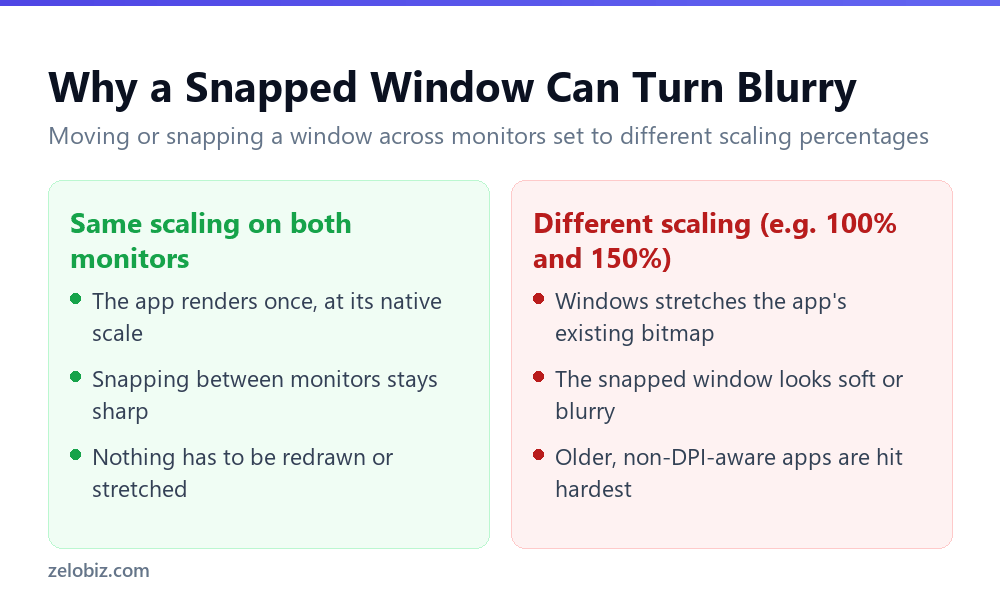
To check your own setup, right-click the desktop, choose Display settings, and select each monitor in turn to see its scale percentage. Laptops paired with an older external monitor are the most common case for a mismatch, since a sharp laptop screen often runs at 125% or 150% while a cheaper external display sits at 100%.
⚠️ Watch out: Matching both monitors to the same scaling percentage removes the blur completely, but it’s a genuine tradeoff: a high-resolution laptop screen forced down to 100% to match an older monitor makes everything on the laptop screen noticeably smaller and harder to read. There’s no setting that gives a sharp result on mismatched monitors without picking one of those two downsides.
The shortcut that does most of the work
Dragging a window to the edge of the screen works, and it’s what most people do. It’s also fiddly: you have to grab the title bar, aim at an edge you can’t quite see, and hope it snaps rather than maximising.
Windows + Left and Windows + Right do the same job with no aiming at all. Press either and the focused window takes that half immediately. Windows then dims the background and shows thumbnails of everything else you have open, so you click one to fill the other side and you’re done.
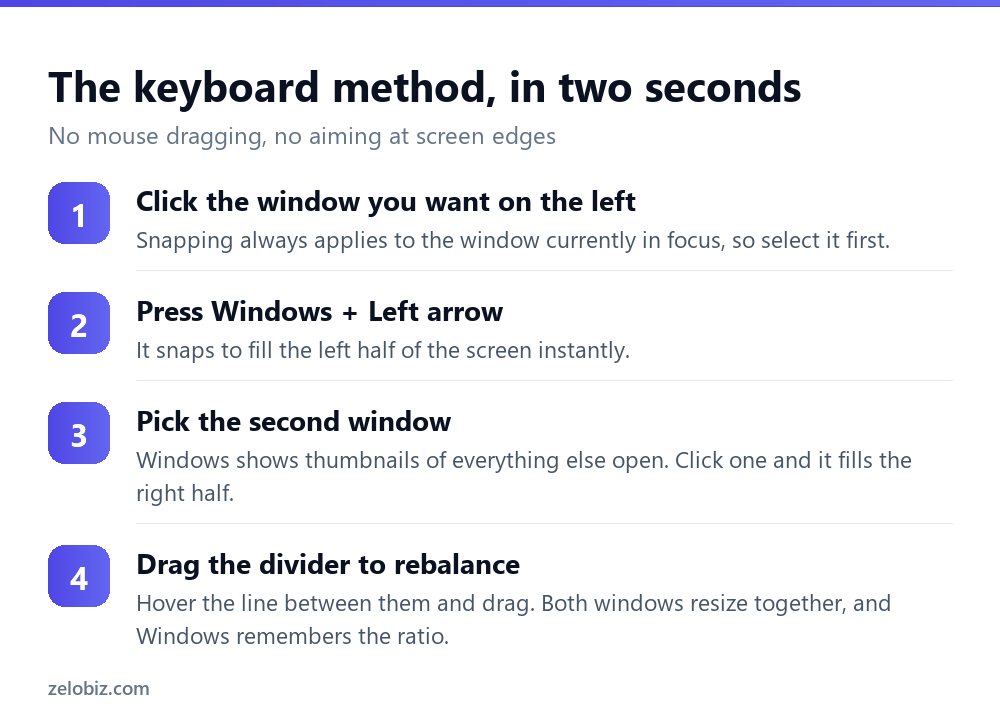
Two extras that make it worth committing to memory. Pressing Windows + Up after snapping left sends that window to the top-left quarter, which is how you build a four-window grid without touching the mouse. And pressing the same arrow again moves a snapped window across to the next monitor rather than cycling it in place.
Snap Layouts, if you’re on Windows 11
This is the actual new thing in Windows 11 and the reason to stop dragging windows about, yet plenty of people never discover it because it’s hidden behind a hover rather than a click.
Hover your mouse over the maximise button — the square in the top-right of any window, between minimise and close — and hold it there for a second. A small grid of layout options drops down. Click the zone you want and the window goes there; Windows then walks you through filling the remaining zones.
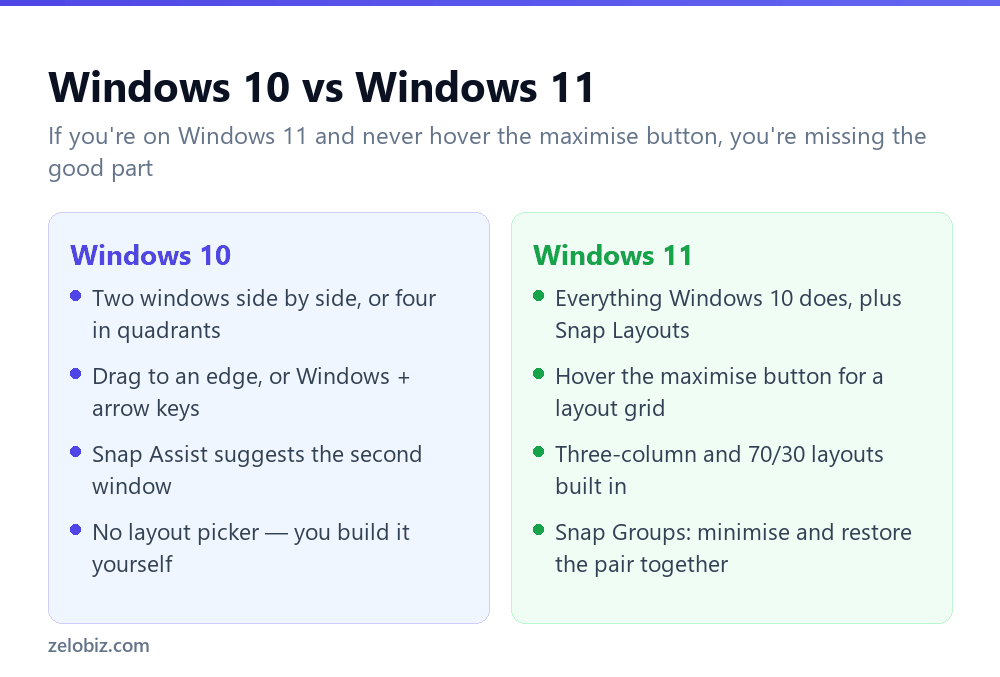
The layouts on offer depend on your screen size. A standard laptop display gets four options; a wide monitor gets six, including a three-column layout that’s excellent for code, documentation and a browser at once. On an ultrawide it’s the single most useful feature Windows 11 added.
💡 Pro tip: Keyboard equivalent: press Windows + Z to open the same layout picker, then the number shown on the zone you want. Faster than hovering once you know it exists.
Snap Groups: the part that saves real time
Once you’ve snapped two windows together on Windows 11, Windows quietly remembers them as a pair.
Hover that app’s icon in the taskbar and you’ll see a thumbnail of the group alongside the individual window. Click it and both windows restore together, in the same positions. Minimise one and both go. It means a working arrangement — say a spreadsheet beside the email you’re pulling numbers from — survives you going off to do something else.
Nothing needs enabling for this. It happens automatically whenever you snap two windows, and it’s the feature people are most surprised by when they find out it’s been there all along.
Adjusting the split
A 50/50 split is rarely what you actually want. A browser and a notes app don’t deserve equal space.
Hover over the divider between two snapped windows until the cursor becomes a double arrow, then drag. Both windows resize simultaneously rather than one overlapping the other, and Windows remembers the ratio for the next time you snap those two.
Windows 11 also offers preset uneven layouts — the 70/30 option in the Snap Layouts grid is designed for exactly this, with a main working window and a reference panel beside it. If you’re forever dragging the divider to roughly the same place, use the preset instead.
⚠️ Watch out: Some applications have a minimum width and simply refuse to go narrower. Older desktop software and some accounting packages are the usual offenders. If a window stops resizing before you want it to, that’s the app’s limit and there’s no setting to override it.
When snapping stops working
Almost always one setting, and it gets switched off more often than you’d expect — some third-party ‘performance optimiser’ utilities disable it as a supposed tweak.
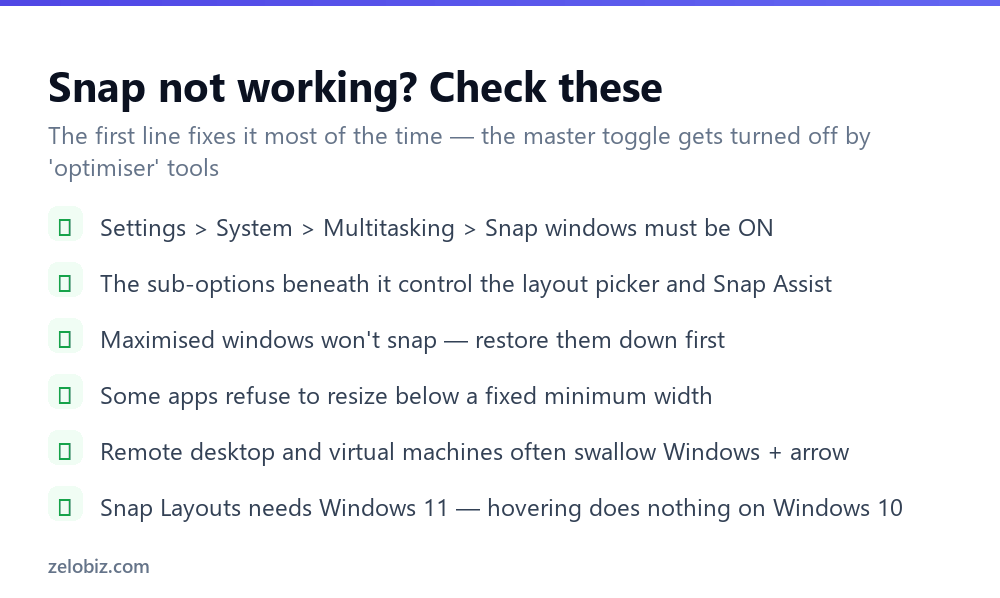
Go to Settings › System › Multitasking and confirm Snap windows is on. Expand it and you’ll find the individual behaviours underneath: whether dragging to the edge snaps, whether the layout picker appears on hover, and whether Snap Assist suggests the second window. If snapping half works — the shortcut does something but no thumbnails appear — it’s one of those sub-options rather than the master switch.
Two other causes worth ruling out. A maximised window sometimes won’t snap until you restore it down first. And inside remote desktop sessions or virtual machines, the Windows key combination is often captured by the host, so the guest never receives it — drag to the edge instead.
Splitting across two monitors
With more than one display the shortcuts behave differently, and it catches people out constantly.
Press Windows + Right on a window already snapped to the right of your primary screen and it doesn’t stay put — it jumps to the left half of your second monitor. Keep pressing and it walks across every half of every display in order. That’s the intended behaviour and it’s quick once you expect it, but if you were trying to nudge a window it feels broken.
To move a window to another monitor without snapping it at all, use Windows + Shift + Left/Right. That relocates it while keeping its current size and position, which is what you usually want when you’re just tidying up. Snap Groups also work per-monitor, so you can have a different pair remembered on each screen.
Reading side by side in one app
Sometimes you don’t want two applications — you want two parts of the same document, and snapping two copies of the app is the clumsy way to do it.
Word, Excel and most browsers can split internally. In Word, the View tab has a Split button that divides the document into two independently scrolling panes. Excel has the same under View, plus Freeze Panes, which keeps your header row visible as you scroll — usually a better answer than splitting at all.
Browsers handle it with tab groups or, in Edge, a built-in split-screen button in the toolbar that puts two tabs side by side inside one window. That keeps a single taskbar entry instead of two, which matters if you already have a lot open.
Three or more windows
Two is the common case, but Windows handles more.
Four in a grid works on both Windows 10 and 11: snap left, press Windows + Up to send it to the top-left quarter, then repeat for the other three corners. On a large monitor this is genuinely usable. On a 13-inch laptop it produces four windows too small to read.
Three columns is Windows 11 only, via Snap Layouts, and needs a reasonably wide screen for the option to appear at all. If you don’t see it in the grid, your display isn’t wide enough — Windows hides layouts it judges impractical for your resolution.
Beyond that, more windows stop helping. If you genuinely need six things visible, the answer is virtual desktops rather than smaller tiles — Windows + Ctrl + D creates one, and Windows + Ctrl + Left/Right moves between them.
- ✓Use Windows + Left/Right instead of dragging to the edge
- ✓Hover the maximise button on Windows 11 to find Snap Layouts
- ✓Drag the divider — 50/50 is rarely the right split
- ✓Use Snap Groups from the taskbar to restore a pair together
- ✓Switch to virtual desktops once you’re past four windows
- ✕Dragging windows to screen edges and hoping they catch
- ✕Assuming snap is broken before checking Settings > Multitasking
- ✕Trying to fit four readable windows on a small laptop screen
- ✕Expecting Snap Layouts on Windows 10 — it doesn’t exist there
- ✕Fighting an app that has a minimum width
Worked example: a laptop-plus-monitor setup that stopped looking blurry
A laptop with a sharp 14-inch display runs at 150% scaling out of the box. Plugged into an older 24-inch monitor left at its default 100%, every window dragged or snapped onto the external monitor looks noticeably soft, while the same window looks fine back on the laptop screen.
Windows actually suggested 100% for the external monitor automatically on first connection, based purely on its resolution and physical size, which is exactly what created the mismatch: two individually correct-looking settings that simply don’t agree with each other once a window has to move between them. Checking Display settings confirms it in seconds, since both percentages are listed right next to each monitor’s preview.
Two workable fixes exist for this specific situation, and neither one of them is entirely free of tradeoffs. Setting both monitors to 125%, splitting the difference, keeps text a reasonable size on both screens and shrinks the mismatch enough that most modern apps stop visibly blurring, though it won’t fully eliminate the effect on apps that still aren’t DPI-aware. Alternatively, accepting the blur specifically on the older monitor and reserving it for less detail-sensitive tasks, like a chat window or an email client, works around the problem rather than solving it, but takes zero setup time.
What doesn’t help at all here is a graphics driver update, or swapping the display cable for a different one, despite those two fixes being the first suggestions in most general troubleshooting threads found online. The signal reaching the monitor is fine. The image was rendered at the wrong scale before it ever left the computer, which is a Windows display setting, not a hardware fault.
Not every single app out there is affected equally by this, which is part of why the blur can feel so inconsistent from one window to the next. Most current browsers, Office apps, and anything built specifically for Windows 11 handle a scaling change by redrawing themselves cleanly at the new size, since they’re written to be aware of per-monitor DPI. Older Win32 utilities, some line-of-business software, and older games are more likely to just stretch their existing image instead, which is the visible blur. If only one or two specific apps look bad after snapping while everything else looks fine, that’s a strong sign the app itself hasn’t been updated to handle scaling changes, rather than anything wrong with the display setup.
There’s a quick way to confirm which category an app falls into without digging through settings. Right-click its shortcut or taskbar icon, choose Properties, go to the Compatibility tab, and click Change high DPI settings. An option there to override scaling behaviour, with Windows handling the scaling instead of the app, is available specifically because that app doesn’t manage it well on its own. Toggling that override can sharpen the blur somewhat for a stubborn older app, though it rarely matches the crispness of an app that was actually built to handle multiple scaling levels correctly from the start.
Frequently asked questions
Why does a window look blurry after I snap it to my other monitor?
This is almost always a display scaling mismatch between your monitors rather than a hardware issue. Check Display settings for each monitor’s scaling percentage; a large gap, such as 150% on one screen and 100% on another, causes older apps to render at the wrong resolution when moved between them.
What is the shortcut to split screen on Windows?
Windows + Left arrow or Windows + Right arrow snaps the active window to that half of the screen. Follow it with Windows + Up or Down to move that window into a quarter instead.
Why is split screen not working on my computer?
Check Settings, System, Multitasking and make sure ‘Snap windows’ is turned on. It gets disabled by some optimiser utilities. Also restore maximised windows before snapping, and note that remote desktop sessions often intercept the Windows key.
How do I split screen into three windows?
On Windows 11, hover the maximise button and choose a three-column layout — it only appears on wide enough displays. On Windows 10 there’s no three-column option; snap into quarters instead.
Can I change the size of split screen windows?
Yes. Hover the divider between the two windows until the cursor becomes a double arrow and drag. Both resize together and Windows remembers the ratio for that pair.
Does Windows 10 have Snap Layouts?
No. Snap Layouts and Snap Groups are Windows 11 features. Windows 10 supports snapping to halves and quarters with the same keyboard shortcuts, just without the layout picker.
How do I turn off split screen?
Drag the window away from the edge, press Windows + Up to maximise it, or turn snapping off entirely in Settings, System, Multitasking.
- →Find what’s slowing things down — how to open Task Manager
- →Capture your setup: how to screenshot on Windows
- →Reclaim room on the drive with how to free up disk space
- →Fix stale pages using how to clear cache on Windows