
Press Ctrl + Shift + Esc. That opens Task Manager instantly on both Windows 10 and 11, with no menu in between. The alternatives — Ctrl + Alt + Delete, right-clicking the taskbar, Windows + X, or typing taskmgr into Run — all work, but they take extra steps. If the screen is frozen solid and the shortcut does nothing, Ctrl + Alt + Delete is more likely to respond because it interrupts at a lower level.
You only need one of these
Search this question and you’ll find articles listing ten different ways to open Task Manager. That’s ten things to remember for a job that needs one.
Ctrl + Shift + Esc. Three keys, all on the left side of the keyboard, reachable with one hand while the other stays on the mouse. It goes straight to Task Manager rather than to a menu that offers it. Learn this one and you can forget the rest.
Nobody looks up how to open Task Manager out of curiosity. Something is frozen, or the fan is screaming. Opening it is the easy part.
The other methods are worth knowing only for the situations where the shortcut fails, which does happen. Here’s when each one earns its place.
Closing something that’s frozen
The reason most people are here. An application has stopped responding, clicking does nothing, and the window has gone pale.

That waiting step is worth taking seriously. ‘Not responding’ means the app hasn’t answered Windows for a few seconds, which frequently happens during a big save, a slow network call, or a large file operation. Wait fifteen or twenty seconds and a good proportion recover with your work intact. End it immediately and that work is gone, definitively.
⚠️ Watch out: End task does not save anything. There’s no prompt, no ‘are you sure’, and no recovery for most applications. Office apps often reopen with an autorecovered draft; most other software does not.
Which processes are safe to end
The Processes tab lists everything running, including a great deal of Windows itself. Ending the wrong entry can force an instant restart.
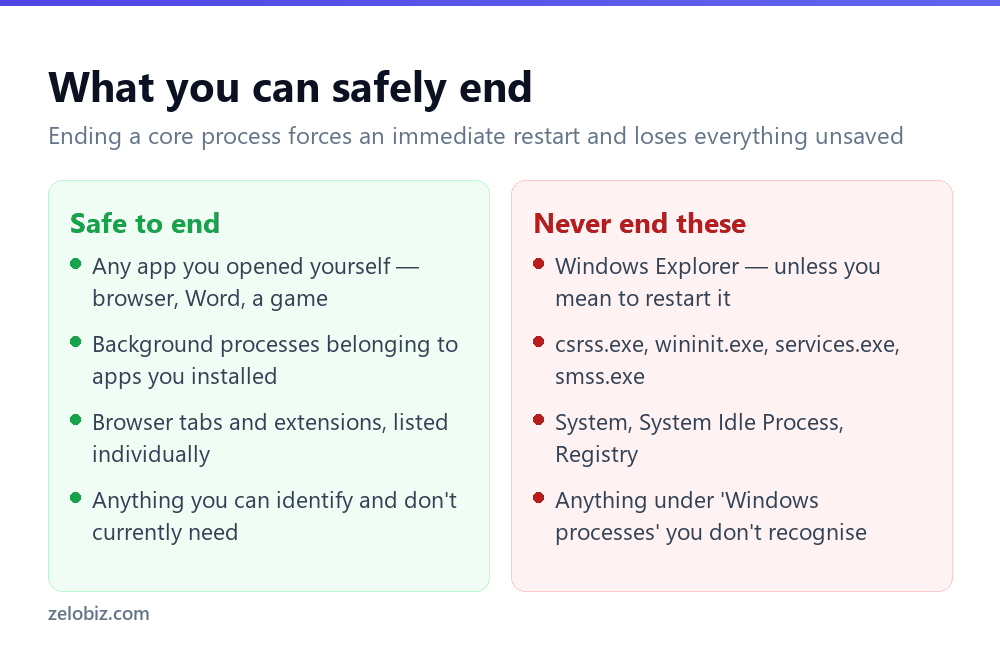
The practical rule: if you opened it, you can close it. If Windows opened it and you don’t recognise the name, leave it. Nothing in the Windows processes group should be ended casually, and none of it is what’s slowing your machine down anyway.
The one exception worth knowing
Windows Explorer appears in that list, and restarting it deliberately is a genuinely useful trick. If your taskbar has stopped responding, icons have vanished, or File Explorer windows won’t open, select Windows Explorer and click Restart rather than End task. The screen flickers, the taskbar disappears for a second and comes back working. It fixes a surprising amount without a reboot.
Reading the numbers
Task Manager’s real value isn’t the End task button — it’s telling you what’s actually wrong. Click any column heading to sort by it, largest first. Whatever sits at the top is your answer.

High CPU
Something is doing heavy calculation. A browser tab running a bad script, a video export, an antivirus scan. Sort by CPU and look at the top entry. If it’s a browser, expand it — Chrome and Edge list each tab separately, so you can find the single page responsible without closing everything.
Disk at 100%
Common on machines with a mechanical hard drive rather than an SSD, and the usual causes are Windows Update downloading in the background, the search indexer building its database after a big file move, or an antivirus scan. All three finish on their own. If it’s pinned at 100% for hours across multiple sessions, that’s worth investigating properly.
Memory climbing steadily
If one application’s memory grows and never comes back down, that’s a memory leak. There’s no fix from your side other than restarting that app — and reporting it to whoever makes it. Browsers with many tabs open aren’t leaking; they’re just genuinely using that memory.
💡 Pro tip: The Startup apps tab is the most valuable one and the least visited. It lists everything that launches with Windows, with a plain-English impact rating. Disabling three or four ‘High impact’ items you don’t need is usually the single biggest improvement you can make to boot time.
When Task Manager won’t open at all
Occasionally the shortcut does nothing and the menu entry is greyed out or missing. There are three realistic explanations.
The system is genuinely overwhelmed. If disk or CPU is truly pinned, Windows may take thirty seconds or more to draw the window. Press the shortcut once and wait rather than pressing it repeatedly, which only adds work.
A policy has disabled it. On work laptops, IT sometimes turns Task Manager off deliberately. You’ll see a message saying it’s been disabled by your administrator. That’s not a fault and not something to work around — ask your IT team.
Malware. Disabling Task Manager is a classic move to stop you killing a malicious process. If it’s your own machine, nobody has set a policy, and Task Manager has stopped opening, run a full scan with Windows Security and treat it as urgent.
The tabs nobody opens
Most people never leave the Processes tab. Two of the others earn their keep.
Performance
Live graphs for CPU, memory, disk, network and GPU. The genuinely useful number here is under Memory: Slots used tells you how many RAM slots are occupied and how many are free, which is exactly what you need before buying an upgrade. Underneath, Up time shows how long since the last real restart — often weeks, because shutting the lid isn’t a restart, and that alone explains a lot of sluggish machines.
App history
Cumulative CPU and network use per app, going back weeks. It only covers Store apps, which limits it, but it’s the quickest way to spot something quietly consuming bandwidth in the background over time rather than just at this moment.
Ending a task that refuses to end
Occasionally you click End task and nothing happens — the process sits there, still listed, still consuming resources.
Try the same button a second time; Windows escalates to a forced termination on the repeat. If it still won’t die, open Command Prompt as administrator and run taskkill /f /im name.exe, replacing the name with the process name shown in Task Manager’s Details tab. The /f flag forces it.
A process that survives even that is usually waiting on hardware — a stalled USB device, a network drive that’s gone away, or a failing disk. Unplugging the device concerned normally releases it immediately, and if it doesn’t, a restart is the honest answer rather than a defeat.
Task Manager versus Resource Monitor
Task Manager answers ‘what is using this’. When you need ‘which file is that process reading’ or ‘which address is it connecting to’, open Resource Monitor instead — there’s a link at the bottom of Task Manager’s Performance tab, or run resmon.
For most problems Task Manager is enough. Reach for Resource Monitor when disk usage is high and you need to know exactly which file is being hammered, which it will tell you and Task Manager won’t.
- ✓Memorise Ctrl + Shift + Esc and ignore the other nine methods
- ✓Wait fifteen seconds before ending a ‘Not responding’ app
- ✓Sort by the column that matches your symptom
- ✓Restart Windows Explorer instead of ending it
- ✓Check the Startup apps tab if boot times are slow
- ✕Ending processes you can’t identify
- ✕Ending anything under ‘Windows processes’
- ✕Pressing the shortcut repeatedly when the system is busy
- ✕Assuming 100% disk is a fault — it’s often a background job finishing
- ✕Using End task before trying to save your work
Frequently asked questions
What is the keyboard shortcut for Task Manager?
Ctrl + Shift + Esc opens Task Manager directly on Windows 10 and 11. Ctrl + Alt + Delete also works but shows a security screen first, from which you select Task Manager.
Why won’t Task Manager open?
Usually the system is too busy to draw the window — press once and wait. Otherwise it may be disabled by an administrator policy on a work machine, or by malware on a personal one, in which case run a full Windows Security scan.
Is it safe to end a task in Task Manager?
Safe for applications you opened yourself, though you lose anything unsaved. Never end processes listed under Windows processes, such as csrss.exe or wininit.exe — doing so forces an immediate restart.
How do I see what is slowing down my computer?
Open Task Manager and click the CPU, Memory or Disk column heading to sort by it. The process at the top is the heaviest user. Expand browser entries to see which individual tab is responsible.
What does ‘Not responding’ actually mean?
The app hasn’t replied to Windows for a few seconds. It often happens during a large save or a slow network request, and many apps recover on their own within about fifteen seconds.
How do I open Task Manager as administrator?
Press Windows + R, type taskmgr, then press Ctrl + Shift + Enter instead of Enter. This matters when you need to end a process owned by another user account.
- →If a slow machine is the real problem: how to free up disk space
- →Clear out stale data with how to clear cache on Windows
- →Work two apps at once — how to split screen on Windows
- →Capture the error message first: how to screenshot on Windows