
The fastest way to free up disk space on Windows: open Settings › System › Storage, click Temporary files, and clear what’s listed — this alone often recovers 20–30 GB because it includes the previous Windows installation left behind by feature updates. Then turn on Storage Sense so it doesn’t build up again. Don’t start by deleting personal files; they’re rarely the problem.
Stop deleting and start looking
The instinct when a drive fills up is to start deleting things — old photos, documents, anything that looks expendable. It’s the wrong first move, and it usually recovers a disappointing amount for a lot of anxious decisions.
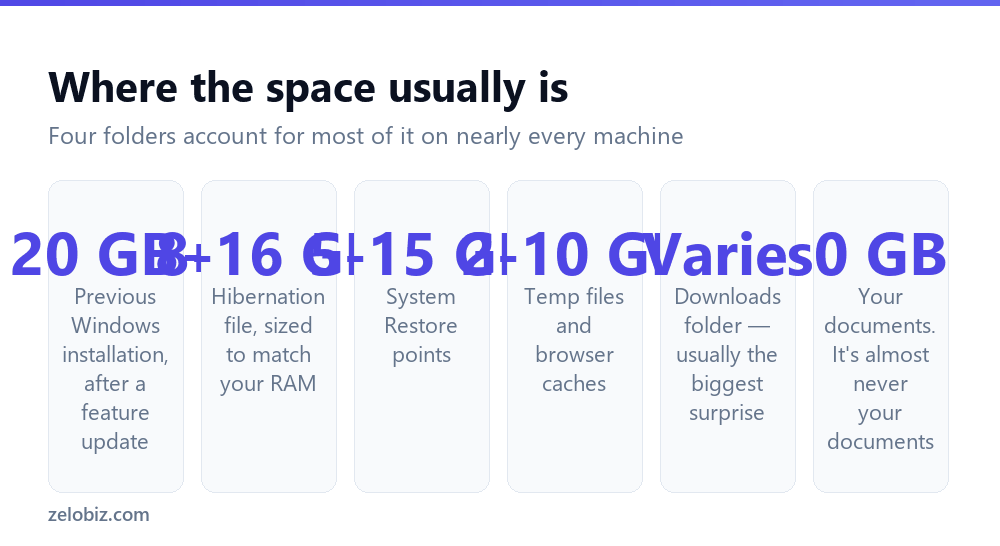
On a typical Windows machine, personal files are a small fraction of what’s occupying the drive. The space has gone somewhere you can’t see from File Explorer: leftover installation files, restore points, a hibernation file sized to match your RAM, and caches that grow quietly for years.
Spend ten minutes finding out where the space went. You’ll almost always recover more, faster, without deleting anything you care about.
The built-in breakdown
Windows has a storage analyser and most people never open it. Settings › System › Storage shows your drive split by category, largest first, and each category expands into specifics.
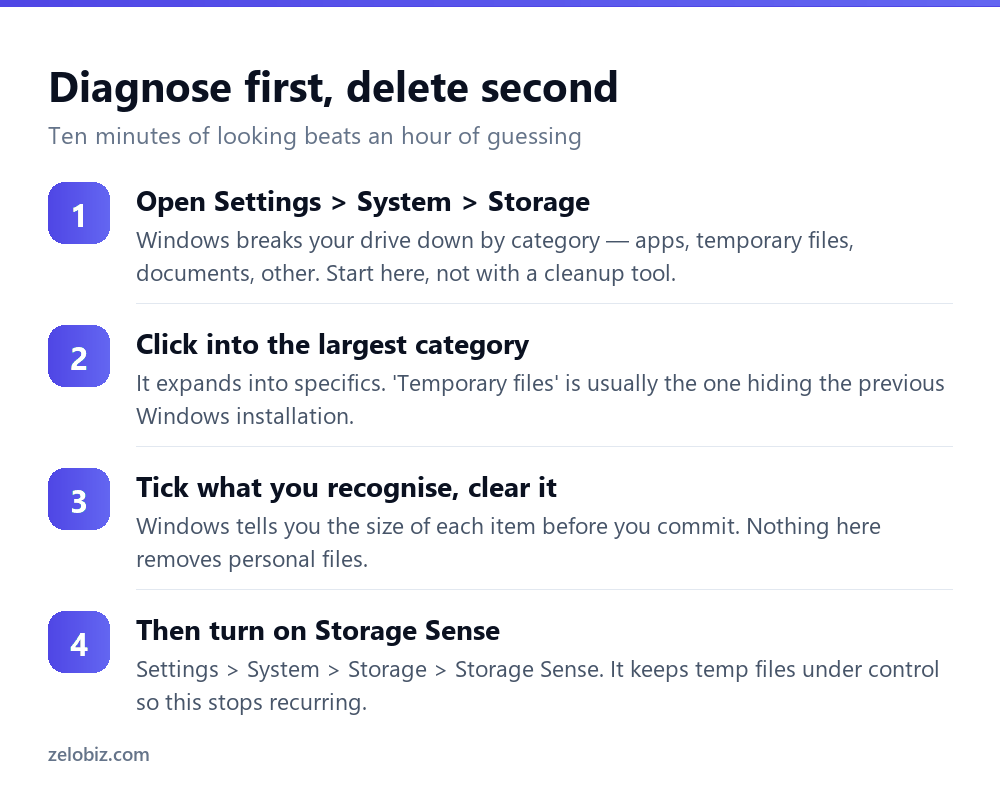
Pay particular attention to Temporary files. It sounds trivial and it’s usually the largest single win, because Windows files several very large things under that heading that have nothing to do with temp folders.
The 20 GB nobody knows about
When Windows installs a feature update, it keeps a complete copy of your previous installation so you can roll back if the update goes badly. That copy lives in C:\Windows.old and it is typically 20 to 30 GB.
Windows deletes it automatically after ten days. But if you’ve had updates fail part-way, or you’re on a machine that’s been upgraded repeatedly, copies can linger well beyond that. It’s the single biggest recovery available on most systems.
To remove it: Settings › System › Storage › Temporary files, then tick Previous Windows installation(s) and clean. Deleting Windows.old by hand in File Explorer usually fails with permission errors — use the built-in tool.
⚠️ Watch out: Once it’s gone you cannot roll back to your previous Windows version. If you’ve updated in the last week and something is behaving strangely, sort that out before you delete this.
Hibernation: 8 to 16 GB doing nothing
Windows reserves a file called hiberfil.sys sized in proportion to your installed RAM — 16 GB of memory can mean an 8 GB file or more. It exists so the machine can hibernate, writing memory to disk and powering off completely.
On a desktop that never hibernates, that space is pure waste. Open Command Prompt as administrator and run powercfg /hibernate off. The file disappears immediately and you get the space back.
Two caveats worth knowing before you do. On a laptop, hibernation is genuinely useful — it’s what preserves your session when the battery runs out. And turning hibernation off also disables Fast Startup, which will make boot times slightly longer on some machines. Re-enable it any time with powercfg /hibernate on.
System Restore is probably over-allocated
Restore points are worth having, but Windows often reserves far more room for them than anyone needs — sometimes 10% of the entire drive.
Search for ‘Create a restore point’, select your system drive, and click Configure. There’s a slider for maximum usage. On a 500 GB drive, reducing it from 10% to 3% frees around 35 GB while still leaving room for several restore points. There’s also a Delete button that removes all existing points, which is worth doing only if the machine is running well right now.
Disk Cleanup, and the button people miss
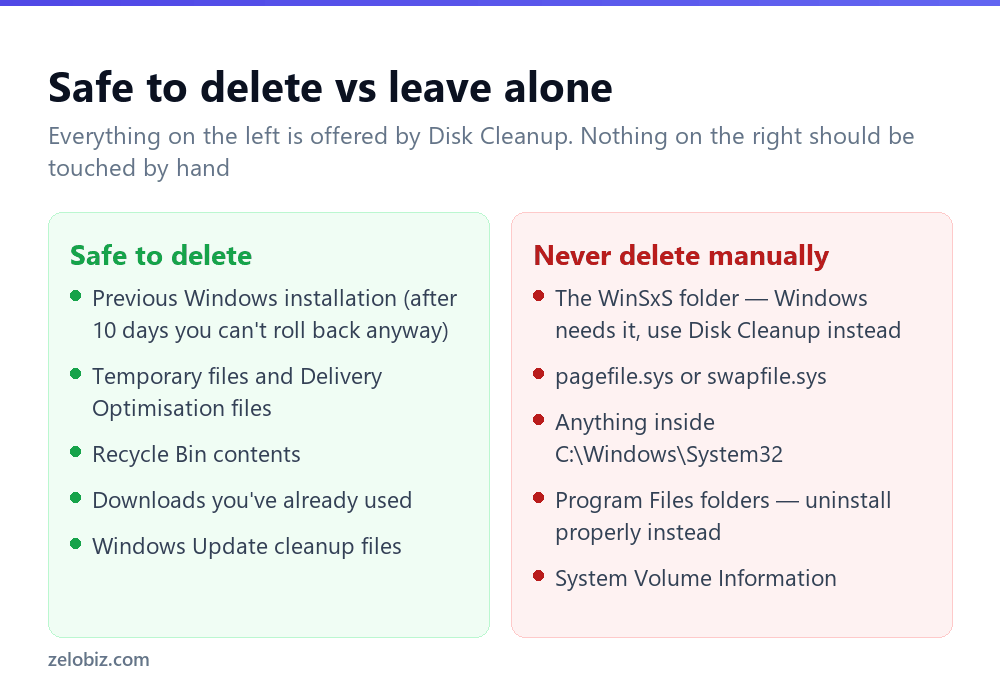
The classic tool still exists and still works. Search for Disk Cleanup, choose your drive, and you get a checklist with sizes.
The important part is the Clean up system files button at the bottom. Click it and the tool relaunches with a longer list that includes Windows Update cleanup, previous installations and Delivery Optimisation files. Without that click you’re only seeing a fraction of what’s available — which is why people run Disk Cleanup, recover 400 MB, and conclude it doesn’t help.
💡 Pro tip: Delivery Optimisation files are pieces of Windows updates cached to share with other PCs on your network. Safe to delete, frequently several gigabytes, and they rebuild only as needed.
Finding what’s actually large
Once the system-level wins are done, you may still need to find specific large files. Windows’ own storage view stops being useful at this point because it groups by category rather than showing you a single 14 GB video you forgot about.
File Explorer can do it without extra software: click into your drive, then type size:gigantic in the search box. That filters to files over 4 GB. size:huge catches 128 MB to 1 GB. Sort by size, largest first, and the offenders become obvious.
For a visual map of an entire drive, a free tool like WinDirStat or WizTree shows every folder proportionally sized. WizTree is dramatically faster because it reads the filesystem index directly rather than walking every folder. This is the one case where third-party software genuinely beats what’s built in.
The Downloads folder
Worth its own mention because it’s the most consistently surprising. Installers, zip archives, PDFs, the same document downloaded four times — most people have never cleared it and it accumulates for the life of the machine.
Sort it by size rather than date. Installers for software you’ve already installed are pure waste; you can always download them again. Just check for anything you saved there and never moved, because Downloads is where a lot of people accidentally keep important files.
Cloud storage without the local copy
If you use OneDrive, Files On-Demand keeps everything visible in File Explorer while storing only what you’ve recently opened on the actual disk. Everything else lives in the cloud and downloads on demand.
Right-click the OneDrive folder and choose ‘Free up space’ to convert already-synced files back to online-only. On a machine syncing a large OneDrive this can recover more than every other step on this page combined. Dropbox and Google Drive have equivalent features under different names.
Uninstalling properly
Settings › Apps › Installed apps, then sort by size. Games dominate this list — a single modern title can be 100 GB, and most people have several installed they haven’t opened in a year.
Uninstall from that screen rather than deleting the Program Files folder. Deleting the folder leaves the registry entries, scheduled tasks and services behind, and the app then shows as installed while being broken. If an uninstaller fails halfway, the publisher usually provides a dedicated removal tool — worth ten minutes of searching rather than deleting folders by hand.
Steam and other game launchers have their own storage managers that are better than Windows’ for this. Steam in particular lets you move a game to another drive instead of deleting it, keeping saves intact.
When the drive fills up again in a week
If you clear 30 GB and it’s gone again days later, something is actively writing, and cleaning up repeatedly is treating the symptom.
The usual suspects are a sync client pulling down a shared folder someone added you to, a backup tool writing local copies without pruning old ones, or an application logging errors in a loop — a broken service can write gigabytes of log files in a day. Sort by ‘Date modified’ rather than size in File Explorer to find what’s changing, or run the storage breakdown twice a few days apart and compare.
Windows Update failing repeatedly also causes this, re-downloading the same package each time it fails. If your Update history shows the same KB failing over and over, fix that rather than clearing the cache each week.
Keeping it from filling up again
Storage Sense handles the recurring part. Settings › System › Storage › Storage Sense, turn it on, and configure it to run monthly.
Set the Recycle Bin to empty after 30 days. Leave the Downloads option set to Never — Storage Sense will otherwise delete downloads you haven’t opened recently, and that catches people out badly.
- ✓Check Settings > System > Storage before deleting anything
- ✓Click ‘Clean up system files’ in Disk Cleanup — it doubles what’s offered
- ✓Remove the previous Windows installation if the update is settled
- ✓Turn hibernation off on a desktop that never uses it
- ✓Use size:gigantic in File Explorer search to find large files
- ✕Deleting personal files first — they’re rarely the cause
- ✕Deleting WinSxS, pagefile.sys or anything in System32 by hand
- ✕Letting Storage Sense clear your Downloads folder
- ✕Installing a paid ‘PC cleaner’ to do what Disk Cleanup does free
- ✕Removing Windows.old while a recent update is still misbehaving
Frequently asked questions
What is taking up space on my hard drive?
Open Settings, System, Storage for a breakdown by category. On most machines the biggest items are the previous Windows installation, the hibernation file, System Restore points and cached update files — not personal documents.
Is it safe to delete Windows.old?
Yes, provided your current Windows version is working properly. It only exists so you can roll back a feature update, and Windows deletes it automatically after ten days. Remove it through Settings, Storage, Temporary files rather than by hand.
How do I free up space without deleting files?
Turn off hibernation with powercfg /hibernate off, reduce the System Restore allocation, clear Windows Update and Delivery Optimisation caches, and enable OneDrive Files On-Demand. None of that touches your personal files.
Why is my C drive full when I have nothing on it?
Almost always system files rather than yours — leftover installation copies, restore points, the hibernation file and update caches. The Storage settings page will show you the split.
Does Disk Cleanup delete personal files?
No. It clears temporary files, caches and system leftovers. The only user content it touches is the Recycle Bin, and only if you tick that box.
How much free space should Windows have?
Aim for at least 15% of the drive, or 20 GB minimum, whichever is larger. Windows needs working room for updates and the page file, and performance degrades noticeably when a drive is nearly full.
- →Clear the caches specifically: how to clear cache on Windows
- →Find what’s using CPU and memory — how to open Task Manager
- →Work more comfortably with how to split screen on Windows
- →Document the problem first: how to screenshot on Windows