

To sort in Excel, click a single cell inside your data — don’t select a column — then use the A–Z or Z–A buttons on the Data tab. Clicking one cell lets Excel detect the whole table and move every column together. Selecting just one column and sorting will reorder that column alone, leaving every other field behind, and Excel gives no warning that your rows are now wrong.
The one mistake that matters
Sorting is a two-second job that occasionally destroys a spreadsheet, and the destruction is entirely silent.
Select column B — the surnames — and click A–Z. Excel notices you’ve selected part of a wider table and asks whether to expand the selection. Choose ‘Continue with the current selection’ and it sorts the surnames alone. First names, phone numbers, salaries and everything else stay exactly where they were.
Nothing errors. The sheet looks orderly. Every record is now a mix of different people’s data, and unless you notice within the undo window, that’s permanent.
If Excel asks whether to expand the selection, the answer is yes. There is almost no situation where the other option is what you meant.
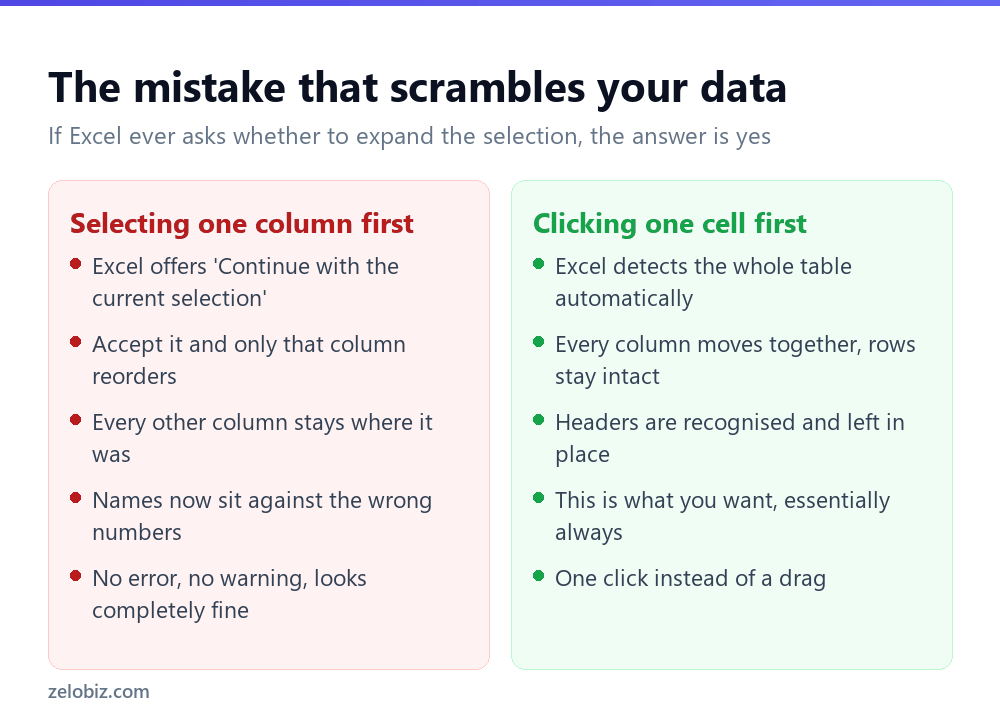
⚠️ Watch out: The safest habit is never to select anything before sorting. Click one cell and let Excel find the boundaries. It’s more reliable than a manual selection, and it can’t produce the misalignment above.
Sorting on several columns
The A–Z buttons handle one column. For ‘by department, then by salary within each department’, you need the full Sort dialog.
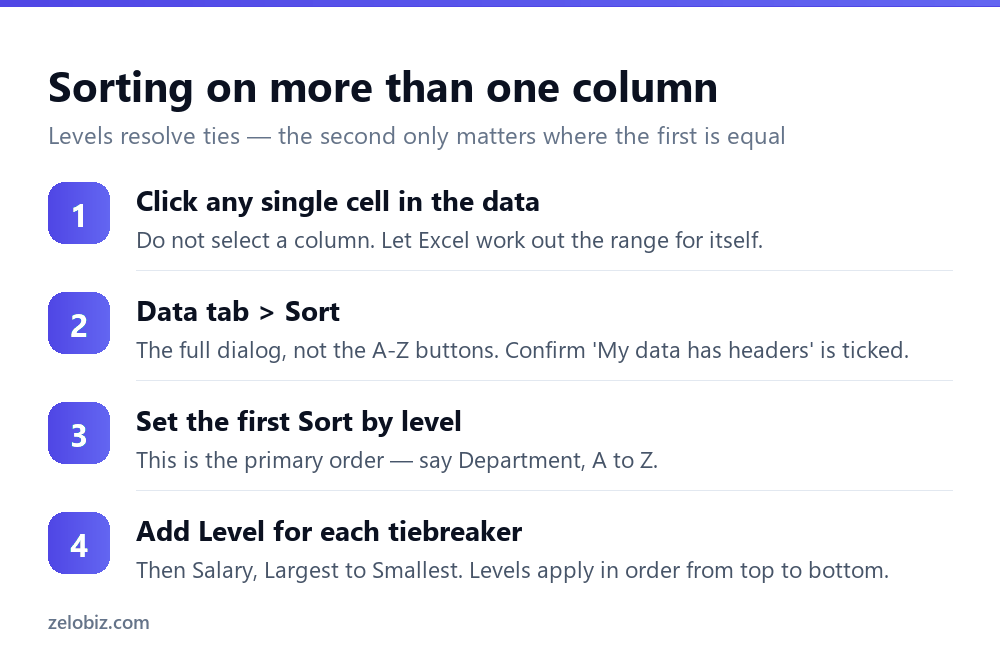
Each level is a tiebreaker for the one above. The second level only has any effect where the first level’s values are equal, which is why putting them in the wrong order produces a result that looks almost right and isn’t.
You can add up to 64 levels. Anything past three usually means the question would be better answered by a Pivot Table.
Custom orders: Mon, Tue, Wed
Alphabetical is wrong for a lot of data. Sort weekdays A–Z and you get Friday, Monday, Saturday, Sunday, Thursday, Tuesday, Wednesday.
Excel already knows the sensible order for days and months. In the Sort dialog, open the Order dropdown and choose Custom List — days of the week and months of the year are both built in.
For your own sequences — High/Medium/Low, or a set of size labels — pick Custom List › NEW LIST, type your entries in the right order one per line, and click Add. It’s saved in Excel itself rather than the workbook, so it’s available in every file you open on that machine but won’t travel with the file to someone else.
💡 Pro tip: Custom lists also drive AutoFill. Once High, Medium, Low is a custom list, typing High and dragging the fill handle cycles through them.
Sorting by colour
If you’ve highlighted rows manually or with conditional formatting, you can sort on that rather than on any value.
In the Sort dialog, change Sort On from Cell Values to Cell Colour, Font Colour or Conditional Formatting Icon. Then pick which colour goes on top.
Excel only brings one colour to the top per level, so for three colours in a specific order you need three levels — red on top, then amber, then green. Slightly tedious, and it’s the only way to do it.
When sort is greyed out or gives the wrong order
Merged cells
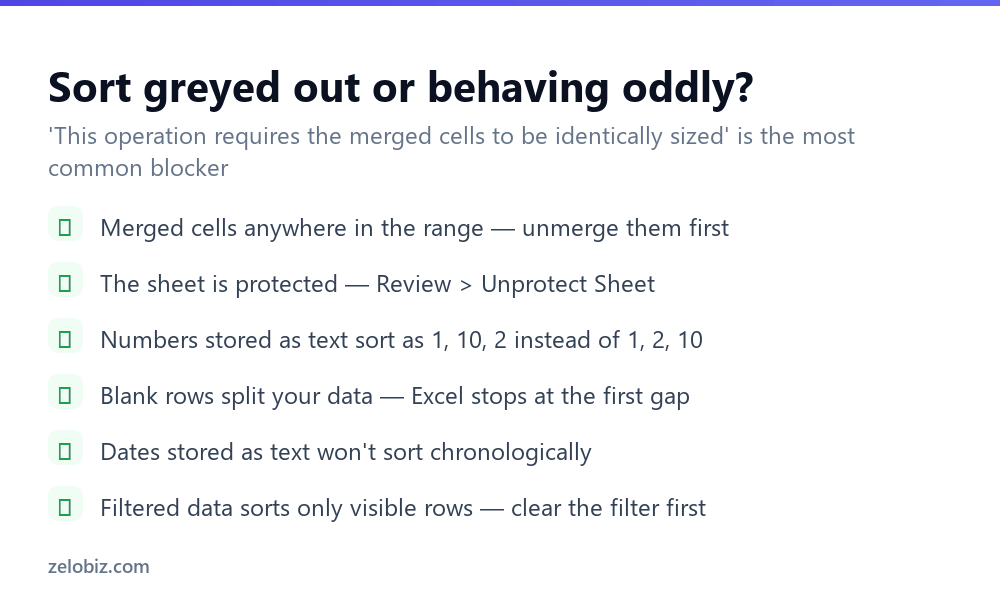
The most common blocker. Sorting needs every row to be the same shape, and a merged block spans several. You’ll get ‘This operation requires the merged cells to be identically sized’ with no indication of where they are.
Find them via Home › Find & Select › Find › Options › Format › Alignment, tick Merge cells, and Find All. Unmerge, then sort.
Numbers stored as text
Text sorts character by character, so 1, 10, 2, 20, 3 is correct alphabetical order even though it’s obviously wrong numerically. The tell is left alignment where you’d expect right.
Select the column and use Data › Text to Columns › Finish. It sounds unrelated and it forces Excel to re-evaluate every value, converting text that looks numeric into actual numbers. Same fix works for dates that won’t sort chronologically.
Blank rows
Excel’s automatic range detection stops at the first completely empty row. Data below that gap isn’t included in the sort and stays put while everything above it moves.
Press Ctrl+Shift+End after clicking a cell to see what Excel thinks your data region is. If the highlight stops short, that’s why. Delete the blank rows or select the full range manually before sorting.
Randomising instead of ordering
Occasionally you want the opposite of a sort — a shuffled order, for picking a sample or assigning people to groups. Excel has no shuffle button.
Add a helper column with =RAND() beside your data, then sort on that column. RAND generates a new number every recalculation, so the order is genuinely random, and re-sorting gives a different shuffle each time.
One catch: RAND recalculates constantly, so the values change as you work. Copy the helper column and paste it back over itself as Values before sorting, or the numbers shift underneath you mid-operation. Delete the column afterwards.
Sorting only part of a sheet
Sometimes you genuinely do want to reorder one block without touching the rest — two separate tables on one worksheet, for instance.
Select the entire block including all its columns, then sort. This is the one case where a manual selection is correct, and the crucial detail is selecting every column of that block rather than just the one you’re ordering by. Excel will still offer to expand the selection; here you decline.
Better still, put separate tables on separate sheets. Two tables sharing a worksheet cause this problem repeatedly, along with filter and print-range difficulties, and splitting them takes a minute.
Sorting left to right
Occasionally your data runs across rather than down — months as columns, say — and you need to reorder columns instead of rows.
In the Sort dialog click Options, then choose Sort left to right. The Sort by dropdown then lists row numbers instead of column headings.
One limitation worth knowing: left-to-right sorting doesn’t recognise a header column the way top-to-bottom recognises a header row. Your labels in column A will be sorted along with everything else unless you exclude that column from the selection first.
Making sorts stick, and Tables
A sort is a one-off rearrangement, not a rule. Add new rows afterwards and they sit at the bottom in the order you typed them.
Converting the range to a Table with Ctrl+T doesn’t auto-sort either, but it does put permanent filter arrows on every header, so re-sorting is one click rather than a trip to the ribbon. Tables also expand automatically, so new rows are always included next time you sort.
If you genuinely need data that is always in order without intervention, that’s a formula rather than a sort — =SORT(A2:C100, 2, 1) in Microsoft 365 produces a live sorted copy that reorders itself as the source changes.
Undoing a sort
Ctrl+Z immediately, and it’s fine. The problem is a sort you notice was wrong an hour and forty edits later.
The defence is an index column. Before sorting an important sheet, add a column numbered 1, 2, 3 down the side — type 1 and 2, select both, and drag the fill handle down. Sorting on that column any time afterwards restores the original order exactly.
It costs one column and about ten seconds, and it’s the only reliable way back once the undo history is gone. On anything you didn’t create yourself, it’s worth doing before you touch the sort button at all.
- ✓Click a single cell and let Excel detect the range
- ✓Say yes when asked whether to expand the selection
- ✓Add an index column before sorting anything important
- ✓Use Custom Lists for weekdays, months and your own sequences
- ✓Check Ctrl+Shift+End if some rows aren’t being included
- ✕Selecting one column and sorting it on its own
- ✕Choosing ‘Continue with the current selection’
- ✕Sorting a range containing merged cells
- ✕Assuming text-formatted numbers will sort numerically
- ✕Relying on undo to fix a sort you notice tomorrow
Frequently asked questions
How do I sort data in Excel without mixing up rows?
Click a single cell inside the data rather than selecting a column, then sort. Excel detects the whole table and moves every column together. If it asks whether to expand the selection, always choose to expand.
How do I sort by two columns in Excel?
Click a cell in the data, go to Data and click Sort for the full dialog. Set your first Sort by level, then click Add Level for each tiebreaker. Levels apply in order from top to bottom.
Why is Sort greyed out in Excel?
Usually merged cells somewhere in the range, or the worksheet is protected. Unmerge the cells or unprotect the sheet via Review, Unprotect Sheet.
Why does Excel sort 1, 10, 2 instead of 1, 2, 10?
Those numbers are stored as text, and text sorts character by character. Select the column and use Data, Text to Columns, Finish to convert them into real numbers.
How do I sort by days of the week or months?
In the Sort dialog, open the Order dropdown and choose Custom List. Days and months are built in. You can also create your own sequences such as High, Medium, Low.
How do I undo a sort after saving?
You can’t, unless you prepared. Add an index column numbered 1, 2, 3 before sorting anything important — sorting on that column afterwards restores the original order.
- →Merged cells block sorting — how to merge cells in Excel
- →Clean the data first: how to remove duplicates in Excel
- →Standardise entries with how to add a drop-down list
- →Match records across sheets: how to use VLOOKUP