

To merge cells in Excel, select them and click Merge & Center on the Home tab. Excel keeps only the upper-left value and discards the rest. Before you do: merged cells break sorting, filtering and pivot tables. If you only want a heading centred across several columns, use Center Across Selection instead — it looks identical and causes none of those problems.
Merging works. It also costs you things
Merge & Center is one of the most-used buttons in Excel and one of the most regretted. It makes a title span nicely across a table, and then three weeks later somebody tries to sort that table and gets an error they can’t explain.
The problem is structural. A merged block isn’t a big cell — it’s one real cell plus several that have been suppressed. Excel’s features assume a grid where every intersection of row and column holds a cell, and a merged range breaks that assumption.
Merging is a formatting decision that quietly changes your data structure. That’s why the problems appear later, in a completely different feature.
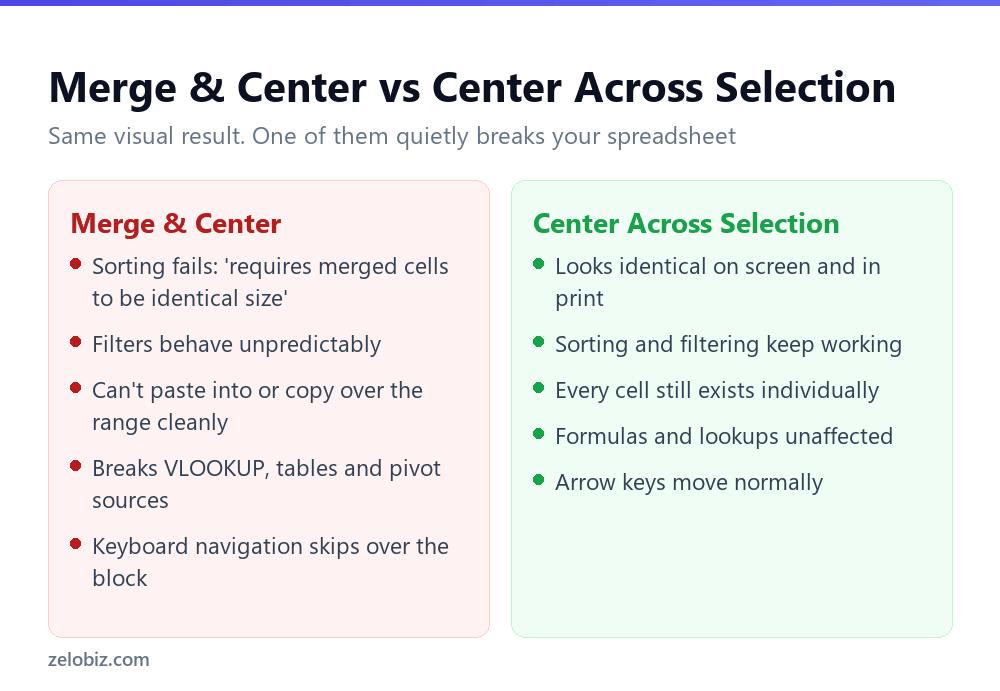
What merging actually breaks
Sorting is the one people hit first, and the error message doesn’t mention where the merged cells are — just that they exist. On a large sheet inherited from someone else, finding them is genuinely tedious.
Center Across Selection: the same look, no cost
If your reason for merging is ‘I want this heading centred over these columns’ — which it is, the overwhelming majority of the time — there’s a formatting option that achieves exactly that without merging anything.
Visually it is indistinguishable from Merge & Center, on screen and in print. Structurally nothing has changed — sorting works, filtering works, formulas work, and the arrow keys move cell by cell as they should.
💡 Pro tip: Add Center Across Selection to your Quick Access Toolbar if you use it often. It’s buried three clicks deep, which is the main reason people reach for the Merge button on the ribbon instead.
The data loss nobody reads about
When you merge cells that all contain something, Excel shows a warning: ‘Merging cells only keeps the upper-left value and discards other values.’
People click OK because the dialog is in the way. But it means exactly what it says — if you select A1:C1 with three different values and merge, B1 and C1’s contents are deleted. Not hidden. Deleted.
Unmerging afterwards doesn’t bring them back. You get three cells again, with the original value sitting in A1 and B1 and C1 empty. Undo works within the session; after saving it doesn’t.
⚠️ Watch out: This catches people combining first and last name columns. Merging the cells destroys the surname. To join text, use a formula — =A2&" "&B2 or =TEXTJOIN(" ",TRUE,A2:B2) — which is what you actually wanted.

The other merge options
The dropdown arrow next to Merge & Center hides three more choices, and one of them is genuinely useful.
Merge Across is the one worth knowing. Select a block ten rows deep and it merges each row horizontally, producing ten merged cells rather than one giant one. Useful for a column of labels that each need to span several columns.
Finding and removing merged cells
Inheriting a spreadsheet that won’t sort means hunting merges. Excel can find them for you, though the route is unintuitive.

Find every merged cell
Home › Find & Select › Find, then click Options and Format. Go to the Alignment tab, tick Merge cells, and click OK, then Find All. You get a list of every merged range with its address, and clicking an entry jumps to it.
Unmerge the whole sheet at once
Press Ctrl + A to select everything, then click Merge & Center twice. The first click merges everything into one enormous cell — alarming, but the second click unmerges the lot. Faster than working through them individually.
Do this on a copy. Merging the entire sheet on the first click destroys data if you stop there, and it’s a genuinely unnerving moment if you weren’t expecting it.
Fill the gaps left behind
Unmerging leaves the value in the top-left cell and blanks everywhere else, which is rarely what you want in a data table. To repeat the value down: select the column, press F5, click Special, choose Blanks, then type = followed by the up-arrow and press Ctrl + Enter. Every blank fills with the value above it.
Merged cells and exporting
A consequence that only surfaces later: merged cells don’t survive leaving Excel.
Save as CSV and the merge is discarded entirely — the value lands in one cell and the others come out empty, so the file often doesn’t line up with what anyone expected. Import that into a database or another tool and you get blanks where headings used to span.
The same applies to pasting into Word or PowerPoint, to most PDF-to-Excel converters, and to anything reading the file programmatically. If a spreadsheet will ever be consumed by software rather than only read by people, keep merges out of it entirely.
A faster way to merge
There’s no default keyboard shortcut for Merge & Center, but the legacy Alt sequence still works: Alt, H, M, C. Press them in order rather than together. Alt+H+M+A gives Merge Across and Alt+H+M+U unmerges.
The Format Painter is the quicker option for repeating a merge pattern down a sheet. Set up one merged block the way you want, click Format Painter, then drag across the ranges that should match. Double-click the Format Painter button to keep it active for several applications rather than one.
When merging is genuinely fine
This isn’t an argument for never merging. It’s an argument for knowing what you’re trading.
Merging is perfectly reasonable on a presentation sheet — a dashboard, an invoice template, a printed report — where nobody will sort, filter or pivot the layout. A title block at the top of an invoice is exactly what merging is for.
Avoid it entirely inside data tables: anything with headers and rows of records, anything feeding a pivot, anything anyone will filter. Keep the data grid clean and do the presentation work in a separate sheet that reads from it.
- ✓Use Center Across Selection for headings over columns
- ✓Merge only on presentation sheets nobody will sort
- ✓Use TEXTJOIN or & to combine text, not merging
- ✓Find merged cells via Find & Select before troubleshooting a sort
- ✓Work on a copy when unmerging an entire sheet
- ✕Merging cells inside a table you’ll filter or pivot
- ✕Clicking through the ‘discards other values’ warning without reading it
- ✕Merging to combine first and last names
- ✕Assuming unmerge restores the deleted values
- ✕Converting a range with merges to an Excel Table — it will refuse
Frequently asked questions
How do I merge cells in Excel?
Select the adjacent cells and click Merge & Center on the Home tab. The dropdown beside it also offers Merge Across, which merges each row separately, and Merge Cells, which combines without centring.
Why can’t I sort when cells are merged?
Sorting needs every row to be the same shape, and merged blocks span multiple rows or columns. Excel reports ‘This operation requires the merged cells to be identically sized’. Unmerge the range, or use Center Across Selection instead.
How do I merge cells without losing data?
You can’t — merging keeps only the upper-left value. To combine text from several cells, use a formula such as =A2&” “&B2 or =TEXTJOIN(” “,TRUE,A2:C2), which joins the values without deleting anything.
What is Center Across Selection?
A formatting option under Ctrl+1, Alignment, Horizontal. It centres text across several columns so it looks merged, while leaving every cell intact. Sorting, filtering and formulas all keep working.
How do I unmerge all cells in a worksheet?
Press Ctrl+A to select everything, then click Merge & Center twice — the first click merges the whole sheet, the second unmerges it. Do this on a copy, since the intermediate step destroys data if interrupted.
How do I find merged cells in a spreadsheet?
Home, Find & Select, Find, then Options, Format, Alignment tab and tick Merge cells. Find All lists every merged range with its address.
- →Clean the data first — how to remove duplicates in Excel
- →Stop people editing your layout: how to lock cells in Excel
- →Recover columns that vanished — how to unhide columns in Excel
- →Look values up across sheets: how to use VLOOKUP