

To concatenate in Excel, use the ampersand: =A2&" "&B2 joins two cells with a space between them. For several cells with the same separator, =TEXTJOIN(", ",TRUE,A2:F2) is cleaner — the TRUE skips empty cells so you don’t get double commas. The old CONCATENATE function still works but Microsoft has retired it; don’t write new formulas with it.
The Trick Almost Every Guide Skips: Spilling a Whole Range
Every tutorial for this, including most of the top search results, shows the ampersand joining exactly two cells, then either dragging the formula down or reaching for TEXTJOIN once there’s a whole column to combine. That’s not wrong, but it skips a shortcut that only exists if you’re on a current version.
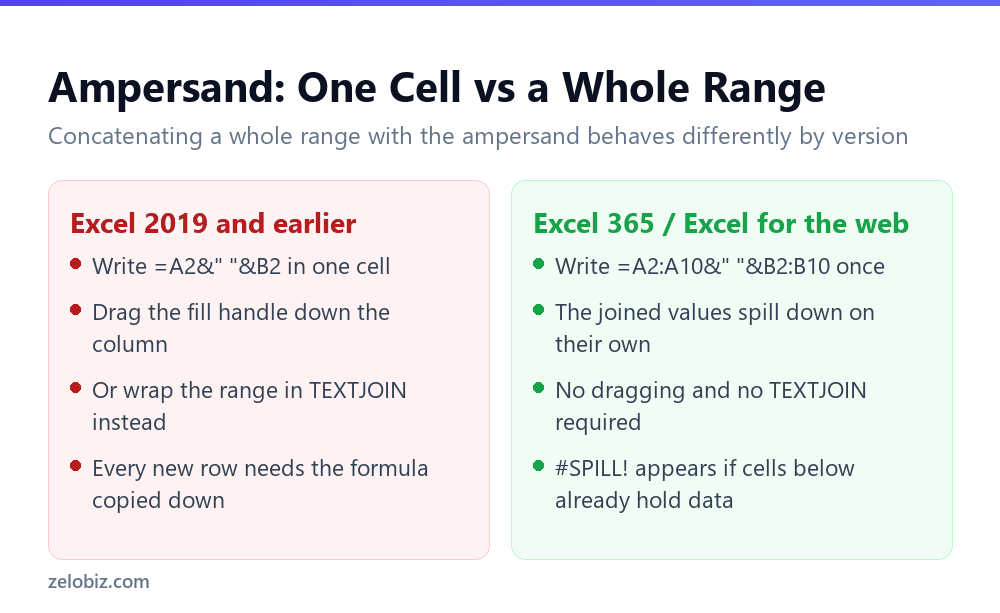
This only works because Excel 365 treats A2:A10&" "&B2:B10 as a dynamic array. The calculation runs once across the whole range and spills the results into the empty cells below. It’s the same mechanic behind functions like FILTER and SORT. Excel 2019, 2016 and earlier don’t have dynamic arrays, so the identical formula only returns a single value in the one cell you typed it into. That’s why so many guides still teach the drag-and-copy method as if it were the only option.
⚠️ Watch out: The spill needs empty cells to land in. If anything already occupies the rows below, even a single stray value three rows down, Excel refuses the whole formula and shows #SPILL! instead of a result. Clear the range first, or the spill has nowhere to go.
It’s still worth knowing TEXTJOIN and the drag method. A workbook shared with someone on an older Excel version, or opened in a very old file format, loses the spill behaviour entirely and shows only that first cell’s result. For anything you’re distributing outside your own machine, TEXTJOIN remains the safer default; the spill trick is best treated as a shortcut for your own working sheets.
Skip CONCATENATE
Most search results still teach =CONCATENATE(A2," ",B2). It works, and Microsoft lists it as deprecated — kept only so old workbooks don’t break.
The replacement is shorter and does the same thing: =A2&" "&B2. The ampersand joins whatever is either side of it, and you can chain as many as you like. It works in every version of Excel, including versions far older than CONCATENATE itself.
If a formula would read better as a sentence, use &. If you’re joining a whole range with one separator, use TEXTJOIN. There’s no case left for CONCATENATE.

The ampersand, and the spaces people forget
=A2&B2 joins two cells with nothing between them, which produces JohnSmith. Excel adds no separator of its own — you supply everything.
=A2&" "&B2 gives John Smith. The " " is a literal space in quotes, joined like any other piece of text. Anything in quotes is inserted exactly as typed, so =A2&", "&B2 gives Smith, John.
You can mix cells and text freely: ="Order "&A2&" for "&B2 reads as a sentence. Just watch the spaces inside the quotes — "Order"&A2 runs the words together, and it’s the most common small mistake here.
TEXTJOIN, for anything longer than two
Joining six fields with ampersands means writing the separator five times, and if you later change from comma to semicolon you edit all five. TEXTJOIN takes the separator once.

=TEXTJOIN(", ",TRUE,A2:F2) — separator, ignore-blanks, then the range. The separator goes between values and never at the start or end, which is exactly what you want and what manual ampersand chains get wrong.
That TRUE matters. Building an address from six fields where two are empty gives you 10 High Street, , London, , UK without it, and 10 High Street, London, UK with it. Setting it to FALSE keeps the empty slots, which is occasionally useful for fixed-width output.
💡 Pro tip: TEXTJOIN accepts multiple ranges and individual cells: =TEXTJOIN(", ",TRUE,A2,C2:E2,H2). Handy when the fields you want aren’t next to each other.
Why your date became a five-digit number
The single most common surprise. You join a date and get Due: 45678 instead of Due: 15/03/2026.
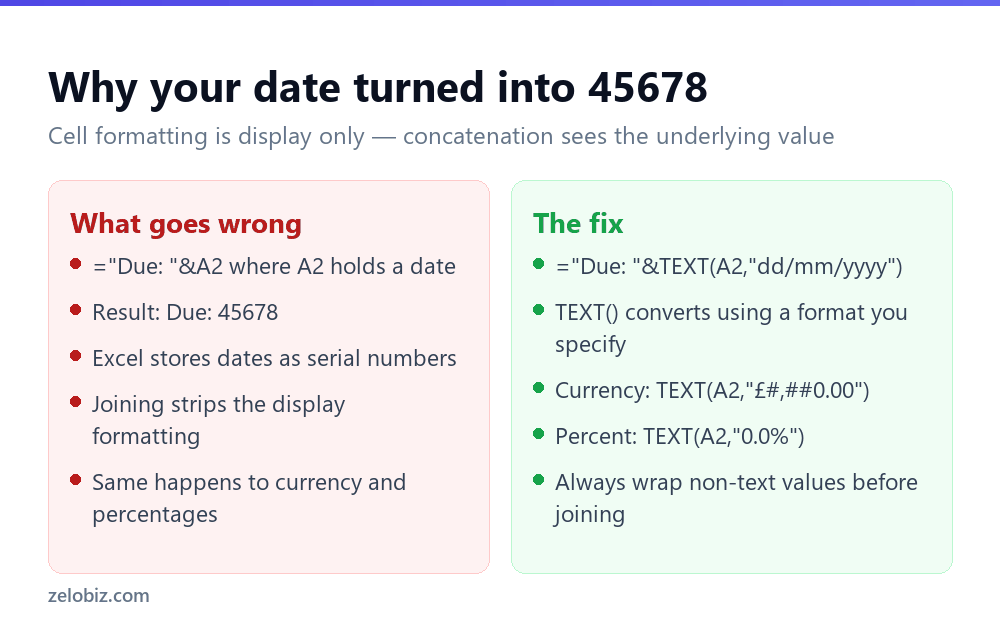
Excel stores dates as numbers — days elapsed since 1 January 1900. The date you see is a display format applied to that number. Concatenation works on the underlying value, and the formatting doesn’t come with it.
The fix is TEXT(), which converts a value to text using a format you specify: ="Due: "&TEXT(A2,"dd/mm/yyyy").
The same applies to currency and percentages. &A2 where A2 shows £1,250.00 produces 1250. Wrap it and it keeps the symbol, the separator and the decimals.
Adding a line break
Joining an address onto several lines inside one cell needs CHAR(10), which is a line-feed character.
=A2&CHAR(10)&B2&CHAR(10)&C2, or with TEXTJOIN: =TEXTJOIN(CHAR(10),TRUE,A2:C2).
⚠️ Watch out: The line breaks won’t show until you turn on Wrap Text for that cell — it’s on the Home tab. Without it the result appears on one line with odd spacing, and people conclude CHAR(10) doesn’t work. It did; the cell just isn’t displaying it.
Turning the result into real text
A concatenation is a formula, so it depends on its source cells. Delete or move them and the result breaks.
Once you’re happy with the output, convert it: select the column, Ctrl+C, then right-click and choose Paste Special › Values. The formulas are replaced by their results, and you can then delete the source columns safely.
This matters when you’re building a mailing list or an import file. Sending a spreadsheet where every value is a formula pointing at columns you’ve since removed produces a file full of #REF! errors at the other end.
One more practical thing worth knowing if you’re joining a very large range of cells, especially in a shared workbook: every concatenation formula, ampersand or TEXTJOIN, recalculates on every edit to the sheet, not just to the cells it references. Spread that across tens of thousands of rows and a workbook that used to feel instant starts lagging on every keystroke. This is the practical reason to convert finished joins to values, beyond just protecting against someone deleting a source column. A sheet full of live formulas over a huge range does far more work than one full of plain text.
Building lookup keys
One of the most useful reasons to concatenate: VLOOKUP and its relatives match on a single value, so when a record is identified by two or three fields together you build a combined key.
=A2&"|"&B2 in both your source and your lookup table gives you something to match on. Product plus region, date plus account, first name plus surname — any pair that’s unique together but not separately.
The separator isn’t decorative. Without it, AB + 123 and A + B123 both produce AB123, and your lookup silently matches the wrong row. A pipe or a tilde is safest because neither appears in ordinary data.
Concatenating with a condition
Sometimes you only want to include a field when it has something in it — a second address line, a middle initial, an optional reference.
With ampersands you need an IF around each optional part, which gets unwieldy fast: =A2&IF(B2=,,
TEXTJOIN with its ignore-empty argument handles the whole thing: =TEXTJOIN(
Joining a whole column into one cell
Occasionally you want every value in a column combined into a single string — a comma-separated list of email addresses, say.
=TEXTJOIN(", ",TRUE,A2:A200) does it in one formula. Before TEXTJOIN existed this needed either a macro or a genuinely tedious chain of ampersands, which is why so many older guides make it look harder than it is.
Watch the 32,767 character limit for a single cell. A few hundred email addresses is fine; joining a column of long descriptions will hit it and return an error.
Concatenating numbers you still need to calculate with
Worth being clear about what concatenation produces: text, always. Join two numbers and the result is a string that looks numeric and isn't.
=A2&B2 where both hold numbers gives you something you cannot sum, average or chart. It will sit left-aligned in the cell and quietly break any formula that references it. If you actually wanted to add them, that's =A2+B2.
Where this bites is building reference numbers — joining a year and a sequence into 2026001. That's correct as an identifier and wrong as a number. Wrap it in VALUE() if downstream formulas need to treat it numerically, or leave it as text and make sure the matching column is text too, or your lookups won't match.
Line lengths and readability
Long concatenations become unreadable quickly. =A2&", "&B2&", "&C2 is hard to check and harder to change.
Two things help. Press Alt+Enter inside the formula bar to break it across several lines — Excel ignores the line breaks and it becomes far easier to read. And expand the formula bar by dragging its bottom edge, or with Ctrl+Shift+U.
Better still, if the formula is getting long, that's usually the signal to switch to TEXTJOIN. One separator declared once beats five copies of the same two characters.
Concatenating in reverse: splitting back apart
Worth knowing the round trip, because joined data often needs separating again later.
If you've built keys like ABC|123|London, you can split them back with Data › Text to Columns using the pipe as the delimiter, or =TEXTSPLIT(A2,"|") in Microsoft 365.
This is the argument for choosing an unusual separator when you build a lookup key. Joining with a comma is fine until one of your values contains a comma, at which point splitting it back is ambiguous. A pipe or a tilde almost never appears in real data.
- ✓Use & for short joins and TEXTJOIN for ranges
- ✓Set TEXTJOIN's second argument to TRUE to skip blanks
- ✓Wrap dates, currency and percentages in TEXT()
- ✓Turn on Wrap Text after using CHAR(10)
- ✓Paste Special as Values before deleting the source columns
- ✕Writing new formulas with CONCATENATE
- ✕Forgetting the space inside the quotes
- ✕Joining a date without TEXT() and wondering about the number
- ✕Using a comma as a key separator when values may contain commas
- ✕Sending a file where the joined column is still formulas
Worked example: building a mailing list from two name columns
Say column A holds first names and column B holds last names, and you need a "Display Name" column plus a lowercase email address for each row, the kind of cleanup that shows up constantly before a mail merge or a CRM import.
The Display Name column is the join you've already seen: =A2&" "&B2. The email column reuses that same join but adds a period and forces lowercase, since most systems expect email addresses that way regardless of how the name is capitalised in your source data: =LOWER(A2&"."&B2)&"@co.com".
Notice what LOWER is wrapped around: the whole concatenated string, not each piece separately. Wrapping only A2 in LOWER and leaving B2 as-is would still produce a capitalised surname in the result, so lowercase everything after joining, not before.
Apostrophes in names, like O'Neil above, pass straight through concatenation without any special handling, since it's plain text either way. The place apostrophes actually cause trouble is inside a lookup key that also uses an apostrophe as part of the separator, which is one more reason a pipe or tilde is the safer separator choice covered above.
Once the two helper columns look right for every row, Paste Special as Values locks them in, and the original name columns can be hidden, deleted, or left alone depending on whether anything downstream still needs them.
Frequently asked questions
Why does concatenating a large range slow my spreadsheet down?
Every ampersand or TEXTJOIN formula recalculates on any sheet edit, not just changes to its own source cells. Across tens of thousands of rows that adds up. Paste Special as Values once the join is correct to convert formulas into plain text and stop the recalculation cost.
Can I concatenate a whole range without dragging the formula down?
Yes, on Excel 365 or Excel for the web. Wrap both ranges in one ampersand formula, such as =A2:A10&" "&B2:B10, and the joined values spill down automatically. Excel 2019 and earlier don't support this and need the formula dragged or TEXTJOIN instead.
How do I combine two cells in Excel?
Use =A2&" "&B2. The ampersand joins the values and the " " inserts a space between them. You can chain as many as you need.
Is CONCATENATE still used in Excel?
It still works but Microsoft has deprecated it. Use the ampersand operator for short joins, or TEXTJOIN when combining a range with a separator.
What is the difference between CONCAT and TEXTJOIN?
CONCAT joins a range with no separator. TEXTJOIN takes a delimiter as its first argument and can skip empty cells, which makes it the better choice in almost every case.
Why does my date turn into a number when I concatenate?
Excel stores dates as serial numbers and the date you see is display formatting, which concatenation ignores. Wrap it in TEXT — for example TEXT(A2,"dd/mm/yyyy").
How do I add a line break in a concatenated cell?
Use CHAR(10) between the values, such as =A2&CHAR(10)&B2, then turn on Wrap Text for that cell on the Home tab. Without Wrap Text the break won't display.
How do I convert a concatenation formula into text?
Select the cells, press Ctrl+C, then right-click and choose Paste Special, Values. The formulas are replaced with their results so you can delete the source columns.
- →The reverse operation — how to split cells in Excel
- →Build lookup keys and match them: how to use VLOOKUP
- →Deduplicate the joined keys — how to remove duplicates in Excel
- →Merging cells is not the same thing: how to merge cells in Excel