

To split cells in Excel, know first that you can’t literally split one cell into two — the grid doesn’t allow it. What you can do is split a cell’s contents across several cells. Select the column and use Data › Text to Columns, choosing a delimiter like a comma or space. Insert blank columns to the right first, because the split writes into whatever is beside it and overwrites your data without warning.
What Nobody Mentions: TEXTSPLIT Fails the Opposite Way
The overwrite risk above is the warning every guide gives for Text to Columns, and it’s a real one. What almost nothing points out is that TEXTSPLIT, the newer formula-based way to split a cell, fails in the completely opposite direction, and knowing which tool you’re using changes what you should actually worry about.
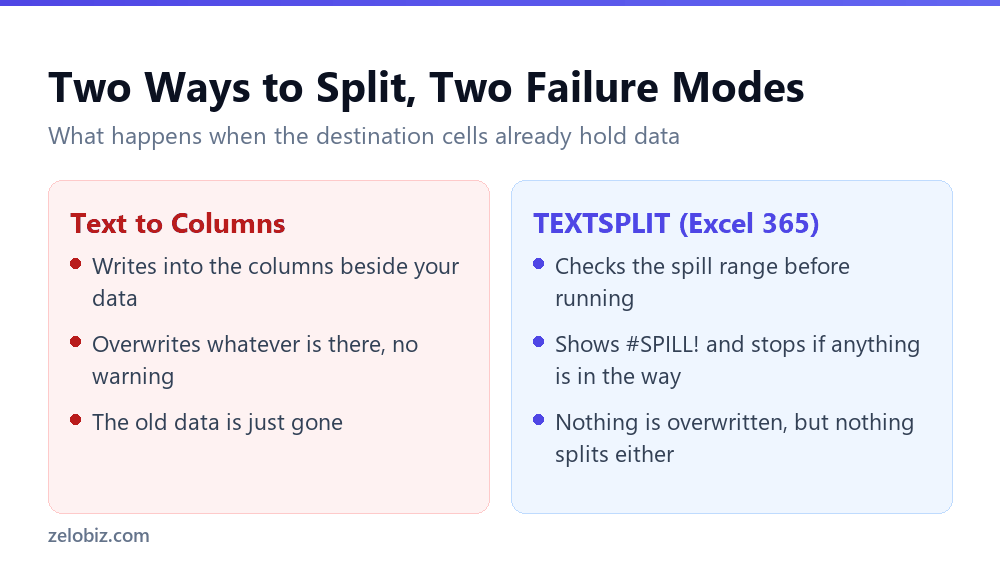
That makes TEXTSPLIT the safer tool to reach for on data you can’t afford to lose, since a #SPILL! error is at worst an inconvenience you clear and retry. It also means TEXTSPLIT can feel broken to someone expecting the Text to Columns behaviour: they run the formula, see an error instead of a result, and assume TEXTSPLIT doesn’t work rather than realising a stray value somewhere in the spill path is blocking it.
There’s a practical takeaway buried in the contrast between the two tools: reach for Text to Columns when you want a one-time cleanup and are fine converting the result to plain values afterward, and reach for TEXTSPLIT when the source data keeps changing and you’d rather see an error and fix it than lose data silently. Neither one is strictly better, they’re built for different situations, and most of the frustration people report with either tool traces back to using one where the other was the better fit.
One more wrinkle worth flagging: TEXTSPLIT is only available in Excel 365 and Excel for the web. Opening that same workbook in Excel 2019 or earlier shows a #NAME? error where the formula used to be, since older Excel has no idea what TEXTSPLIT means. If a workbook needs to travel to someone on an older version, either stick with Text to Columns or convert the TEXTSPLIT results to values before sending it along.
⚠️ Watch out: Two consecutive delimiters, like a double space or an empty field between two commas, produce an empty string in the result by default. TEXTSPLIT’s optional fourth argument controls this: =TEXTSPLIT(A2,",",,TRUE) with TRUE set skips those empty results instead of leaving gaps, mirroring TEXTJOIN’s ignore-empty argument. Left at its default of FALSE, a row like “Alice,,Smith” splits into three parts with a blank one in the middle rather than two.
The thing Excel won’t do
Worth clearing up first, because it’s the source of a lot of fruitless searching: there is no command that divides one cell into two.
Excel’s grid is fixed. Every cell sits at one intersection of a row and a column, and nothing subdivides it. If you’ve seen a spreadsheet that appears to have a half-width cell, what actually happened is that the columns either side were merged, making the unmerged one look split by comparison.
If you want a cell that’s half the width of its neighbours, you add a column and merge the others. That’s the only way, and it’s usually not worth it.
What people almost always mean is one of two other things: splitting text like ‘Smith, John’ into separate columns, or undoing a merge someone else applied. This covers both.
Splitting contents with Text to Columns
The standard tool, and it does the job well as long as you prepare for it.

⚠️ Watch out: Text to Columns writes the new values into the columns immediately to the right of your source. If those columns contain data, it is overwritten with no prompt. Splitting into three parts means inserting two blank columns first.
Delimited or fixed width
Delimited is what you want almost always — the parts are separated by a comma, space, tab or semicolon. Tick the relevant separator and the preview pane shows where the splits land.
Fixed width is for data with no separator at all but consistent alignment, typically from an old mainframe report where every field occupies the same character positions. You drag break lines onto a ruler in the preview.
The column format step people skip
Step 3 of the wizard lets you set the data type for each resulting column, and it matters more than it looks.
Leave it on General and Excel guesses. Product code 00123 loses its leading zeros and becomes the number 123. 03/04 might become 3rd April, or 4th March, depending on your regional settings. Click the column in the preview and mark it as Text to keep it exactly as it was.
Flash Fill, which is often faster
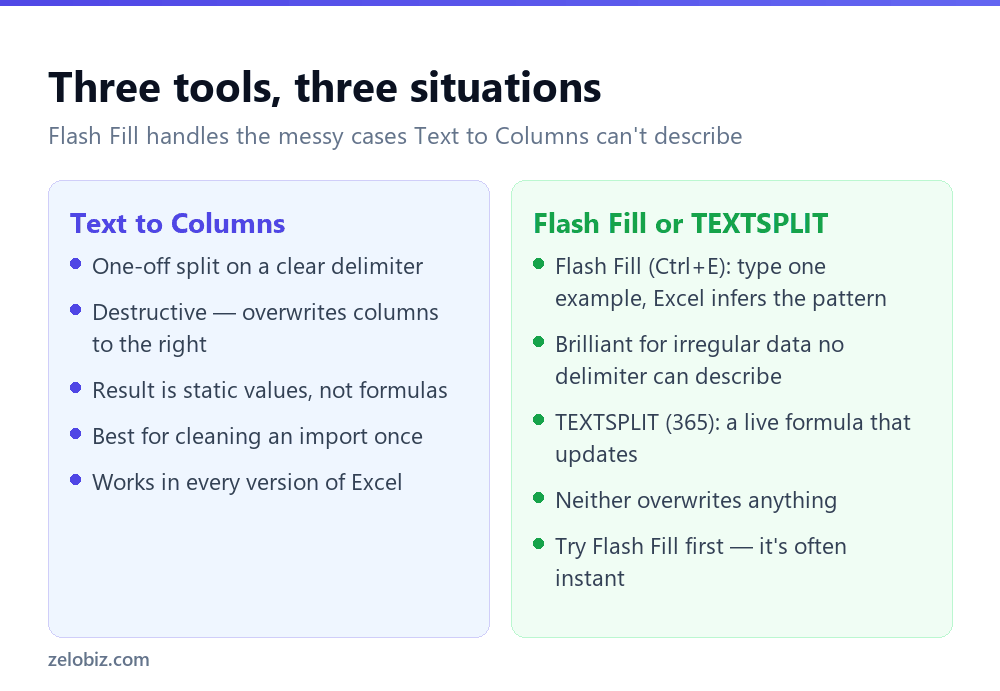
Excel watches what you type and infers the pattern. It’s the fastest option for anything a delimiter can’t cleanly describe.
Type the result you want in the cell beside your first row — say John next to Smith, John — then press Ctrl+E. Excel fills the rest of the column, having worked out the rule from your single example.
Where it beats Text to Columns is irregular data. Extracting the house number from a mixed set of addresses, or a code from the middle of a reference, or joining and reformatting at the same time — none of that describes as a delimiter, and Flash Fill handles it.
It doesn’t always guess right. Give it two or three examples instead of one and it usually corrects itself. And the result is static values, so it won’t update if the source changes.
💡 Pro tip: Flash Fill only offers itself when the column immediately beside your data is empty. If nothing happens on Ctrl+E, check you’re in an adjacent blank column rather than one further away.
TEXTSPLIT, if you have it
Microsoft 365 added TEXTSPLIT, which does the same job as a live formula rather than a one-off operation.
=TEXTSPLIT(A2, ", ") spills the parts of A2 across the cells to the right, splitting on comma-space. Because it’s a formula, changing A2 updates the result immediately — useful for a sheet that keeps receiving new data.
It also splits by rows as well as columns: =TEXTSPLIT(A2, ",", ";") uses commas for columns and semicolons for rows, which handles nested data Text to Columns can’t approach.
Older Excel has no equivalent, and the traditional LEFT/RIGHT/MID/FIND formulas that do the same job are unpleasant to write and maintain. If you’re on 365, TEXTSPLIT is the better answer for anything ongoing.
Splitting names, and the ragged-column problem
The most common real task, and the one where the data fights back.
Splitting John Smith on a space gives two clean columns. Add Mary Jane Watson and now some rows have three parts and some have two, so your surname column contains a mix of surnames and middle names.
Text to Columns can’t reason about this — it splits on every space it finds. Flash Fill can, because you give it examples: type Watson for the three-part name and Smith for the two-part one, and it works out that you want the last word.
For a formula, the last word is =TRIM(RIGHT(SUBSTITUTE(A2," ",REPT(" ",99)),99)). It looks absurd and it works by padding every space to 99 characters so the final word can be grabbed from the right. Worth keeping somewhere.
TEXTSPLIT has its own answer to this, and it’s a different one from Flash Fill’s example-based guess. =TEXTSPLIT(A2," ") splits Mary Jane Watson into three separate columns rather than two, since it doesn’t know you wanted “last word” specifically. It just splits on every space, the way Text to Columns does.
Where TEXTSPLIT earns its keep on messy name data is a double space or a trailing space someone left in the source. Set the ignore-empty argument to TRUE and those extra splits collapse instead of leaving blank columns scattered through the result. It solves a different problem than the ragged-column one, but it’s the same argument covered above, and it’s worth knowing both exist rather than only reaching for Flash Fill by habit.
Unmerging: the other kind of splitting
If your ‘cell’ is actually a merged block, you’re not splitting it — you’re undoing a merge.
Select the merged cell and click Merge & Center on the Home tab to toggle it off. The value stays in the top-left cell and the others come back empty. To clear an entire sheet, press Ctrl+A then click Merge & Center twice.
The blanks left behind are usually a nuisance in a data table. To fill each one with the value above it: select the column, press F5, click Special, choose Blanks, type = then the up arrow, and press Ctrl+Enter.
The setting that follows you around
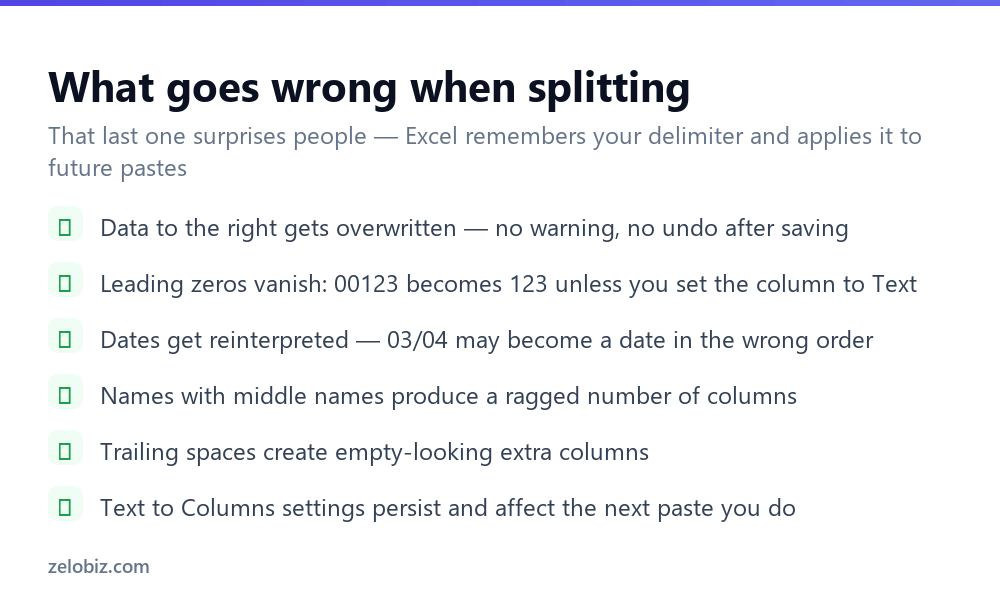
A confusing side effect: Text to Columns remembers the delimiter you last used, and applies it to text you paste afterwards.
So you split something on commas in the morning, and that afternoon pasting a block of comma-containing text into Excel mysteriously scatters it across columns. Nothing is broken — Excel is being helpful with a setting you set hours ago.
The fix is to run Text to Columns again on any single cell, untick every delimiter, and finish. That resets the remembered setting and pasting behaves normally again.
Splitting across rows instead of columns
Occasionally one cell holds several values that each need their own row — a list of order items crammed into one field, say.
Text to Columns can’t do this. In Microsoft 365, =TEXTSPLIT(A2, , ",") — note the empty second argument — splits down rather than across.
For any version, Power Query handles it properly: Data › From Table/Range, right-click the column, Split Column › By Delimiter, and under Advanced options choose Rows. It’s also repeatable, which matters if this is a monthly import rather than a one-off.
- ✓Insert blank columns to the right before Text to Columns
- ✓Set leading-zero and date columns to Text in step 3
- ✓Try Flash Fill with Ctrl+E before opening the wizard
- ✓Give Flash Fill two or three examples if the first guess is wrong
- ✓Reset the delimiter afterwards so pasting behaves normally
- ✕Running Text to Columns with data immediately to the right
- ✕Leaving the format on General for product codes
- ✕Splitting names on spaces when middle names exist
- ✕Expecting Text to Columns results to update when the source changes
- ✕Looking for a command that divides one cell in two — there isn’t one
Worked example: splitting a CSV-style column into an updating table
Say column A holds rows like “Alvarez,Maria,Sales” exported from another system, and you need first name, last name and department in their own columns, refreshed automatically whenever new rows get pasted in above.
Text to Columns would do this once, correctly, and then sit there as plain values that never update if row 2 changes. For a source column that keeps receiving new exports, that means re-running the wizard every time, and re-inserting the blank columns every time if you ever forget they’re already there.
=TEXTSPLIT(A2,",") in cell B2 does the same split as a live formula. Edit A2 and B2 through D2 update immediately. Copy the formula down the column, or better, drop A2:A200 into an Excel Table first so the formula fills new rows automatically as they’re added.
Before typing the formula, though, check that B2:D2 are actually empty. If department codes or notes already live in those columns from a previous manual split, TEXTSPLIT throws #SPILL! immediately, which is the exact scenario the section above is about. Clear that range, or split into columns further to the right, and the formula runs.
Once the table is in place, the source column can stay right where it is. Unlike Text to Columns, which is safest to run on a copy so the raw export survives, TEXTSPLIT’s formulas keep referencing column A directly, so keeping the original data intact isn’t just safe, it’s required for the split to keep working.
Frequently asked questions
Why does TEXTSPLIT show a #SPILL! error instead of splitting my cell?
TEXTSPLIT checks whether the cells it needs to fill are empty before running, and refuses if anything is already there, showing #SPILL! instead. Clear the destination cells and re-enter the formula, unlike Text to Columns, which overwrites that same data without warning.
How do I split one cell into two in Excel?
You can’t split a single cell — the grid doesn’t allow it. You can split its contents into two cells using Data, Text to Columns, or make a cell look narrower by merging the cells around it.
How do I split a cell by a comma?
Select the column, go to Data, Text to Columns, choose Delimited, tick Comma, and finish. Insert blank columns to the right first, or the results overwrite whatever is beside your data.
What is Flash Fill and how do I use it?
Type the result you want beside your first row, then press Ctrl+E. Excel infers the pattern and fills the rest of the column. It handles irregular data that no delimiter can describe.
Why did my leading zeros disappear after splitting?
Excel treated the column as a number. In step 3 of the Text to Columns wizard, click that column in the preview and set its format to Text before finishing.
Why does pasting now split my text into columns?
Text to Columns remembers the last delimiter you used and applies it to future pastes. Run the wizard again on any cell, untick every delimiter, and finish to reset it.
How do I split a cell into multiple rows?
Use =TEXTSPLIT(A2, , “,”) in Microsoft 365 with an empty second argument, or use Power Query’s Split Column by Delimiter with Rows selected under Advanced options.
- →Merged cells and how to undo them — how to merge cells in Excel
- →Join values back together: how to concatenate in Excel
- →Clean up after an import — how to remove duplicates in Excel
- →Match the split values across sheets: how to use VLOOKUP