

To count cells in Excel, use =COUNT(range) for cells holding numbers, =COUNTA(range) for any non-empty cell, =COUNTBLANK(range) for empty cells, or =COUNTIF(range,"criteria") to count cells matching a condition. The fastest check with no formula at all: select the cells and read the count in the status bar at the bottom-right of the window.
The status bar shortcut
Before writing any formula, try this: select the range you care about and look at the bottom-right of the Excel window.
It shows Count (non-empty cells selected) automatically, and if the selection contains numbers it also shows Average and Sum. Right-click that status bar to add Numerical Count too, which is the equivalent of COUNT rather than COUNTA.
For a one-off check, the status bar answers the question faster than any formula — it’s only when you need the number to update or feed into something else that COUNT earns its place in a cell.
COUNT vs COUNTA — the distinction that causes most confusion
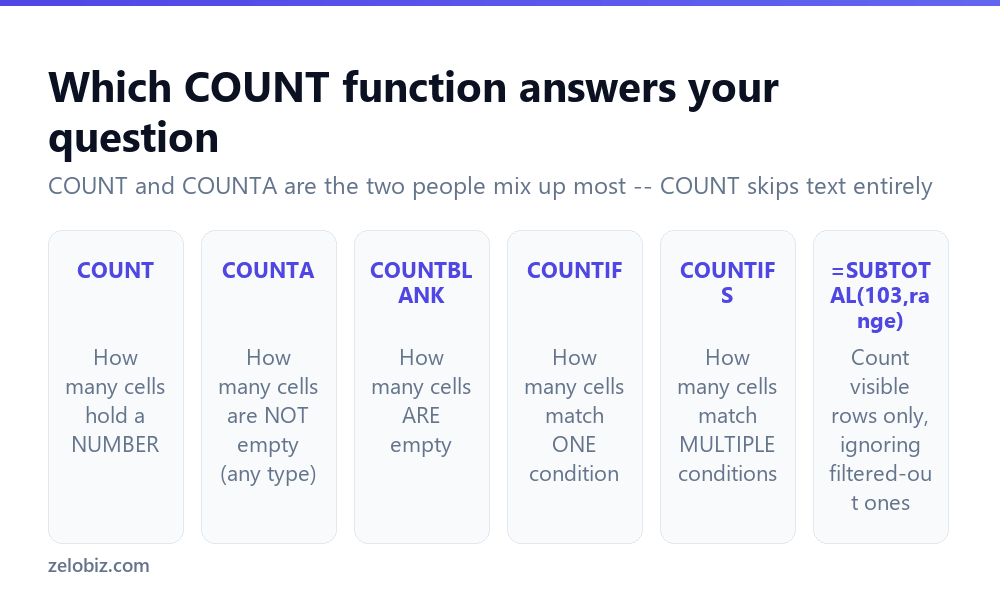
COUNT counts only cells containing a number — dates and times count too, because Excel stores them as numbers internally. Text, logical values, and errors are ignored entirely.
COUNTA counts any cell that isn’t empty, regardless of what’s in it — numbers, text, TRUE/FALSE, even an error value. It’s the one to use when you want ‘how many rows have anything entered’, like counting how many names are in a list.
The gap between the two numbers tells you something useful on its own. If COUNT(A:A) is 40 and COUNTA(A:A) is 55, fifteen cells hold text where you expected numbers — often numbers that were typed or imported as text and need converting before you can sum them.
COUNTBLANK and its one surprising rule
COUNTBLANK counts empty cells in a range. Straightforward, except for one case that trips people up: a cell containing a formula that returns an empty string, like =IF(A1="","",A1), counts as blank to COUNTBLANK even though it technically contains a formula.
That’s different from COUNTA, which counts that same cell as non-empty, because a formula is present. So COUNTA + COUNTBLANK does not always equal the total number of cells in the range if the range contains formula-driven blanks — they get counted by both.
💡 Pro tip: If your totals don’t add up, check for formulas that return empty strings. They’re the usual explanation.
Counting cells that match a condition
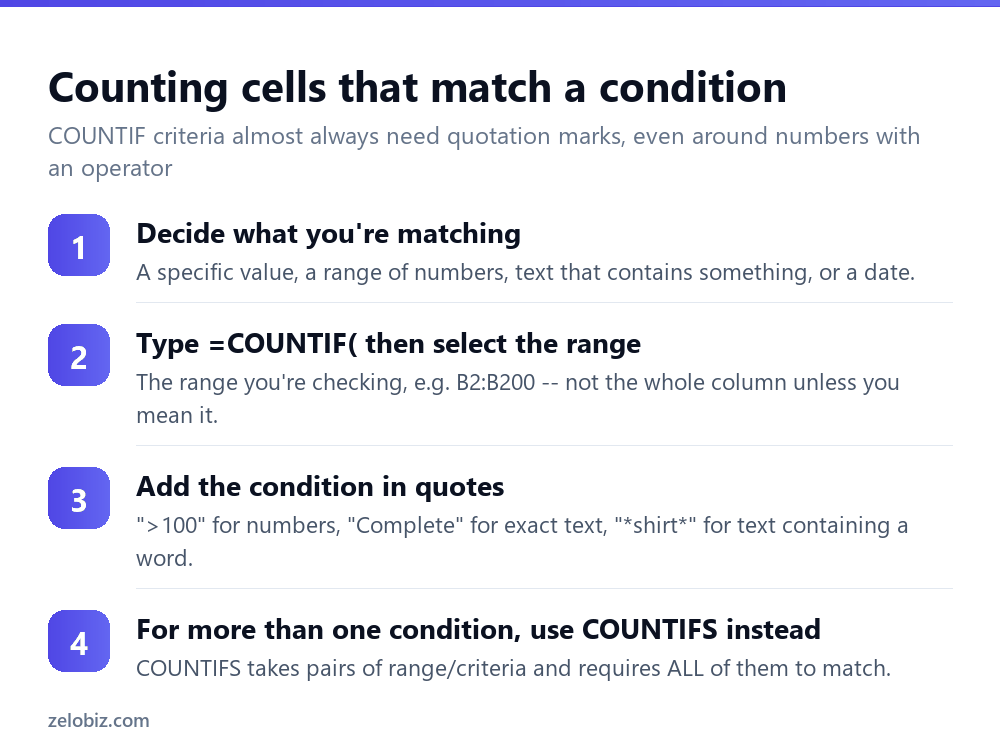
COUNTIF(range, criteria) is the workhorse for real analysis — how many orders were over $100, how many rows say ‘Complete’, how many dates fall in March.
Examples that cover most real use:
=COUNTIF(B:B,">100")— numbers greater than 100=COUNTIF(C:C,"Complete")— exact text match, not case-sensitive=COUNTIF(D:D,"*shirt*")— text containing “shirt” anywhere=COUNTIF(E:E,"<>"&"")— non-empty cells, an alternative to COUNTA=COUNTIF(F:F,TODAY())— cells matching today’s date exactly
Criteria involving an operator need to be in quotes, including the operator itself — ">100", not >100. Leaving out the quotes is the single most common COUNTIF error and produces a formula error rather than a wrong answer, so it’s at least easy to spot.
Multiple conditions: COUNTIFS
COUNTIF only takes one condition. For ‘how many rows are Complete AND in March’, use COUNTIFS, which takes range/criteria pairs and requires all of them to be true:
=COUNTIFS(C:C,"Complete",F:F,">="&DATE(2026,3,1),F:F,"<"&DATE(2026,4,1))
Every range in a COUNTIFS call must be the same size -- C:C and F:F both being full columns works, but C2:C100 paired with F2:F150 will throw an error. Excel needs to match row positions across all the ranges.
There's no OR equivalent built in. For 'Complete OR Shipped', add two separate COUNTIFS calls together: =COUNTIFS(C:C,"Complete")+COUNTIFS(C:C,"Shipped").
Counting only filtered or visible rows
A plain COUNT or COUNTA formula counts every cell in the range, including ones hidden by a filter. If you've filtered a list and want a count of what's actually showing, use SUBTOTAL instead:
=SUBTOTAL(103,range) counts non-empty visible cells only -- it automatically excludes anything hidden by a filter and updates as the filter changes. =SUBTOTAL(102,range) does the same but restricted to numbers, like COUNT.
This is also why the row count shown at the bottom of a filtered Table or the AutoFilter status bar changes as you filter -- it's using the same visible-only logic internally.
Counting unique values
None of the COUNT functions above deduplicate. If a column has 50 rows but only 12 distinct values, COUNT and COUNTA both still return 50.
In current Excel (Microsoft 365), =COUNTA(UNIQUE(range)) gives the count of distinct values directly. On older versions without UNIQUE, the array-entered =SUMPRODUCT(1/COUNTIF(range,range)) does the same job, though it treats blank cells inconsistently and is worth testing on your specific data first.
A worked example
Say column A holds order status ("Complete", "Pending", "Cancelled") for 200 rows, and column B holds the order amount. A few real questions and the formula that answers each:
How many orders are Complete? =COUNTIF(A2:A201,"Complete"). Straightforward exact-text match.
How many orders are over $50, regardless of status? =COUNTIF(B2:B201,">50"). The condition and the count both look at column B here, since there's nothing to cross-reference.
How many Complete orders are over $50? This needs two conditions, so COUNTIF alone can't do it -- =COUNTIFS(A2:A201,"Complete",B2:B201,">50"). Both ranges are the same size (200 rows), which COUNTIFS requires.
How many rows are missing a status entirely? =COUNTBLANK(A2:A201). If that number is unexpectedly 0 but you can see empty cells, check whether a formula is populating them with an empty string rather than leaving them genuinely blank.
Working through a real sheet this way -- one question, one formula, checked against what you can see on screen -- catches range-size mismatches and criteria typos immediately, before they end up buried in a larger workbook.
Counting across multiple sheets
COUNTIF and COUNTA normally look at one sheet at a time. To count across several identically-structured sheets -- say, one tab per month -- there's no single formula that reaches across all of them at once the way SUM's 3-D reference syntax can for addition.
The practical approach is to write one COUNTIF or COUNTA per sheet and add the results together: =COUNTIF(Jan!A:A,"Complete")+COUNTIF(Feb!A:A,"Complete")+COUNTIF(Mar!A:A,"Complete"). It's verbose for more than a handful of sheets, at which point consolidating the data onto one sheet, or building a PivotTable from multiple ranges, is usually less error-prone than a long chain of additions.
When something's not counting right
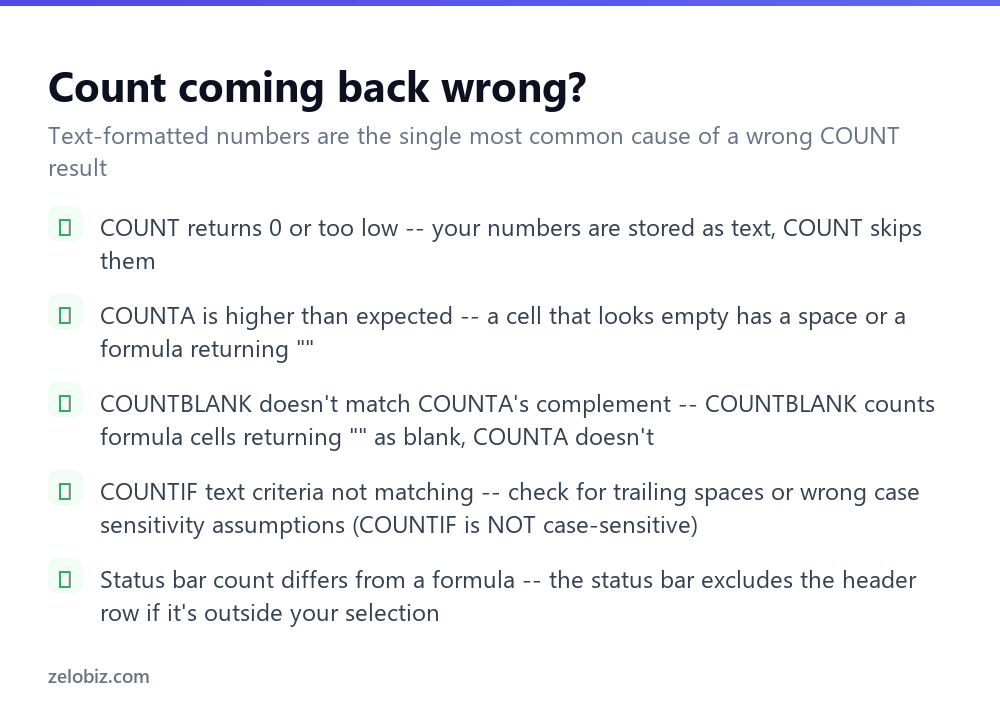
COUNT returns 0 or far too low a number is almost always numbers stored as text -- imported from a CSV, or typed with a leading apostrophe. Text-numbers show a small green triangle in the cell corner and are left-aligned instead of right-aligned. Select the range, use Data › Text to Columns › Finish as a quick convert-in-place trick, and COUNT will pick them up.
COUNTA is higher than you expected means a cell that looks empty isn't -- a stray space bar press, or a formula returning an empty string. Ctrl+End jumps to the last used cell in the sheet and often reveals far-flung 'blank' cells that are actually holding a single space.
COUNTIF text criteria aren't matching -- remember COUNTIF is not case-sensitive, so that's rarely the cause. More often it's a trailing space in the source data, invisible in the cell but breaking an exact match.
Excel vs Google Sheets
All of COUNT, COUNTA, COUNTBLANK, COUNTIF and COUNTIFS work identically in Google Sheets, syntax and all -- there's no translation needed if you're switching between the two. The one difference worth knowing: Google Sheets doesn't show the green triangle warning for text-formatted numbers, so the most common cause of a wrong COUNT result is harder to spot visually there. If a Sheets COUNT looks low, check cell alignment instead -- text is left-aligned, numbers right-aligned, by default in both programs.
- ✓Use the status bar for a quick one-off count, no formula needed
- ✓Use COUNTA for 'how many rows have anything', COUNT for 'how many are numbers'
- ✓Put operators inside quotes in COUNTIF criteria: ">100"
- ✓Use SUBTOTAL(103,range) to count only visible rows in a filtered list
- ✓Check for text-formatted numbers if COUNT returns less than expected
- ✕Assuming COUNT and COUNTA always give the same answer
- ✕Forgetting COUNTIFS ranges must all be the same size
- ✕Expecting COUNTBLANK plus COUNTA to always equal the total cell count
- ✕Using COUNT or COUNTA when a filter is applied and you want only visible rows
- ✕Writing >100 without quotes inside COUNTIF
Frequently asked questions
What's the difference between COUNT and COUNTA in Excel?
COUNT counts only cells containing numbers (including dates). COUNTA counts any non-empty cell regardless of content -- text, numbers, or logical values.
How do I count cells with text in Excel?
Use COUNTA to count all non-empty cells, or COUNTIF with a text criteria like =COUNTIF(range,"*") to count only cells containing text specifically.
How do I count cells that meet a condition?
Use COUNTIF for one condition, e.g. =COUNTIF(B:B,">100"). Use COUNTIFS for multiple conditions that must all be true at once.
Why does COUNT show 0 when my column clearly has numbers?
The numbers are likely stored as text, often from a CSV import. Look for a green triangle and left-aligned values, then use Text to Columns to convert them.
How do I count only visible rows in a filtered list?
Use =SUBTOTAL(103,range). It automatically excludes rows hidden by a filter, unlike COUNT or COUNTA.
How do I count unique values in Excel?
In Microsoft 365, use =COUNTA(UNIQUE(range)). In older versions, an array-entered SUMPRODUCT(1/COUNTIF(range,range)) formula gives the same result.
- →Add up matching cells next: how to use SUMIF in Excel
- →Summarise the whole table: how to make a pivot table in Excel
- →Find a value across sheets: how to use INDEX MATCH in Excel
- →Clear the blanks before counting: how to remove blank rows in Excel