
Here’s how to convert Google Doc to PDF: open the document and go to File > Download > PDF Document (.pdf) — the PDF downloads automatically to your device. Alternatively, use File > Print > Save as PDF, or right-click the file directly in Google Drive and choose Download. A PDF freezes the exact formatting of the document, so it displays identically regardless of what device or app it’s opened on afterward.
Ways to convert a Google Doc to PDF
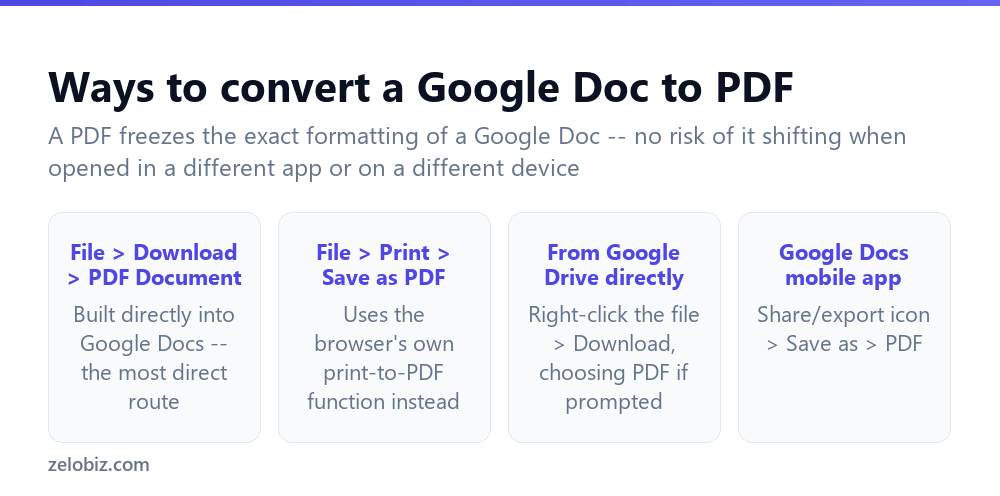
File > Download > PDF Document — built directly into Google Docs, and the most direct, straightforward route for most people.
File > Print > Save as PDF — uses the browser’s own built-in print-to-PDF functionality instead, reaching essentially the same result through a different route.
From Google Drive directly — right-click the file within Drive and choose Download, which for a Google Doc automatically converts it to PDF as part of the download process.
Google Docs mobile app — tap the share/export icon, then “Save as,” and choose PDF, producing the equivalent conversion directly from a phone or tablet.
A PDF locks in a document’s exact formatting permanently — fonts, spacing, and layout will display identically no matter what device or application opens it afterward, unlike a live Google Doc link, which could theoretically be edited further by anyone with access.
Converting via Download (recommended)
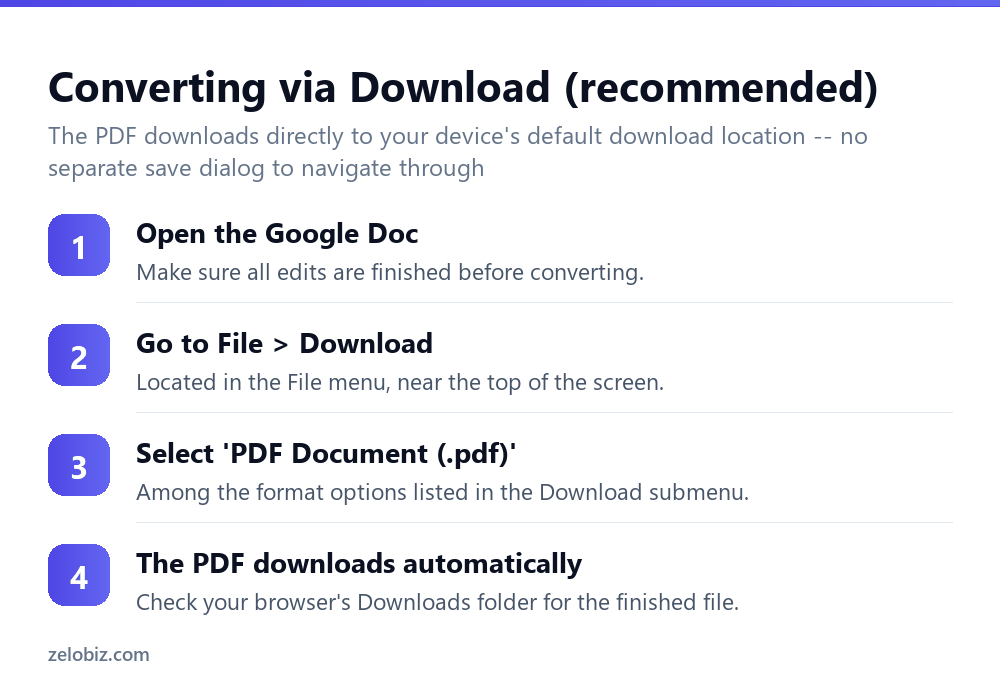
Open the Google Doc — and make sure all edits are genuinely finished before converting, since the PDF becomes a fixed, static snapshot of whatever state the document is in at that exact moment.
Go to File > Download — located in the File menu near the top of the Google Docs interface.
Select “PDF Document (.pdf)” — among the format options listed within the Download submenu, alongside other export formats like Word or plain text.
The PDF downloads automatically — check your browser’s default Downloads folder for the finished file once the conversion completes, generally within a few seconds for a typical document.
Handling comments and suggested edits before converting
If the document has open comments or unresolved suggested edits at the time of conversion, it’s worth reviewing and resolving them first — accepting or rejecting suggestions, and resolving or removing comments no longer needed — since a PDF is meant to represent a finished document, and leaving in-progress editorial marks visible in a shared PDF can look unpolished or confusing to whoever receives it.
Converting just a portion of a document
Google Docs’ built-in PDF export always converts the entire document — there’s no built-in option to export just a specific page range directly from the Download menu. If only a portion is genuinely needed, the more reliable approach is converting the full document first, then using a separate PDF editor or online tool to extract just the specific pages actually needed from the resulting file.
A worked example: sending a signed agreement that can’t be edited further
Say a freelancer has just finished filling in and digitally signing a service agreement drafted as a Google Doc, and needs to send the final signed version to a client in a form that can’t be accidentally altered by either side afterward.
Sending the live Google Doc link directly would be a mistake here — anyone with edit access could technically still change the signed terms after the fact, and even view-only access leaves the document’s content tied to an active, changeable file rather than a fixed record of exactly what was agreed to. Converting to PDF via File > Download > PDF Document immediately solves this: the resulting file is a permanent snapshot of the agreement exactly as it existed at the moment of conversion, with no way for either party to alter it afterward without it being obvious.
Before converting, they double-check no unresolved suggested edits remain from an earlier round of negotiation over specific terms, since an unresolved suggestion showing crossed-out text next to a client’s actual signature would look unprofessional and potentially confusing about which version of a term was actually agreed to.
They rename the downloaded file with a clear, dated name — “ServiceAgreement_ClientName_2026-08-24_Signed.pdf” — rather than leaving Google’s generic default filename, since a clearly named file is considerably easier for both sides to locate again months later if a question about the agreement’s exact terms comes up.
Batch converting multiple Google Docs to PDF
For converting several Google Docs to PDF at once, rather than repeating the Download process individually for each file, selecting multiple files simultaneously within Google Drive (holding Ctrl or Cmd while clicking each one) and then right-clicking > Download triggers Drive to convert and package all of them together into a single downloaded zip file containing each individual PDF — considerably faster than opening and converting one document at a time when several files genuinely need the same treatment.
Converting Google Docs from a mobile device
On the Google Docs mobile app, the export path differs slightly from desktop — tapping the three-dot menu within an open document reveals a “Share & export” option, which then offers “Save as” with PDF among the format choices. The resulting file saves either directly to the device’s local storage or offers a share sheet to send it immediately through email, messaging, or another app, depending on the specific phone’s operating system and how sharing is configured.
For anyone converting documents primarily from a phone, it’s worth confirming where the exported PDF actually lands before assuming it disappeared — mobile file systems handle downloads less visibly than a desktop browser’s dedicated Downloads folder, and the file may need to be located through a separate Files or file-manager app rather than reappearing automatically within Google Docs itself.
Sharing directly through the share sheet immediately after export, rather than saving locally first and hunting for the file afterward, is generally the faster path on mobile specifically — most phones’ share sheets let a freshly exported PDF go straight into an email or messaging app without an intermediate save-and-locate step at all.
For a document that needs converting regularly from a phone — a recurring weekly report, for instance — it’s worth confirming once which specific folder the device saves to by default, so the same location can be checked reliably every time rather than re-discovering it through trial and error on each occasion it comes up again.
Some file-manager apps also support setting a custom default download location, which is worth configuring once for anyone converting documents regularly enough that the default location genuinely doesn’t fit their actual workflow going forward.
This one-time setup pays off every single time a new file gets converted afterward, since there’s no longer any guesswork about where the finished PDF file actually ended up on the device.
PDF conversion issues
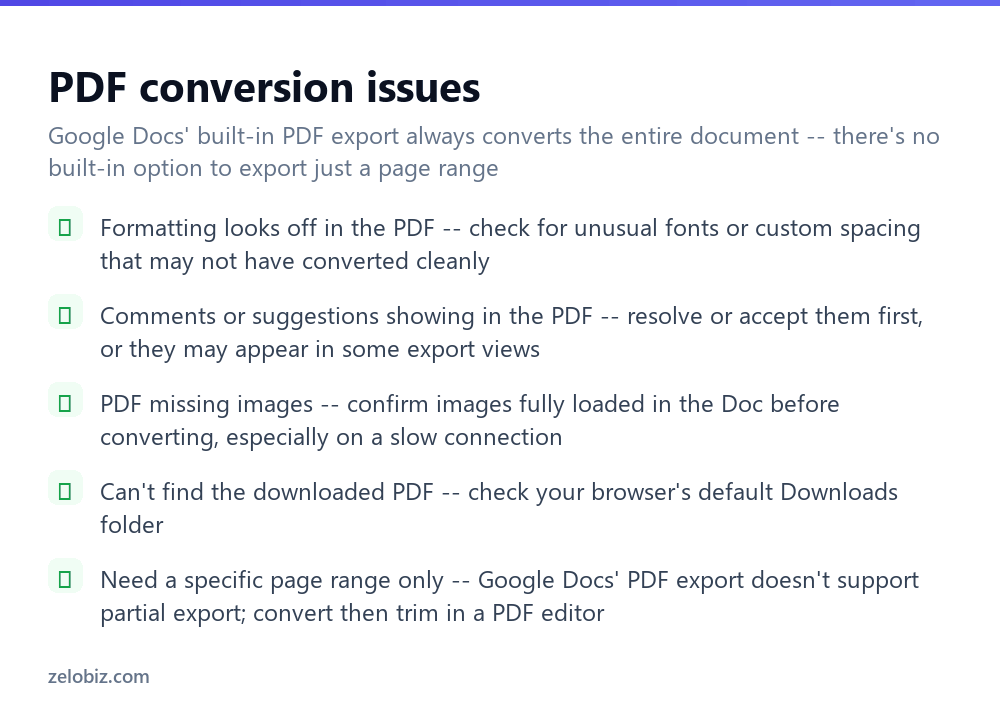
Formatting looks off in the PDF — check for unusual fonts or custom spacing choices in the original Doc that may not have converted perfectly cleanly.
Comments or suggestions showing in the PDF — resolve or accept them in the original Doc first, since unresolved editorial marks can sometimes appear in certain export views.
PDF missing images — confirm all images fully loaded within the Doc before converting, particularly relevant on a slow or unstable internet connection where an image might not have finished loading at the moment of export.
Can’t find the downloaded PDF — check your browser’s default Downloads folder, which is where converted files land unless a different download location has been specifically configured.
Need a specific page range only — Google Docs’ PDF export doesn’t support partial exports directly; convert the full document first, then trim it down using a separate PDF editor.
- ✓Use File > Download > PDF Document as the most direct conversion method
- ✓Resolve open comments and suggested edits before converting to PDF
- ✓Confirm all images have fully loaded before converting on a slow connection
- ✓Check your browser’s Downloads folder if the converted file seems to be missing
- ✓Convert the full document first if only a specific page range is genuinely needed
- ✕Converting a document with unresolved comments or suggestions still visible
- ✕Assuming an image will convert correctly if it hadn’t fully loaded beforehand
- ✕Expecting a built-in option to export just a partial page range directly
- ✕Forgetting where your browser’s default download location actually is
- ✕Converting before finishing all intended edits to the document itself
Frequently asked questions
How do I convert a Google Doc to PDF?
Go to File > Download > PDF Document (.pdf) within the Google Doc, and it downloads automatically to your device.
Can I convert a Google Doc to PDF from Google Drive directly?
Yes, right-click the file in Drive and choose Download, which converts it to PDF automatically.
Will comments show up in my converted PDF?
They can in some export views if left unresolved. Resolve or accept comments and suggestions first for a clean, finished PDF.
Can I convert just a few pages of a Google Doc to PDF?
Not directly — the built-in export always converts the entire document. Convert fully first, then trim pages using a separate PDF editor.
Why are images missing from my converted PDF?
They likely hadn’t fully loaded in the Doc before conversion, often due to a slow internet connection at that moment.
Can I convert a Google Doc to PDF from my phone?
Yes, using the share/export icon in the Google Docs mobile app, then ‘Save as’ and choosing PDF.
- →Store the finished PDF in Drive: how to use Google Drive
- →Add a signature before sending it out: how to add a signature in Gmail
- →Convert a spreadsheet the same way too: how to use Google Sheets
- →Convert a PowerPoint file to PDF instead: how to convert PowerPoint to PDF