
To convert Word to PDF, open the document, go to File › Save As (or File › Export depending on your Word version), choose PDF as the file format from the dropdown, and click Save. This is built directly into Word — no separate converter software is needed. The original .docx file remains completely untouched; a separate PDF is created alongside it.
Why convert to PDF at all
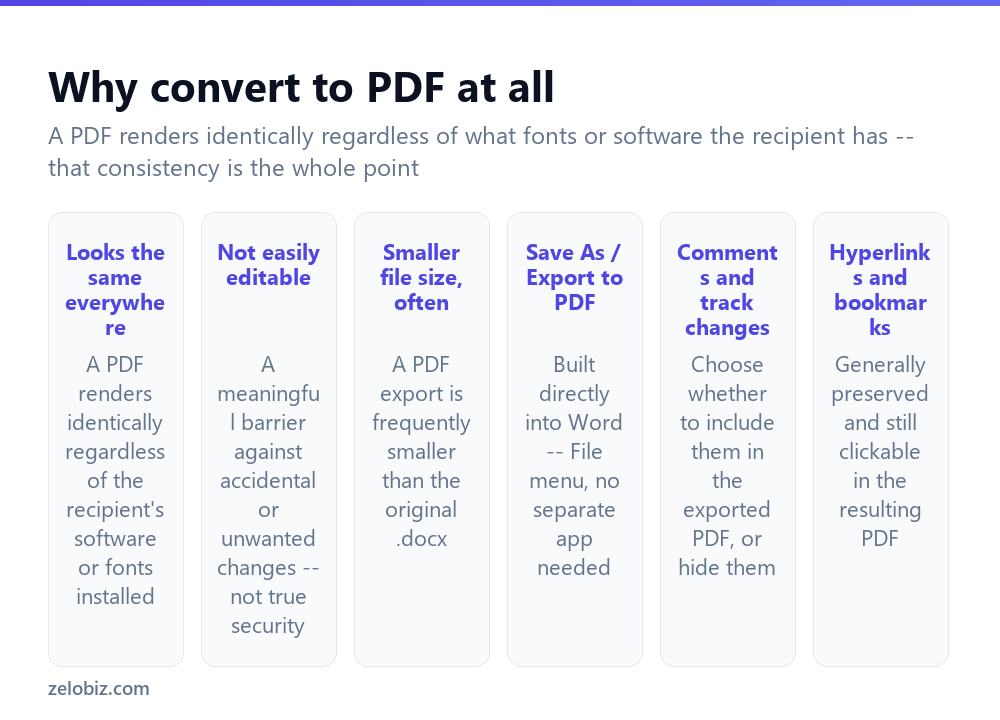
A PDF looks identical everywhere it’s opened — this is the core reason to convert before sharing. A .docx file’s appearance can shift depending on the recipient’s Word version, installed fonts, and settings; a PDF renders exactly the same regardless of any of that, since the visual layout is baked into the file itself rather than reconstructed by whatever software opens it.
Not easily editable — a genuine, meaningful barrier against accidental changes, though worth being clear this is convenience, not real security; a PDF can still be edited with the right tools (covered in a separate guide), just not as casually as a .docx opened directly in Word.
Often smaller in file size than the original .docx, particularly for text-heavy documents, making it a more practical choice for email attachments or upload size limits.
A PDF export generally preserves hyperlinks, and can optionally include bookmarks generated from the document’s heading structure, making a long PDF navigable in a PDF reader’s sidebar the same way a Word document’s headings support the Navigation Pane.
Converting in Word
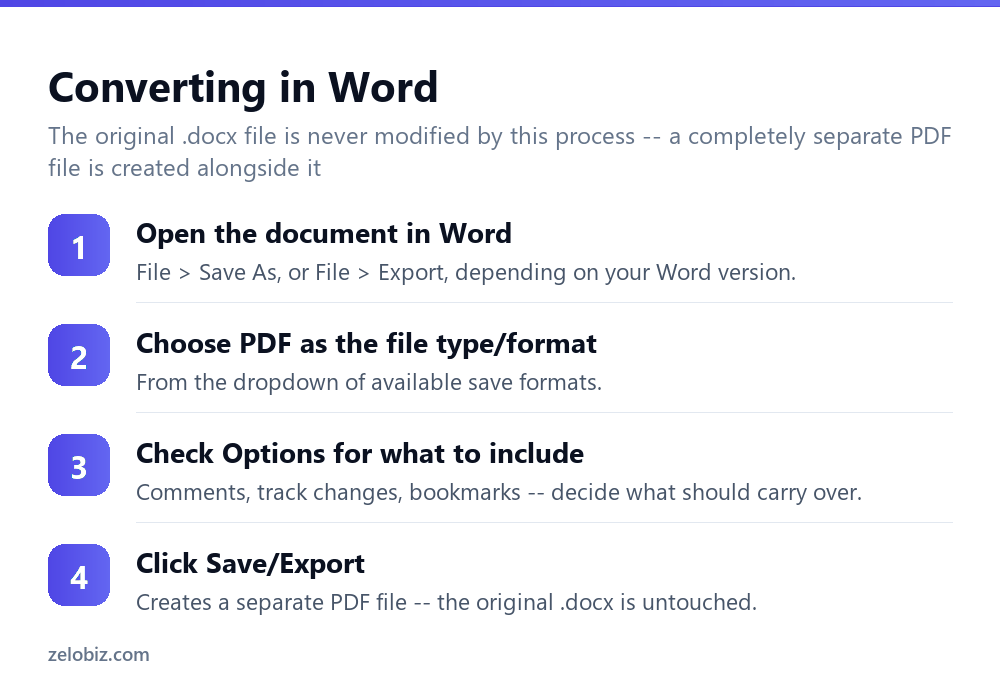
Open the document, then File › Save As (or File › Export › Create PDF/XPS in some Word versions — the exact menu path varies slightly by version and platform, but both lead to the same result).
Choose PDF from the file type/format dropdown.
Click Options (if available) to review what gets included — covered in more detail below — before finalizing.
Click Save or Export. Word creates a new PDF file at the chosen location; the original .docx file is completely unaffected by this process.
Choosing what to include in the export
The Options dialog available during PDF export controls several things worth checking deliberately rather than accepting the defaults blindly:
Document properties — whether metadata like author name and title carries into the PDF’s own file properties.
Comments and track changes — by default, these are often not included in the export, but it’s worth explicitly confirming this if the document has any active comments or unresolved tracked edits, since accidentally including them in a PDF sent externally can reveal internal notes never meant for that recipient.
Bookmarks — an option to “Create bookmarks using Headings,” which builds a navigable outline in the resulting PDF from the document’s existing heading structure, genuinely useful for a longer document.
Converting without Word installed
If Word itself isn’t available, Google Docs can open a .docx file directly (upload it to Google Drive, then open with Google Docs) and export it to PDF via File › Download › PDF Document, functioning as a genuinely free alternative with no Word license needed at all.
Free online Word-to-PDF converters also exist, working the same way as any other online file converter — upload, convert, download. The usual caveat applies: avoid these for anything genuinely sensitive, since the file passes through a third-party server during the conversion process.
A worked example: sending a signed contract for review
Say a contract drafted in Word includes several tracked-change edits from an internal review and a couple of margin comments, and it now needs to go out to an external client for signature — with none of that internal review history visible to them.
Before converting, either accept or reject every tracked change so the document reflects its final intended state (rather than relying on the PDF export to hide them, which is a display choice, not a guarantee that residual change data isn’t still technically embedded in the file), and delete or resolve every comment. This is safer than only unchecking “comments and track changes” in the export Options, since that setting controls what’s rendered visually in the PDF, not necessarily what metadata remains associated with the source document if it were ever shared as a .docx by mistake instead.
Once the document is genuinely clean, convert via File, Save As, PDF, and open the resulting file to visually confirm no tracked-change markup or comment bubbles are visible anywhere before sending it externally — a final visual check costs a minute and catches anything the settings-based approach might have missed.
For the signature step itself, rather than printing, signing by hand, and rescanning, the finished PDF can go straight into the signing workflow covered in a separate guide — Fill & Sign in Acrobat Reader, or Preview’s signature tools on a Mac — keeping the entire contract process digital from drafting through signature.
Converting to PDF/A for long-term archival
For documents that need to be preserved for many years — legal records, official filings, anything with a long retention requirement — a standard PDF export is usually fine, but PDF/A is a specific archival variant of the PDF format designed explicitly for long-term preservation, embedding fonts and avoiding certain features (like external links to content that might not exist decades later) that could compromise a file’s readability far in the future. Word’s export Options sometimes includes a PDF/A compliance checkbox directly; if archival-grade preservation genuinely matters for a specific document, checking for and enabling this option is worth the extra minute over a standard PDF export.
Batch converting several Word documents at once
For converting many Word files to PDF in one action rather than opening each individually, Word itself doesn’t offer a built-in batch conversion feature — each document generally needs to be opened and exported individually through the standard File, Save As flow. For a genuinely large batch, a script-based approach (using Word’s own automation capabilities, or a dedicated batch-conversion utility) becomes worth setting up, though for a handful of files, manually repeating the standard export process remains simpler than building or finding automation for what amounts to a one-off, occasional task.
A quick reference
Sending a document externally with review history still in it: accept or reject every tracked change and resolve every comment before converting, rather than relying solely on export Options to hide them. Preparing something for long-term archival: check for a PDF/A compliance option in export settings rather than using a standard PDF export by default. Converting many files at once: expect to repeat the manual export process per file unless the batch is large enough to justify setting up dedicated automation.
When something’s not right after converting
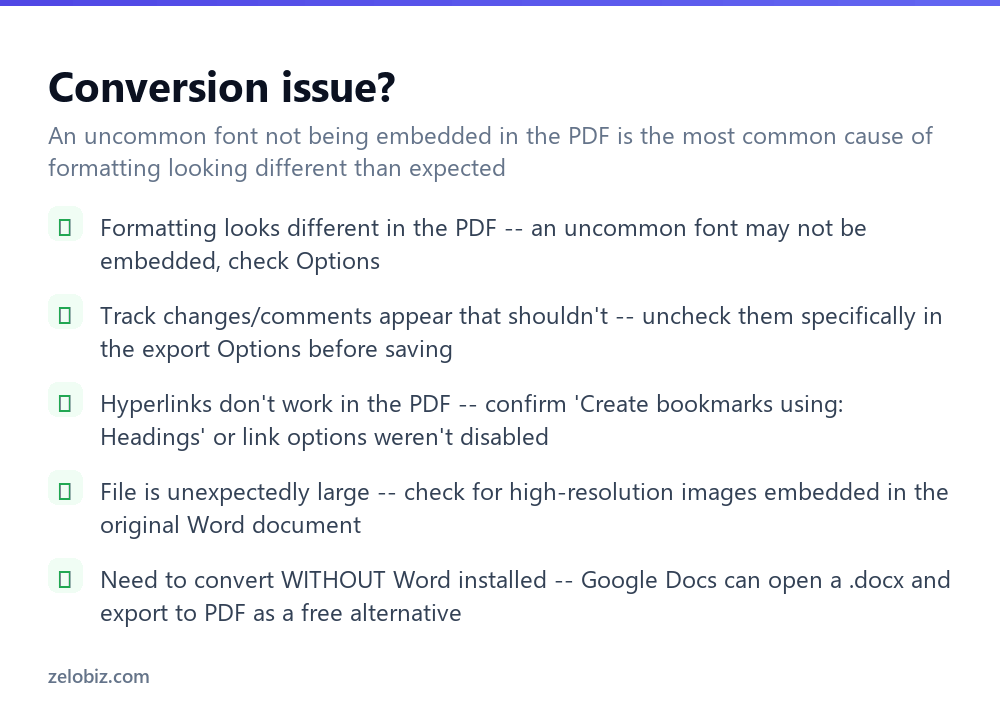
Formatting looks different in the PDF than in Word — an uncommon or non-standard font used in the original document may not have embedded correctly during export; check the export Options for a font-embedding setting, or consider switching to a more standard, widely-available font if this happens consistently.
Comments or tracked changes appear that shouldn’t be visible — these weren’t excluded during export; redo the conversion and explicitly uncheck them in Options before saving.
Hyperlinks don’t work in the resulting PDF — confirm link-related export options weren’t disabled, and that the original hyperlinks in the Word document were genuinely functional links, not just underlined blue text styled to look like a link without an actual link attached.
The resulting PDF file is unexpectedly large — check for high-resolution images embedded in the original Word document; these carry through at their original size and can dominate the final file size, particularly in a document with several full-size photos or screenshots.
- ✓Use File, Save As (or Export), then choose PDF — built into Word, no extra software needed
- ✓Check Options for comments and track changes before exporting anything meant for external sharing
- ✓Enable bookmarks from headings for a long document’s PDF to stay navigable
- ✓Use Google Docs as a free alternative if Word itself isn’t available
- ✓Check for high-resolution images if the resulting PDF is unexpectedly large
- ✕Assuming comments and tracked changes are automatically stripped without checking
- ✕Sending a PDF externally without reviewing what internal notes might be included
- ✕Expecting styled-but-not-linked text to become a clickable hyperlink in the PDF
- ✕Uploading a sensitive Word document to an unfamiliar online converter
- ✕Ignoring embedded image resolution as a cause of an unexpectedly large PDF
Frequently asked questions
How do I convert a Word document to PDF?
Open it in Word, go to File, Save As (or Export), choose PDF as the format, and click Save — built in, no extra software needed.
Does converting to PDF change the original Word document?
No. A separate PDF file is created; the original .docx remains completely untouched.
Why does my PDF look different from the original Word document?
An uncommon font used in the document may not have embedded correctly during export — check the export Options for font embedding, or use a more standard font.
How do I keep comments and track changes out of a PDF I’m sharing externally?
Check the export Options before saving and confirm comments and tracked changes are unchecked, since accidentally including them can reveal internal notes.
Can I convert Word to PDF without having Word installed?
Yes. Upload the .docx to Google Drive, open it with Google Docs, and export via File, Download, PDF Document.
Why is my converted PDF file so large?
High-resolution images embedded in the original Word document carry through at full size and often account for most of the final file size.
- →Format the document before converting: how to double space in Word
- →Add page numbers before exporting: how to add page numbers in Word
- →Build a navigable outline first: how to make a table of contents in Word
- →Make direct edits to the finished PDF: how to edit a PDF