

To edit a PDF, the fastest route is often editing the original source file (the Word doc, slide deck, or design file it was exported from) and re-exporting to PDF — this preserves formatting perfectly. If you only have the PDF itself, use Adobe Acrobat’s Edit PDF tool for direct text and image changes, Preview on a Mac for quick annotations and page reordering, or a free browser-based PDF editor for occasional light edits.
Check for the original source file first
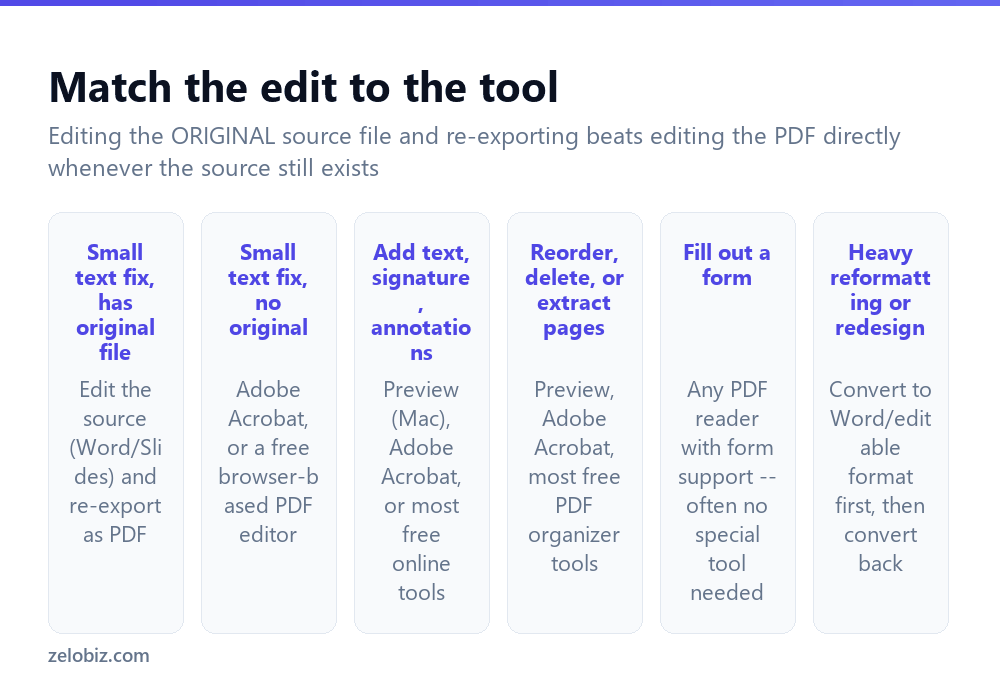
This is the step people skip, and it’s the one that saves the most effort. A PDF exported from a Word document, PowerPoint deck, or Google Doc will always edit more cleanly in that original program than as a PDF directly — text reflows properly, fonts stay exact, and layout adjusts the way it’s supposed to.
Only fall back to editing the PDF file itself when the source is genuinely unavailable — a document someone sent you, an old file where the source was never saved, or a scanned document that never had a digital source to begin with at all.
A PDF is fundamentally a fixed-layout format, designed to look identical everywhere it’s opened. That’s precisely why editing it directly is harder than editing a word processor document — the format was never built to reflow.
Editing text and images directly in the PDF
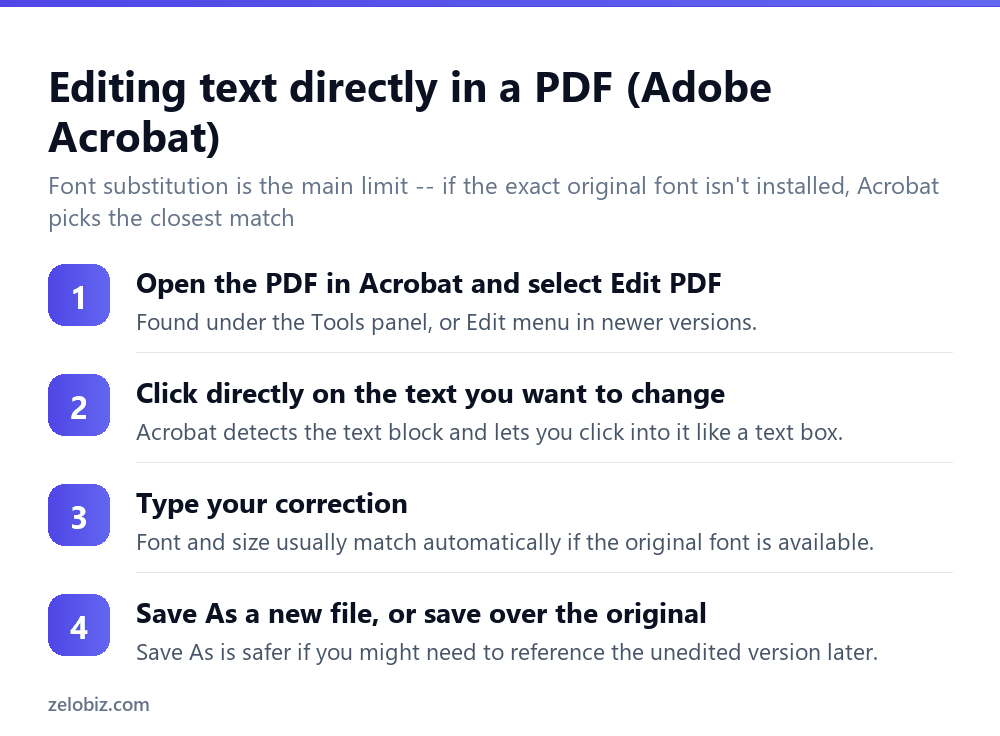
Adobe Acrobat (paid) handles this most reliably — its Edit PDF tool detects individual text blocks and images, letting you click directly into text and type a correction, or click an image to replace, resize, or delete it.
Preview on a Mac (free, built in) handles basic text boxes, annotations, and highlighting well, but doesn’t let you edit the PDF’s original underlying text the way Acrobat does — it adds new elements on top rather than modifying what’s already there.
Free browser-based editors vary widely in capability. Most handle adding text boxes, signatures, and simple annotations well; genuine editing of existing text is inconsistent between them and worth testing on a copy before relying on for anything important.
Whichever tool you use, Save As a new filename rather than overwriting the original when the edit matters — it keeps an unedited fallback available if something goes wrong partway through, or if a reviewer later asks to see the unedited version for comparison.
Reordering, deleting, or extracting pages
This is usually simpler than text editing and doesn’t require Acrobat specifically. Most PDF readers with page thumbnail views — including free ones — support drag-to-reorder, and both Preview and Acrobat let you delete a page by selecting its thumbnail and pressing Delete.
To extract specific pages into a new, separate PDF: select the pages you want in the thumbnail view, then use File › Export Selected Pages (Acrobat) or drag the selected thumbnails out to create a new document (Preview).
Filling out and editing form fields
If a PDF was built with genuine fillable form fields — visible as clickable boxes when you hover over them — almost any modern PDF reader can fill them out with no special editing tool required, including a browser’s built-in PDF viewer.
If the PDF has no real form fields but looks like a form (lines and boxes drawn as part of the page design, not interactive), you have two options: add text boxes positioned over each blank manually, or use a form-creation tool to convert the flat page into an actual fillable form — worth doing if the same document will be filled out repeatedly.
Redacting sensitive information properly
A genuine warning worth including here: drawing a black box over text does not delete it. The original text remains in the PDF’s underlying data and can often be recovered by selecting and copying the “hidden” text, or by opening the file in a different viewer that doesn’t respect the covering shape.
Proper redaction removes the underlying content, not just its visual appearance. Acrobat’s dedicated Redact tool does this correctly. For anything containing personal, financial, or confidential information, use a genuine redaction tool — never a black rectangle drawn as an annotation.
Editing a PDF form’s structure, not just filling it in
There’s a real difference between filling out an existing form field and editing the form itself — adding a new field, moving one, or changing a label. Filling in fields any reader can do. Editing the form’s actual structure needs a tool with form-building capability, such as Acrobat’s Prepare Form tool, which detects existing fields and lets you add, move, resize, or delete them.
If a PDF looks like a form but has no real interactive fields at all — just lines and boxes drawn as static page content — Prepare Form can usually auto-detect where fields should go based on those visual cues, saving the work of placing each one by hand.
A worked example: fixing a typo in a shared PDF
Say a colleague sends over a one-page PDF flyer with a wrong phone number, and the original design file (probably a Canva or InDesign project) isn’t available to you — only the exported PDF.
First check: does the text actually select with your cursor? If yes, it’s text-based and directly editable. Open it in Acrobat’s Edit PDF tool, click into the phone number text block, and retype the correct digits — the font usually matches automatically since it’s the same text block, not a new one.
If the text doesn’t select — the flyer was exported as a flattened image, common with some design tools — direct text editing isn’t possible at all. The practical fix is covering the old number with a new text box in the correct position and matching font as closely as possible, which won’t be pixel-perfect but solves the actual problem of a wrong phone number being displayed.
When something goes wrong
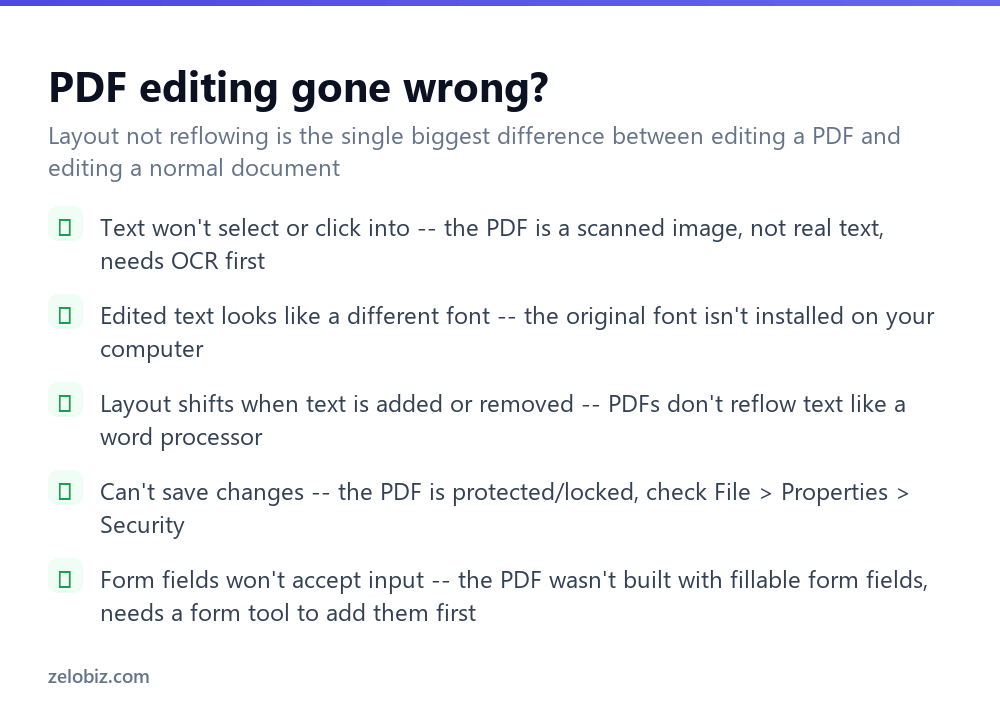
Text won’t select or click into — the PDF is a scanned image rather than real text. It needs OCR (optical character recognition) first before any text editing is possible; see the PDF-to-Word guide linked below for tools that include OCR.
Edited text looks like a different font — the exact original font isn’t installed on your computer, so the editor substitutes its closest match. This is usually only a visual difference in the editing view; check how it looks once exported, since some tools embed the correct font on export even if the editing display looked off.
Layout shifts unexpectedly when text is added or removed — unlike a word processor, a PDF doesn’t reflow surrounding content automatically. Adding a longer sentence than the original may overlap the next line rather than pushing it down.
Can’t save changes at all — check File › Properties › Security for password protection or edit restrictions set by whoever created the file. A permissions-protected PDF needs the owner password to unlock editing, not just the password to open and view it.
- ✓Check for the original source file before editing the PDF directly
- ✓Save As a new filename rather than overwriting an important original
- ✓Use a genuine Redact tool for sensitive information, never a drawn black box
- ✓Check File > Properties > Security if saving is blocked
- ✓Test a free online editor on a copy before trusting it with something important
- ✕Drawing a black rectangle over text and assuming it’s actually removed
- ✕Expecting a PDF to reflow text automatically the way a word processor does
- ✕Editing a scanned PDF’s text without running OCR on it first
- ✕Overwriting the only copy of an important original PDF while editing
- ✕Assuming every free online PDF editor can genuinely edit existing text, not just add new elements
Frequently asked questions
What is the easiest way to edit a PDF?
If you have the original source file (Word, PowerPoint, etc.), edit that and re-export to PDF. If you only have the PDF, use Adobe Acrobat’s Edit PDF tool or a free browser-based editor.
Can I edit a PDF for free?
Yes, for basic edits — Preview on a Mac and various free browser-based tools handle text boxes, annotations, page reordering, and signatures without a paid subscription.
Why won’t the text in my PDF let me click into it?
The PDF is likely a scanned image rather than real, selectable text. It needs OCR processing before any text editing is possible.
Is drawing a black box over text in a PDF a safe way to redact it?
No. The original text remains in the file’s underlying data and can often be recovered. Use a genuine redaction tool that removes the content, not a visual cover-up.
Why does edited text in my PDF look like a different font?
The exact original font isn’t installed on your computer, so the editor substituted its closest match. Check the final exported file, since some tools correct this on export.
Why can’t I save changes to a PDF?
The file may have password protection or edit restrictions. Check File, Properties, Security — you’ll need the owner password to unlock editing.
- →Turn a scanned PDF into editable text: how to convert PDF to Word
- →Add your signature without printing: how to sign a PDF
- →Lock a finished PDF: how to password protect a PDF
- →Combine several files into one: how to merge PDF files