
To merge PDF files into one document, the fastest free method on a Mac is Preview — open one PDF, show the thumbnail sidebar, and drag the other PDFs into it in the order you want them to appear, then File › Export as PDF. On Windows, there’s no equivalent built-in tool, so a free online merger or Adobe Acrobat’s Combine Files tool is the practical route. Either way, the original files are left untouched — merging creates a new combined document.
Free options by platform

Mac users have it easiest — Preview, the default PDF viewer built into every Mac, merges files natively with no download or account needed. This is the fastest option if you’re on a Mac at all, covered step by step below.
Windows has no equivalent built in. The default PDF viewer (whether that’s Edge’s built-in reader or another app) doesn’t include a merge feature. A free browser-based merger tool, or Adobe Acrobat if you have it, are the two practical routes.
Google Drive works from any platform via a browser — several free Drive add-ons handle merging without installing anything locally, useful if you’re on a shared or work computer where installing software isn’t an option.
Whichever tool you use, the files merge in the order you physically arrange them in that tool — not automatically by filename, date, or any other property of the source files. Arrange the order deliberately before merging, and double-check it once more before exporting the final combined document.
Merging with Preview on a Mac
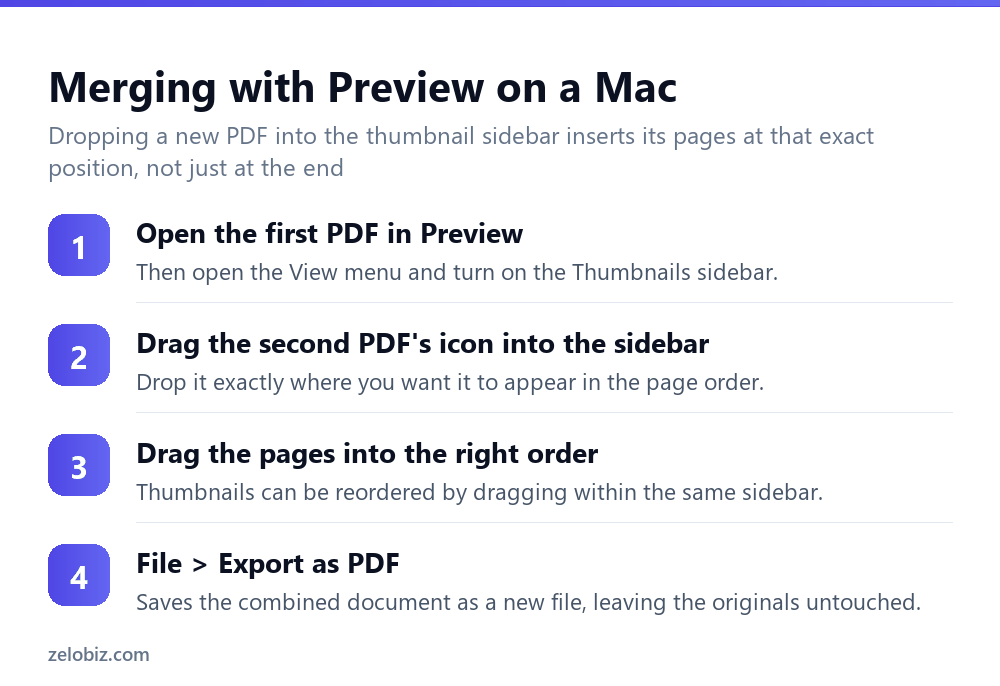
Open the first PDF in Preview. From the View menu, turn on the Thumbnails sidebar if it isn’t already showing — this displays each page as a small thumbnail down the left side.
Drag the icon of the second PDF file (from Finder, not from within Preview) directly into that thumbnail sidebar, dropping it at the position where you want its pages to appear — at the very end, or inserted partway through the first document.
Repeat for any additional files, then drag individual page thumbnails within the sidebar to fine-tune the order if anything landed out of sequence.
File › Export as PDF saves the result as a new combined file. The original source PDFs remain exactly as they were — Preview is building a new document, not modifying the originals.
Merging on Windows
Without a built-in tool, the two realistic options are a free online merger or Adobe Acrobat.
Free online tools typically work the same way: upload the files in whatever order (or reorder them in the tool’s interface after uploading), then download the merged result. As with any online PDF tool, this means the files pass through a third-party server — fine for non-sensitive documents, a poor choice for anything confidential.
Adobe Acrobat’s Combine Files tool (Tools › Combine Files) processes everything locally on your computer, gives the most precise control over page order including inserting specific page ranges rather than whole files, and is the more appropriate choice for sensitive documents. It requires a paid Acrobat subscription, which is worth it if merging documents is a regular part of your work rather than an occasional task.
The print-to-PDF trick (works almost anywhere)
A method that works regardless of platform or available software: most operating systems include a virtual “Print to PDF” printer. Open each source PDF, print it using that virtual printer, and depending on your PDF viewer’s print dialog, some let you queue multiple documents into a single print job that outputs as one combined PDF.
This is a genuine fallback when neither Preview, Acrobat, nor an online tool is available or appropriate, though it’s fiddlier than a dedicated merge tool, produces less predictable page ordering, and is worth trying only after the simpler options above have been ruled out entirely.
A worked example: assembling a job application
Say you need to submit a resume, a cover letter, and two reference letters as one combined PDF for a job application that only accepts a single attachment.
On a Mac: open the resume PDF in Preview, show the thumbnail sidebar, then drag the cover letter’s file icon in first, followed by each reference letter, dropping each one in the order they should appear. Check the sidebar shows resume, cover letter, then both references in that order — reordering afterward by dragging thumbnails is easy if something landed out of sequence.
Export the combined file with a clear name — something like “YourName-Application-CompanyName.pdf” rather than the default “Untitled.pdf” — since this file may sit in an HR system’s inbox for a while and a clear filename helps it get found again if needed.
On Windows, the same task works through a free online merger: upload all four files, arrange them in the tool’s interface in the same resume-cover letter-references order, and download the combined result.
Inserting a document into the middle of another, not just appending
Merging doesn’t have to mean simply appending everything to the end. Preview’s drag-and-drop approach lets you insert a new PDF’s pages at any specific position in the existing thumbnail sequence — useful when, say, a signed cover page needs to sit right after the title page of a longer report, rather than tacked onto the very end where nobody would think to look for it.
Acrobat’s Combine Files tool offers similar positional control, including the ability to select and insert only specific page ranges from a source file rather than every page in it — useful when you only need pages 3-5 of a ten-page reference document inserted into another file, not the whole thing.
Merging documents with different page sizes or orientations
A merged PDF can perfectly well contain a mix of portrait and landscape pages, or different paper sizes, in the same document — most viewers handle this without complaint, displaying and printing each page at its own size and orientation.
The one thing worth checking afterward: if a page merges in with an unexpected orientation (a landscape spreadsheet export sitting sideways inside an otherwise portrait report, for instance), that’s a rotation issue on that specific page rather than a merge failure, and is fixed the same way as any other sideways page — see the rotation guide linked below.
Merging while keeping file size manageable
A merged PDF’s size is roughly the sum of its parts — combining several image-heavy PDFs (scanned documents especially) can produce a genuinely large file that’s awkward to email or upload.
If size becomes a problem, compress the merged result afterward rather than trying to compress each source file beforehand — compressing once, after merging, is simpler and avoids compressing the same content in stages, which compounds quality loss on any images inside.
When something goes wrong

Pages came out in the wrong order — the tool merged files in the order they were arranged in its interface, not by filename or date. Check the arrangement before exporting, not after.
One file wouldn’t merge in — a password-protected source PDF often blocks merging until the protection is removed. Remove the password from that specific file first (see the password protection guide linked below for how), then merge.
A page came through sideways — rotation applied in the source PDF usually carries over into the merged file. Fix it in the merged document afterward, rotating just that page, rather than trying to pre-correct the source file.
The merged file won’t open for the recipient — check its size against any attachment limit on their email service before assuming the file itself is broken; a very large merged PDF sometimes gets silently rejected or stripped by an email server rather than producing a clear error.
- ✓Arrange the file and page order deliberately before merging, not after
- ✓Use Preview on a Mac for a free, no-download merge
- ✓Remove password protection from any source file before attempting to merge it
- ✓Compress once, after merging, rather than compressing each file first
- ✓Keep sensitive documents off free online mergers
- ✕Assuming files merge in filename or date order automatically
- ✕Uploading confidential documents to an unfamiliar free online merger
- ✕Trying to merge a password-protected PDF without removing protection first
- ✕Ignoring file size until an email or upload fails
- ✕Pre-compressing every source file individually instead of compressing the final merged result
Frequently asked questions
How do I merge PDF files for free?
On a Mac, use Preview — drag PDFs into the thumbnail sidebar and export. On Windows, use a free online merger or Google Drive, since there’s no built-in merge tool.
Can I merge PDFs without installing any software?
Yes. Preview on a Mac requires no download, and free browser-based tools handle it on any platform without installing anything.
Why did my merged PDF come out in the wrong page order?
Files merge in whatever order they were arranged in the tool’s interface, not automatically by filename or date. Check the arrangement before exporting.
Why won’t a PDF merge with the others?
It’s likely password-protected. Remove the protection from that specific file first, then merge it with the others.
Does merging PDFs change the original files?
No. Merging creates a new combined document; the original source PDFs are left untouched.
How do I keep a merged PDF’s file size manageable?
Compress the merged result once, after combining the files, rather than compressing each source file separately beforehand.
- →Remove protection before merging: how to password protect a PDF
- →Extract pages instead of combining: how to split a PDF
- →Shrink the merged file: how to compress a PDF
- →Sign the combined document: how to sign a PDF