
To sign a PDF without printing it, open it in a PDF reader with a Fill & Sign feature — Adobe Acrobat Reader (free) on Windows, or Preview (built in) on a Mac — and choose to type, draw, or upload an image of your signature. Click to place it on the document and save. For formal contracts needing a legal audit trail, a dedicated e-signature service is the more appropriate tool.
Three ways to create your signature
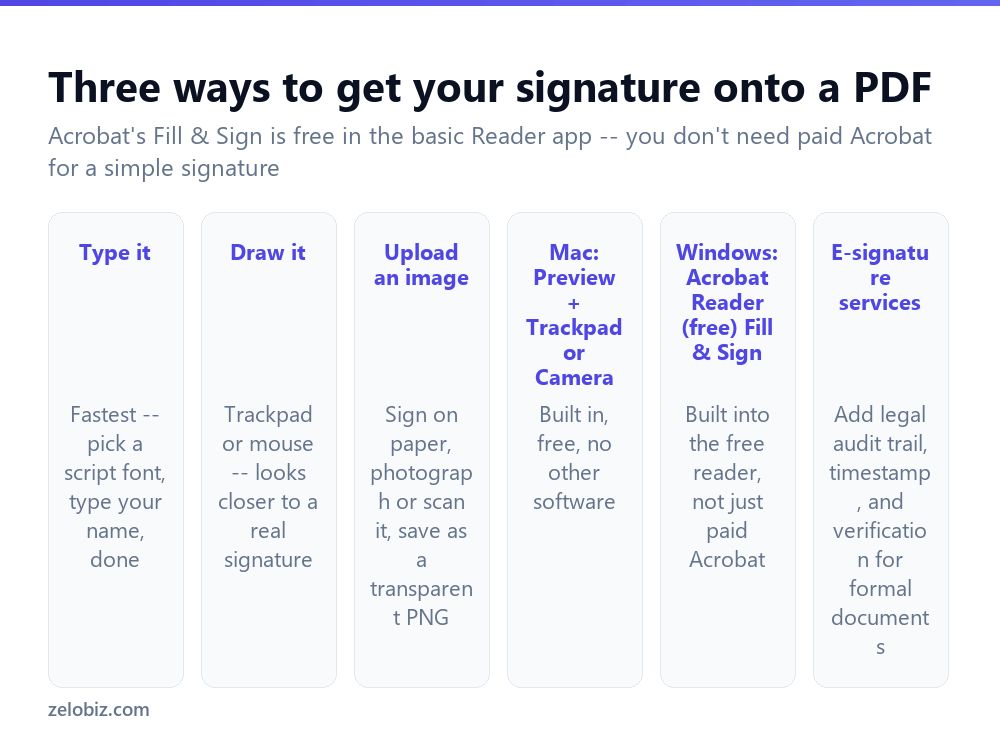
Type it — the fastest option. Most signing tools offer a handful of script-style fonts; type your name and pick whichever looks closest to your handwriting. Fine for internal documents and casual use, less convincing for anything formal.
Draw it — using a trackpad, mouse, or touchscreen. Closer to an actual signature than typed text, though a mouse-drawn signature often looks shakier than your real one. A touchscreen or stylus gives noticeably better results if you have one available.
Upload an image — sign your name on paper, photograph or scan it, and save it as an image with a transparent background (a PNG rather than JPG) so it overlays cleanly without a white box around it. This is the closest to a real signature and worth the extra few minutes for anything that matters.
On Windows: Adobe Acrobat Reader (free)
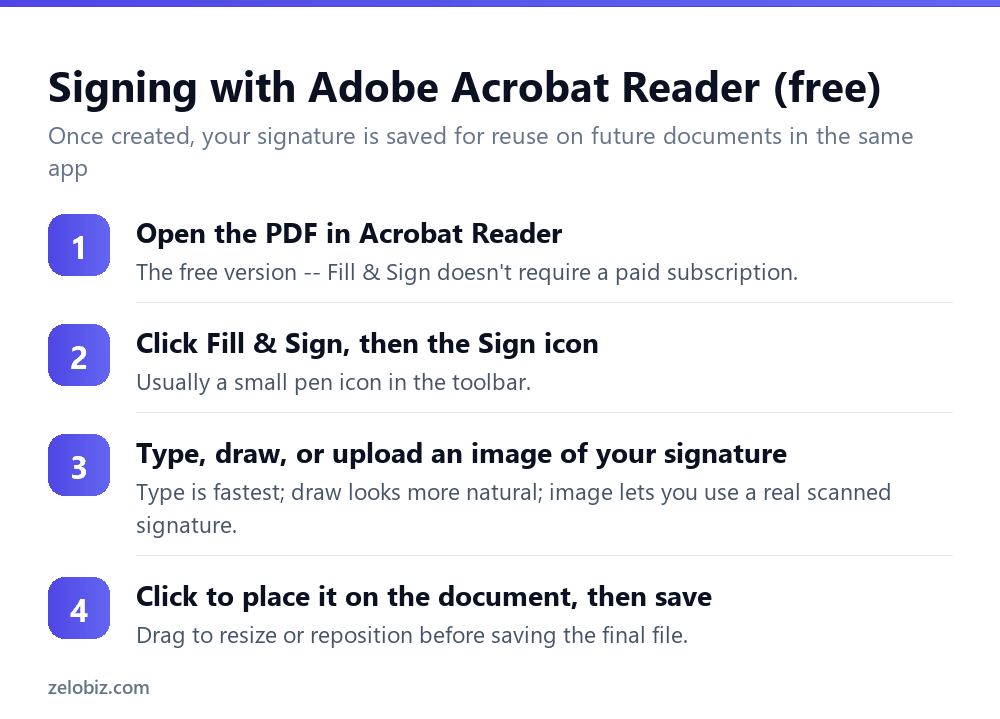
Fill & Sign is included in the free Acrobat Reader — you don’t need a paid Acrobat subscription for a basic signature. This surprises people who assume anything useful in Acrobat requires payment.
Open the PDF in Reader, click Fill & Sign in the right-hand panel (or Tools menu), then the pen-shaped Sign icon. Choose to type, draw, or add an image, confirm it looks right, then click on the document where the signature should sit.
The signature is saved within the app after first use, so signing a second document later is a matter of clicking Sign and placing the already-created signature again, no need to redraw it.
On a Mac: Preview (built in, no other software)
Preview — the default app that opens PDFs on a Mac — has signing built in, no download required. Open the PDF, click the markup toolbox icon (looks like a pen tip in a circle), then the signature icon.
Preview offers two capture methods directly: sign on your trackpad with a finger, or hold a signed piece of paper up to your Mac’s camera, which Preview automatically detects and converts into a clean signature graphic. The camera method usually produces the most natural-looking result of any method described here, since it’s genuinely tracing your real signature rather than approximating it with a mouse.
Once created, click to place it on the document, resize with the selection handles, and save.
On a phone or tablet
Both Acrobat Reader and Preview-equivalent apps work similarly on mobile — most PDF apps include a signature tool under a pen or markup icon. A touchscreen genuinely improves the draw method compared to a mouse, since you’re signing with a finger or stylus directly on the screen rather than dragging a mouse cursor.
When you need something more formal
A typed, drawn, or image-based signature added through Fill & Sign or Preview is adequate for most everyday paperwork — approving an internal document, signing a form for a school or club, acknowledging receipt of something.
For contracts, legal agreements, or anything where you might need to prove later that a specific person signed on a specific date under specific terms, a dedicated e-signature service is the more appropriate tool. These add a verified audit trail — timestamp, IP address, identity verification, and a certificate of completion — that a simple image overlay doesn’t provide. Whether a basic signature is legally sufficient depends on the document and jurisdiction; when in doubt for something with real legal or financial weight, use a proper e-signature platform rather than a plain image.
A worked example: signing a rental lease sent as a PDF
Say a landlord emails a lease as a PDF attachment and asks for a signed copy back by the end of the day. There’s no printer nearby.
Download the attachment and open it in Acrobat Reader (or Preview on a Mac). Use Fill & Sign to check whether the document has actual form fields for name, date, and signature — many lease templates do, shown as highlighted boxes when Fill & Sign is active. If so, click into each one and fill it directly.
Place your signature using whichever of the three creation methods gives the most presentable result — the camera-capture method on a Mac if available, since a lease is exactly the kind of document where a more natural-looking signature is worth the extra minute. Save the completed file with a clear filename (not the same name as the original, to avoid confusion about which is which), and reply to the email with the signed copy attached.
This whole process, done digitally, usually takes less time than printing, signing by hand, and scanning back in — and produces a cleaner-looking result besides.
Multiple signers on the same document
When a document needs more than one person’s signature — both parties on an agreement, several approvers on an internal form — there are two practical approaches.
Sequential, informal: the first person signs their portion using Fill & Sign or Preview, saves it, and emails it to the next signer, who repeats the process on the same file. This works fine for casual documents but has no built-in way to prevent someone editing an already-signed section, and no record of the actual signing order.
Routed through an e-signature service: the sender uploads the document once and specifies each signer’s email and which fields belong to them. The service sends it to each person in turn (or all at once, depending on settings), locks completed fields against further editing, and produces a single certificate documenting who signed what and when. For anything with more than one signer and any real stakes, this is meaningfully more reliable than passing a file around by email.
When something’s not working
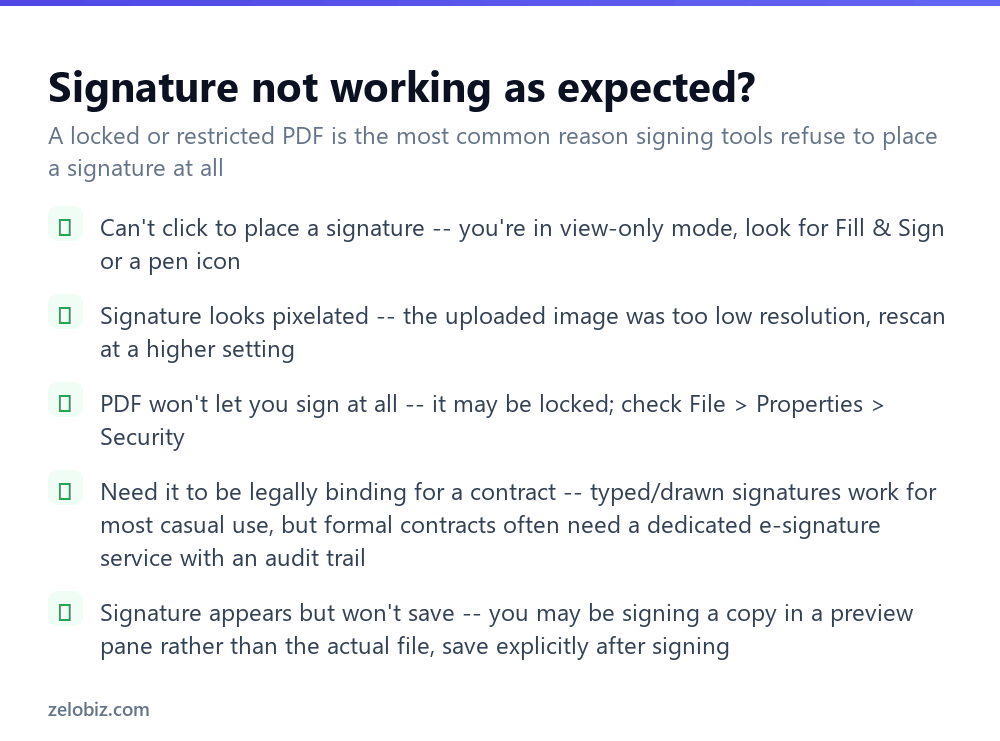
Can’t click to place a signature anywhere on the page — you’re likely in a plain view-only mode rather than the Fill & Sign or markup tool. Look specifically for the Fill & Sign panel or pen icon rather than the default toolbar.
Signature looks pixelated or blurry — an uploaded image was scanned or photographed at too low a resolution. Rescan at a higher setting, or use the trackpad or camera-capture method instead, both of which typically produce cleaner results than a low-quality photo.
The PDF won’t let you sign at all — check File › Properties › Security for editing restrictions. Some PDFs are deliberately locked against any modification, including signing, until unlocked by whoever created them.
The signature appears but doesn’t save — confirm you’re working in the actual file rather than a preview pane, and that you explicitly saved (or Saved As) after placing the signature rather than just closing the window.
- ✓Use Preview’s camera capture on a Mac for the most natural-looking signature
- ✓Remember Fill & Sign is free in Acrobat Reader — no paid subscription needed
- ✓Save an uploaded signature image as a transparent PNG, not a JPG with a white background
- ✓Use a dedicated e-signature service for contracts and formal legal documents
- ✓Check File > Properties > Security if a PDF refuses to accept a signature
- ✕Assuming you need paid Acrobat just to sign a document
- ✕Uploading a low-resolution photo of your signature and getting a pixelated result
- ✕Using a simple typed signature for a contract that really needs a verified audit trail
- ✕Printing and rescanning a document just to add a signature
- ✕Forgetting to save after placing a signature and losing the change
Frequently asked questions
How do I sign a PDF without printing it?
Use Fill & Sign in Adobe Acrobat Reader (free, Windows) or the markup tool in Preview (built in, Mac) to type, draw, or upload an image of your signature directly onto the document.
Is signing a PDF with Adobe Acrobat Reader free?
Yes. Fill & Sign is included in the free Acrobat Reader app, not just the paid Acrobat subscription.
How do I sign a PDF on a Mac without other software?
Open it in Preview, click the markup toolbox icon, then the signature icon. Sign using your trackpad or hold a paper signature up to your Mac’s camera.
Is a typed or drawn signature legally binding?
It depends on the document and jurisdiction. For casual paperwork it’s usually fine; for contracts and formal agreements, a dedicated e-signature service with a verified audit trail is the safer choice.
Why can’t I sign a PDF I received?
The file may be locked against editing. Check File, Properties, Security for restrictions set by whoever created it.
What’s the best way to make my signature look natural?
Preview’s camera-capture method on a Mac, or signing on a touchscreen with a finger or stylus, both look more natural than drawing with a mouse.
- →Lock the document after signing: how to password protect a PDF
- →Make other changes first: how to edit a PDF
- →Combine multiple signed pages: how to merge PDF files
- →Need an editable version instead: how to convert PDF to Word