
To convert PDF to Word, open Microsoft Word, go to File › Open, and select the PDF file directly — Word converts it to an editable document automatically, no other software required. This works well for text-based PDFs. For a scanned PDF (a photographed or scanned document saved as PDF), Word’s converter can’t read the text at all — you need a tool with OCR (optical character recognition), such as Adobe Acrobat or Google Docs, instead.
The one distinction that decides everything: text-based vs scanned

Before picking a method, check which kind of PDF you actually have — it determines whether any of these methods will work at all.
Text-based PDFs were created directly from a document — exported from Word, generated from a webpage, or produced by most modern software. You can select and highlight individual words inside them with your cursor. These convert cleanly with any method below.
Scanned PDFs are actually a photograph or scan of a paper page saved as a PDF — there’s no real text inside, only an image that looks like text. Try selecting a word with your cursor: if the whole page highlights as one block, or nothing selects at all, it’s scanned. Word’s direct converter, and most simple tools, will produce garbled symbols or nothing usable from these — they need OCR, software that reads the image and reconstructs actual text from it.
Selecting text with your cursor is the fastest way to tell the two apart before you waste time on a conversion method that was never going to work on that file.
Method 1: Open the PDF directly in Word

Available in Word 2013 and later, and the simplest option if you already have Word installed — no other software, no upload, and it works offline.
File › Open, browse to the PDF, and select it like any other document. Word shows a message explaining it will convert the PDF to an editable Word document and that formatting may shift slightly — click OK to proceed.
The conversion happens in place of opening; a new editable copy appears in Word. The original PDF file is never modified — Word is creating a separate document, not editing the PDF itself. Save As a .docx once you’ve checked it looks right.
This method handles simple, single-column, text-based PDFs well. Complex layouts — multi-column brochures, forms with precise positioning, heavily designed pages — often come through with shifted spacing or text in an unexpected order.
Method 2: Google Docs (free, handles some scanned PDFs too)
Upload the PDF to Google Drive, right-click it, choose Open with › Google Docs. Google Docs converts it automatically and opens an editable version.
Unlike Word’s built-in converter, Google Docs includes basic OCR, so it can extract usable text from some scanned PDFs as well as text-based ones — though accuracy on scans depends heavily on image quality and won’t match a dedicated OCR tool. From there, File › Download › Microsoft Word (.docx) saves it in Word format.
Worth knowing before using this route: the file is uploaded to Google’s servers during the process. For anything sensitive, that’s a real consideration, covered further down.
Method 3: Adobe Acrobat (best formatting accuracy, paid)
Adobe Acrobat’s Export PDF tool generally produces the most accurate conversion, especially for documents with complex layouts, tables, and mixed images and text — it’s made by the company that created the PDF format, and it shows in how well tables and columns survive the process.
Open the PDF in Acrobat › Export PDF › Microsoft Word › Word Document › Export. Acrobat also includes reliable OCR for scanned documents, built into the same export flow rather than as a separate step.
The tradeoff is cost — full Acrobat requires a paid subscription. Worth it if you convert PDFs regularly or need to preserve complex formatting reliably; overkill for a single one-off file.
Method 4: Online converters
Free web-based converters are the fastest option for a single occasional file with no software installation. Upload the PDF, wait for processing, download the resulting .docx.
The real tradeoff is privacy, not quality: your file is uploaded to a third-party server you don’t control. Never use an online converter for anything containing personal information, financial details, medical records, or confidential business content. For those, use Word’s built-in converter or Acrobat, both of which process the file entirely on your own computer.
Converting on a phone or tablet
The Word mobile app supports the same File › Open direct-conversion trick as the desktop version, though it’s slower on a phone and better suited to simple, short documents than long or complex ones. For anything more involved, it’s usually faster to handle the conversion on a desktop and open the finished .docx on mobile afterward.
Google Docs works essentially the same way from a phone browser or the Docs app: upload to Drive, open with Docs, download as .docx. Since the conversion happens on Google’s servers rather than the device itself, it performs consistently regardless of phone hardware — unlike Word’s on-device conversion, which is genuinely limited by the phone’s processing power on a long document.
What survives conversion, and what doesn’t
Even a clean text-based PDF rarely converts with 100% fidelity, and it helps to know what to expect rather than being surprised by it afterward.
Usually fine: body paragraphs, headings, basic bullet and numbered lists, straightforward single-column layouts, and embedded images in their approximate position.
Often needs a manual check: exact spacing and margins, headers and footers, footnotes and endnotes, and any text that was manually positioned rather than flowing naturally in the original document.
Frequently breaks: multi-column newsletter-style layouts, complex tables with merged cells, text wrapped tightly around images, and any interactive form fields, which typically convert to plain static text or disappear entirely.
Knowing this in advance changes how you plan the conversion — for a simple report, expect near-perfect results and a quick proofread. For a designed brochure or a form, budget real time for manual cleanup afterward, or consider whether editing the PDF directly (see the PDF editing guide linked below) is actually less work than fixing a broken conversion.
When the result comes out messy
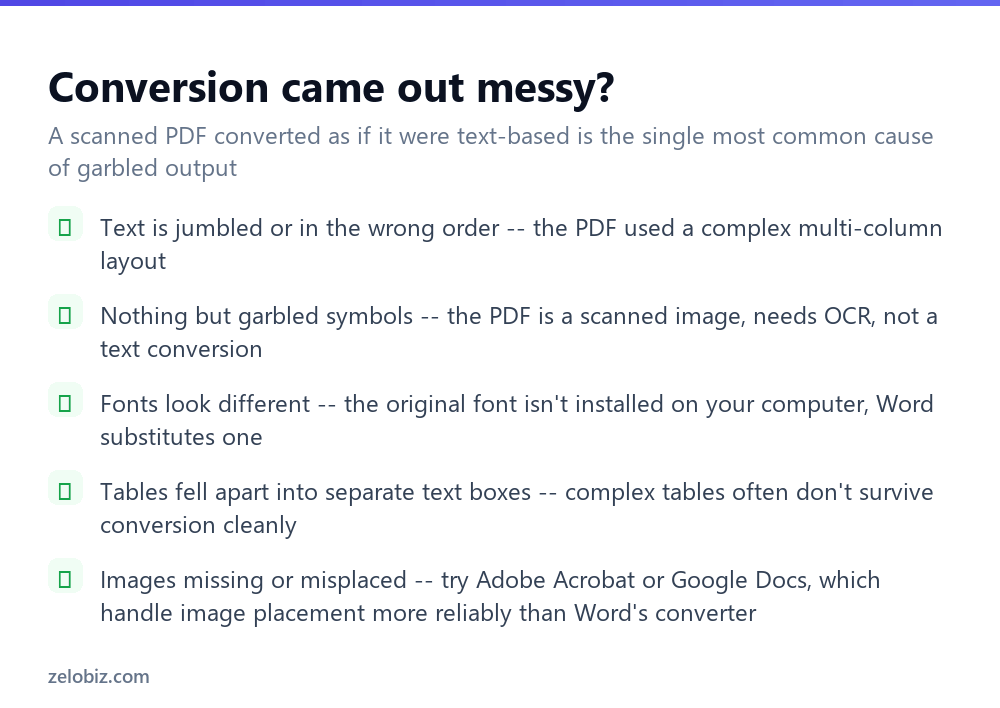
Garbled symbols instead of text — the PDF is scanned, and you used a method without OCR. Switch to Google Docs or Adobe Acrobat, both of which include OCR processing.
Text is jumbled or in the wrong reading order — the original PDF used a complex multi-column or magazine-style layout. Conversion tools read left-to-right, top-to-bottom in general, and can misread the intended column order. Manually reordering paragraphs after conversion is sometimes the only fix, short of retyping.
Fonts look different — the original font isn’t installed on your computer, so Word substitutes its closest match. This is cosmetic and doesn’t affect the text content; install the original font if exact appearance matters.
Tables fell apart into separate floating text boxes — complex tables with merged cells or unusual borders often don’t survive conversion cleanly in any tool. Acrobat generally handles this better than Word’s built-in converter; for a genuinely complex table, manually rebuilding it is sometimes faster than fixing the converted version.
- ✓Check whether the PDF is text-based or scanned before picking a method
- ✓Use Word’s built-in File > Open for simple text-based PDFs — no other software needed
- ✓Use Google Docs or Adobe Acrobat for scanned documents that need OCR
- ✓Keep sensitive documents off online converters entirely
- ✓Expect complex multi-column layouts to need some manual cleanup after conversion
- ✕Assuming any converter can read a scanned image PDF as text
- ✕Uploading a document with personal or financial data to an unknown online converter
- ✕Expecting a converted complex table to look identical to the original
- ✕Editing the PDF directly by mistake — Word creates a separate converted copy
- ✕Paying for Acrobat for a single one-off simple text PDF when Word’s built-in tool would do
Frequently asked questions
How do I convert a PDF to Word for free?
Open the PDF directly in Microsoft Word (File, Open) if you already have Word 2013 or later, or upload it to Google Docs and download it as a .docx file.
Why does my converted PDF look like garbled text?
The PDF is likely a scanned image rather than real text. You need a tool with OCR, such as Google Docs or Adobe Acrobat, not a plain text-extraction converter.
Is it safe to use an online PDF to Word converter?
Not for sensitive documents — the file is uploaded to a third-party server. For personal, financial, or confidential content, use Word’s built-in converter or Adobe Acrobat instead.
Does converting a PDF to Word change the original PDF file?
No. Every method described here creates a new, separate Word document. The original PDF is never modified.
Which method gives the most accurate formatting?
Adobe Acrobat generally produces the most accurate conversion for complex layouts, tables, and mixed content, though it requires a paid subscription.
How can I tell if my PDF is text-based or scanned?
Try selecting a word with your cursor. If individual words highlight normally, it’s text-based. If the whole page selects as one block or nothing selects, it’s scanned.
- →Going the other direction: how to convert Word to PDF
- →Combine several PDFs into one: how to merge PDF files
- →Extract just a few pages: how to split a PDF
- →Sign a document without printing it: how to sign a PDF