
To split a PDF, the free option on a Mac is Preview — select the pages you want in the thumbnail sidebar and drag them out to create a new file containing just those pages. On Windows, use Adobe Acrobat’s Organize Pages › Split tool, or a free online splitter. Whichever method you use, the original PDF is left untouched — splitting creates new files rather than modifying the source.
Three different jobs, one word

“Split a PDF” covers a few genuinely different tasks, and it’s worth being specific about which one you need before picking a tool.
Extracting a handful of specific pages — pulling pages 3 through 5 out of a 40-page report into their own file, leaving the rest of the document as it was. This is the most common real-world case.
Splitting into equal chunks — breaking one large file into several smaller ones of a set size, useful for staying under an email attachment limit or a specific upload requirement.
Splitting into individual single-page files — every page becomes its own separate PDF, useful when each page needs to be processed, filed, or sent separately.
Most tools handle the first case (extracting specific pages) most easily. The other two are usually available in Acrobat’s Split tool specifically, with fewer free alternatives offering them as cleanly.
Extracting pages with Preview on a Mac (free)
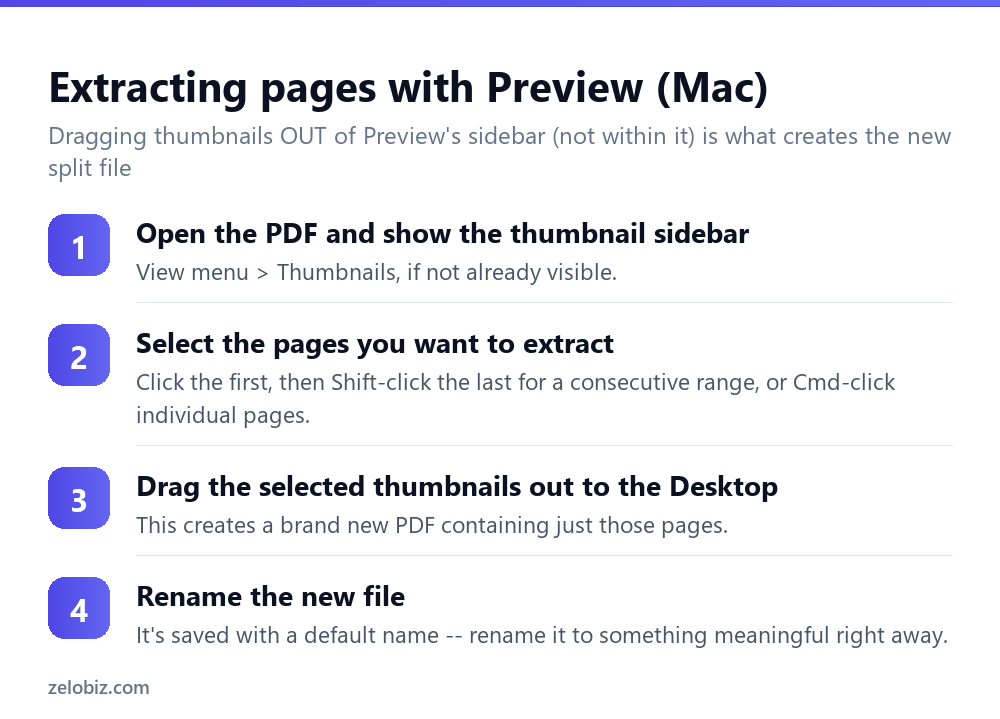
Open the PDF and show the thumbnail sidebar (View › Thumbnails if it’s not already visible).
Click the first page you want, then Shift-click the last page for a consecutive range, or Cmd-click individual pages to select a non-consecutive set.
Drag the selected thumbnails out of the sidebar to the Desktop or a folder in Finder — not just reordering them within the sidebar, but dragging them out of the Preview window entirely. This creates a brand new PDF file containing just the selected pages.
The new file is saved with a generic default name; rename it immediately to something meaningful so it doesn’t get lost among other similarly-named exports later.
Splitting on Windows with Adobe Acrobat
Tools › Organize Pages › Split. Acrobat offers all three splitting modes directly: split by a fixed number of pages per file, split at specific page numbers you define, or split into individual single-page files.
This is the more capable option of the two Windows routes, especially for the equal-chunks or one-file-per-page cases that free tools handle less consistently. It requires a paid Acrobat subscription.
Free online splitters
Free browser-based splitters handle simple page extraction reasonably well — upload the PDF, select or specify the page range, download the result. As with any online PDF tool, the file passes through a third-party server, so the same caution applies: fine for non-sensitive documents, avoid for anything confidential.
Bookmarks and internal links after splitting
A PDF’s internal bookmarks and cross-reference links are built against the whole original document. After splitting, a bookmark or link that pointed to a page now outside the extracted range won’t resolve to anything — it’s not that splitting broke the file, but that the destination it was pointing to no longer exists in the new, smaller file.
For documents where internal navigation matters (a long report with a table of contents linking to each section, for instance), it’s worth manually checking a few bookmarks or links in the split file rather than assuming they all still work correctly after the surrounding pages have been removed from the new, smaller document you’ve created out of the original larger one. A quick click-through of the first few links is usually enough to reveal whether the rest are likely to have the same problem.
A worked example: pulling one chapter out of a long report
Say a 120-page annual report needs just its 8-page financial summary section (pages 42-49) sent to an auditor, without the rest of the document.
On a Mac: open the report in Preview, show the thumbnail sidebar, scroll to page 42, click it, then Shift-click page 49 to select the full consecutive range. Drag that selection out of the sidebar to the Desktop, creating a new file with just those eight pages. Rename it clearly — something like “AnnualReport-FinancialSummary-pp42-49.pdf” — since the auditor will be receiving it without the surrounding context that made the original page numbers meaningful.
On Windows with Acrobat: Tools › Organize Pages › Split, choose the option to split at specific page numbers, and specify the range. Acrobat produces the extracted range as a new file, leaving the 120-page original completely intact.
Either way, open the resulting 8-page file afterward and check the first and last page landed correctly — an off-by-one error in the range (pulling pages 42-48 instead of 42-49, for instance) is an easy mistake when working from a page count in a long document.
Splitting a scanned batch into individual documents
A common real-world case: scanning a stack of separate paper documents in one pass produces a single multi-page PDF, but each original document actually needs to become its own separate file — ten invoices scanned together, for instance, that need filing as ten individual PDFs rather than one combined one.
If each original document was a consistent number of pages (say, every invoice was exactly one page), Acrobat’s split-by-fixed-number-of-pages option handles this directly in one action. If documents varied in length, manual extraction of each range — page 1, pages 2-3, pages 4-6, and so on — is more reliable than trying to force an automatic split to guess where one document ends and the next begins, since no splitting tool actually reads the content to detect document boundaries on its own.
Naming split files so they stay organized
A batch split produces several new files at once, and the default naming (often just the original filename with a number appended) rarely stays meaningful once they’re separated from each other and from the context of having just been split. Renaming each one immediately — with the content, date, or purpose reflected in the filename rather than a generic sequential number — saves real time later compared to opening several similarly-named files to figure out which is which after the fact.
When the split doesn’t come out right
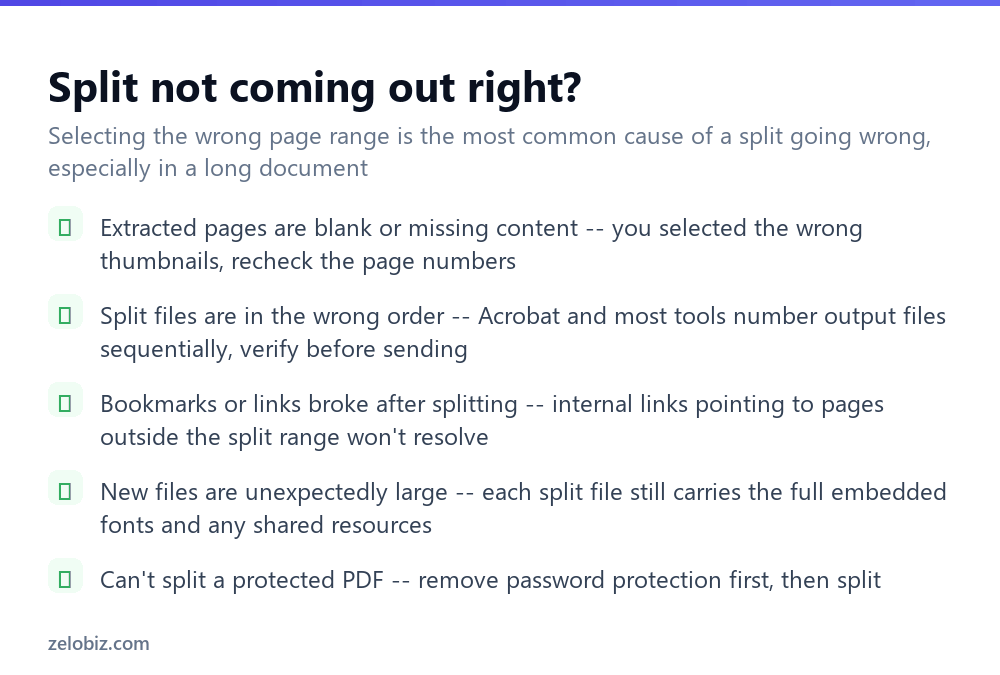
Extracted pages are blank or wrong — double-check the page numbers against the PDF’s own displayed page count, which can differ from a document’s internal printed page numbers (a report with a cover page and table of contents before page 1 often has an offset between the two).
Split files are out of order — most tools number output files sequentially by default, but it’s worth opening and verifying each one before sending or filing them, particularly for an equal-chunks split of a long document.
Files came out larger than expected — each split file still carries its own copy of any embedded fonts and shared resources from the original, so ten single-page files can collectively be larger than you’d expect from dividing the original size by ten. This is normal, not a sign something went wrong.
Can’t split a protected PDF — remove password protection from the source file first (see the password protection guide linked below), then split it.
A quick reference for common scenarios
Pulling one signed page out of a longer contract to send separately: extract just that page with Preview or Acrobat, and double-check page numbers against the actual PDF viewer count rather than any printed numbering inside the document. Breaking a scanned batch of receipts into individual files for expense filing: use Acrobat’s split-by-fixed-page-count if each receipt is the same length, or extract manually if lengths vary. Reducing a large file for an email attachment limit by removing pages you don’t need: extract just the relevant range rather than compressing the whole document, since removing unneeded pages entirely shrinks the file more than compression alone would on pages nobody needed to send in the first place.
- ✓Be specific about which splitting job you need before picking a tool
- ✓Use Preview’s drag-out method for a quick free extraction on a Mac
- ✓Verify a document’s displayed page numbers before selecting a range to extract
- ✓Check bookmarks and internal links still resolve correctly after splitting
- ✓Remove password protection from a file before attempting to split it
- ✕Assuming a report’s printed page numbers match the PDF viewer’s page count exactly
- ✕Expecting internal links to a now-removed page to still work after splitting
- ✕Being surprised that several small split files can add up to more than the original size
- ✕Uploading a confidential document to an unfamiliar online splitter
- ✕Trying to split a password-protected PDF without removing protection first
Frequently asked questions
How do I extract pages from a PDF?
On a Mac, select the pages in Preview’s thumbnail sidebar and drag them out to create a new file. On Windows, use Adobe Acrobat’s Organize Pages, Split tool, or a free online splitter.
Can I split a PDF for free?
Yes. Preview on a Mac requires no download for simple page extraction, and free online splitters handle basic splitting on any platform.
Does splitting a PDF change the original file?
No. Splitting creates new files containing the selected pages; the original PDF is left completely untouched.
Why don’t my bookmarks work after splitting a PDF?
Bookmarks and internal links pointing to pages outside the new, smaller file’s range no longer have a valid destination — this is expected, not an error.
Why are my split PDF files larger than expected?
Each split file carries its own copy of embedded fonts and shared resources from the original, so several small files can add up to more than the source file’s size.
How do I split a PDF into equal-sized chunks?
Adobe Acrobat’s Organize Pages, Split tool offers this directly, splitting by a fixed number of pages per file — free tools handle this less consistently.
- →Combine files after splitting them: how to merge PDF files
- →Shrink a large split file further: how to compress a PDF
- →Fix a sideways page before splitting: how to rotate a PDF
- →Unlock a protected file first: how to password protect a PDF