
To recall an email in Outlook, open Sent Items in the classic desktop Outlook app, double-click the message to open it fully, then go to Message › Actions › Recall This Message. Recall only works when both you and the recipient are on the same Microsoft Exchange or Microsoft 365 organization, both using desktop Outlook, and the recipient hasn’t already opened the email. Outside those conditions — a Gmail recipient, someone on Outlook web or mobile, or a message that’s already been read — recall cannot work at all.
Why recall fails more often than people expect
Recall is one of Outlook’s most misunderstood features, largely because it sounds like it should just work the way “unsend” does in a modern messaging app. It doesn’t, and understanding why saves a lot of false hope.
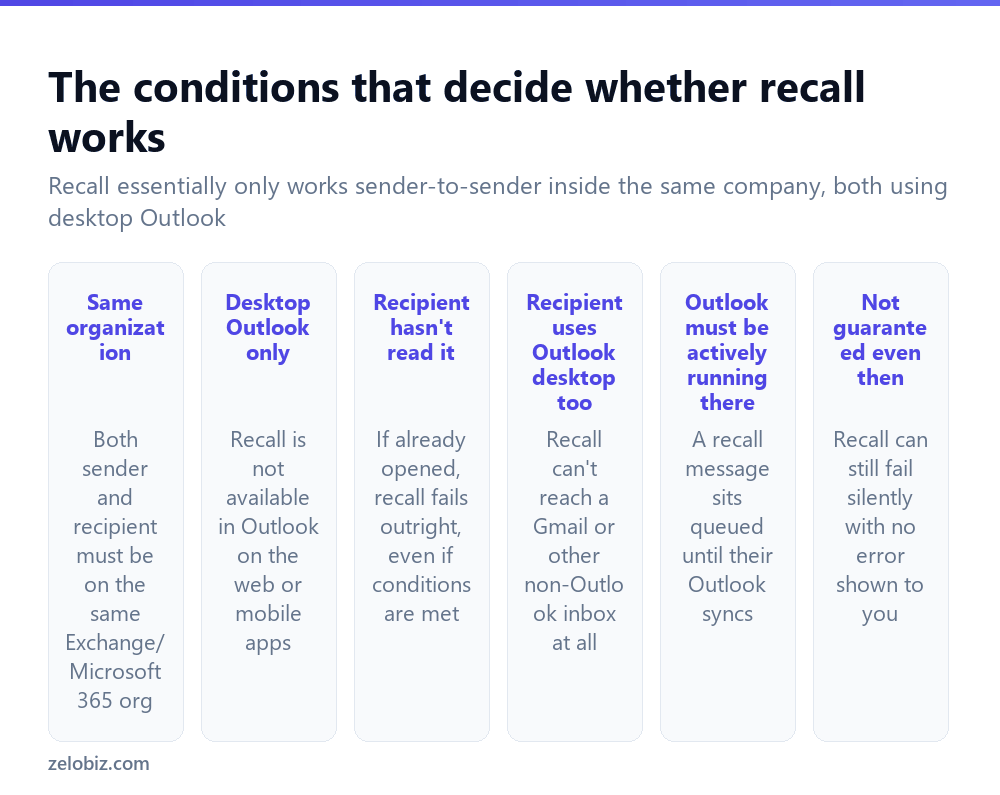
Same organization only. Recall operates through Exchange/Microsoft 365’s internal mail routing. It has no ability to reach into a Gmail inbox, a Yahoo account, or even a different company’s Microsoft 365 tenant — the message has simply, fully arrived there the normal way, exactly like any other email, with no recall mechanism attached.
Desktop Outlook, on both ends. Recall isn’t available in Outlook on the web (outlook.com or the browser version of a work account) or in the mobile apps, neither for sending a recall nor for a recall to succeed against a recipient using those. Both people need the classic Windows desktop application.
Unread, and Outlook actively syncing. If the recipient has already opened the message, recall fails immediately, no matter how quickly you tried. And a recall request sits waiting until their Outlook is running and connected to sync it — if they’re offline, it doesn’t get an instant chance to work before they eventually open the original.
In practice, recall reliably works in one specific scenario: sending a mistaken email to a colleague at the same company, both of you in desktop Outlook, and them not yet having opened it. Outside that, treat recall as unlikely to work rather than a safety net.
Attempting a recall
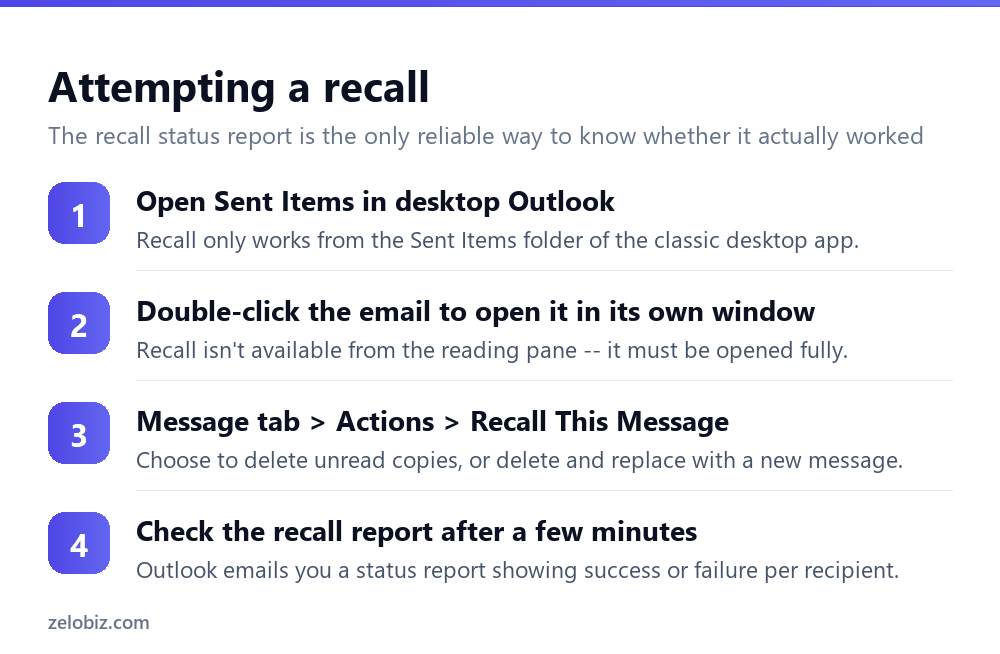
Open Sent Items in desktop Outlook and find the message. Double-click it to open it in its own separate window — this is important, since the recall option isn’t available when just viewing the message in the reading pane.
With the message open, go to the Message tab, then Actions › Recall This Message. Outlook offers two options: delete unread copies of the message, or delete and replace with a corrected version.
After attempting the recall, Outlook sends you an email report a few minutes later showing the actual result for each recipient — success, failure, or that the message had already been read. This report is the only reliable way to know what actually happened; the recall action itself doesn’t give an immediate yes-or-no answer.
Delete vs delete-and-replace
Delete unread copies attempts to remove the original message entirely from a recipient’s inbox before they see it — appropriate when the email simply shouldn’t have been sent at all, to the wrong person or containing something that shouldn’t go out.
Delete and replace with a new message removes the original and delivers a corrected version in its place — appropriate for a genuine content mistake (wrong attachment, an error in the text) where the email itself should still be sent, just fixed.
Both are subject to the exact same conditions above — replace doesn’t work any more reliably than plain deletion outside the same-organization, desktop-Outlook, unread requirements.
What actually happens when recall fails
A failed recall doesn’t undo itself or notify the recipient that you tried to take it back in any visible way in most configurations — the original email simply remains in their inbox exactly as sent. Depending on Outlook version and settings, some recipients may briefly see a notification that the sender attempted to recall a message, which can occasionally draw more attention to the email than if recall had never been attempted at all.
This is worth factoring into the decision to try recall in the first place — for a message you’re fairly sure will fail to recall (recipient outside your organization, for instance), attempting it anyway serves little purpose and, depending on configuration, can flag the original email as noteworthy rather than letting it pass unremarked.
When recall genuinely isn’t an option
For anything sent to an external recipient — Gmail, a personal email, another company’s domain — recall was never going to work, and no troubleshooting will change that. The realistic options at that point are a prompt follow-up email correcting the mistake, or a phone call if the content was genuinely sensitive and speed matters.
For organizations that need real message-recall reliability going forward rather than hoping this feature works when needed, Microsoft 365’s Message Encryption and data-loss-prevention features, or a longer send-delay rule (delaying outgoing mail by a minute or two, giving a window to catch and stop an obvious mistake before it leaves your outbox at all) are more dependable mechanisms than after-the-fact recall.
A worked example: catching a mistake fast
Say you meant to send a draft budget to your manager but hit Reply All on a group thread by mistake, sending it to fifteen colleagues at the same company, all using desktop Outlook.
Speed matters here more than anything else — go straight to Sent Items, open the message, and attempt the recall within the first minute or two if at all possible. This is the scenario recall was genuinely built for: same organization, desktop Outlook on both ends, and a real chance several recipients haven’t opened it yet given how recently it was sent.
Choose Delete unread copies rather than replace, since the goal here is simply removing the mistaken send, not correcting and resending its content. Check the status report a few minutes later — expect a mix of results even in the best case, since some colleagues will likely have already opened it in the time it took to notice the mistake and act.
For anyone recall didn’t reach, a brief, low-drama follow-up (“please disregard my last email, sent to the wrong thread”) handles the rest more gracefully than silence, and doesn’t depend on a feature with as many conditions as recall has.
Recall inside shared or delegated mailboxes
Recall behaves the same way in a shared mailbox or one you have delegate access to, with the same underlying conditions — but it’s worth checking with whoever else has access to that mailbox, since a recall attempt initiated by one person is visible to anyone else monitoring the same Sent Items folder, and unexpected recall notifications can cause confusion if the team isn’t expecting them.
When something’s unclear
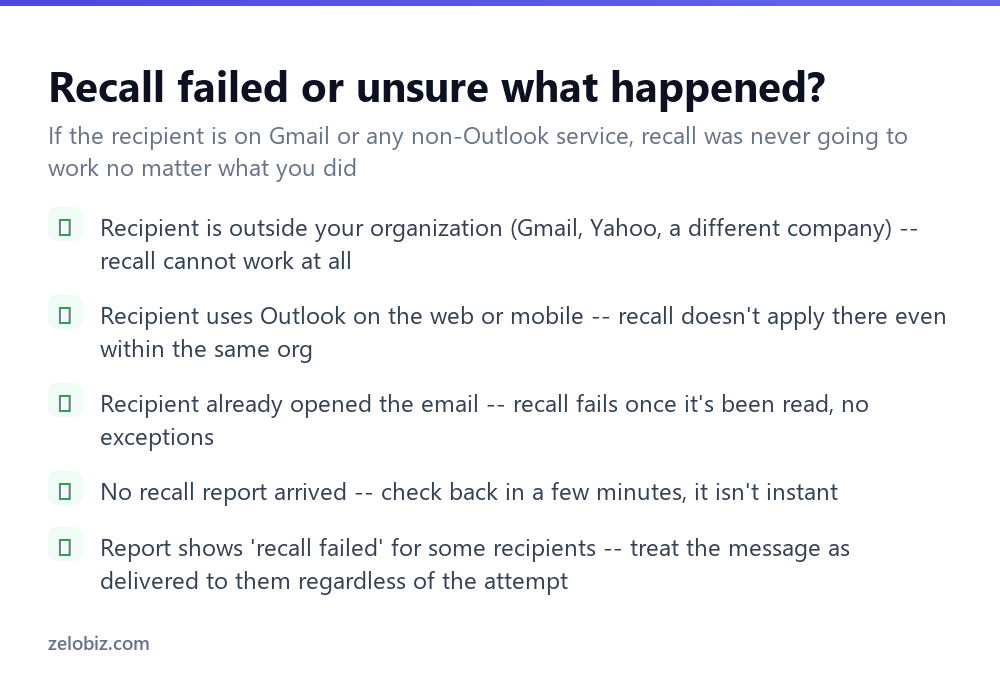
Recipient is outside your organization — Gmail, Yahoo, a different company’s domain — recall cannot function at all in this case, regardless of anything else done correctly.
Recipient uses Outlook on the web or mobile — even within the same organization, recall doesn’t reach these. The recipient needs the classic desktop application specifically.
Recipient already opened the email — recall fails immediately, with no way around it once a message has been read.
No recall report has arrived — give it a few minutes; it isn’t instant, and depends on the recipient’s Outlook being connected and syncing.
The report shows failure for some recipients — treat the message as fully delivered and read by them; a partial recall success (some recipients, not others) is common and expected given the strict conditions involved.
- ✓Know before attempting: same org, desktop Outlook on both ends, and unread
- ✓Check the recall status report rather than assuming success
- ✓Send a prompt follow-up correction for any recipient recall can’t reach
- ✓Consider a short outgoing send-delay rule as a more reliable safety net going forward
- ✓Double-click to open the message fully before looking for the recall option
- ✕Assuming recall works the way ‘unsend’ does in a modern messaging app
- ✕Attempting recall on a message sent to an external Gmail or Yahoo address
- ✕Expecting recall to work if the recipient uses Outlook on the web or mobile
- ✕Trying to recall a message the recipient has already opened
- ✕Treating an attempted-but-failed recall as if it actually removed the message
Frequently asked questions
How do I recall an email I already sent in Outlook?
Open Sent Items in desktop Outlook, double-click the message to open it fully, then go to Message, Actions, Recall This Message.
Why doesn’t Outlook recall work on emails sent to Gmail?
Recall only functions between accounts on the same Microsoft Exchange or Microsoft 365 organization. It has no ability to reach a Gmail or other external inbox at all.
Does Outlook recall work on mobile or the web version?
No. Recall is only available in the classic desktop Outlook application, both for sending the recall and for it to succeed against a recipient using desktop Outlook.
Can I recall an email after the recipient has read it?
No. Recall fails immediately once a message has been opened, with no way around it.
How do I know if my Outlook recall actually worked?
Outlook sends a status report a few minutes after the attempt, showing success or failure for each recipient individually.
What’s the difference between Delete and Delete and Replace in Outlook recall?
Delete removes the original message entirely. Delete and Replace removes it and delivers a corrected version in its place. Both require the same strict conditions to succeed.
- →Avoid needing recall in the first place: how to schedule an email in Outlook
- →Set up rules to organize replies: how to create a rule in Outlook
- →Keep your inbox manageable: how to archive emails in Outlook
- →Add a professional signature: how to make a signature in Outlook