
To make a signature in Outlook, go to File › Options › Mail › Signatures in classic desktop Outlook (or Settings › Mail › Compose and reply in Outlook.com and new Outlook), click New, build your signature with the formatting tools provided, and then set it as the default for New messages and separately for Replies/forwards — two different dropdowns that are easy to fill in only one of by accident.
Where to find it, by version
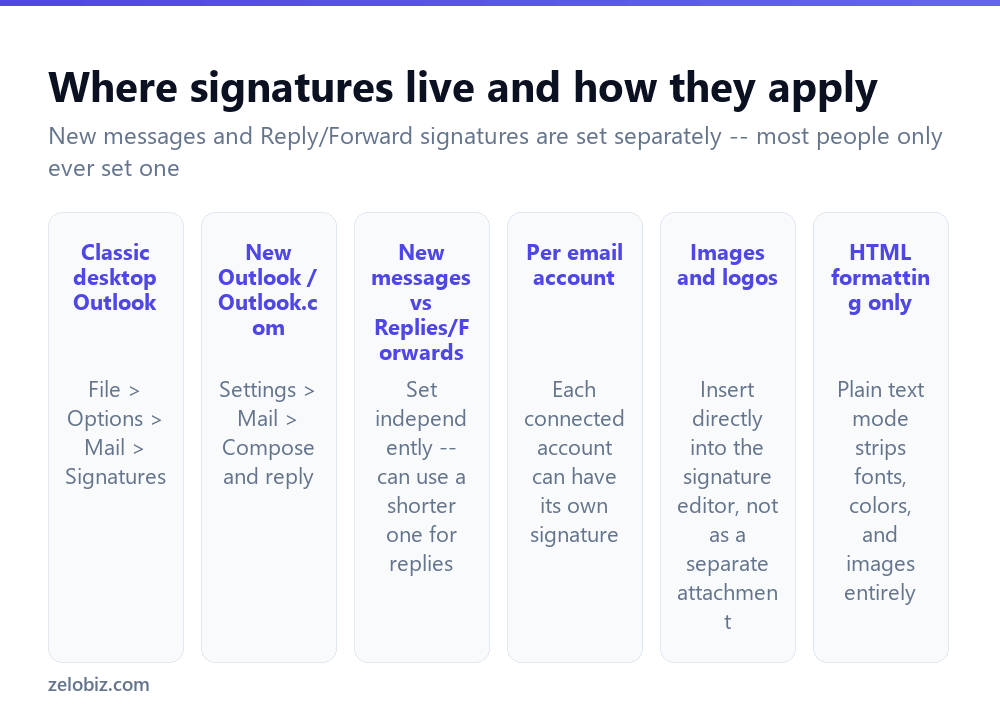
Classic desktop Outlook: File › Options › Mail › Signatures button, opening a dedicated Signatures and Stationery dialog with a full formatting toolbar.
Outlook.com and new Outlook: Settings (gear icon) › Mail › Compose and reply, with a simpler but similar editor directly in the settings pane.
Both versions let each connected email account carry its own separate signature, useful if you manage a personal and a work account through the same Outlook installation and want distinctly different sign-offs for each.
New messages and Replies/forwards are set independently in both versions. Most people set one and assume it covers both — it doesn’t, which is the single most common reason a signature seems to randomly disappear on replies.
Creating a signature in classic desktop Outlook
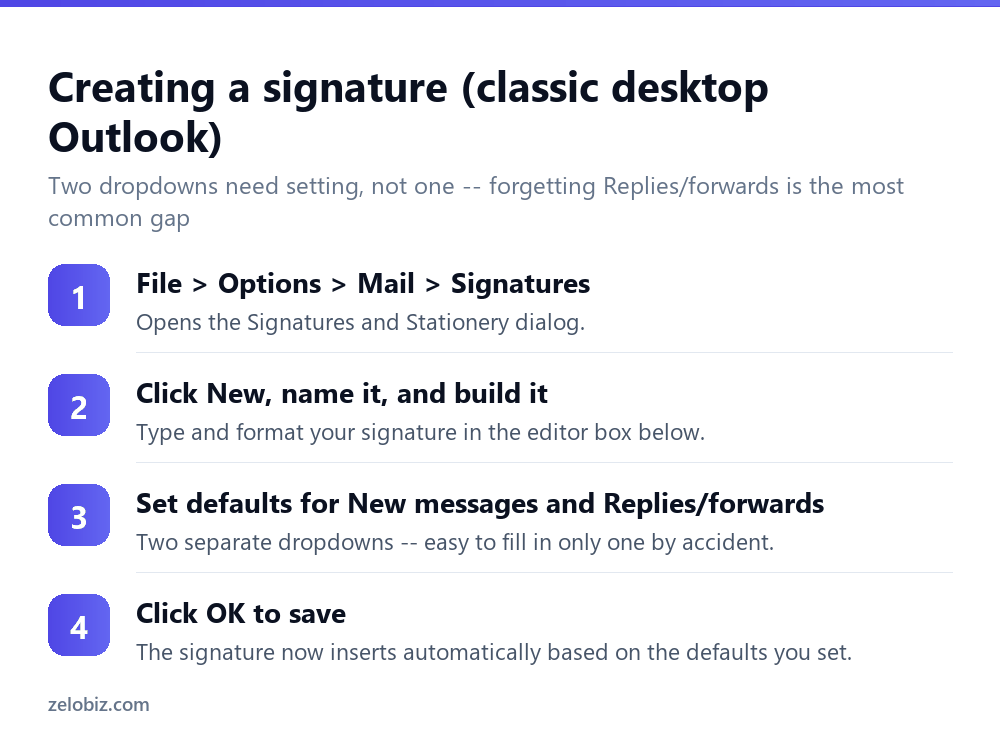
File › Options › Mail › Signatures. Click New, give it a name (this is just for your own reference if you keep multiple signatures, not something recipients see), and build it in the editor box below using the formatting toolbar — font, size, color, alignment, and an option to insert images directly.
On the right side of the same dialog, two dropdowns control when it’s used: New messages and Replies/forwards. Set both if you want the same signature everywhere, or choose a shorter signature for replies and a fuller one for new messages — a common choice, since a long signature on every reply in a back-and-forth thread gets repetitive fast.
Click OK to save. From that point, the signature inserts automatically according to the defaults set, with no further action needed per email.
Adding a logo or image
Use the image icon in the signature editor’s toolbar to insert a logo or headshot directly into the signature, rather than attaching it separately to each email. Resize it within the editor to a sensible size before saving — a signature image inserted at full original resolution often displays far larger than intended in the finished email.
Embedded versus linked matters here. An image inserted directly (the normal behavior when using the toolbar’s insert-image button) is embedded in the signature itself and travels with every email. An image referenced by a web link instead requires that link to remain valid and accessible for the image to display for recipients — if that source ever moves or is taken down, the image breaks in every email using that signature from then on. Embedding is more reliable for anything you’re not actively managing as a live hosted asset.
Plain text vs HTML
Signature formatting — fonts, colors, images, spacing — only survives if your outgoing mail format is set to HTML, Outlook’s default. If mail format is set to Plain Text instead (found under the same Mail options, or per-message under Format Text in the compose window), all formatting strips out and the signature reduces to bare text, images included, with nothing rendering.
If a signature looks perfect in the editor but shows up as plain unformatted text (or missing images) once actually sent, check whether that specific message or account defaulted to Plain Text format.
Creating a signature in Outlook.com / new Outlook
Settings › Mail › Compose and reply. The editor here is simpler than the desktop version but covers the essentials — text formatting, links, and image insertion. The same New messages / Replies-forwards toggle exists, usually as a pair of checkboxes rather than dropdowns, controlling when the signature is applied automatically.
A worked example: a signature that works consistently everywhere
Say you want a signature with your name, title, phone number, and a small company logo, that looks right whether it’s a new email or a reply, and whether the recipient opens it in Outlook, Gmail, or on a phone.
Build it in the desktop editor with simple formatting — a standard system font rather than anything unusual, since an uncommon font will fall back to a generic substitute on a recipient’s device regardless of what it looks like on yours. Keep the layout to a handful of lines rather than an elaborate multi-column design, since complex layouts are exactly what tends to break across different email clients.
Insert the logo via the toolbar’s image button (embedding it, not linking to a hosted URL), resize it to roughly the height of two or three lines of text so it doesn’t dominate the signature, and set both the New messages and Replies/forwards dropdowns to this same signature.
Send yourself a test email and open it somewhere other than Outlook — a phone’s default mail app, or a personal Gmail account — to confirm the logo displays and the layout holds together reasonably well outside Outlook’s own rendering. This one check catches most of the common cross-client formatting surprises before they reach a real recipient.
Multiple signatures for different purposes
Beyond the New messages / Replies split, some people keep several distinct named signatures for different contexts — a full signature with title and logo for external client communication, and a bare-bones name-only signature for quick internal messages where a full block feels unnecessary.
Outlook doesn’t automatically choose between multiple signatures based on the recipient — the New messages and Replies/forwards defaults each point at exactly one signature at a time. Switching between saved signatures for a specific email is done manually, via the Signature button in the compose window’s ribbon, which lists every saved signature for quick manual selection when the default isn’t the right one for that particular message or that particular recipient you happen to be writing to at the time.
When it’s not behaving as expected
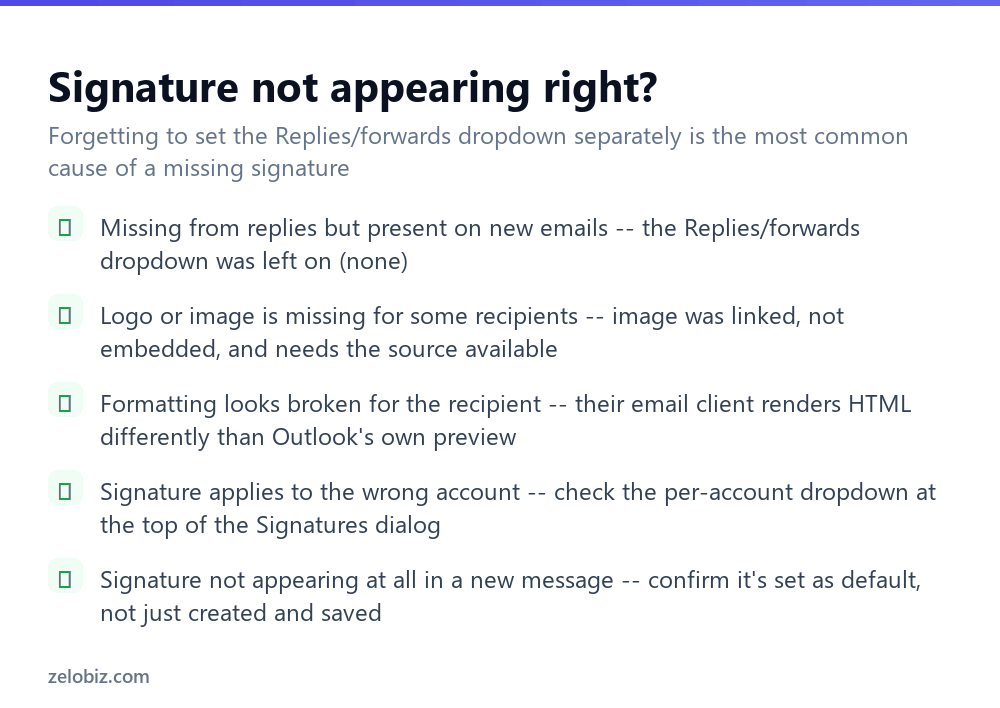
Signature appears on new emails but not replies — the Replies/forwards dropdown was left on “(none)”. Go back into Signatures and set it explicitly, separate from the New messages setting.
Logo missing for some recipients specifically — the image was linked rather than embedded, and its source is no longer accessible to their email client for some reason (corporate image-blocking policies are a common cause here, independent of the embed-versus-link issue). Embedding the image directly avoids this dependency.
Formatting looks fine in Outlook but broken for the recipient — different email clients render HTML signatures somewhat differently. Test a signature by sending yourself a message and viewing it in a different client (a phone’s default mail app, for instance) if consistent appearance across platforms matters.
Wrong account’s signature is being used — check the account dropdown at the top of the Signatures dialog; settings are per-account, and it’s easy to configure the wrong one if managing several.
Keeping a signature consistent across devices
A signature created in desktop Outlook doesn’t automatically appear in Outlook mobile or a different computer’s Outlook installation — it’s stored locally to that specific install in classic desktop Outlook, though Outlook.com and new Outlook signatures generally sync automatically since they’re stored with your account rather than the local device. If a signature is missing on a phone or a second computer, that’s usually why, and it needs to be recreated separately there rather than assuming it will simply appear.
- ✓Set both New messages and Replies/forwards, not just one
- ✓Embed images directly rather than linking to an external image source
- ✓Resize an inserted logo within the editor before saving
- ✓Confirm mail format is HTML, not Plain Text, if formatting isn’t showing
- ✓Check the per-account dropdown if you manage more than one email account
- ✕Assuming one signature setting automatically covers both new messages and replies
- ✕Linking to an external image that might move or become unavailable later
- ✕Inserting a full-resolution logo without resizing it in the editor first
- ✕Building an elaborately formatted signature while set to Plain Text mail format
- ✕Forgetting signatures are configured per account, not globally across all accounts
Frequently asked questions
How do I create a signature in Outlook?
Go to File, Options, Mail, Signatures in classic desktop Outlook, or Settings, Mail, Compose and reply in Outlook.com, then build and save a new signature.
Why doesn’t my signature show up on replies?
New messages and Replies/forwards are set independently. Check that the Replies/forwards dropdown in the Signatures dialog is also set, not just New messages.
How do I add a logo to my Outlook signature?
Use the insert-image button in the signature editor’s toolbar to embed it directly, rather than linking to an external image or attaching it separately.
Why is my signature showing as plain text with no formatting?
Your mail format is likely set to Plain Text rather than HTML. Formatting and images only display when outgoing mail format is HTML.
Can I have different signatures for different email accounts?
Yes. Each connected account in Outlook can have its own separate signature, set via the account dropdown in the Signatures dialog.
Can I have a different signature for new emails versus replies?
Yes. The New messages and Replies/forwards defaults are set separately, so a shorter signature for replies and a fuller one for new emails is a common setup.
- →Automate handling of incoming mail: how to create a rule in Outlook
- →Time your signed emails to land right: how to schedule an email in Outlook
- →Undo a mistake before it matters: how to recall an email in Outlook
- →Keep a signed, active inbox tidy: how to archive emails in Outlook