

To create a rule in Outlook, go to File › Manage Rules & Alerts › New Rule, choose a template or start from a blank rule, set the condition (what triggers it — a specific sender, words in the subject, and so on) and the action (what happens — move to a folder, mark as read, forward, flag), then Finish. A faster shortcut for a common case: right-click any email › Rules › Create Rule.
What a rule is actually built from
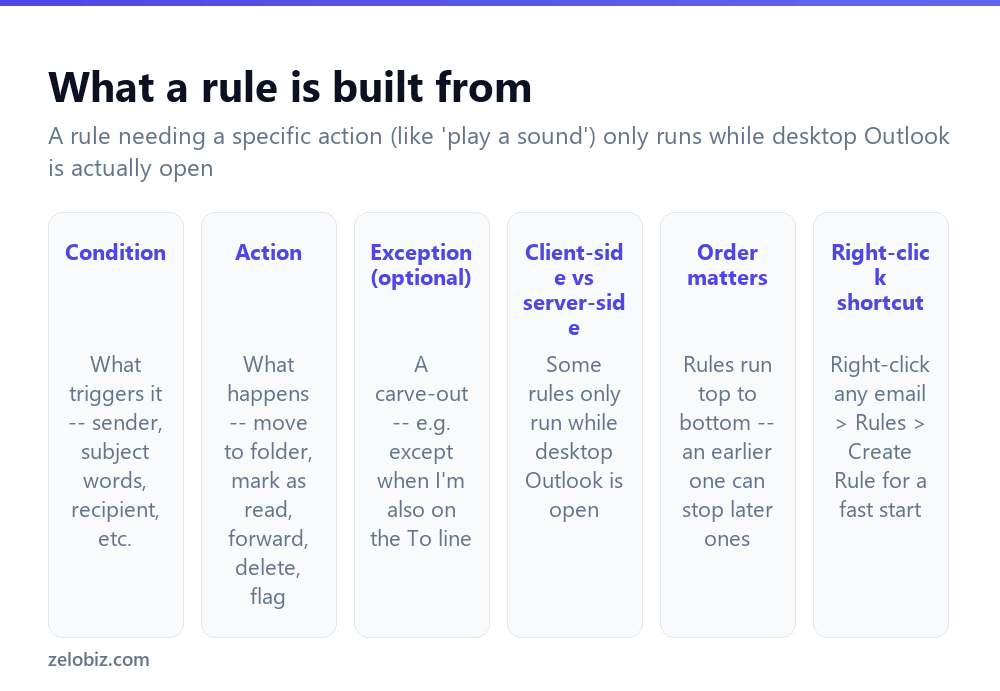
Every rule follows the same basic logic: if a condition is met, then perform an action, unless an optional exception applies.
Conditions can check the sender, specific recipients, words in the subject or body, whether you’re on the To or Cc line specifically, attachment presence, and several other properties of an incoming (or outgoing) message.
Actions cover moving to a folder, marking as read, forwarding or redirecting to someone else, flagging for follow-up, deleting, or playing a sound — among several others available in the full rule wizard.
Exceptions add a carve-out to an otherwise broad rule — “move emails from this mailing list to a folder, except when I’m also directly on the To line,” for instance, catching direct questions even from an otherwise low-priority sender.
A rule that depends on an action like ‘play a sound’ or certain forwarding setups only runs while desktop Outlook is actively open — these are called client-side rules. Most simple move/mark-as-read rules run server-side and work even when Outlook is closed.
Building a rule from scratch
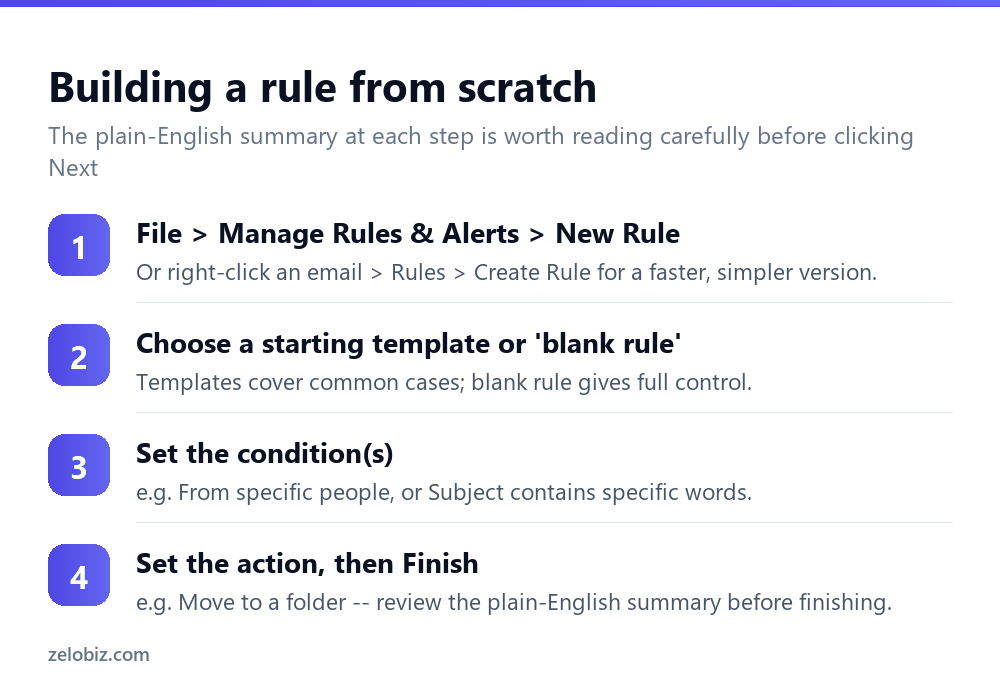
File › Manage Rules & Alerts › New Rule opens the Rules Wizard. Choose a starting template — common ones include “Move messages from someone to a folder” — or select Apply rule on messages I receive under “Start from a blank rule” for full manual control.
Set the condition(s) by ticking the relevant checkboxes and filling in the specifics — for instance, ticking “from people or public group” and then specifying which sender.
Set the action the same way — ticking “move it to the specified folder” and choosing which folder, for example. The wizard shows a running plain-English summary at the bottom of each screen (“Apply this rule after the message arrives from [sender] move it to the [folder] folder”) — read it carefully before clicking Next, since it’s the clearest check that the rule actually says what you intended.
Click Finish, and optionally tick “Run this rule now on messages already in the current folder” if you want it applied retroactively to existing mail, not just new arrivals going forward.
The faster shortcut for common cases
For the frequent case of “move everything from this sender to a specific folder,” right-click any email from that sender in your inbox, choose Rules, then Create Rule. This opens a simplified dialog pre-filled with that sender already set as the condition, letting you just pick the destination folder and click OK — considerably faster than the full wizard for this specific, common case.
Rule order and “stop processing more rules”
Rules run in the order they’re listed in Manage Rules & Alerts, top to bottom, and by default a message can be affected by more than one rule in sequence. If you need a specific rule to be the final word for a message it catches — nothing after it should also apply — tick “stop processing more rules” as part of that rule’s action.
Use the up/down arrows in the Manage Rules & Alerts list to reorder rules when the sequence matters — a more specific rule generally belongs above a broader, catch-all one, so the specific case is handled correctly before the general rule would otherwise also apply to it.
Applying a rule to existing mail, not just new arrivals
A newly created rule only applies to mail arriving from that point forward by default — it doesn’t retroactively reorganize what’s already sitting in your inbox. To apply it to existing messages, use Run Rules Now from the Manage Rules & Alerts dialog, select the rule, choose which folder to run it against, and run it manually as a one-time action.
A worked example: sorting a busy project inbox
Say your inbox mixes personal mail, several newsletters, and a high-volume project thread from a specific client, and finding anything relevant to that project means scrolling past everything else.
Start with a blank rule: condition set to “from people or public group” with the client’s email domain specified (catching everyone at that company, not just one person), action set to “move it to the specified folder” pointing at a folder created specifically for that project. Review the plain-English summary — it should read something like “Apply this rule after the message arrives from client-domain.com move it to the ProjectX folder” — and confirm that matches your intent exactly before finishing.
Tick “Run this rule now” when finishing, so existing project emails already sitting in the inbox get swept into the new folder immediately rather than only affecting mail from that point forward. From then on, that entire thread organizes itself, leaving the main inbox for everything else.
If a second condition is needed later — say, only messages with “Invoice” in the subject should also get flagged for follow-up in addition to being filed — that’s a second, more specific rule, placed above the broader filing rule in the rules list, with “stop processing more rules” left unticked so both the flag and the file-to-folder actions happen for that message.
Rules that run on messages you send, not just receive
Most rules people build apply to incoming mail, but the Rules Wizard also supports conditions based on messages you send — “Start from a blank rule” offers “Apply rule on messages I send” as a separate starting point from the incoming-mail version.
A practical use: automatically Bcc a shared team folder or address on any outgoing email to a specific client, ensuring a record exists somewhere beyond just your own Sent Items without needing to remember to add that Bcc manually on every relevant message.
When a rule isn’t doing what you expected
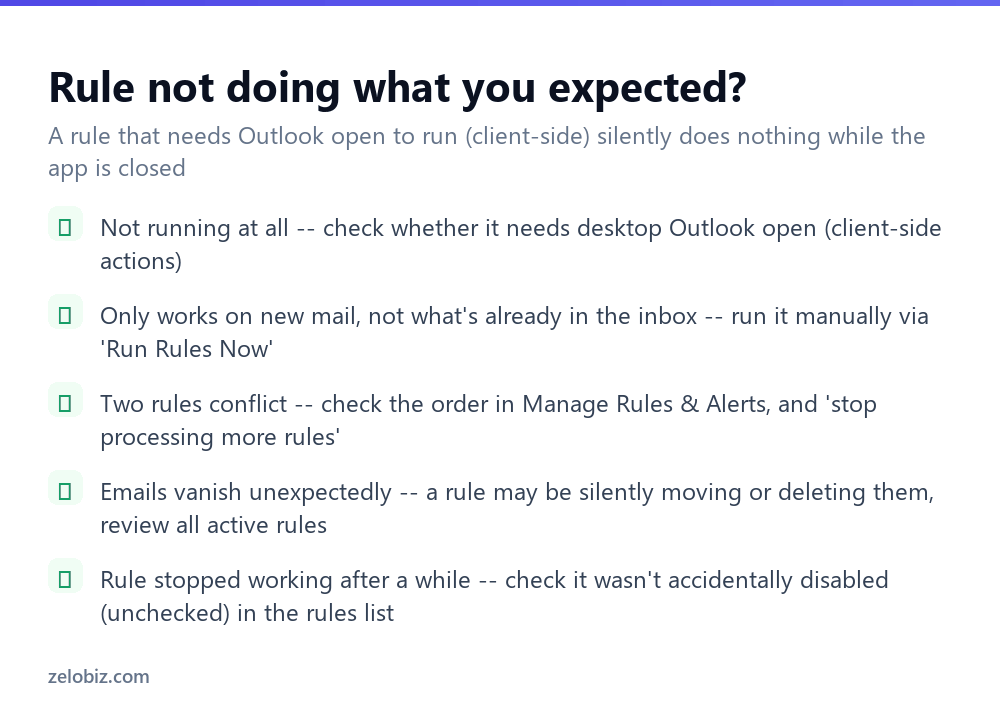
Rule doesn’t seem to run at all — check whether it depends on an action that requires desktop Outlook to be open (client-side), such as playing a sound or certain forward/redirect combinations. A rule marked with an exclamation icon in the rules list is typically flagging exactly this limitation.
Only works on new mail, not what’s already there — this is expected behavior, not a bug. Use Run Rules Now to apply it retroactively if needed.
Two rules seem to conflict — check their order in Manage Rules & Alerts, and whether “stop processing more rules” is set where it should be to prevent an unwanted second rule from also acting on the same message.
Emails seem to be vanishing — review the full list of active rules for one silently moving messages to an unexpected folder, or deleting them outright. A rule created months ago and forgotten about is a common, if unglamorous, explanation for mail that seems to disappear.
A rule that used to work has stopped — check it hasn’t been accidentally unchecked (disabled) in the rules list; the checkbox next to each rule toggles it on or off without deleting it.
- ✓Read the plain-English rule summary before clicking Finish
- ✓Use Run Rules Now to apply a new rule retroactively to existing mail
- ✓Order rules deliberately, with specific rules above broad catch-all ones
- ✓Tick ‘stop processing more rules’ when a rule should be the final word for a message
- ✓Periodically review the full rules list for anything forgotten or no longer needed
- ✕Assuming a new rule automatically reorganizes mail already in the inbox
- ✕Creating overlapping rules with no thought to which order they run in
- ✕Relying on a client-side action (like playing a sound) while Outlook is usually closed
- ✕Forgetting a rule exists and being confused later about where certain mail went
- ✕Leaving a broad rule active indefinitely after the situation it was built for has changed
Frequently asked questions
How do I create a rule in Outlook?
Go to File, Manage Rules & Alerts, New Rule, then set a condition and an action through the Rules Wizard, or right-click an email and choose Rules, Create Rule for a faster shortcut.
Why doesn’t my Outlook rule apply to emails already in my inbox?
New rules only apply to mail arriving after they’re created by default. Use Run Rules Now to apply a rule retroactively to existing messages.
Why isn’t my Outlook rule running at all?
Some rule actions, like playing a sound, only work while desktop Outlook is open (called client-side rules). Check whether your rule depends on one of these.
Can I have more than one rule affect the same email?
Yes, by default, rules run in order and multiple can apply to the same message. Use ‘stop processing more rules’ on a rule that should be the final action taken.
How do I change the order rules run in?
In Manage Rules & Alerts, select a rule and use the up/down arrows to reorder it relative to the others.
Why did an email disappear from my inbox unexpectedly?
Check your active rules list for one silently moving or deleting messages matching a condition you may have forgotten about.
- →Keep a rule-sorted inbox tidy long-term: how to archive emails in Outlook
- →Stop unwanted senders at the source: how to block spam emails
- →Get out of mailing lists a rule sorts: how to unsubscribe from emails
- →Add a signature that pairs with your rules: how to make a signature in Outlook