

To create a group email in Outlook, go to the People (Contacts) view, click New Contact Group, name it, and use Add Members to build the list from existing contacts or by typing new addresses. Once saved, typing the group’s name into the To or Bcc field of any new email automatically fills in every member’s address — no need to retype or re-select the same list of people each time you email that group.
Why a Contact Group beats retyping addresses
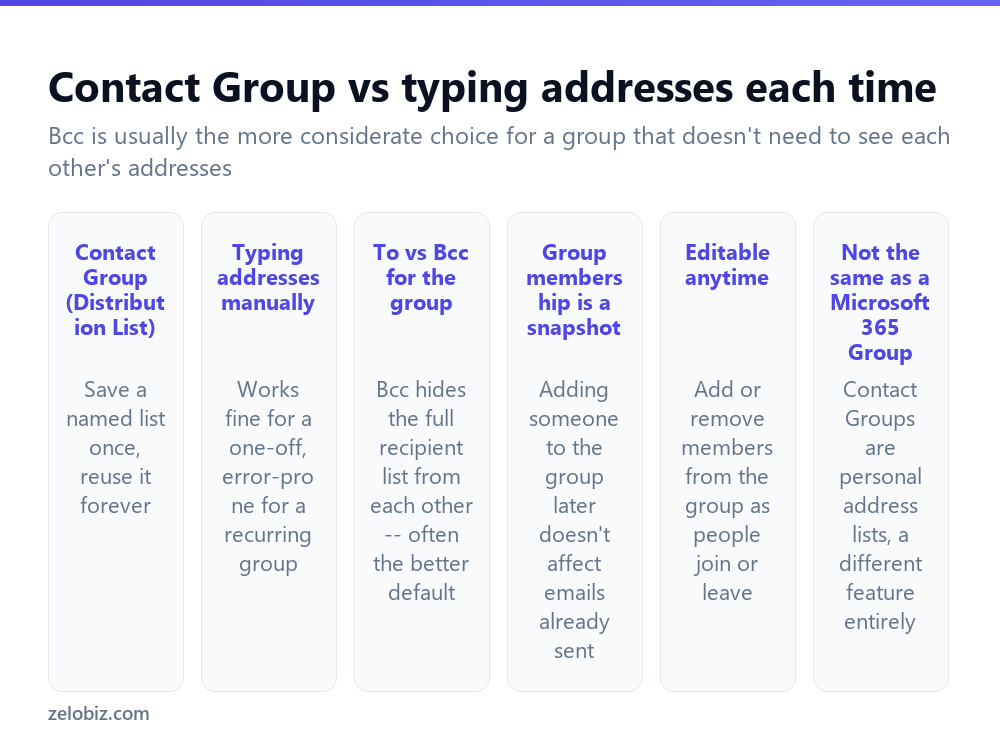
For a truly one-off email to several people, typing or selecting each address individually is fine. A Contact Group (sometimes still called a Distribution List, an older name for the same feature) earns its keep the moment you find yourself emailing the same group of people more than once — a book club, a project team, a family group, a committee.
The group is saved as a single named entry in your contacts. Type its name into an email’s To or Bcc field, and Outlook expands it into every member’s individual address automatically, with no need to remember or re-select who belongs on that particular list each time.
A Contact Group is a personal, saved list of addresses — distinct from a ‘Microsoft 365 Group,’ which is a different, broader collaboration feature involving a shared mailbox, calendar, and files. If you just need a reusable mailing list, Contact Group is the right, simpler feature.
Creating a Contact Group
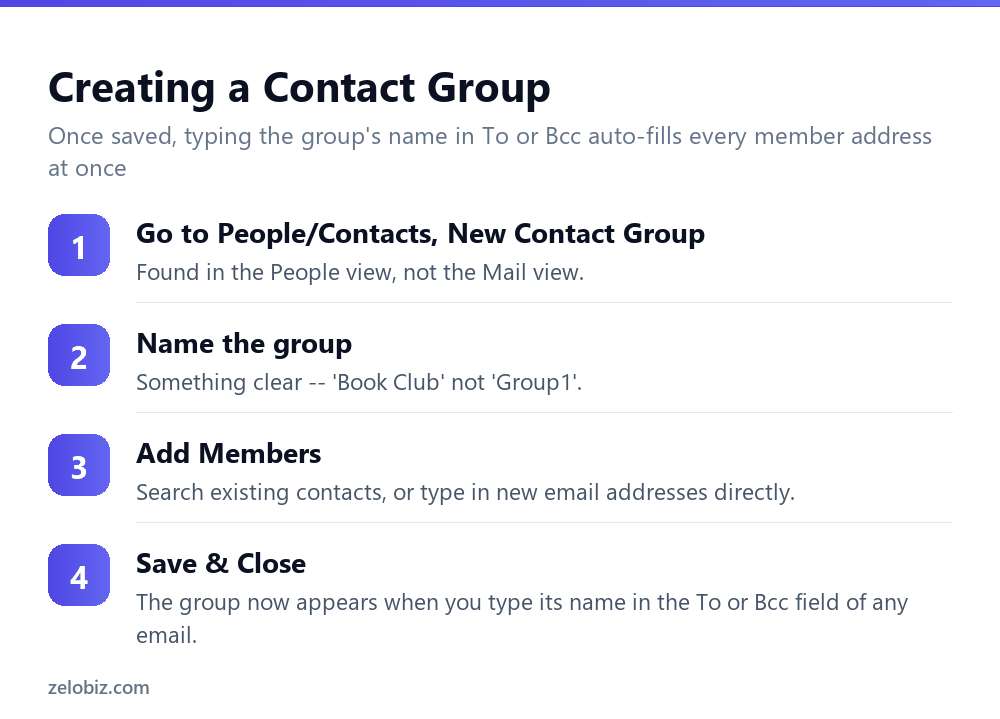
Switch to the People (or Contacts) view in Outlook — a different section from your Mail inbox, usually accessible via an icon in the bottom-left navigation bar.
Click New Contact Group, and give it a clear, descriptive name — this is what you’ll type later to bring up the group, so something memorable and specific (“Marketing Team” rather than “Group1”) saves confusion down the line.
Click Add Members, and choose from your existing Outlook contacts, your organization’s address book if applicable, or select “New E-mail Contact” to add someone by typing their address directly without needing them saved as a full contact first.
Save & Close. The group is now available — start typing its name into the To or Bcc field of any new email, and Outlook will offer it as an autocomplete suggestion.
To, Cc, or Bcc for the group — this choice matters
Once the group exists, where you put it in a new email has a real practical consequence worth thinking about before sending, not after.
Placing the group in To or Cc means every recipient can see the full list of everyone else’s email addresses in the message header. Fine for a team that already knows and works with each other.
Placing the group in Bcc instead sends the same content to everyone individually without revealing the other recipients’ addresses to each other — generally the more considerate and privacy-respecting default for a mailing-list-style group (newsletter-style updates, a community group, anything where members may not know or want their address shared with strangers on the same list).
💡 Pro tip: When using Bcc for a group, it’s common practice to put your own address in the To field so the email doesn’t appear to have no recipient at all — purely cosmetic, but it avoids an oddly empty-looking To line.
Editing group membership
Open the Contact Group from the People view at any time to add or remove members as circumstances change — someone joins the team, someone leaves the committee. Double-click the group, use Add Members or select and remove an existing one, then Save & Close again.
Important distinction: updating the group’s membership only affects future emails sent to it. It has no retroactive effect on messages already sent — adding someone today doesn’t mean they now have copies of last month’s emails to that group, and removing someone doesn’t unsend anything they already received.
A worked example: a group for a recurring event
Say you organize a monthly book club with a dozen members, and each month means emailing everyone about the next meeting’s date, location, and book.
Go to the People view, New Contact Group, name it “Book Club” clearly, and click Add Members. Search your existing contacts for anyone already saved, and use New E-mail Contact to add anyone whose address you have but who isn’t saved as a full contact yet. Save & Close once everyone is in the list.
For the monthly announcement itself, put the group in Bcc rather than To — members of a casual book club generally don’t need or want their personal email addresses visible to everyone else on the list, and Bcc avoids that entirely while still reaching everyone with the same content. Put your own address in the To field so the message doesn’t look like it has no recipient at all.
As membership changes over time — someone joins, someone drops out — open the saved group and update it directly rather than maintaining a separate list elsewhere. The group itself becomes the single source of truth for who’s currently receiving the monthly email, rather than something reconstructed from memory each time.
Nesting one group inside another
A Contact Group can include another existing Contact Group as one of its members, not just individual people — useful when a broader group is genuinely made up of smaller sub-groups. A company-wide “All Staff” group, for instance, might be built by adding the “Sales Team” and “Support Team” groups as members rather than re-adding each individual person to a third, separate list.
This keeps membership management centralized — updating the Sales Team group when someone joins automatically reflects in anything that includes Sales Team as a member, without needing to separately update every larger group that happens to include them.
Exporting a group for use outside Outlook
If a group’s membership needs to be used somewhere other than Outlook — imported into another tool, or shared as a plain list with someone — open the group and note that individual member addresses can be copied out manually, or the broader contacts folder containing the group can be exported via File › Open & Export › Import/Export › Export to a file, choosing a format like a .csv that other tools can generally read directly.
When something’s not working right
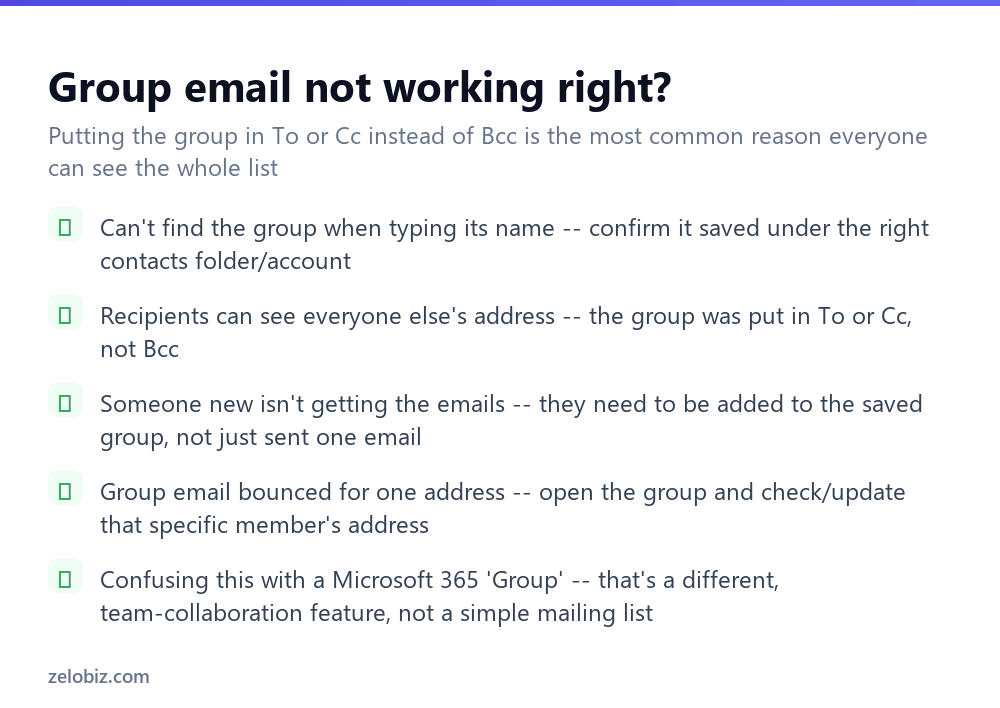
Can’t find the group by typing its name — confirm it saved to the correct contacts folder, particularly if you manage more than one email account with separate contact lists in the same Outlook installation.
Everyone can see everyone else’s address — the group was placed in To or Cc rather than Bcc. There’s no way to fix this after sending; it needs to be corrected on the next email by choosing the field deliberately.
Someone new isn’t receiving group emails — they need to be added to the saved Contact Group itself, not just sent one individual email separately. Being cc’d once doesn’t add someone to the group going forward.
One address in the group is bouncing — open the group, find that specific member, and check or correct their saved address; a single wrong address in a group is easy to overlook among several correct ones.
- ✓Use Bcc for a group whose members don’t need to see each other’s addresses
- ✓Give the group a clear, specific name you’ll remember later
- ✓Remember membership changes only affect future emails, not past ones
- ✓Update the saved group itself, not just one-off cc’s, when someone new joins
- ✓Check the specific member’s address if one bounces rather than resending to the whole group
- ✕Defaulting to To or Cc for a group where privacy between members matters
- ✕Naming a group something generic like ‘Group1’ that means nothing later
- ✕Assuming a membership change retroactively affects previously sent emails
- ✕Confusing a Contact Group with a Microsoft 365 Group, a different collaboration feature
- ✕Retyping the same list of addresses by hand every time instead of saving a group once
Frequently asked questions
How do I create a group email list in Outlook?
Go to the People view, click New Contact Group, name it, and use Add Members to build the list. Type the group’s name in To or Bcc on any email to reach everyone in it.
Should I use To, Cc, or Bcc for a group email?
Bcc is usually the more considerate choice when members don’t need to see each other’s addresses, such as a newsletter-style list. To or Cc is fine for a team that already works together.
Does adding someone to a group affect emails I already sent?
No. Group membership changes only apply to future emails sent to that group, not retroactively to anything already sent.
What’s the difference between a Contact Group and a Microsoft 365 Group?
A Contact Group is a personal saved mailing list. A Microsoft 365 Group is a broader collaboration feature with a shared mailbox, calendar, and files — a different tool entirely.
Why can everyone in my group email see each other’s addresses?
The group was placed in the To or Cc field instead of Bcc. Use Bcc going forward if that visibility isn’t wanted.
Can I add someone to a Contact Group without them being a saved contact first?
Yes. Use Add Members, New E-mail Contact to add someone by typing their address directly.
- →Automate what happens to group replies: how to create a rule in Outlook
- →Time a group send for the right moment: how to schedule an email in Outlook
- →Keep group threads organized: how to archive emails in Outlook
- →Add a signature for group sends: how to make a signature in Outlook