

To archive emails in Outlook, select the message (or messages) and click the Archive button in the ribbon, or press Backspace as a keyboard shortcut. This moves the email out of your inbox into a dedicated Archive folder — it isn’t deleted, remains fully searchable, and can be moved back to the inbox at any time. For automatically archiving older mail on a schedule, classic desktop Outlook also offers AutoArchive under File › Options › Advanced.
Archive vs Delete — a genuinely different action
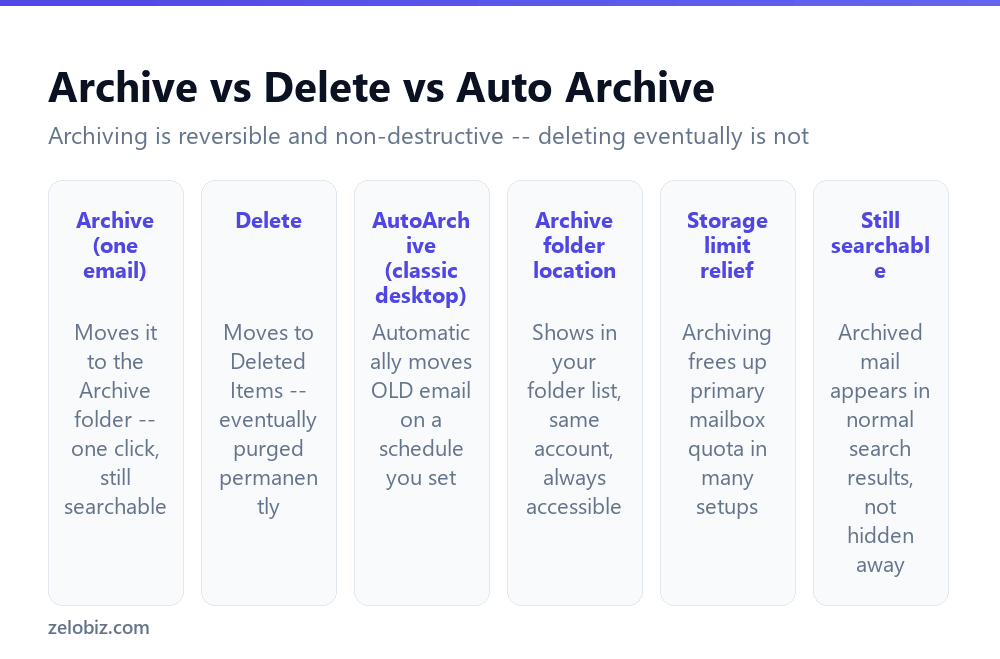
These get mentally lumped together as “getting rid of an email,” but they do meaningfully different things, and it’s worth being clear on the distinction before using either as a routine habit.
Archive moves the message to a dedicated Archive folder, still part of your mailbox, still fully searchable, and easily moved back to the inbox if needed. Nothing about the email changes except its location.
Delete moves the message to Deleted Items, which is itself eventually and automatically emptied on a schedule (set under account or retention policy settings, varying by organization) — at which point it’s genuinely gone, not just moved.
AutoArchive is a scheduled, automatic version of the manual Archive action, moving email older than a threshold you set (say, anything over 6 months old) without needing to select and archive each one by hand.
If you’re unsure whether to archive or delete something, archive it. It costs nothing to keep, stays out of your inbox exactly the same way, and remains available if you turn out to need it later — deleting is the harder choice to reverse.
Archiving emails manually
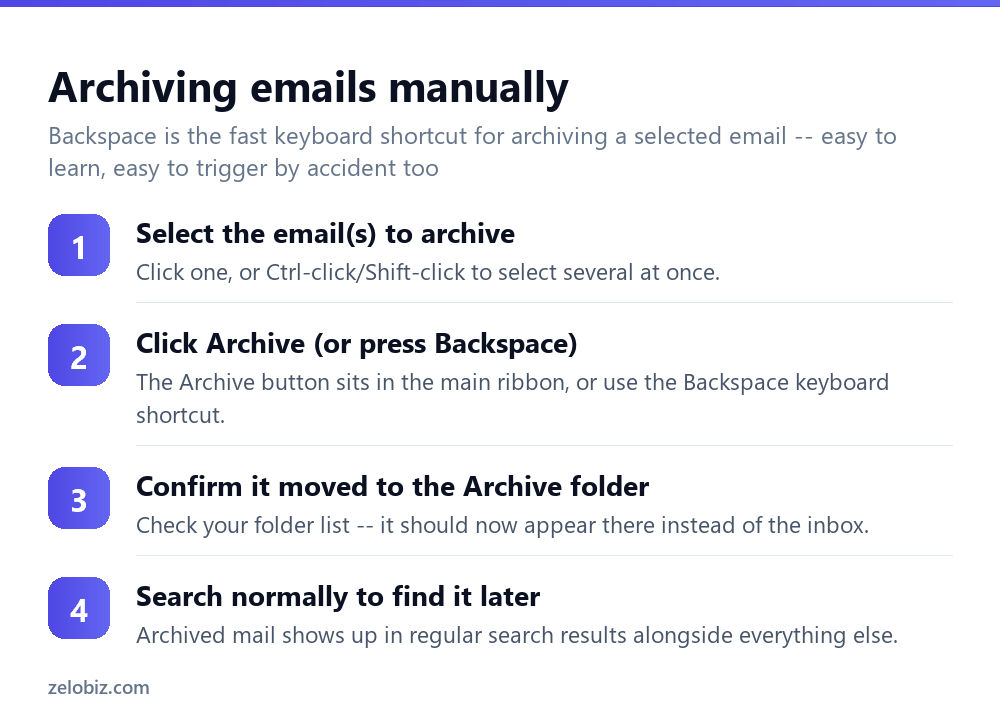
Select the email you want to archive — or select several at once with Ctrl-click for individual messages or Shift-click for a consecutive range.
Click the Archive button, typically found directly in the main ribbon or Home tab, or use the Backspace key as a quick shortcut once you’re used to it. Both do the same thing — moving the selected message(s) to the Archive folder immediately.
Check your folder list on the left side of the Outlook window; an Archive folder should now be visible (if it wasn’t already) containing the messages you just moved.
💡 Pro tip: Backspace being the archive shortcut is worth knowing precisely because it’s easy to hit by accident while navigating an email with the keyboard. An accidentally archived email isn’t lost, though — it’s sitting right there in the Archive folder, one move back to the inbox away.
Setting up AutoArchive for hands-off cleanup
In classic desktop Outlook, File › Options › Advanced › AutoArchive Settings lets you configure automatic archiving on a recurring schedule — how often it runs, how old an email needs to be before it’s eligible (a common setting is 6 months or a year), and whether it applies uniformly to all folders or can be configured per-folder for more control.
This is worth setting up once for anyone whose inbox tends to accumulate old mail faster than they manually clean it out — it runs quietly in the background on the schedule you define, with no ongoing manual effort required afterward.
Finding archived emails again
Archived mail behaves exactly like inbox mail for search purposes — it shows up in normal Outlook search results alongside everything else, as long as your search scope includes it. If a search seems to be missing an email you know you archived, check the search scope dropdown (often defaulting to “Current Folder” or “Current Mailbox”) and widen it to All Mailboxes or All Folders to make sure the Archive folder is actually included in what’s being searched.
Archive folder location and account type differences
Where exactly the Archive folder lives, and whether the Archive button is available at all, depends somewhat on account type. Microsoft 365 and Exchange accounts generally show a full Archive feature. Some other account types (certain IMAP or POP setups) may not offer the same one-click Archive button, in which case creating a manually-named folder and moving email into it by hand accomplishes largely the same practical result, just without the dedicated button or keyboard shortcut.
A worked example: an inbox with years of accumulated mail
Say your inbox has grown to several thousand messages over a few years, and it’s become slow to browse and hard to find anything recent among older mail that’s rarely, if ever, referenced anymore.
Rather than manually selecting and archiving years of individual emails, set up AutoArchive once: File › Options › Advanced › AutoArchive Settings, set it to run periodically (monthly is reasonable for most people), and set the age threshold to something like 12 months — old enough that anything caught is genuinely settled, recent enough that it still meaningfully thins out an inbox that’s accumulated years of mail.
After the first run, check the Archive folder briefly to confirm it moved what you expected and nothing surprising — an active ongoing conversation that happens to be over a year old but still relevant, for instance. From there, it runs quietly in the background on schedule, and the inbox stays close to just recent, active mail without ongoing manual effort.
Archiving before switching email providers or leaving a job
A specific situation worth planning for deliberately: if you’re leaving a role or switching primary email providers and want to preserve records rather than lose access to them, archiving alone within the same mailbox won’t help once that mailbox itself becomes inaccessible.
In that case, the relevant action is exporting the Archive folder (and any other folders worth keeping) to a .pst file via File › Open & Export › Import/Export › Export to a file, which creates a standalone file containing the selected mail that can be opened later in Outlook on a different account or computer, independent of the original mailbox’s continued existence. Doing this well before an account actually closes avoids a last-minute scramble to preserve records once access is already gone, which is a genuinely stressful position to be in if it’s discovered too late to do anything about it.
When something’s not behaving as expected
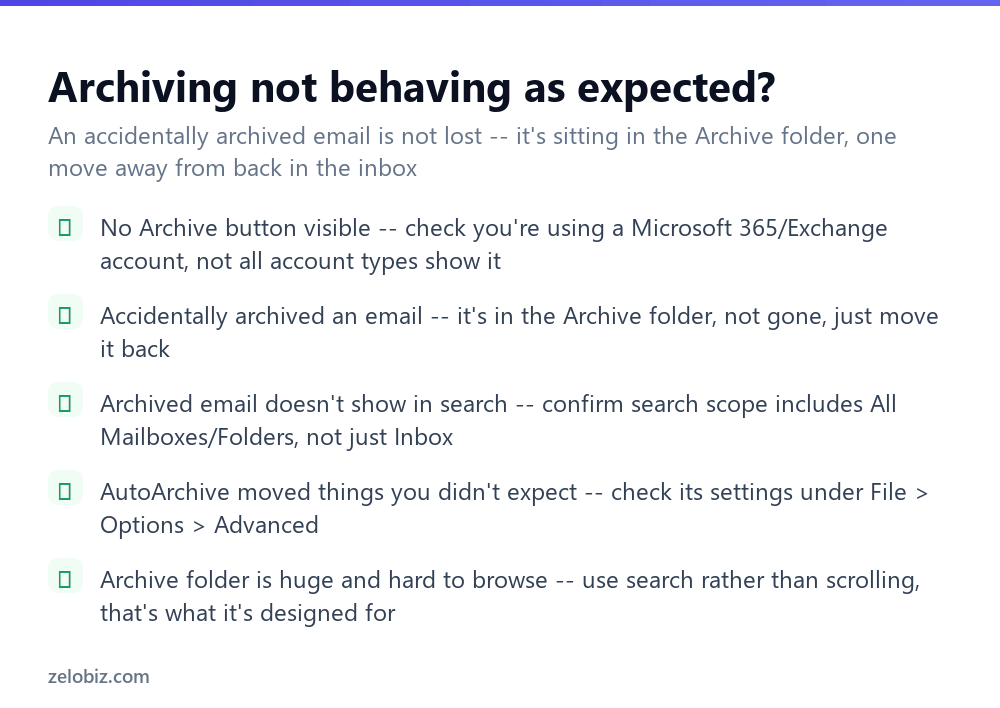
No Archive button visible — check your account type. Not every connected account type in Outlook supports the built-in one-click Archive feature; a manual folder can serve the same purpose if it’s genuinely unavailable.
Accidentally archived something — it’s not gone. Open the Archive folder, find the message, and move it back to the Inbox (drag it, or right-click and Move).
An archived email isn’t showing up in search — widen the search scope to All Mailboxes or All Folders rather than the current folder only.
AutoArchive moved things you didn’t expect — review its settings under File, Options, Advanced, AutoArchive Settings; the age threshold or per-folder configuration may be broader than intended.
The Archive folder has become huge and unwieldy — this is expected behavior, not a problem to fix. It’s designed to be searched, not browsed page by page; rely on search rather than trying to scroll through it manually, the same way you’d search a large inbox rather than scrolling through years of accumulated mail one message at a time.
A quick reference
Unsure whether something’s worth keeping at all: archive it, don’t delete it — the cost of keeping is nearly zero and the decision is easily reversed later. Inbox feels cluttered but everything in it is still relevant: that’s a filtering or rules problem, not an archiving one — see the rules guide linked below. Inbox has years of settled, no-longer-active mail: set up AutoArchive once rather than manually triaging years of backlog by hand.
- ✓Archive rather than delete when you’re unsure which is appropriate
- ✓Set up AutoArchive once for hands-off, ongoing inbox cleanup
- ✓Widen search scope to All Mailboxes if an archived email isn’t turning up
- ✓Remember Backspace archives the selected email — easy to trigger by accident
- ✓Rely on search rather than manual browsing once the Archive folder grows large
- ✕Deleting an email when archiving would have been the safer, reversible choice
- ✕Assuming an accidentally archived email is lost — it’s simply in a different folder
- ✕Forgetting to widen search scope and concluding an archived email vanished
- ✕Setting an AutoArchive age threshold without checking what it will actually catch
- ✕Manually scrolling through a large Archive folder instead of searching it
Frequently asked questions
How do I archive an email in Outlook?
Select the message and click Archive in the ribbon, or press Backspace. It moves to the Archive folder, not deleted, and remains fully searchable.
What’s the difference between archiving and deleting an email in Outlook?
Archiving moves it to a searchable Archive folder, fully reversible. Deleting moves it to Deleted Items, which is eventually emptied permanently.
Can I get an email back after archiving it?
Yes, at any time. Open the Archive folder and move the message back to your Inbox.
What does AutoArchive do in Outlook?
It automatically moves email older than a threshold you set to the Archive folder on a recurring schedule, configured under File, Options, Advanced, AutoArchive Settings.
Why can’t I find an archived email when I search?
Your search scope is likely limited to the current folder. Widen it to All Mailboxes or All Folders to include the Archive folder in results.
Why is there no Archive button in my Outlook?
It depends on account type — not all connected account types (some IMAP or POP setups) support the built-in Archive feature. A manually created folder works as an alternative.
- →Stop unwanted mail from arriving at all: how to block spam emails
- →Automate sorting before it needs archiving: how to create a rule in Outlook
- →Reduce clutter at the source: how to unsubscribe from emails
- →Fix a message before it needs archiving: how to recall an email in Outlook